How to Install Windows Wireless Display App on Windows 11

You install the Windows Wireless Display app on Windows 11 to make your PC a Miracast-compatible wireless display receiver.
This app allows your Windows 11 computer to act as a wireless hub, enabling other Miracast-enabled devices like your smartphone or another laptop to mirror their screen directly to your PC’s monitor.
You can use this to easily share videos, photos, or presentations wirelessly, eliminating the need for any HDMI or other cables. This setup effectively turns your PC monitor into a secondary wireless screen.
Install the Wireless Display app through Settings by navigating to Apps > Optional features > View features. Search for “Wireless Display,” select it, and click Install. This turns your PC into a Miracast receiver.
How to install the Windows Wireless Display app
You can install the Windows Wireless Display app on your Windows 11 PC directly from the Settings menu by following a few easy steps.

In the Settings window, click on Apps, then select Optional features.
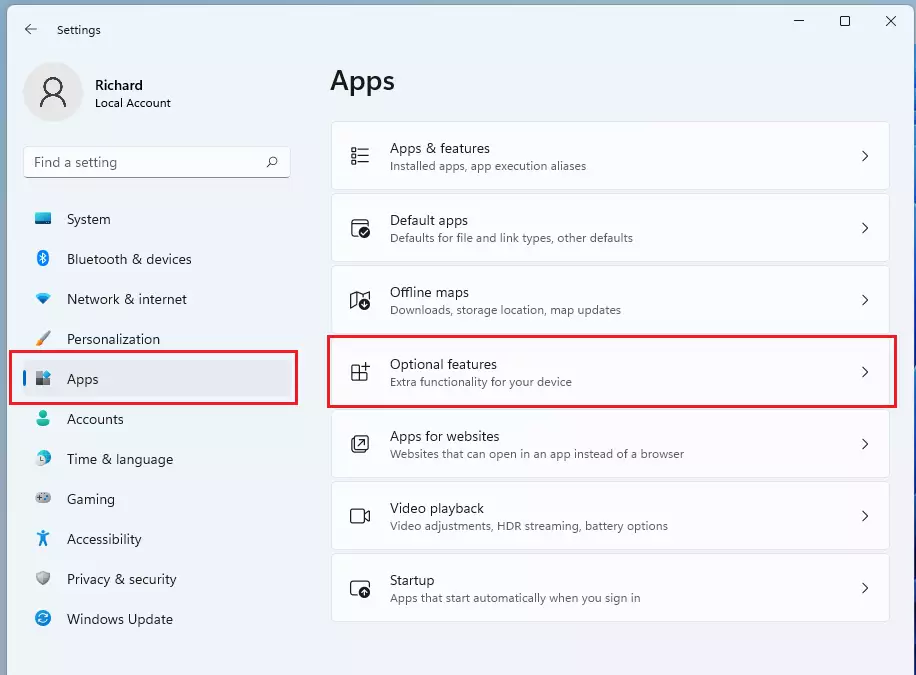
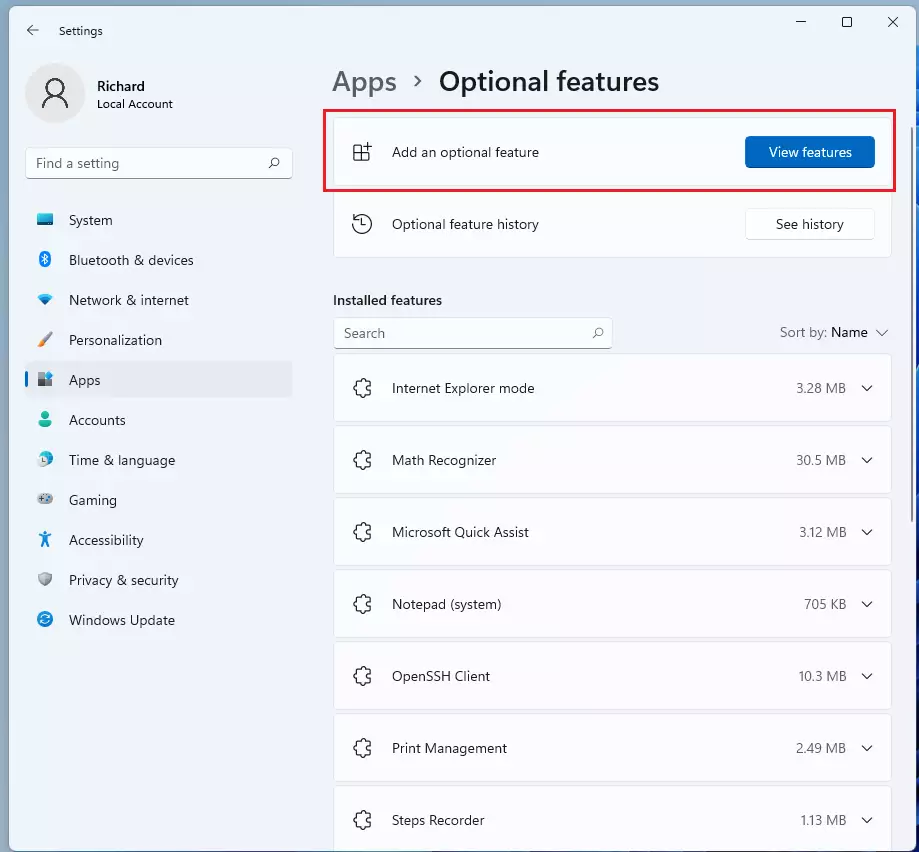
Find the button labeled View features and click it.
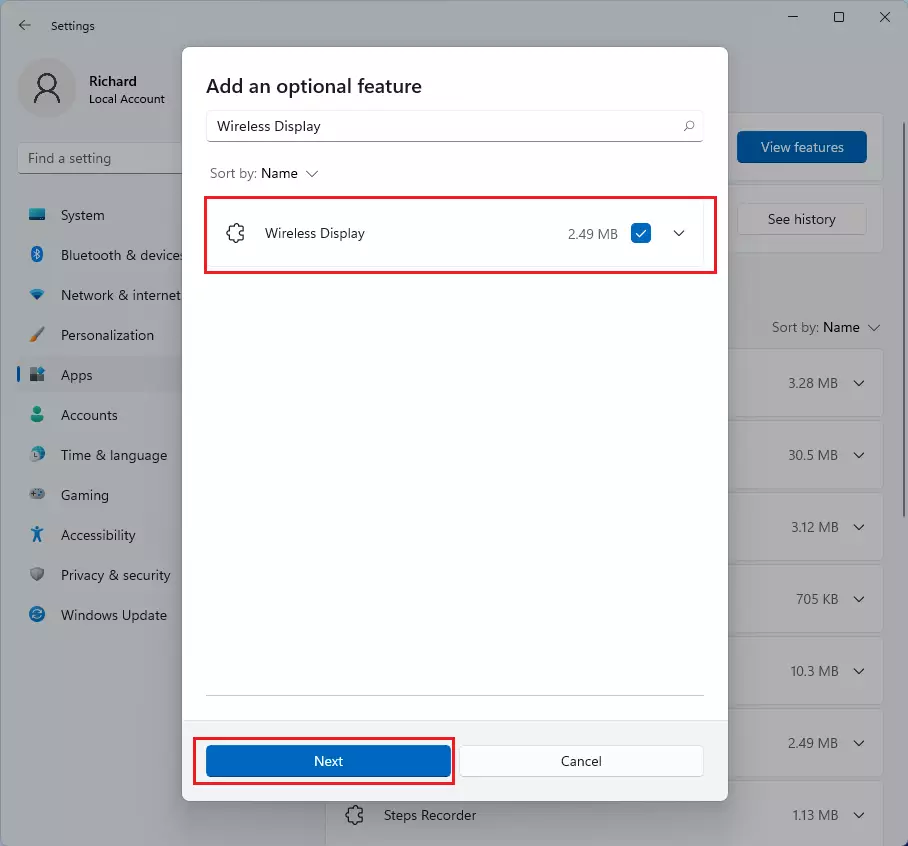
In the pop-up box, type “Wireless Display” in the search bar. Check the box next to the app name and click Next.
Click the Install button. You’ll need admin privileges to modify system features.
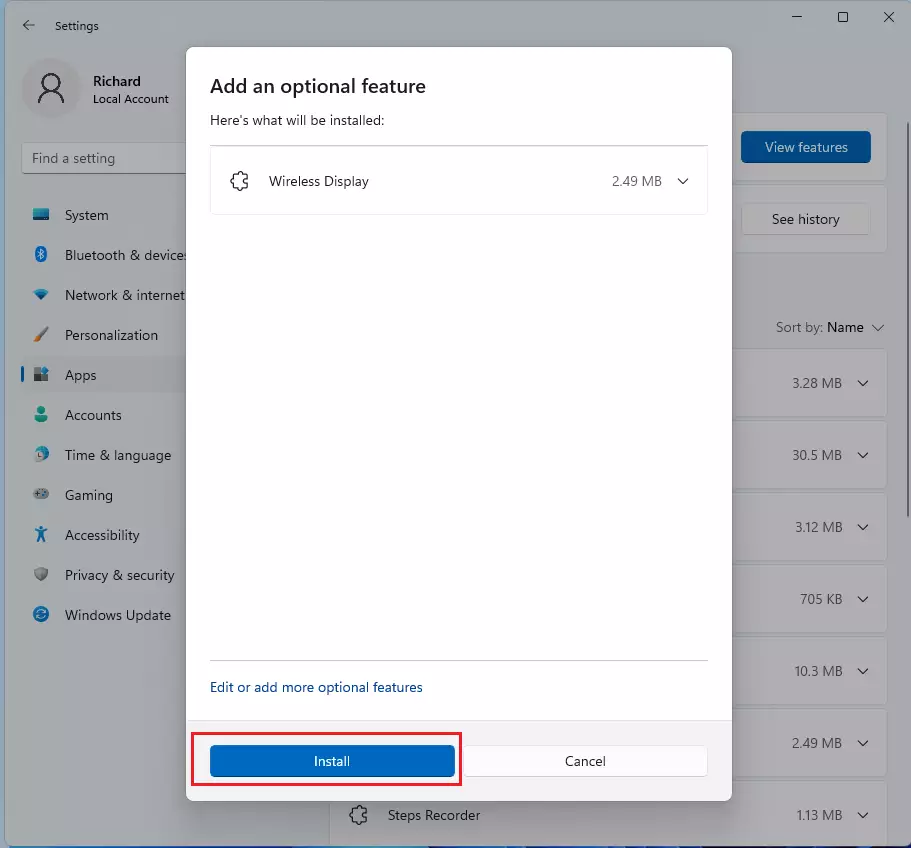
Once the progress bar finishes, the app is installed and ready to use. You can also download the management tool directly from the official Microsoft Store.
Managing Firmware and Troubleshooting
Keeping your Miracast adapter’s firmware up-to-date is important for a smooth connection, and the Microsoft Wireless Display Adapter app helps you check this.
How to update adapter firmware
- Open the Microsoft Wireless Display Adapter app.
- Connect to your adapter.
- Look for the Firmware section to see if an update is available.
- Follow the on-screen prompts to install.
Overscan and Display Settings
If your screen appears cut off or blurry when using the Wireless Display app, you can fix overscan issues by adjusting the display settings within the app.
Pro-tip: If you notice audio-sync issues, go to your Sound settings and ensure your output device is set to the wireless display. Sometimes, changing the audio format in the Advanced Sound settings can fix the delay.
How to use the Wireless Display app
After installing the Windows Wireless Display app, you can set up your PC to receive wireless connections by going to Settings, then System, and selecting ‘Project to this PC’.
- Available everywhere on secure networks
- Available everywhere
- Always Off (Recommended)
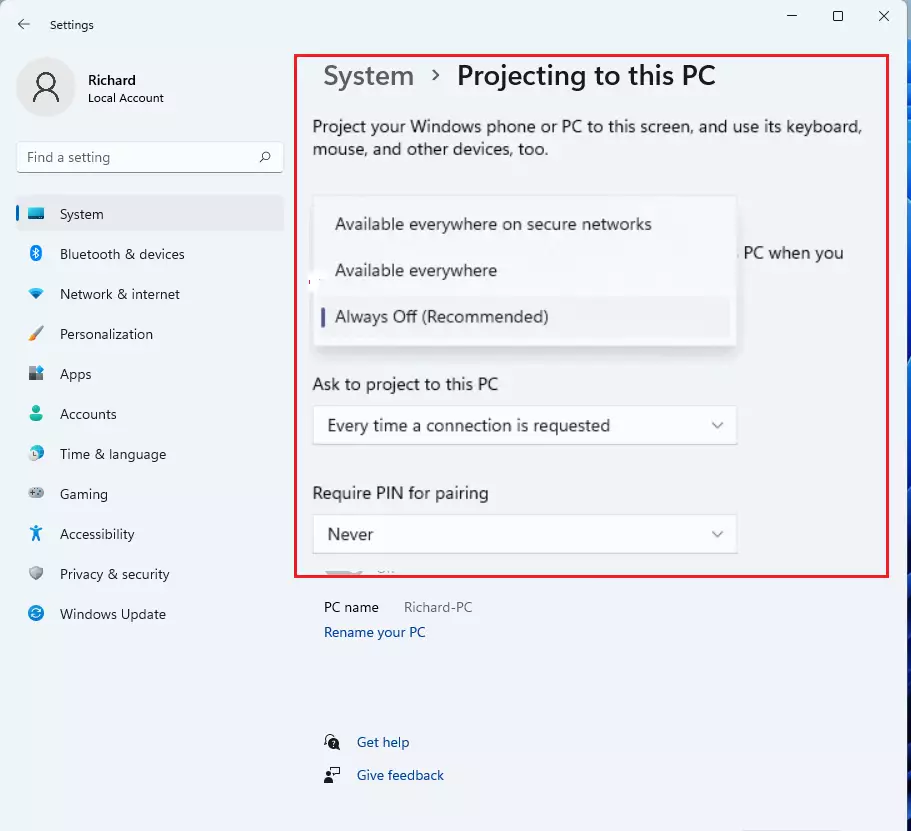
Click the link that says Launch the Connect app to project to this PC. Your computer will now wait for a signal from another device.
How to uninstall the app
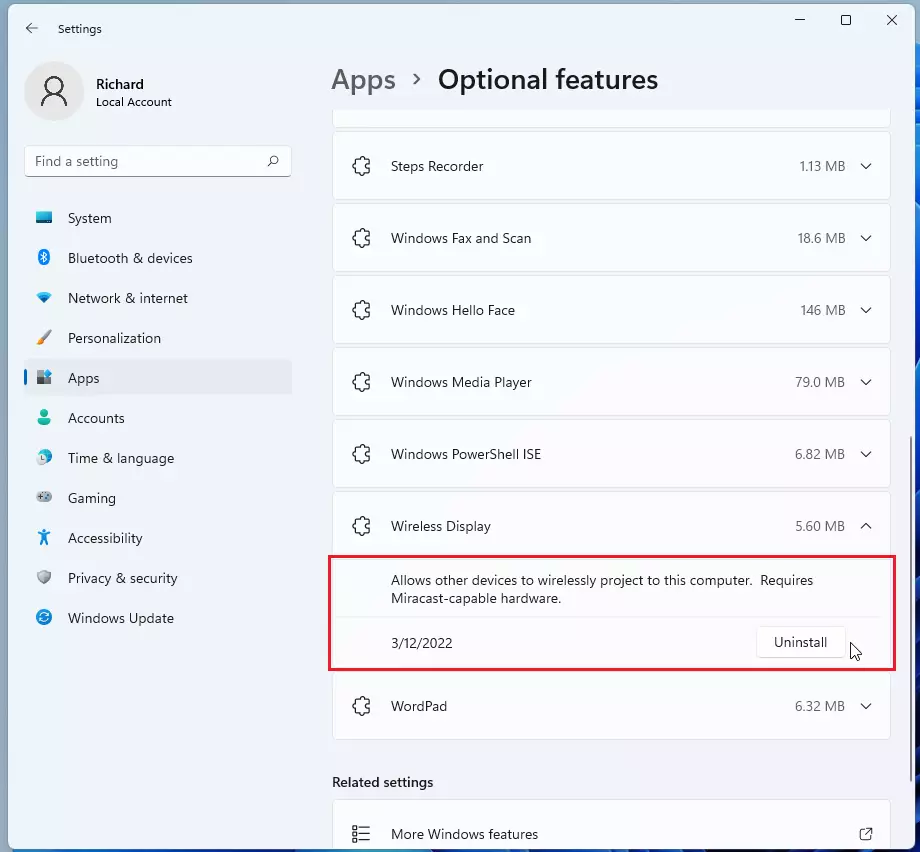
If you no longer need this feature, you can remove it to save space. Go to Settings > Apps > Optional features. Find the Wireless Display tile in your list of installed features, click it to expand, and select Uninstall.
Summary
The Windows Wireless Display app lets you mirror your screen wirelessly using Miracast, and it’s easy to install through the Optional features menu.
Why is my Microsoft Wireless Display Adapter not connecting?
Connection problems often happen because of outdated display drivers or firewall settings. Make sure your PC and adapter are on the same network if needed, and confirm your Wi-Fi adapter supports Miracast. Trying to restart both your PC and the adapter can often fix temporary connection glitches.
Do I need the app if I have a 🪟 Windows 11 PC?
Windows 11 has built-in casting features, but you need the Wireless Display app to act as a receiver. If you only want to send your screen to a TV, you do not need the app. You only need it to turn your PC into a display.
Is the Microsoft Wireless Display Adapter app free?
Yes, the Microsoft Wireless Display Adapter app is completely free to download from the Microsoft Store. It is designed to help users manage settings, update firmware, and troubleshoot connection issues for their wireless display hardware.
Was this guide helpful?

About the Author
Richard
Tech Writer, IT Professional
Richard, a writer for Geek Rewind, is a tech enthusiast who loves breaking down complex IT topics into simple, easy-to-understand ideas. With years of hands-on experience in system administration and enterprise IT operations, he’s developed a knack for offering practical tips and solutions. Richard aims to make technology more accessible and actionable. He's deeply committed to the Geek Rewind community, always ready to answer questions and engage in discussions.



No comments yet — be the first to share your thoughts!