How to Enable Automatic Page File Size in Windows 11


You enable automatic page file size in Windows 11 to allow the OS to dynamically manage virtual memory, preventing potential system instability from manual misconfiguration.
The page file, often found at 📁C:\pagefile.sys, acts as an extension of your physical RAM, storing less-frequently used data when your actual memory fills up.
By letting Windows 11 automatically adjust the page file allocation, you ensure optimal performance based on your system’s current demands.
This feature is crucial for preventing crashes and ensuring your PC can create kernel memory dumps if critical errors occur.
Check the box Automatically manage paging file size for all drives in the Virtual memory settings. Access this through Settings > System > About > Advanced system settings > Performance Settings > Advanced tab > Virtual memory > Change. Restart your computer to apply the changes.
How to Enable Automatic Page File Size in 🪟 Windows 11
Turning on the automatic page file size in Windows 11 is simple and helps your computer manage memory better.
1. Press Windows key + I to open Settings.

2. Click System, then scroll down and select About.
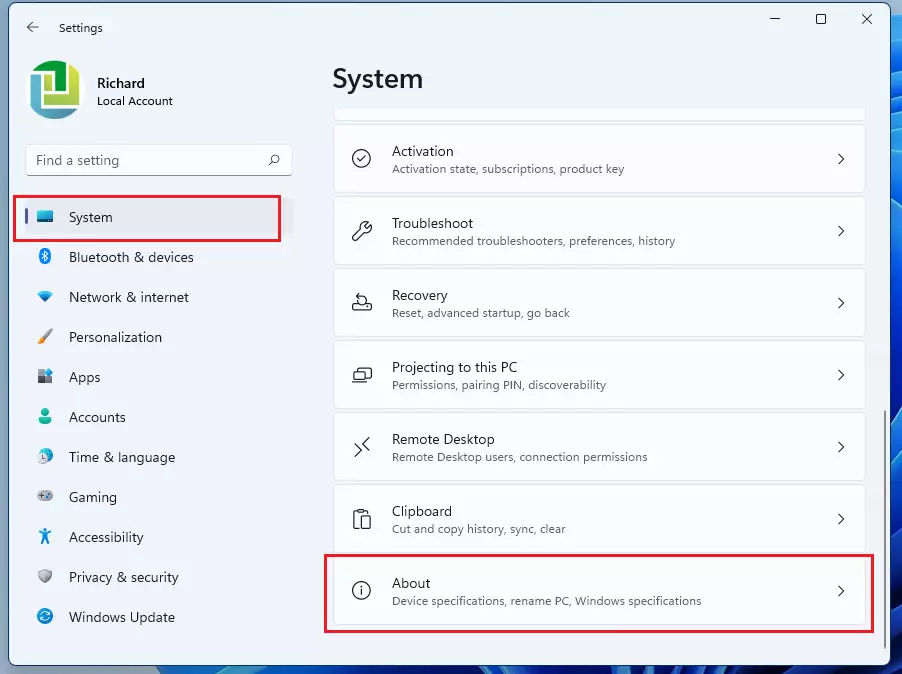
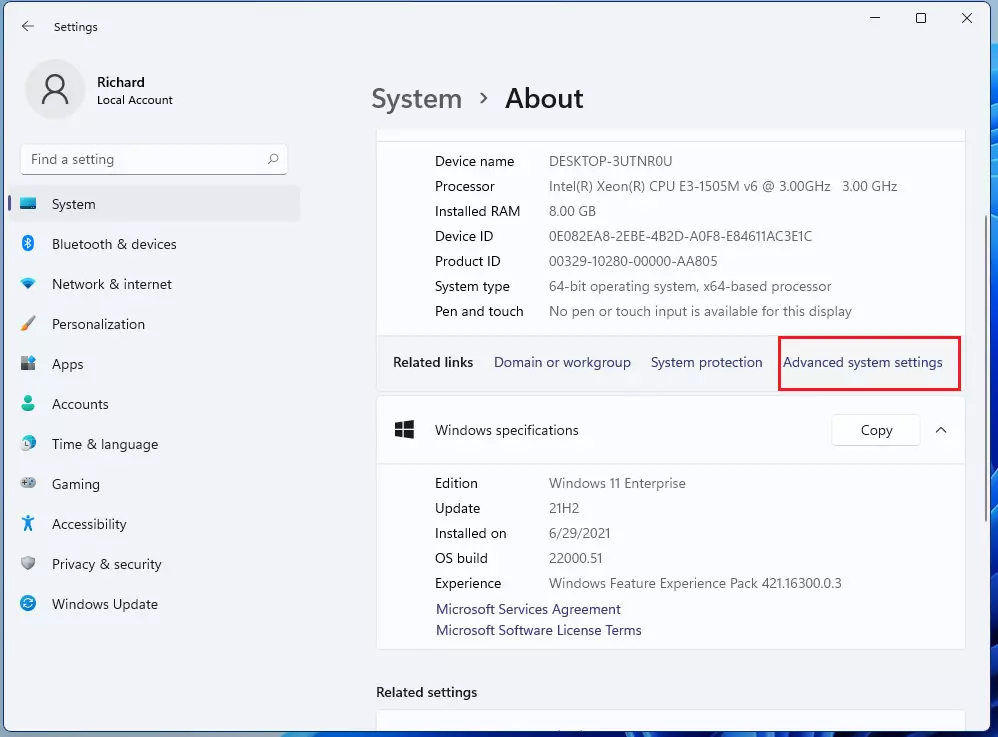
3. Click Advanced system settings.
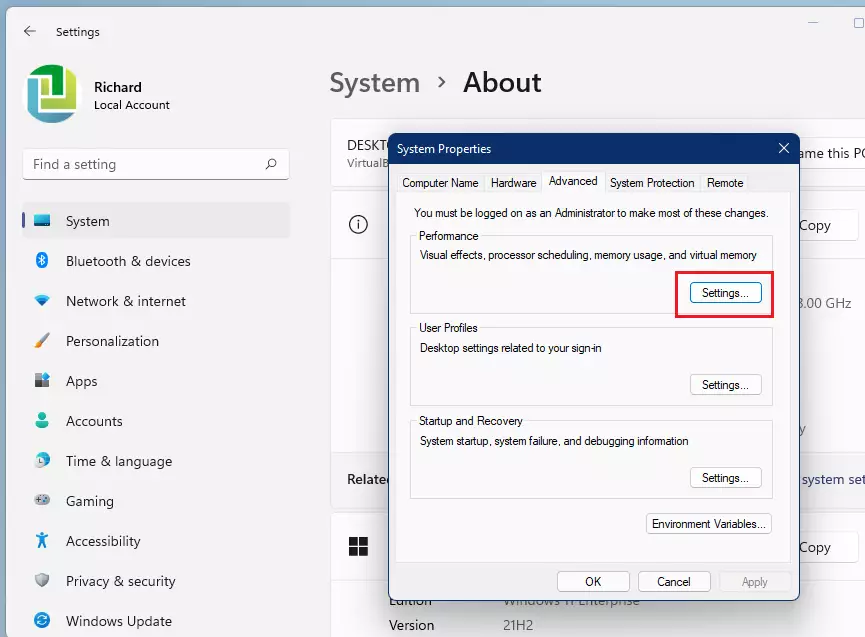
4. Under the Advanced tab, click Settings in the Performance section.
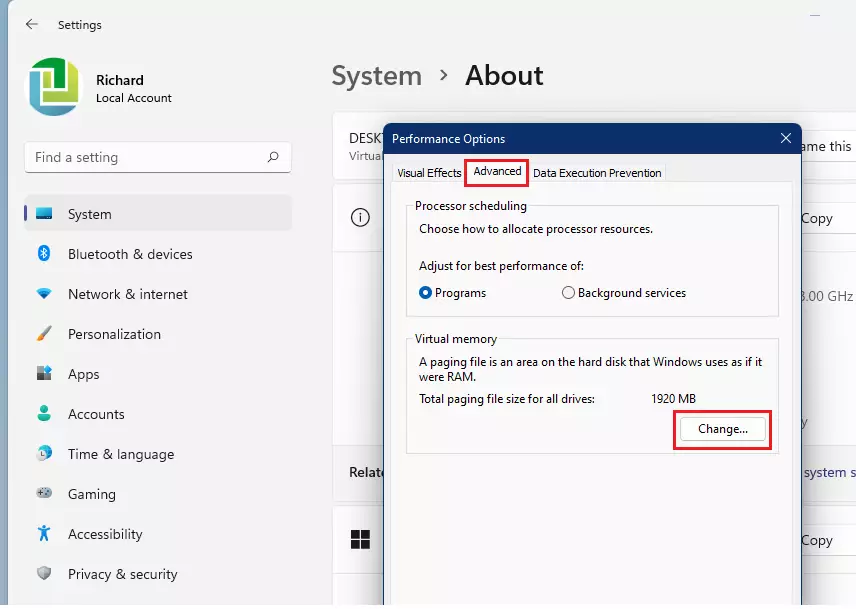
5. Click the Advanced tab and select Change under Virtual memory.
6. Check the box Automatically manage paging file size for all drives.
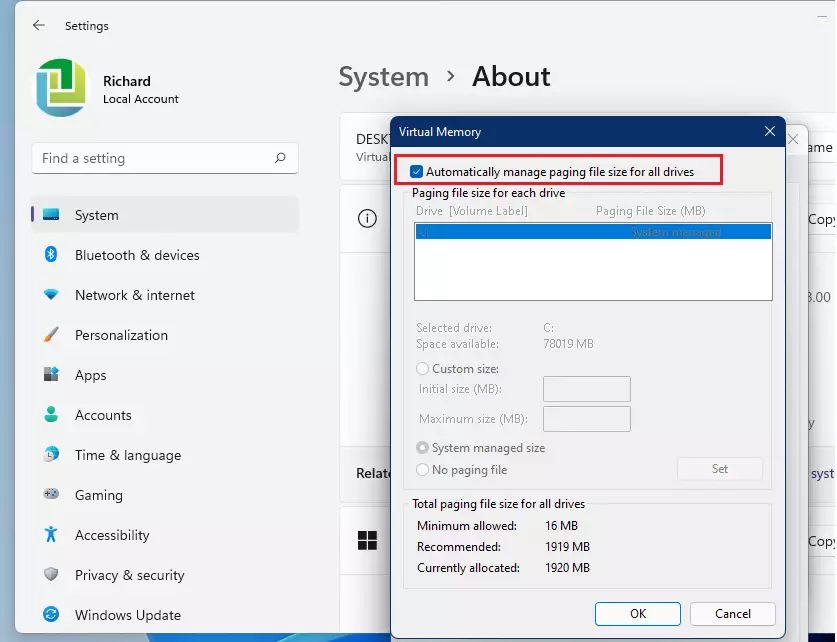
7. Restart your computer to apply changes.
How to Enable Automatic Page File Size in 🪟 Windows 10
The process is similar in Windows 10. Right-click This PC on your desktop, select Properties, then click Advanced system settings. Follow the same steps listed above to reach the Virtual memory menu.
Performance and Troubleshooting
Even with a lot of RAM, like 32GB or more, it’s usually best to keep the automatic page file size turned on.
If you’d like to dive deeper into the technical side, Microsoft’s official documentation on paging files has more information.
Summary
Enabling the automatic page file size is the best way to ensure your Windows system manages virtual memory effectively. It prevents crashes, supports system diagnostics, and optimizes performance without requiring manual adjustments. Always keep this setting enabled unless you have a specific technical reason to change it.
Does an automatic page file size slow down my PC?
No, it does not slow down your PC. In fact, it improves performance by allowing Windows to manage memory efficiently. If the file is too small, your system may experience slowdowns or errors. Automatic management ensures the system has exactly what it needs to run smoothly.
Can I move the page file to a different drive to improve speed?
Yes, you can move the page file to a different drive. If you have a faster SSD, moving the page file there can improve system responsiveness. However, for most users, keeping it on the primary 📁C:\ drive is sufficient and less prone to configuration errors.
Was this guide helpful?

About the Author
Richard
Tech Writer, IT Professional
Richard, a writer for Geek Rewind, is a tech enthusiast who loves breaking down complex IT topics into simple, easy-to-understand ideas. With years of hands-on experience in system administration and enterprise IT operations, he’s developed a knack for offering practical tips and solutions. Richard aims to make technology more accessible and actionable. He's deeply committed to the Geek Rewind community, always ready to answer questions and engage in discussions.



No comments yet — be the first to share your thoughts!