How to Mount NFS Shares on Windows 11

Network File System (NFS) is a way to share files between computers on a network. Think of it as a virtual filing cabinet that multiple computers can access at the same time. Why would you want this? If you have files stored on a Linux server, you can let Windows computers access those same files without copying them around. What happens when you set it up? Your Windows machine can read and write files on the Linux server just like they’re stored locally.
NFS is especially useful in mixed environments. Maybe your office has both Windows and Linux computers. NFS lets them all work with the same files smoothly. You also get better control over who can access what files. You can set permissions for different users and groups to keep your data secure.
Set Up an NFS Share First
Before you can use NFS on Windows, you need to create and share a folder on an NFS server (usually Linux). If you haven’t done this yet, follow the instructions here:
How to install and export NFS share on Ubuntu
Once your NFS share is ready on the server, come back and continue with the steps below.
Enable NFS Services on 🪟 Windows 11
Now it’s time to prepare your Windows machine. You need to turn on a Windows feature called NFS Services.
- Open your Windows machine.
- Go to Settings > Programs > Programs and Features.
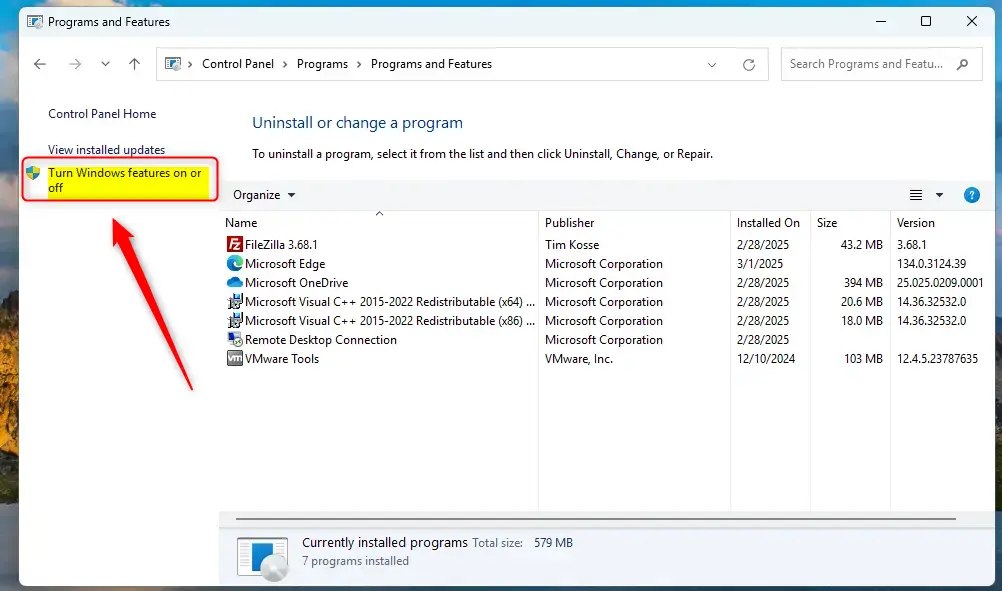
- Click on “Turn Windows features on or off” on the left side.
- A window will open. Look for NFS Services in the list.
- Check the box next to NFS Services to enable it .
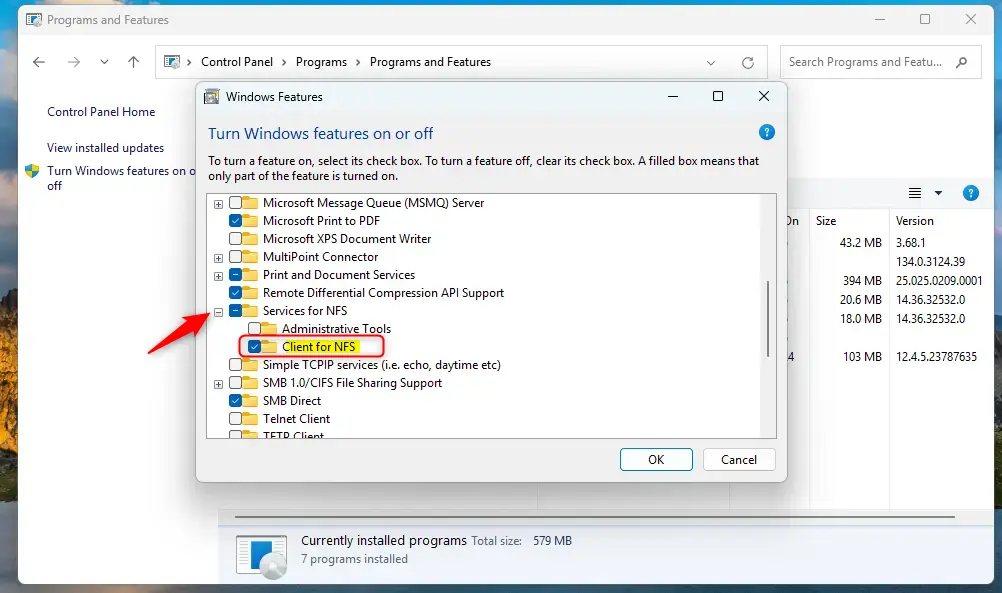
- Click OK and wait for Windows to install the feature.
- Close the window when done.
Mount the NFS Share Using Command Prompt
⚠️ Admin Required: You need admin privileges to run the next command.
Now your Windows machine is ready to access NFS shares. Follow these steps:
- Open Command Prompt as Administrator. ( Right-click on Command Prompt and select “Run as administrator.”)
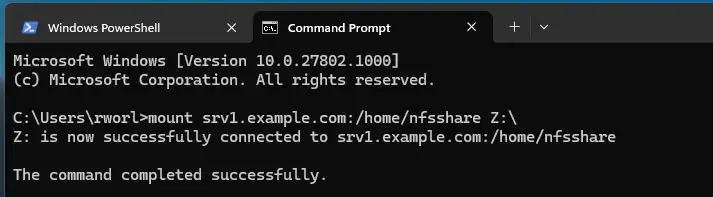
- Type the following command to mount the NFS share. Replace the server address and paths with your actual NFS server details:Code
mount 192.168.1.100:/home/nfsshare Z: - Press Enter.
What happens? Windows connects to your NFS server and links the shared folder to drive letter Z. You should see a message confirming the mount was successful.
Access Your Mounted NFS Share
Once mounted, accessing your files is simple:
- Open File Explorer on your Windows machine.
- Look for the mounted drive (labeled as Z: or whatever letter you chose).
- Click on it to view and use the files stored on your NFS server.
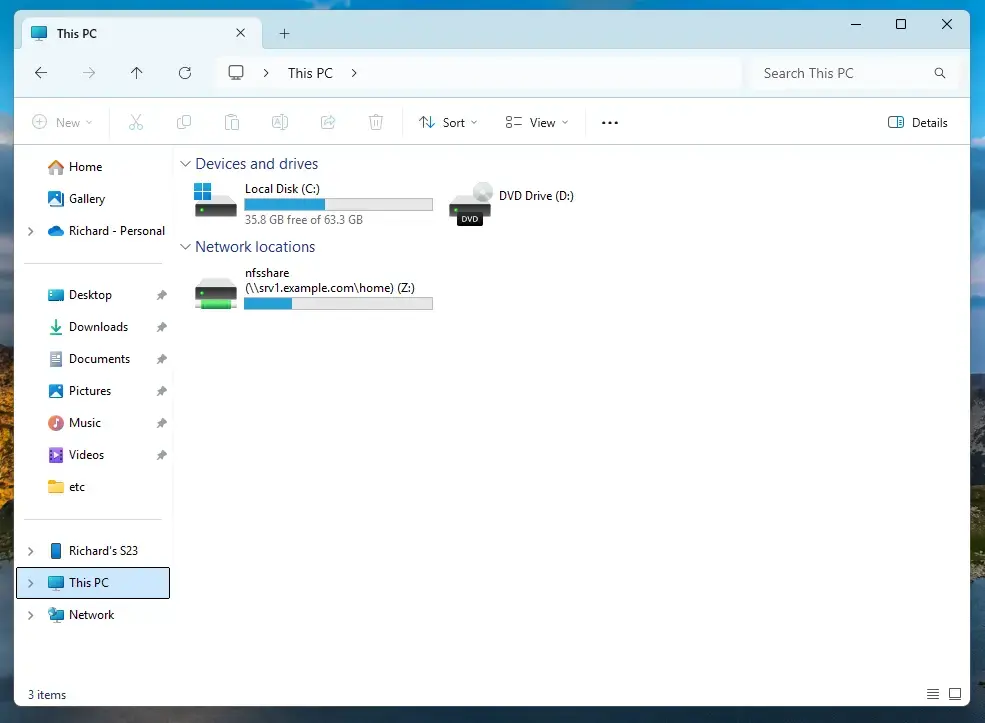
That’s it! You can now read, write, and manage files on the NFS share just like any other folder on your computer.
Summary
- What is NFS? A protocol that lets different computers share files over a network.
- Why use it? Seamlessly access files between Linux and Windows systems without copying files around.
- How to set it up: Enable NFS Services in Windows, then use Command Prompt to mount the share with the
mountcommand. - What happens when done? The shared folder appears in File Explorer and works like a regular drive on your Windows machine.
- Key benefit: Better file management and teamwork across mixed Windows and Linux environments.
Frequently Asked Questions
How do I install NFS services on Windows 11?
What is the purpose of NFS in a mixed operating system environment?
How can I mount an NFS share from the command prompt in Windows?
What are the benefits of using NFS for file sharing?
Can I access mounted NFS shares through Windows File Explorer?
Was this guide helpful?

About the Author
Richard
Tech Writer, IT Professional
Richard, a writer for Geek Rewind, is a tech enthusiast who loves breaking down complex IT topics into simple, easy-to-understand ideas. With years of hands-on experience in system administration and enterprise IT operations, he’s developed a knack for offering practical tips and solutions. Richard aims to make technology more accessible and actionable. He's deeply committed to the Geek Rewind community, always ready to answer questions and engage in discussions.




The mount command in windows 10 gives returns an error without the \\ before the ip address
Hi! Thank you for the article! Could you change from `mount 10.0.2.7/home Z:\` to `mount 10.0.2.7:/home Z:\` how on your screenshot, please.
Done… Thanks for that
on my W10, after mounting my share it did not appear under “This PC” I just mapped manually
thanks
Didn’t really work for my needs, not possible to edit existing files. I tried for hours to get real write permissions but it isn’t possible
@Kross – try this to enable write permissions – refer https://graspingtech.com/mount-nfs-share-windows-10/
I can see the directory but the files in the directory are not visible from windows. I have a network with a couple of linux machines and the 2nd linux box can see the files but windows cannot:
T:\>dir
Volume in drive T has no label.
Volume Serial Number is 0000-0000
Directory of T:\
17/11/2018 01:15 ..
17/11/2018 01:15 .
0 File(s) 8,192 bytes
2 Dir(s) 160,240,812,032 bytes free
T:\>mount \\192.168.1.5\export\video T:
fred@HTPC-A:/mnt/video$ ls -al
total 48
drwxrwxr-x 12 fred fred 4096 May 3 2019 .
drwxr-xr-x 7 root root 4096 Nov 7 2018 ..
drwxrwxr-x 2 fred fred 4096 May 8 2019 CNNs
drwxrwxr-x 9 fred fred 4096 Mar 23 2017 GoPro
drwxrwxr-x 13 fred fred 4096 Mar 23 2017 Music
drwxrwxr-x 14 fred fred 4096 Mar 23 2017 TV
fred@HTPC-A:/mnt/video$
Really thank you I have passed my exam because of your tutorial 🙂