How to Access Your Copilot Conversation History

You can access your Copilot conversation history directly within the Copilot interface on Windows 11.
Copilot conversation history is a feature that automatically saves your interactions with Microsoft Copilot, allowing you to review, search, and resume previous discussions.
This history is crucial for retrieving past advice, code snippets, or creative ideas generated by Copilot, especially useful when you’ve been working on complex tasks like troubleshooting Windows settings or drafting documents.
To find your chats, you simply open Copilot in Windows 11 and look for the history icon, typically located near the top of the chat window.
Access your Copilot conversation history by navigating to copilot.com and signing in, or by opening the Copilot app on your desktop or mobile device. Your past conversations will typically appear on the left side of the screen or within the main menu.
How to Find Your Copilot History
Using Copilot on the Web (copilot.com)
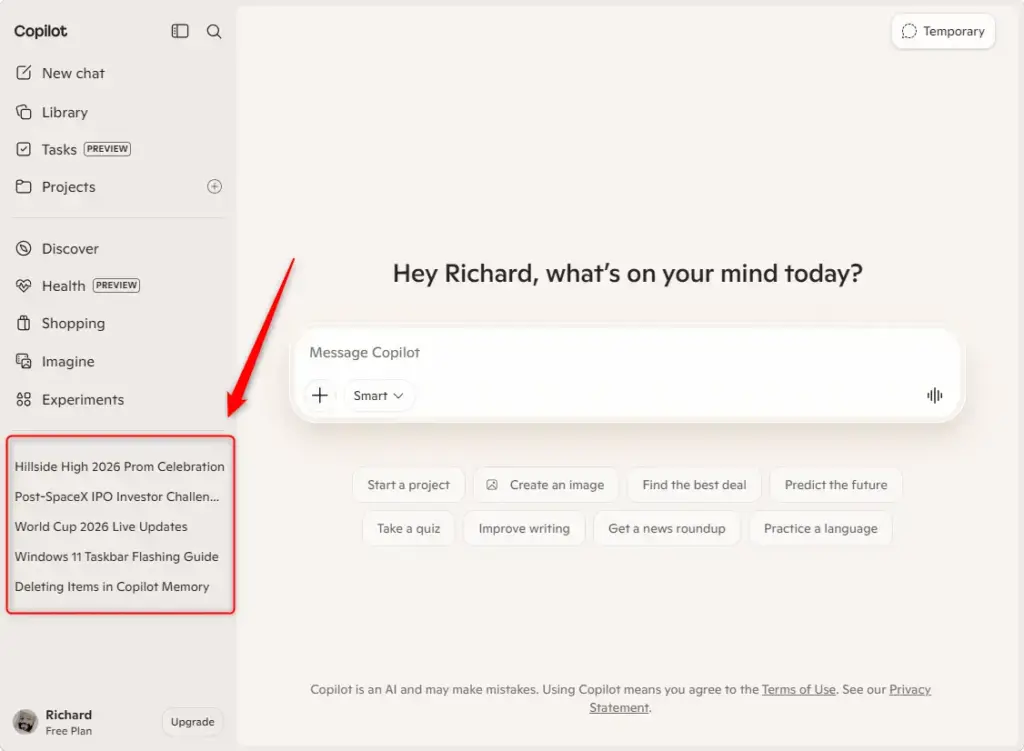
If you use Copilot in your web browser, finding your history is very similar to how you do it on the website. Go to copilot.com and sign in. You should see your past conversations on the left side of the screen. You’ll usually find them right there.
Using Copilot on Windows or macOS
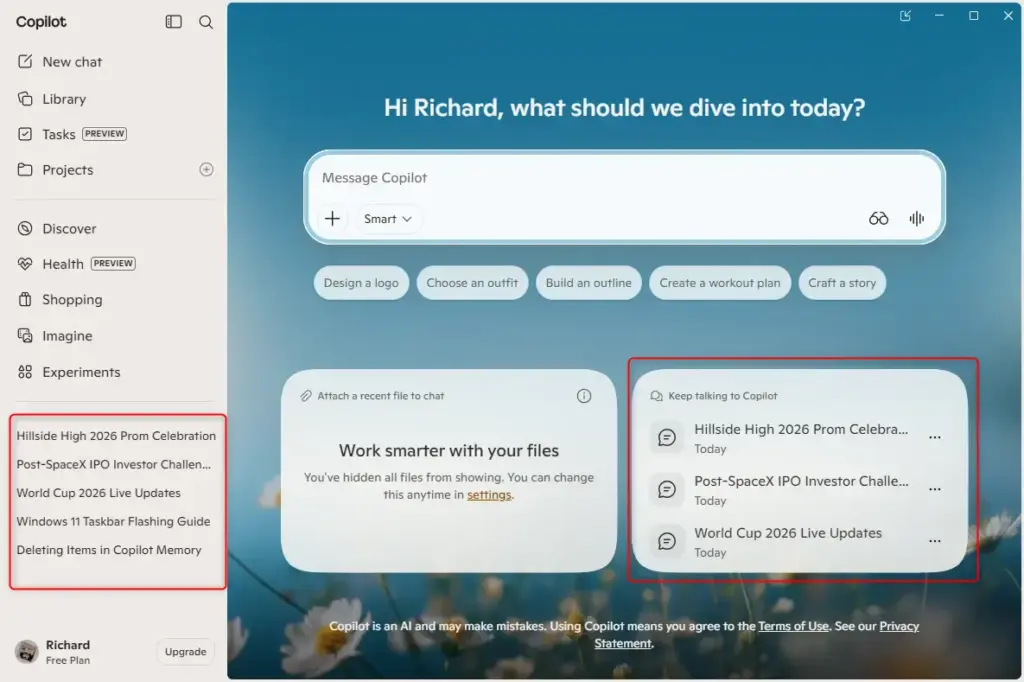
You can also use Copilot right on your computer. Finding your history is very similar to the website. Open Copilot on your computer and make sure you are signed in. Look to the left side of the Copilot window. Your conversation history should be there.
Using Copilot on Your Phone
You can find your Copilot conversation history right within the app on your phone.
- Open the Copilot app.
- Look for the main menu. It’s often shown with an icon like three lines.
- Tap the menu to open it.
- Your conversation history should be listed inside the menu.
- Tap on a past chat to open it.
Reference:
https://support.microsoft.com/en-us/microsoft-copilot/conversation-history-in-microsoft-copilot
Summary
Copilot saves your conversations so you can find them later. You can access your history on the web, in the desktop app, and on your mobile device. This makes it convenient to review past discussions and continue where you left off.
How can I see my Copilot Chat history?
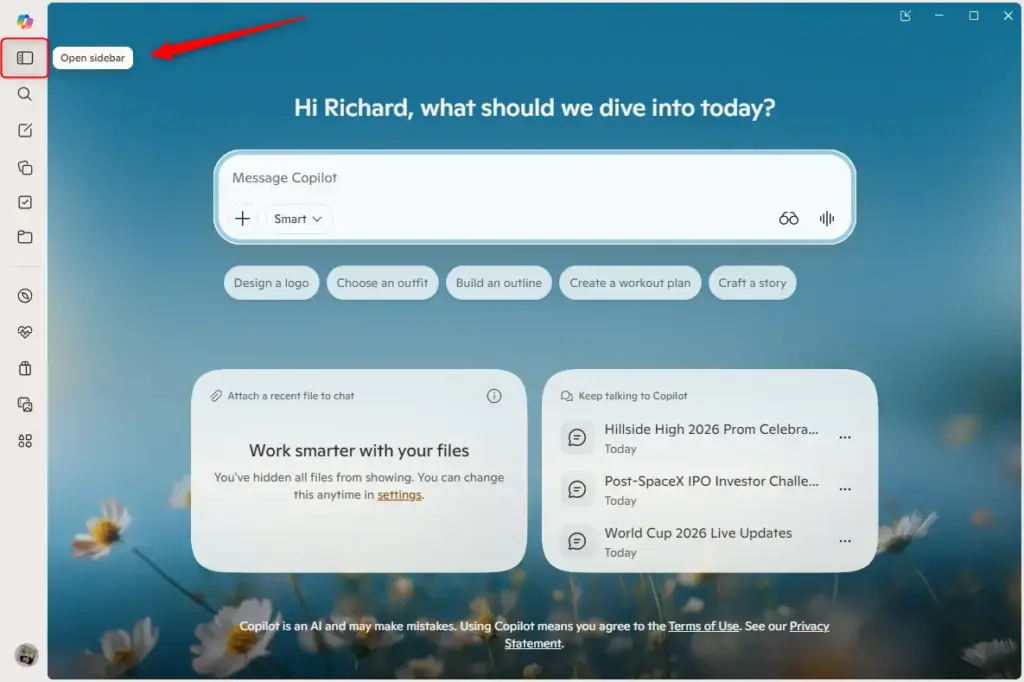
In Copilot for Windows or macOS: Conversation history appears by default on the left-hand side of the screen. If it isn't displayed, you may need to open the sidebar by clicking the sidebar icon. in the upper left. In the Copilot mobile app: Open the menu, and your conversation history will appear.
Is there a way to download Copilot Chat history?
How to Export a Conversation. Copilot does not currently offer you a way to export your entire session's conversation. You will need to save both individual prompts, and individual responses. Trying to use Select all in your browser's window will also not capture the conversation for you.
Can Copilot admin see chat history?
Yes, Your Microsoft 365 Copilot Chats Are Discoverable: Admin Access, Audit & eDiscovery.
Was this guide helpful?

About the Author
Richard
Tech Writer, IT Professional
Richard, a writer for Geek Rewind, is a tech enthusiast who loves breaking down complex IT topics into simple, easy-to-understand ideas. With years of hands-on experience in system administration and enterprise IT operations, he’s developed a knack for offering practical tips and solutions. Richard aims to make technology more accessible and actionable. He's deeply committed to the Geek Rewind community, always ready to answer questions and engage in discussions.


No comments yet — be the first to share your thoughts!