How to Delete your entire Copilot conversation History

You delete your entire Copilot conversation history by accessing the Copilot settings page in your Microsoft account and clearing the chat data.
Copilot is Microsoft’s AI-powered assistant integrated into Windows 11 and other Microsoft products, designed to help you with tasks and answer questions. Clearing your conversation history removes all past interactions from your account, ensuring privacy and a clean slate.
This is crucial for maintaining your privacy and tidying up your AI interactions, especially if you’ve discussed sensitive topics or simply want to manage your digital footprint. For instance, if you’ve been using Copilot extensively since its Windows 11 integration began in late 2023, your chat log could be quite extensive and hard to navigate.
You might also want to delete your history to start fresh, allowing you to experiment with new prompts and approaches to using Copilot without older conversations influencing its responses.
Sign in to your Microsoft Account privacy dashboard. Navigate to the “Copilot app activity history” section. Select “Delete all activity history” and confirm the permanent deletion of all your past Copilot conversations.
How to Delete Your Copilot History
Step 1Sign In to Your Microsoft Account
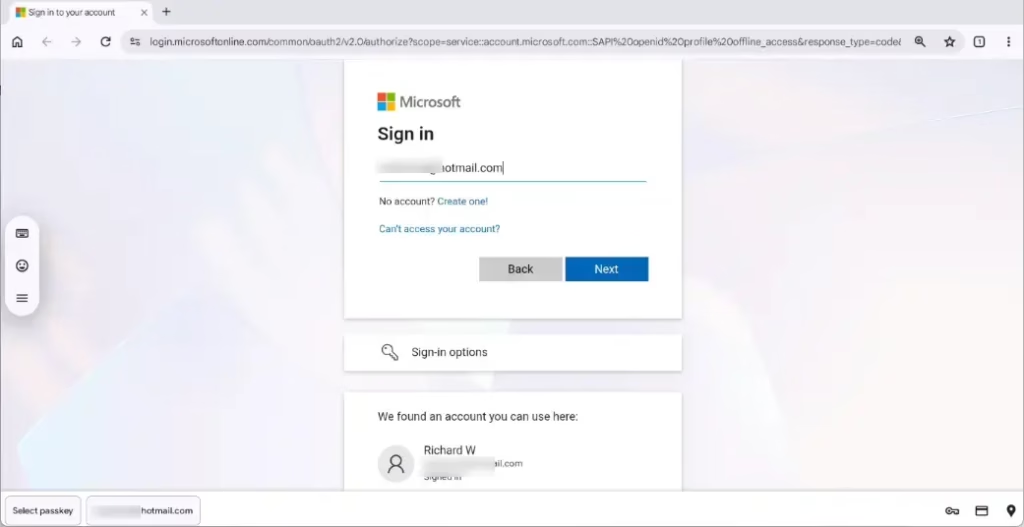
Your Copilot chats are saved when you’re signed in with a Microsoft Account, so you need to visit your Microsoft Account activity page to delete them.
Action: Open your web browser and go to Microsoft’s privacy dashboard. Make sure you sign in with the same Microsoft Account (your login for Windows, Office, and other Microsoft services) that you use for Copilot.
Step 2Find Your Copilot Activity History
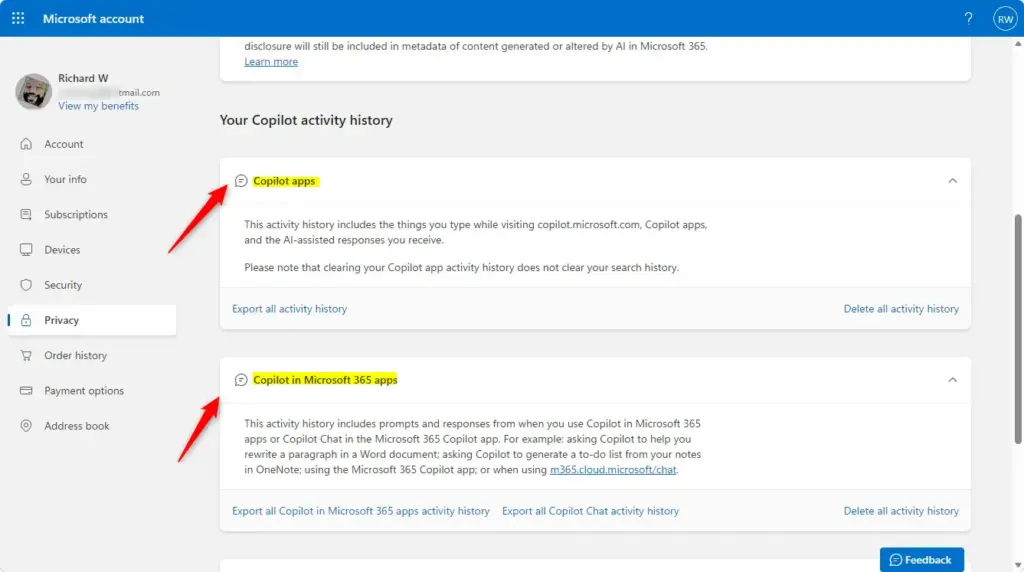
After signing into your Microsoft Account, look for the specific section that lists your Copilot chats on the privacy dashboard.
Action: On the Microsoft Account privacy page, look for a section like “Copilot app activity history” or something similar that mentions AI or Copilot. You might need to scroll down or click on menus.
Step 3Start the Deletion Process
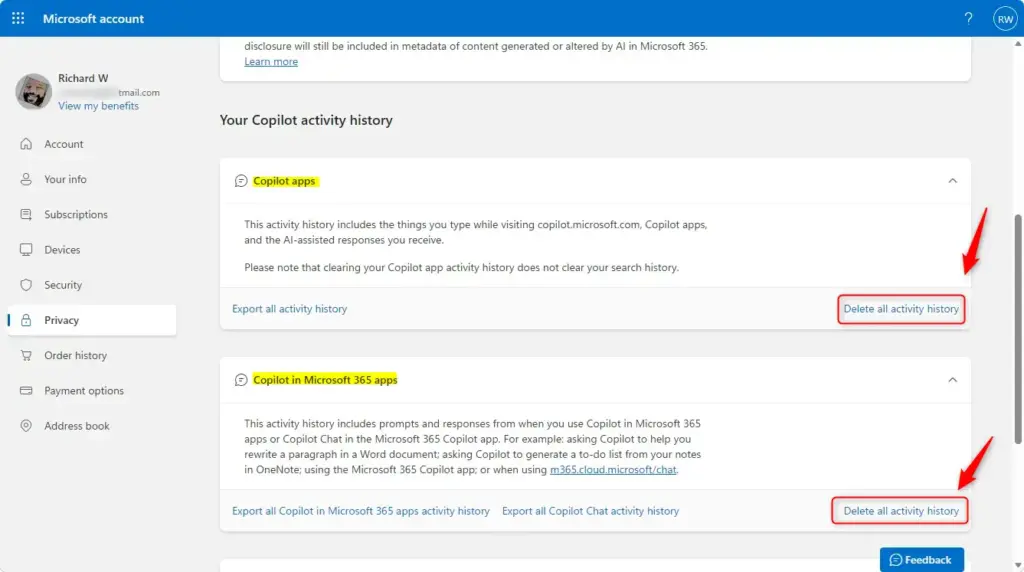
This is the main step! You’re about to tell Microsoft to remove all your Copilot conversations. Take a moment to read carefully.
Action: In the “Copilot app activity history” section, look for an option like “Delete all activity history.” Click it.
Step 4Confirm Your Choice
You’ll need to confirm that you really want to delete all your Copilot activity history when a message or pop-up appears.
Action: A message or pop-up window will appear. It will ask you to confirm that you want to delete all your Copilot activity history. Read it carefully and click the option to confirm (like “Delete” or “Confirm”).
Reference:
https://support.microsoft.com/en-us/microsoft-copilot/conversation-history-in-microsoft-copilot
Summary
Deleting your entire Copilot conversation history involves signing into your Microsoft Account, finding the ‘Copilot app activity history’ section, and confirming the deletion.
Was this guide helpful?

About the Author
Richard
Tech Writer, IT Professional
Richard, a writer for Geek Rewind, is a tech enthusiast who loves breaking down complex IT topics into simple, easy-to-understand ideas. With years of hands-on experience in system administration and enterprise IT operations, he’s developed a knack for offering practical tips and solutions. Richard aims to make technology more accessible and actionable. He's deeply committed to the Geek Rewind community, always ready to answer questions and engage in discussions.



No comments yet — be the first to share your thoughts!