
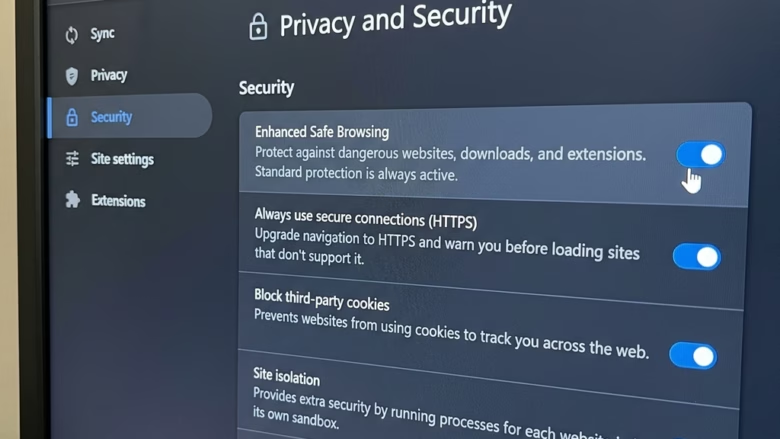
Switching to device-based authentication in Microsoft Edge uses your Windows login (like a PIN or Windows Hello) to protect your saved passwords.
Microsoft is phasing out the old Edge password saver feature, which required a separate password. This new method consolidates security, leveraging the trusted way you already unlock your PC.
This means you no longer need a unique password just for Edge. You’ll use the same secure credential you use to sign into Windows, simplifying password management and enhancing protection.
This approach aligns with modern security practices, where your device’s built-in authentication methods safeguard sensitive data across applications.
What This Means for You
What happens next depends on whether you previously used the old special password feature.
- If you NEVER used the special password: Great news! You don’t need to do anything. Your passwords are already safe with your Windows login. Your Password Manager settings might look a bit simpler, but that’s it.
- If you DO use the special password: Microsoft will show you messages in Edge. These messages will tell you about the change. You will have time to switch to the new system before it’s required. It’s a good idea to pay attention to these messages and switch soon.
The deadline is approaching. After June 4, 2026, if you haven’t made the switch, Edge will automatically use your device’s login to protect your saved passwords.
It’s a good idea to set this up yourself now.
Switching to Device-Based Authentication (The Best Way!)
This is how you take control of your security. You ensure your passwords are safe by using the same security you use to log into your PC every day. Microsoft recommends doing this.
This method uses your computer’s built-in security features.
For Windows users, this typically involves one of two options:
- Windows Hello: This is very easy. It lets you sign in with your face or fingerprint. If your computer has a camera or fingerprint reader, this is a great option.
- Your device sign-in password/PIN: If you don’t use Windows Hello, your normal Windows password or PIN will be used. This is the same one you use when your computer starts or wakes up.
So, how do you make this switch in Microsoft Edge? Follow these steps:
- Open Microsoft Edge
Open your Edge browser. It has a little blue wave icon.
- Access Settings
Look for the three dots in the top-right corner. Click them. Then, choose Settings from the list that appears.
- Go to Password Manager Settings
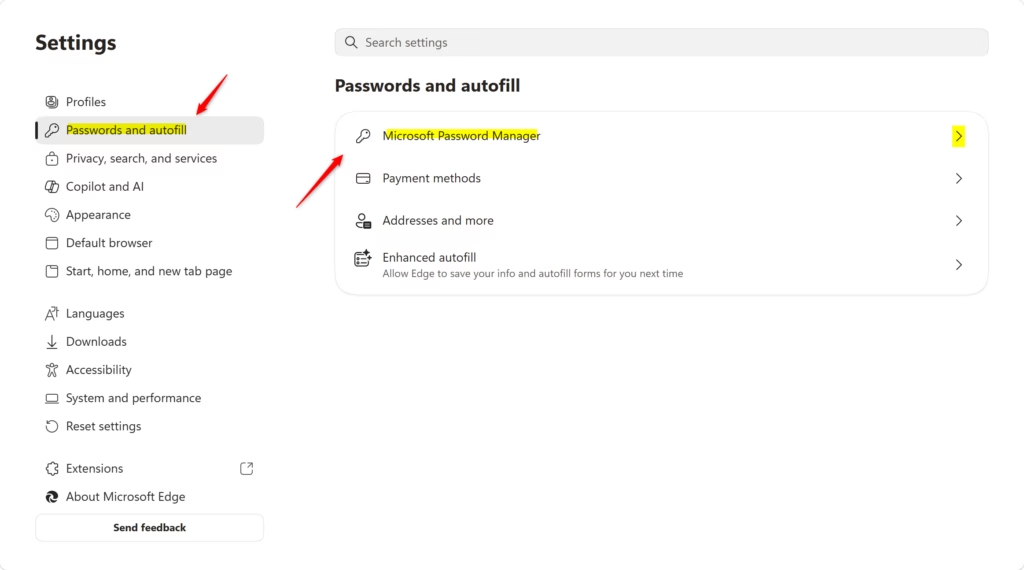
In the Settings menu, look to the left side. Click on Passwords and autofill. You might see Microsoft Password Manager directly, depending on your Edge version. Find the settings for your saved passwords.
- Find More Settings
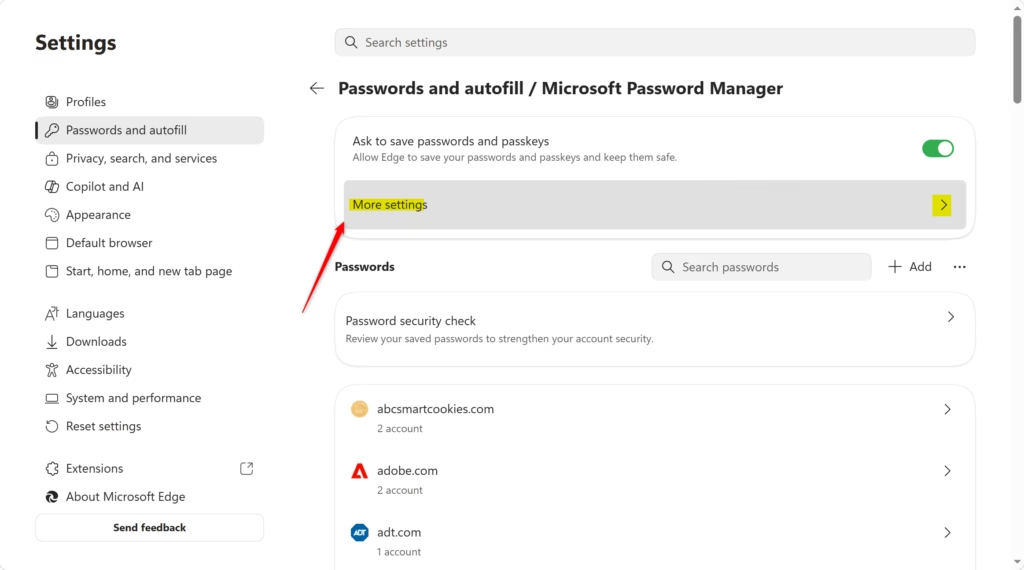
In the Password Manager section, click on More settings. This will show more options.
- Make Sure Password Autofill is On
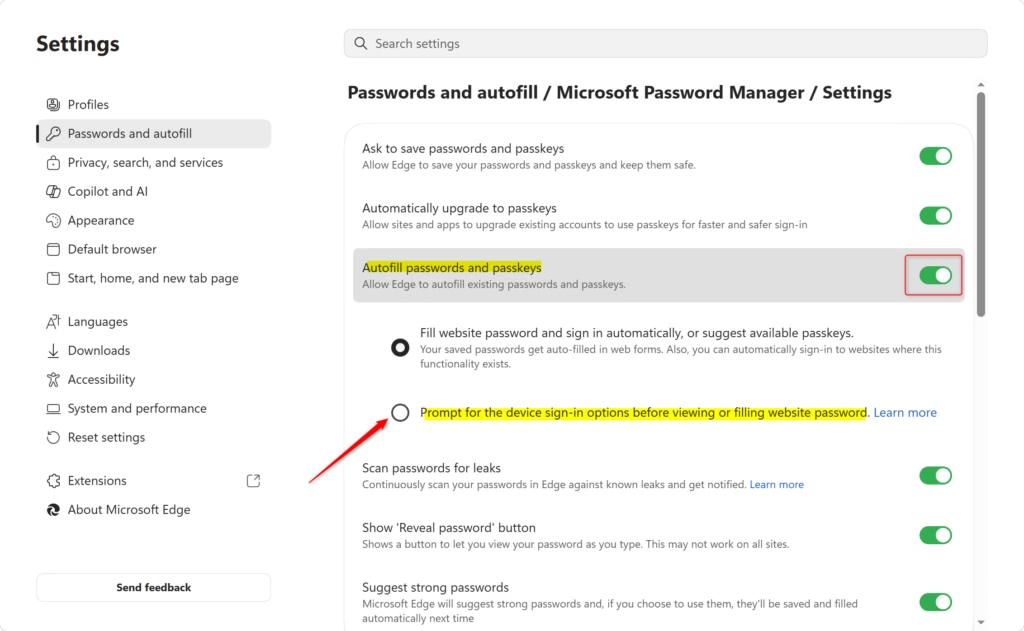
Check the switch for Autofill passwords and passkeys. Make sure it is turned on. If it’s off, your saved passwords won’t fill in automatically. You want this to be on (it will likely be blue or green when active).
- Select the Device Sign-in Prompt
Look for an option that says something like “Prompt for the device sign-in options before viewing or filling website password.” You need to choose this. This tells Edge: “Before you fill in a password, ask me to prove it’s me using my computer’s login.”
- Authenticate with Your Device
The next time Edge tries to fill in a password, or if you try to see your saved passwords, a prompt will appear. It will ask you to prove it’s you. This might be a Windows Hello prompt asking you to look at the camera or touch the fingerprint reader. Or, it might ask for your Windows PIN or password. Complete this step.
Once you complete this, Edge will ask you to verify it’s you with your device every time it needs to fill in your saved passwords. This adds strong security. Even if someone gains access to your unlocked computer, they still won’t be able to easily steal your online accounts without passing your device’s security check.

Reference:
https://support.microsoft.com/en-us/edge/keep-your-saved-passwords-private-in-microsoft-edge
Summary
Microsoft is updating how saved passwords are protected in Edge. Instead of a separate Edge password, it will use your computer’s login (like a PIN, password, or Windows Hello face/fingerprint). This makes things simpler and more secure. If you used the old special password, you need to switch by June 4, 2026. If you didn’t, your passwords are already protected this way. To switch, go to Edge Settings > Passwords and autofill > More settings. Turn on “Autofill passwords and passkeys” and select “Prompt for the device sign-in options before viewing or filling website password.” Then, complete the Device-Based Authentication (using your computer’s login) when asked.
Was this guide helpful?

About the Author
Richard
Tech Writer, IT Professional
Richard, a writer for Geek Rewind, is a tech enthusiast who loves breaking down complex IT topics into simple, easy-to-understand ideas. With years of hands-on experience in system administration and enterprise IT operations, he’s developed a knack for offering practical tips and solutions. Richard aims to make technology more accessible and actionable. He's deeply committed to the Geek Rewind community, always ready to answer questions and engage in discussions.



No comments yet — be the first to share your thoughts!