How to Change Pen Double-tap Tolerance in Windows 11


In Windows 11, you can adjust your pen’s double-tap tolerance. This setting controls how far your pen can move between taps before Windows recognizes it as a double-tap. This setting controls the spatial tolerance—that’s the distance in pixels—which determines whether double-tap inputs are more forgiving or precise.
By default, Windows 11 uses a tolerance that might be too sensitive or too lax for your specific pen and usage style. You can fine-tune this setting to prevent accidental double-taps or to ensure Windows recognizes your intended double-tap actions more reliably.
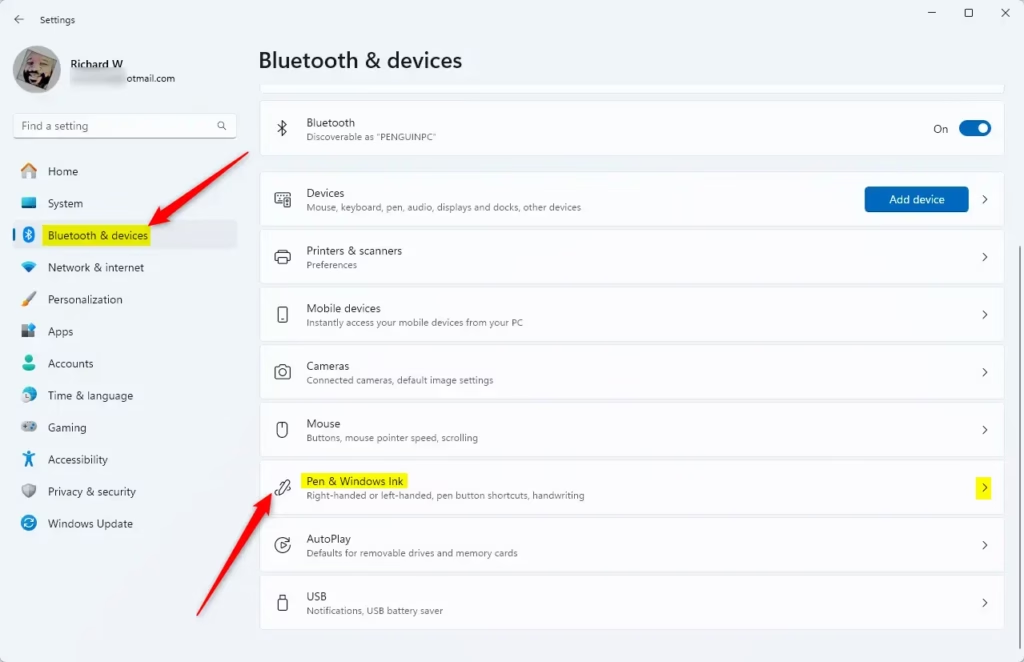
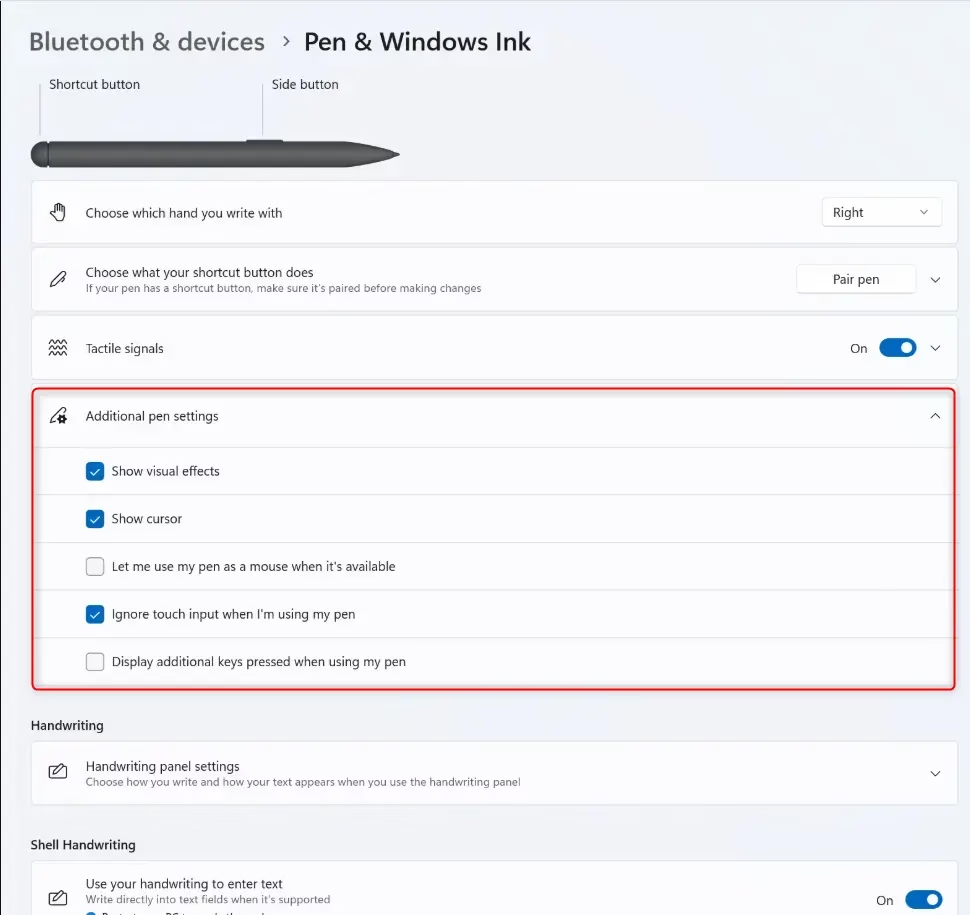
You adjust the pen double-tap tolerance in Windows 11 by navigating to Settings > Bluetooth & devices > Pen & Windows Ink > Additional pen settings and moving the spatial tolerance slider. Alternatively, use Control Panel > Pen and Touch > Pen Options or the Registry Editor at 🗝️HKEY_CURRENT_USER\Software\Microsoft\Wisp\Pen\SysEventParameters.
Why Change Pen Double-tap Settings?
Adjusting the spatial tolerance helps your pen recognize double-taps more accurately. If your pen is too sensitive or not sensitive enough, changing this setting can fix the problem.
Option One
You can change your pen double-tap tolerance in Windows 11 by adjusting the distance your stylus can move between taps using the Settings app.
- Press ⊞ Win+I to open the Settings app.
- Navigate to Bluetooth & devices in the left sidebar.
- Select Pen & Windows Ink.
- Click Additional pen settings to expand the menu.
- Locate the slider labeled The distance your stylus can move between taps when you double-tap.
- Move the slider to the left to decrease the tolerance or to the right to increase it.
Option Two
Change Pen Double-tap Spatial Tolerance in Control Panel
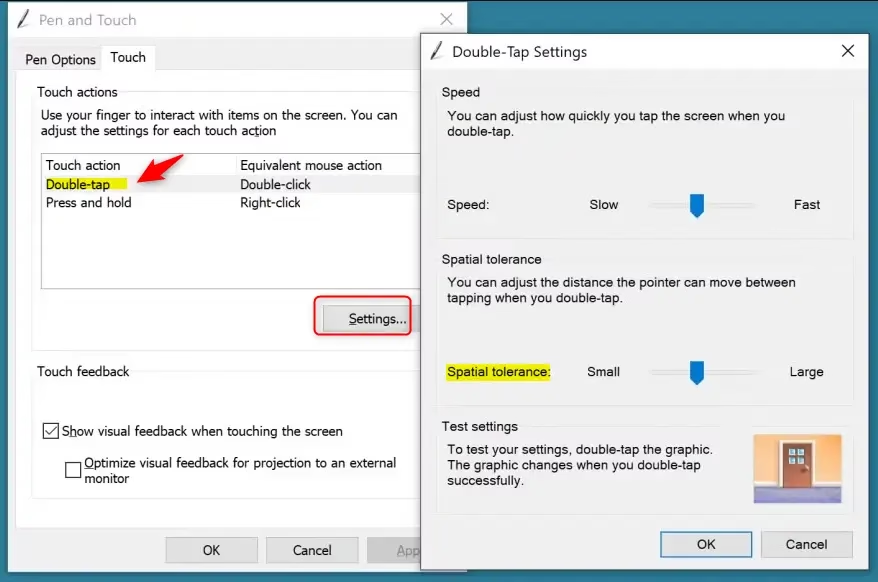
Changing the pen double-tap spatial tolerance in the Control Panel lets you set how far your pen can move between taps.- Open Control Panel in icons view. Click on the Pen and Touch icon.
- Do the following:
- Click on the Pen Options tab.
- Select Double-tap.
- Click on Settings.
- Move the Spatial tolerance slider left for a smaller distance or right for a larger distance. Choose what works best for you. Then click OK. You can double-tap on the door graphic under Test settings to test your current double-tap setting.
- Click OK again.
- Close Control Panel when finished.
Option Three
Change Pen Double-tap Spatial Tolerance in Registry Editor ⚠️ Requires Admin Privileges
You can change the pen double-tap spatial tolerance using the Registry Editor, which requires administrator privileges.- Open Registry Editor by typing
regedit.exein your search bar and running it. - In the left pane, navigate to this location:
HKEY_CURRENT_USERSoftwareMicrosoftWispPenSysEventParameters - In the right pane, find the DblDist DWORD value. Double-click it to edit it.
- Click on Decimal. Type a number between 3 (small) and 50 (large) for your preferred double-tap sensitivity. Then click OK. The default value is 20.
- Close Registry Editor when done.
- Sign out and sign back in or restart your computer to apply the changes.
Summary
Adjusting your pen double-tap spatial tolerance changes how far your pen pointer can move between taps, helping it recognize double-taps better.
Was this guide helpful?

About the Author
Richard
Tech Writer, IT Professional
Richard, a writer for Geek Rewind, is a tech enthusiast who loves breaking down complex IT topics into simple, easy-to-understand ideas. With years of hands-on experience in system administration and enterprise IT operations, he’s developed a knack for offering practical tips and solutions. Richard aims to make technology more accessible and actionable. He's deeply committed to the Geek Rewind community, always ready to answer questions and engage in discussions.




No comments yet — be the first to share your thoughts!