How to Enable or Disable Camera in Windows 11

This guide shows you how to turn your camera on or off in Windows 11. Whether you want to use it or keep it private, you’re in control.
Why Control Your Camera?
Your camera lets you do many things. You can make video calls on Teams, take photos, and record videos. But some people worry about privacy. They want to know when their camera is being used. They also want to stop apps or malware from using it without permission.
How Do You Know When Your Camera Is On?
Windows gives you two ways to know:
- If your device has a camera light, it turns on when the camera is in use.
- If your device doesn’t have a light, you’ll see a notification telling you the camera is on or off.
When you’re not using your camera, you can turn it off for extra privacy and security.
Reference: Manage cameras with Camera settings in Windows 11 – Microsoft Support | Camera doesn’t work in Windows – Microsoft Support
Option One: Use a Physical Kill Switch
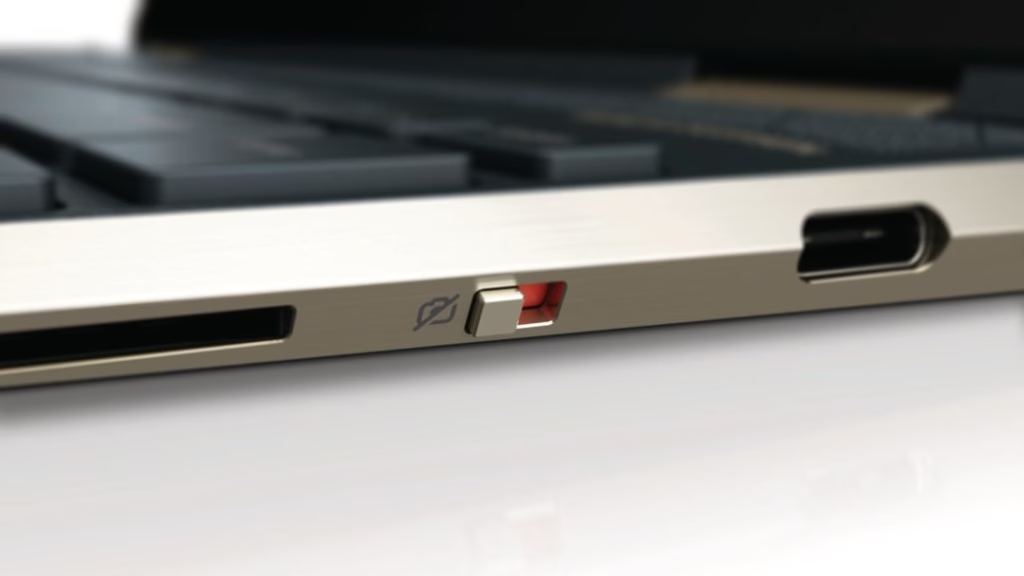
Some laptops have a physical switch that turns the camera on or off. For example, some HP Spectre x360 models have this feature.
- Find the privacy camera kill switch on your laptop.
- Toggle it on or off based on what you want to do.
Option Two: Use Windows Settings
Admin privileges required.
This is the easiest way for most people. Here’s how:
- Press
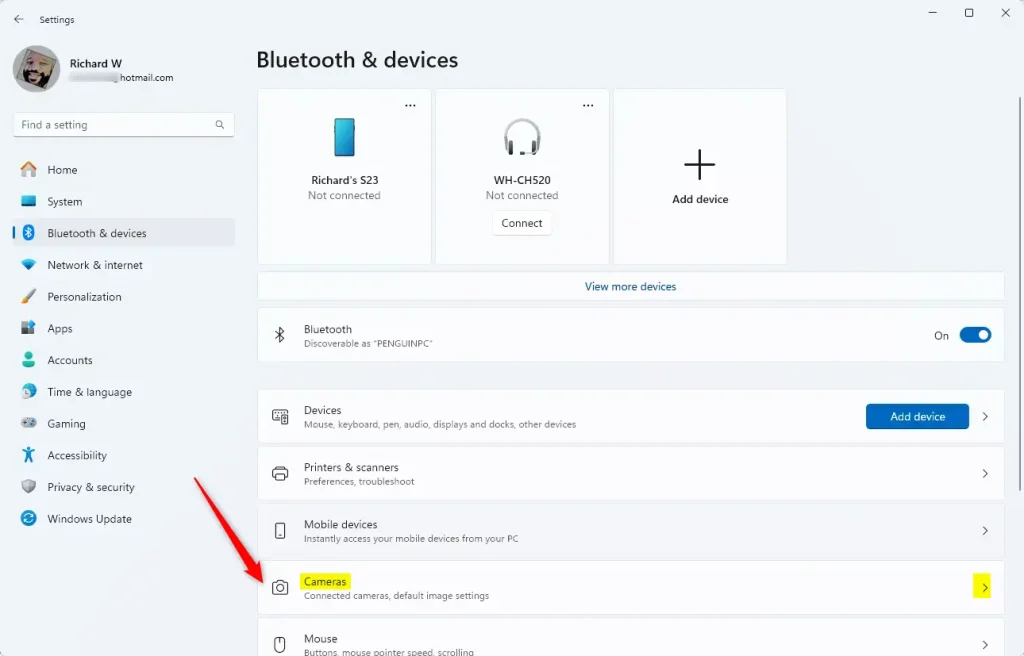
Win+Ito open Settings. - Click on Bluetooth & devices on the left side.
- Click on Cameras on the right side.
To Turn Your Camera On
- Find the camera you want to turn on.
- Click Enable.
- Close Settings when you’re done.
To Turn Your Camera Off
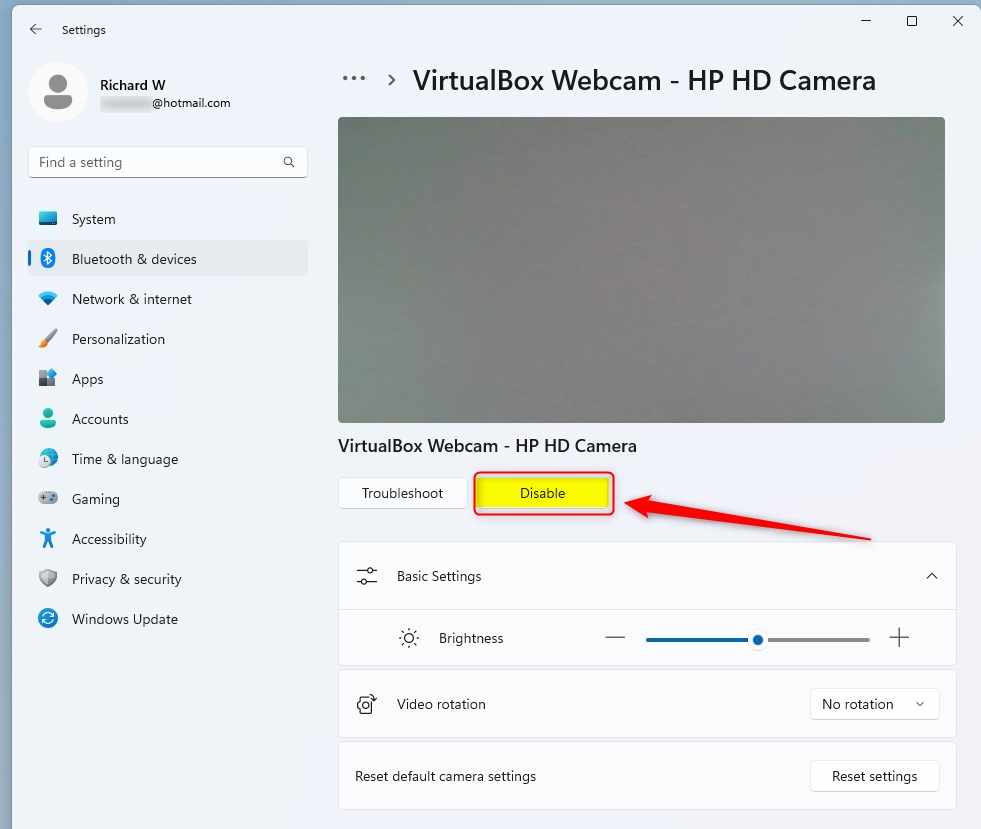
- Find the camera you want to turn off.
- Click on it to select it.
- Click Disable.
- Click Yes to confirm.
- Close Settings when you’re done.
Option Three: Use Device Manager
Admin privileges required.
This method gives you more control over your camera through Device Manager.
- Open Device Manager by typing
devmgmt.mscin the search box and pressing Enter.
To Turn Your Camera On
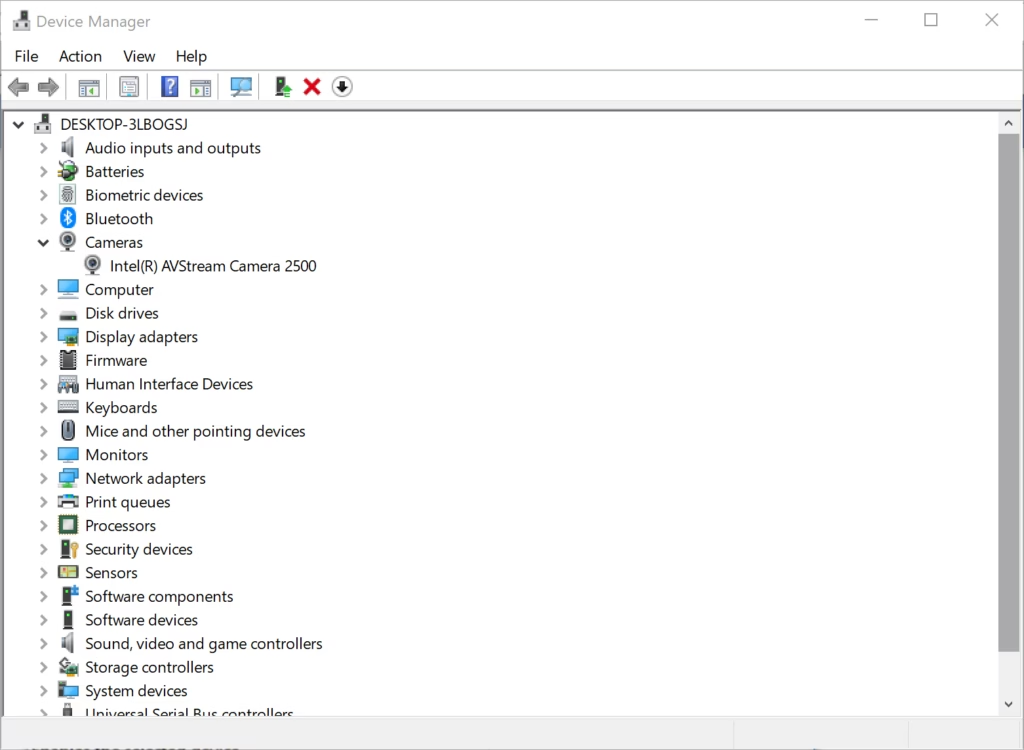
- Expand Cameras or Imaging devices (whichever one you have).
- Right-click the camera you want to turn on.
- Click Enable device.
- Close Device Manager when you’re done.
To Turn Your Camera Off
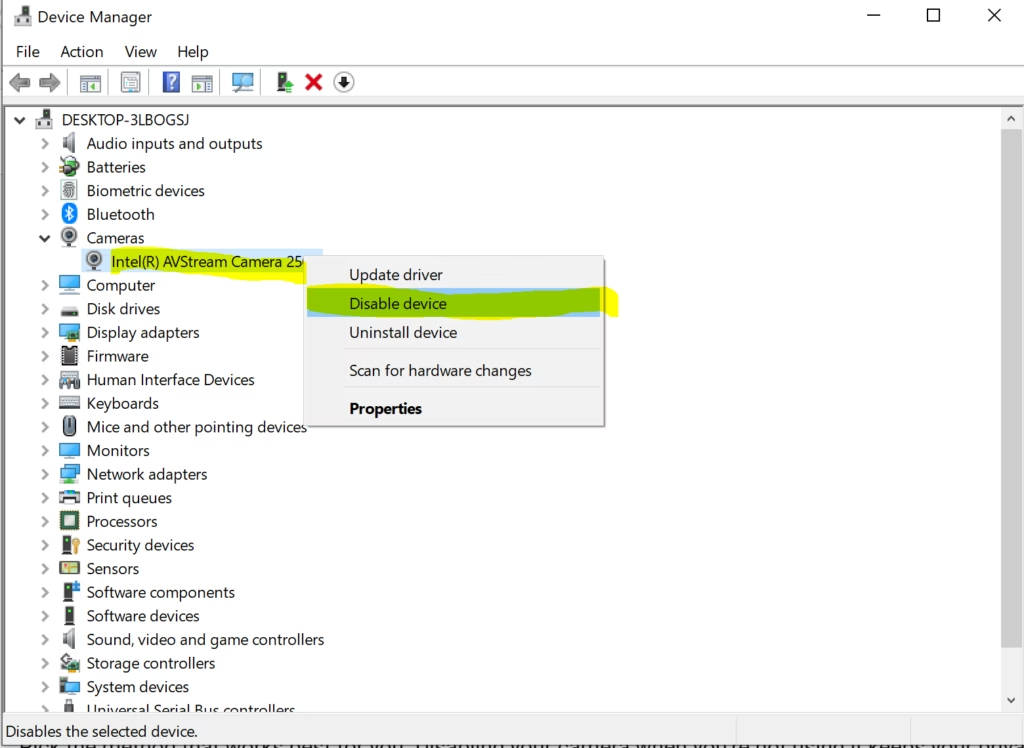
- Expand Cameras or Imaging devices (whichever one you have).
- Right-click the camera you want to turn off.
- Click Disable device.
- Click Yes to confirm.
- Close Device Manager when you’re done.
Summary
You now know three ways to control your camera in Windows 11. You can use a physical kill switch if your laptop has one. You can use Windows Settings for a quick and easy way. Or you can use Device Manager for more detailed control. Pick the method that works best for you. Disabling your camera when you’re not using it keeps your privacy protected.
Was this guide helpful?

About the Author
Richard
Tech Writer, IT Professional
Richard, a writer for Geek Rewind, is a tech enthusiast who loves breaking down complex IT topics into simple, easy-to-understand ideas. With years of hands-on experience in system administration and enterprise IT operations, he’s developed a knack for offering practical tips and solutions. Richard aims to make technology more accessible and actionable. He's deeply committed to the Geek Rewind community, always ready to answer questions and engage in discussions.


No comments yet — be the first to share your thoughts!