How to Enable or Disable Ctrl+Alt+Delete Secure Sign-in on Lock Screen in Windows 11

This tutorial shows you how to turn on or off a security feature in Windows 11. When enabled, users must press Ctrl+Alt+Del on the lock screen before signing in.
Why This Matters
The lock screen is what you see when your computer starts up or when you lock it (press ⊞ Win+L). You need to get past this screen to reach the sign-in screen.
Enabling secure sign-in adds extra protection. It forces users to press Ctrl+Alt+Del before signing in. This prevents fake sign-in screens created by malware from stealing your password.
What You Need
You must be signed in as an administrator to change this setting.
Option 1Use the User Accounts Tool
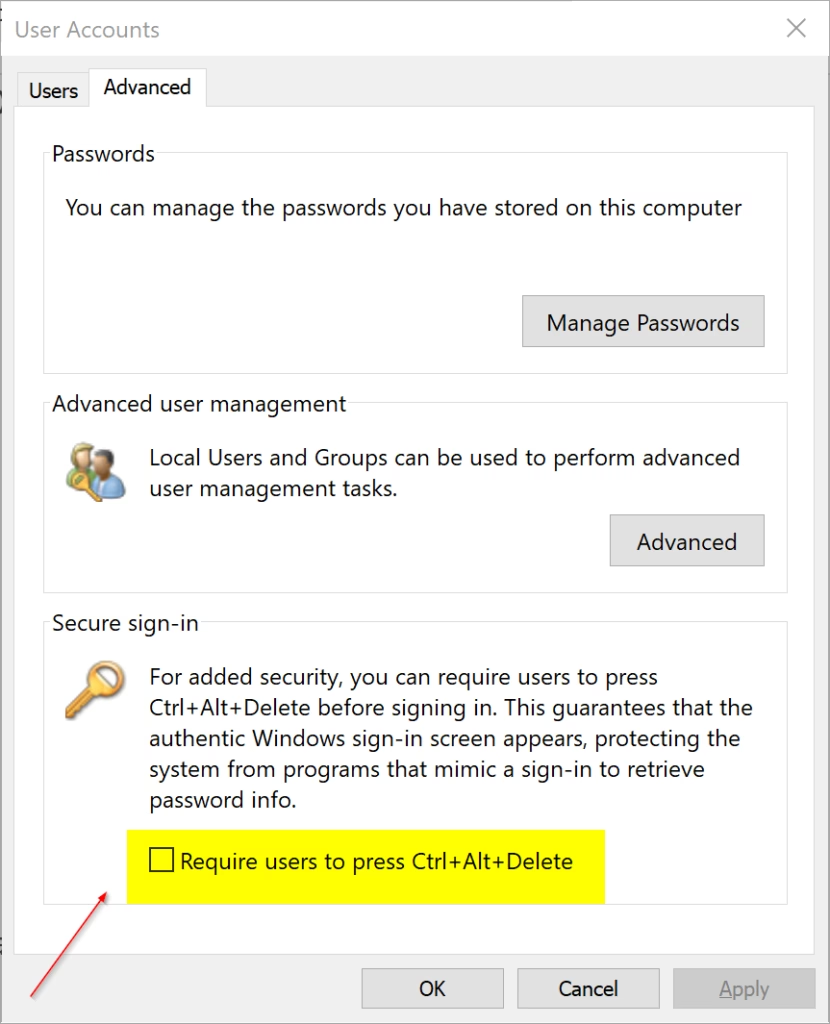
- Open the User Accounts tool (netplwiz).
- Click the Advanced tab.
- Check the box next to Require users to press Ctrl+Alt+Del to turn it on. Uncheck it to turn it off.
- Click OK.
Option 2Use Local Security Policy
Note: This option only works on Windows 11 Pro, Enterprise, and Education editions. All versions can use Option Three instead.
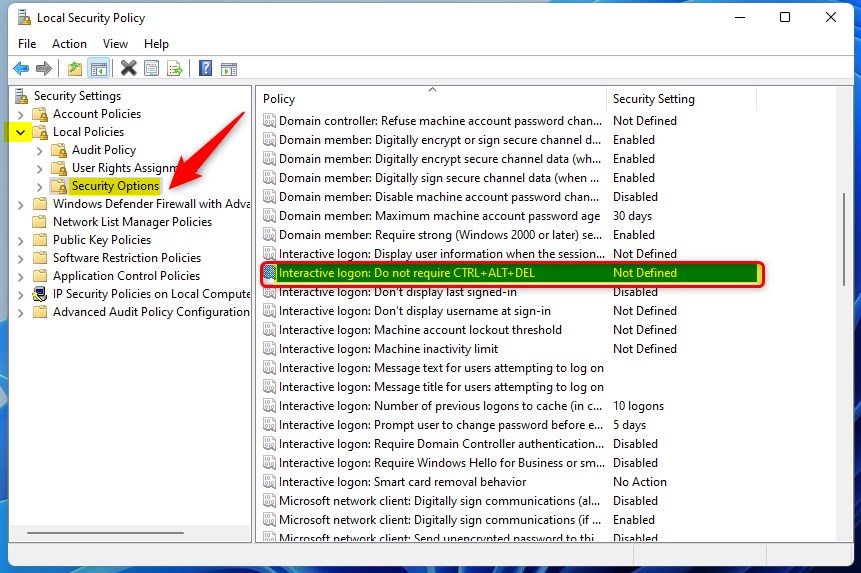
- ⚙️ Admin Required: Open Local Security Policy by typing
secpol.mscin your search bar. - In the left pane, click Local Policies, then click Security Options.
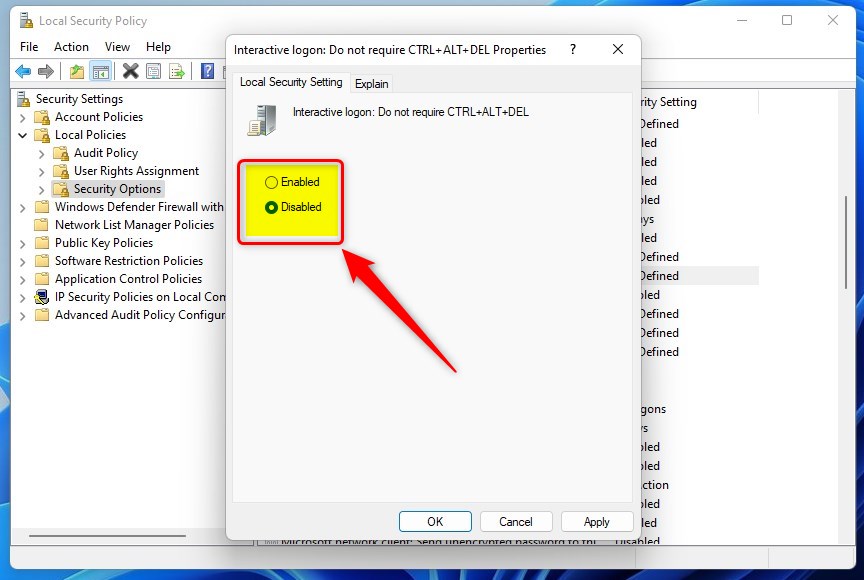
- In the right pane, double-click Interactive Logon: Do not require Ctrl+Alt+Del.
- Select Enabled to turn off secure sign-in. Select Disabled to turn it on.
- Click OK.
- Close Local Security Policy if you want.
Option 3Use the Registry
⚙️ Admin Required: The registry is an advanced tool. Mistakes here can cause problems.
To Turn On Secure Sign-in
Find this registry path and change the value:
reg add "HKLM\SOFTWARE\Microsoft\Windows NT\CurrentVersion\Winlogon" /v DisableCAD /t REG_DWORD /d 0 /f
reg delete "HKCU\Software\Microsoft\Windows NT\CurrentVersion\Winlogon" /v DisableCAD /f
reg add "HKLM\SOFTWARE\Microsoft\Windows\CurrentVersion\Policies\System" /v DisableCAD /t REG_DWORD /d 0 /f
reg delete "HKCU\Software\Microsoft\Windows\CurrentVersion\Policies\System" /v DisableCAD /f
To Turn Off Secure Sign-in
This is the default setting.
Set the entry:
reg add "HKLM\SOFTWARE\Microsoft\Windows NT\CurrentVersion\Winlogon" /v DisableCAD /t REG_DWORD /d 1 /f
reg delete "HKCU\Software\Microsoft\Windows NT\CurrentVersion\Winlogon" /v DisableCAD /f
reg delete "HKLM\SOFTWARE\Microsoft\Windows\CurrentVersion\Policies\System" /v DisableCAD /f
reg delete "HKCU\Software\Microsoft\Windows\CurrentVersion\Policies\System" /v DisableCAD /f
Summary
You now know how to control whether users must press Ctrl+Alt+Del before signing in to Windows 11. Three methods are available: the User Accounts tool (easiest), Local Security Policy (Pro editions only), or the Registry (advanced). Enabling this feature prevents malicious programs from displaying fake sign-in screens. Always sign in as an administrator to make these changes.
Was this guide helpful?

About the Author
Richard
Tech Writer, IT Professional
Richard, a writer for Geek Rewind, is a tech enthusiast who loves breaking down complex IT topics into simple, easy-to-understand ideas. With years of hands-on experience in system administration and enterprise IT operations, he’s developed a knack for offering practical tips and solutions. Richard aims to make technology more accessible and actionable. He's deeply committed to the Geek Rewind community, always ready to answer questions and engage in discussions.




No comments yet — be the first to share your thoughts!