How to Enable or Disable Touchpad in Windows 11


This guide shows you how to turn your touchpad on or off in Windows 11. If your laptop has a built-in touchpad, you can control it anytime you want.
Reference:
Surface touchpad use and settings – Microsoft Support Surface Typing Covers have a two-button touchpad that supports gestures and works like a mouse. Learn about its features and how to change touchpad settings.
Option 1Turn On or Off Touchpad in Settings
- Open Settings by pressing
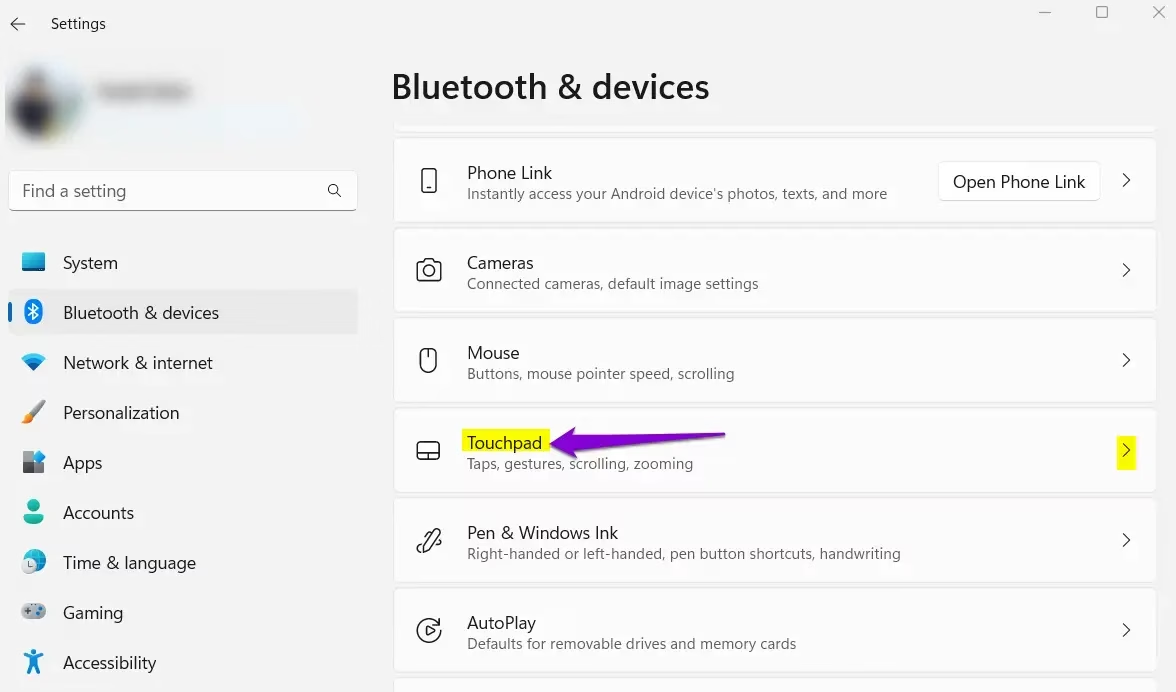
Win+I. - Click on Bluetooth & devices on the left side. Then click on Touchpad on the right side. (see screenshot below)
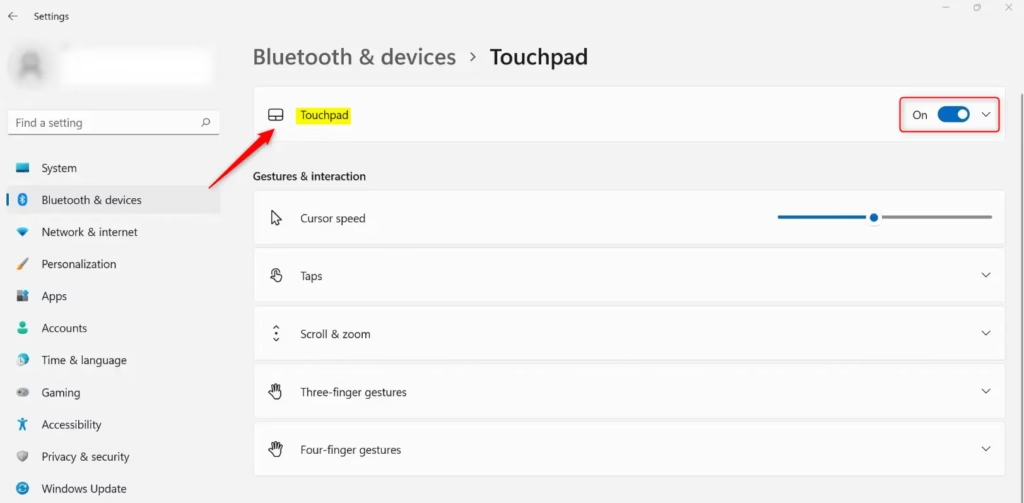
- Click on Touchpad to expand the menu. (see screenshot below step 4)
- Turn the touchpad On (default) or Off based on what you want. (see screenshot below)
- You can now close Settings if you like.
Option 2Turn On or Off Touchpad Using Registry
Turn On Touchpad
This is the default setting.
Run the command below.
reg add "HKEY_CURRENT_USER\Software\Microsoft\Windows\CurrentVersion\PrecisionTouchPad\Status" /v Enabled /t REG_DWORD /d 1 /f
Turn Off Touchpad
⚠️ Admin privileges required
Run the command below.
reg add "HKEY_CURRENT_USER\Software\Microsoft\Windows\CurrentVersion\PrecisionTouchPad\Status" /v Enabled /t REG_DWORD /d 1 /f
Summary
You now know two ways to control your touchpad in Windows 11. The easiest way is through Settings. Just open Settings, go to Bluetooth & devices, click Touchpad, and turn it on or off. If you prefer using the registry, you can download and run a registry file to make the change. Either method works well depending on what you prefer.
Was this guide helpful?

About the Author
Richard
Tech Writer, IT Professional
Richard, a writer for Geek Rewind, is a tech enthusiast who loves breaking down complex IT topics into simple, easy-to-understand ideas. With years of hands-on experience in system administration and enterprise IT operations, he’s developed a knack for offering practical tips and solutions. Richard aims to make technology more accessible and actionable. He's deeply committed to the Geek Rewind community, always ready to answer questions and engage in discussions.




No comments yet — be the first to share your thoughts!