How to Change Mouse Hover Time in Windows 11


This simple guide will help you change how long your mouse needs to stay over something before it reacts in Windows 11 (and also works in Windows 7, 8, and 10).
What is Mouse Hover Time?
Mouse hover time means how many milliseconds (thousandths of a second) your mouse pointer has to stay on an item before something happens. For example:
- Hovering over an icon on the taskbar before you see a small preview of the open window.
- Hovering over a file or folder to select it automatically if you use the “Single-click to open an item (point to select)” option.
By default, this time is set to 400 milliseconds (less than half a second), but you can change it to be faster or slower depending on what feels best for you.
New in 🪟 Windows 11
In Windows 11 (starting with build 26100.4202), Microsoft added more mouse settings inside Settings > Accessibility, like mouse pointer speed and trails. But to change the hover time, you still need to use a tool called the Registry Editor.
How to Change Mouse Hover Time
- Open Registry Editor:
– PressWindows key + Ron your keyboard.
– Typeregeditand pressEnter.
– If prompted, click Yes to allow changes.
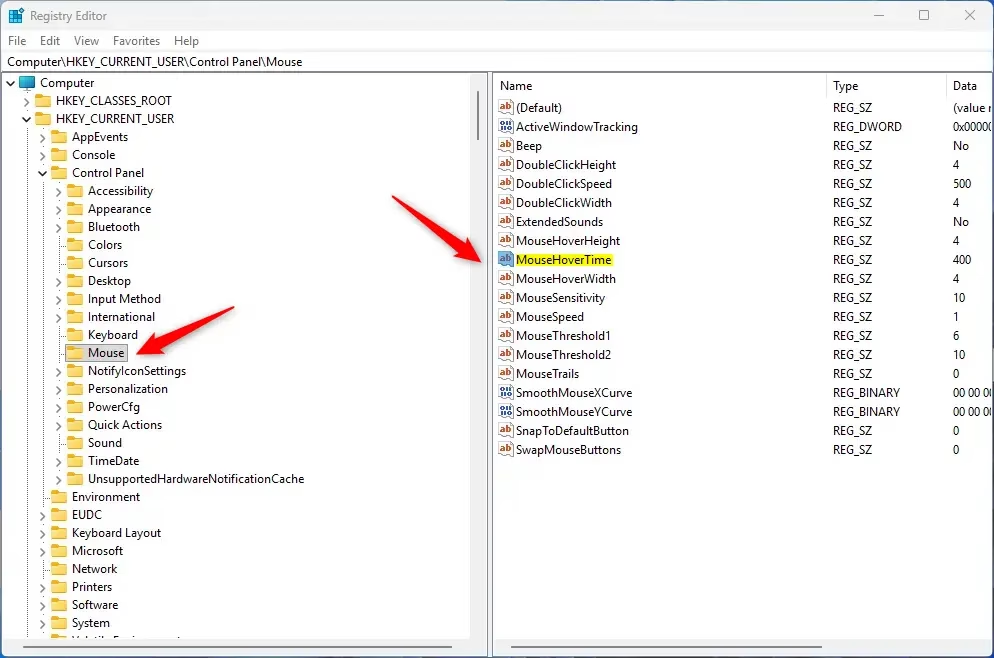
- Go to this folder in Registry Editor:
HKEY_CURRENT_USER\Control Panel\Mouse
You can expand the folders on the left side to find it.
- Change the hover time:
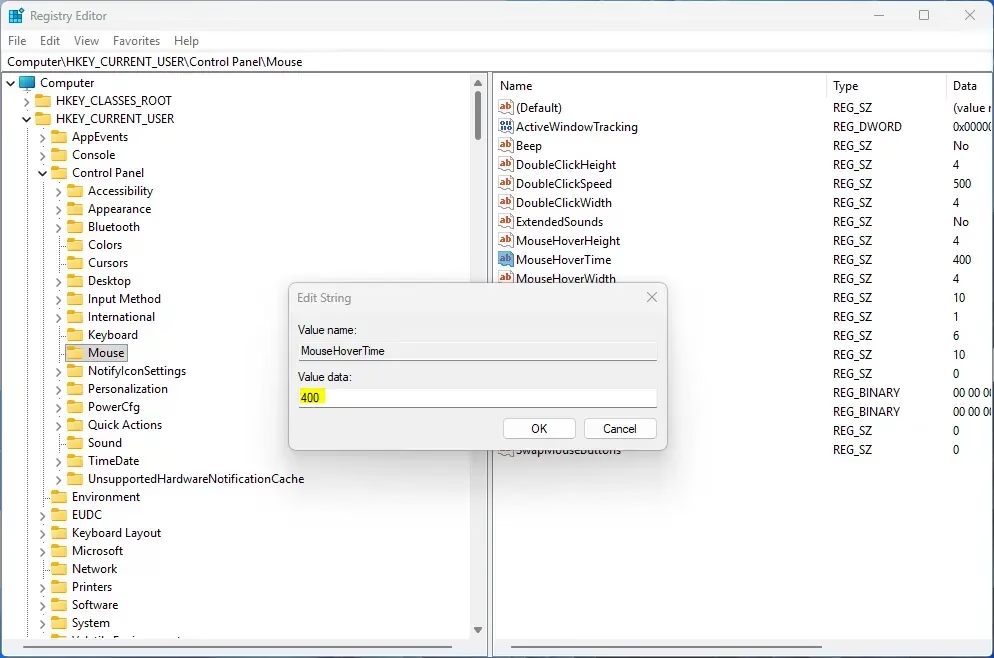
– On the right side, find the entry namedMouseHoverTime.
– Double-click it to open.
– Enter the number of milliseconds you want (for example, 1000 = 1 second).
– Click OK.
- Close Registry Editor.
- Restart your PC or sign out and sign back in to apply the change.
Quick Tips
- Default Time: 400 milliseconds (0.4 seconds)
- Faster Response: Use smaller numbers (like 200) for quicker hover reactions.
- Slower Response: Use larger numbers (like 1000) if you want more time before things happen.
Summary
Changing your mouse hover time can help you work faster or avoid accidental clicks. Windows 11 now makes many mouse settings easier to find, but for this specific setting, the Registry Editor is still the way to go. Just remember to back up your registry before making changes and restart your PC for changes to take effect.
If you want to explore more mouse settings, go to Settings > Accessibility > Mouse pointer and touch in Windows 11.
Need help opening Registry Editor? Here’s a Microsoft guide: How to open and use Registry Editor
Was this guide helpful?

About the Author
Richard
Tech Writer, IT Professional
Richard, a writer for Geek Rewind, is a tech enthusiast who loves breaking down complex IT topics into simple, easy-to-understand ideas. With years of hands-on experience in system administration and enterprise IT operations, he’s developed a knack for offering practical tips and solutions. Richard aims to make technology more accessible and actionable. He's deeply committed to the Geek Rewind community, always ready to answer questions and engage in discussions.




No comments yet — be the first to share your thoughts!