How to Set up Facial Recognition Sign-in for Your Account in Windows 11

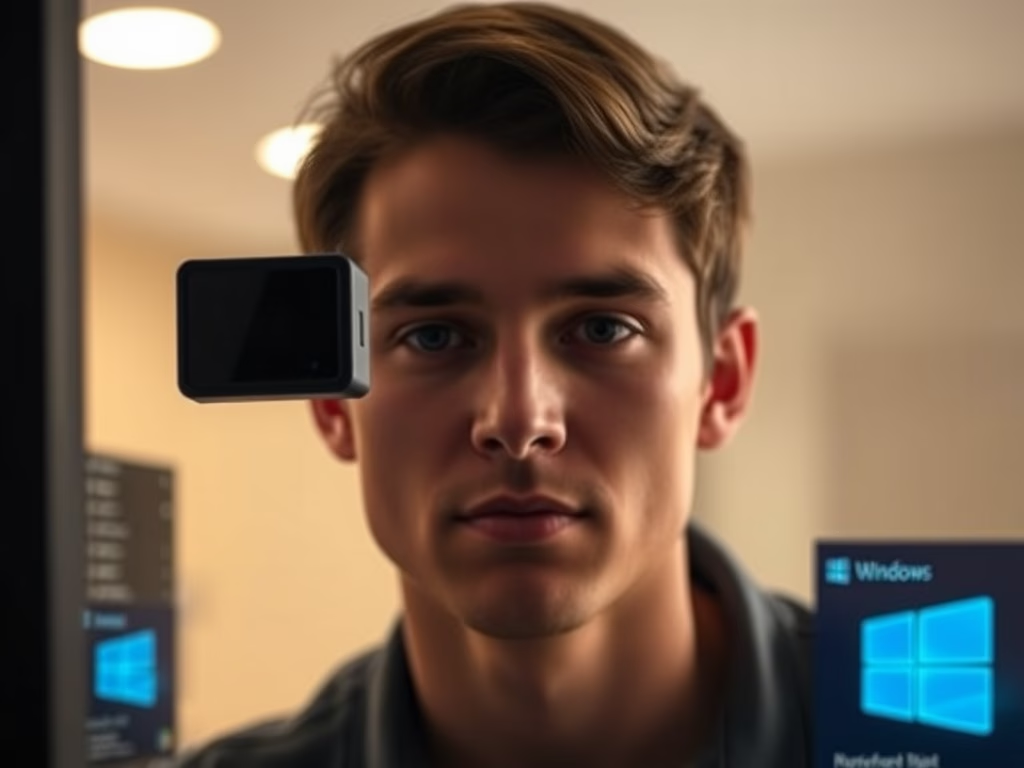
You can set up Windows Hello facial recognition in Windows 11 to sign in to your PC using your face.
Windows Hello is a biometric authentication feature that allows for quick and secure logins. It supports sign-in options like your face, a fingerprint, or a PIN.
Before you can use facial recognition, Windows 11 requires you to set up a PIN. Your PIN is linked to your specific device and backed up by your Microsoft account, enhancing security.
You can use either your PC’s integrated infrared camera or an external infrared camera to enable facial recognition.
Open Settings, navigate to Accounts, then Sign-in options. Select Facial recognition (Windows Hello) and click Set up. Follow the on-screen prompts to scan your face with your camera after entering your PIN.
How to Set Up Facial Recognition
Setting up Windows 11 facial recognition is simple and starts by opening your PC’s Settings. You’ll need to go to Accounts, then choose Sign-in options from the menu. Look for the Facial recognition (Windows Hello) option and click it to begin the setup process.
Why Use Facial Recognition?
Using Windows 11 facial recognition offers a more secure and convenient way to sign in to your computer. Your unique face acts as a strong password, making it harder for others to access your account. It’s also much faster than typing, letting you get to your desktop in seconds.
Helpful Links
Summary
Windows 11 facial recognition provides a quick and safe way to secure your computer using your face. To set it up, you’ll open Settings, go to Accounts, and then Sign-in options. After that, you’ll add your face to Windows Hello by looking at your camera, turning your unique features into your password.
How do I turn on facial recognition on 🪟 Windows 11?
To turn on Windows 11 facial recognition, first go to Settings, then Accounts, and select Sign-in options. If the facial recognition option is missing or grayed out, you’ll need to set up a PIN first, as this is required. Once that’s done, you can select Facial recognition (Windows Hello) and click Set up.
Is 🪟 Windows 11 face recognition safe?
How secure is Windows Hello compared to traditional passwords? Windows Hello offers a higher level of security compared to traditional passwords. Biometric authentication, such as facial recognition and fingerprints, is unique to each individual and difficult to replicate.
Was this guide helpful?

About the Author
Richard
Tech Writer, IT Professional
Richard, a writer for Geek Rewind, is a tech enthusiast who loves breaking down complex IT topics into simple, easy-to-understand ideas. With years of hands-on experience in system administration and enterprise IT operations, he’s developed a knack for offering practical tips and solutions. Richard aims to make technology more accessible and actionable. He's deeply committed to the Geek Rewind community, always ready to answer questions and engage in discussions.




No comments yet — be the first to share your thoughts!