How to Turn On or Off Enhanced Search Mode in Windows 11


You can turn Enhanced Search Mode on or off in Windows 11 to control how quickly your PC indexes and finds files and folders.
Enhanced Search Mode speeds up how quickly your PC finds files by indexing everything on your local drives. The “Classic” mode, on the other hand, only indexes your Desktop, Documents, Downloads, and other typical user folders.
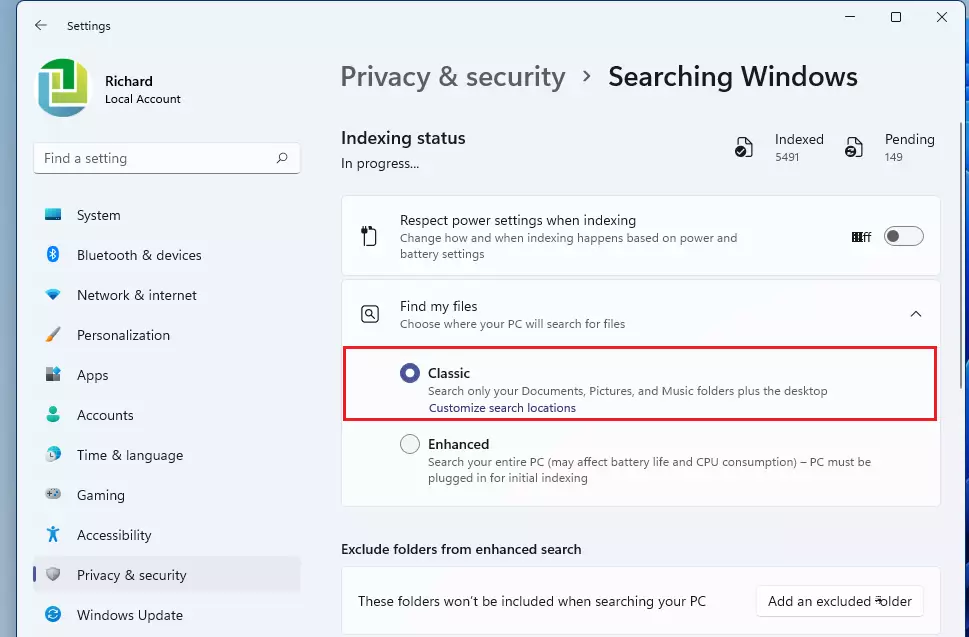
To turn this on, head to Settings > Privacy & security > Searching Windows, then select “Enhanced” from the dropdown menu. This can dramatically reduce search times, especially if you store many files outside the default user directories.
Open Settings, navigate to Privacy & security, then Searching Windows. Under “Find my files,” select “Enhanced” to turn it on or “Classic” to turn it off. This controls how broadly Windows searches your PC for files.
What is Search Indexing?
Think of Search Indexing as your PC’s smart organizer. It scans your files, emails, and other content to build an index. This index helps search results appear much faster. You can learn more about indexing here.
Classic Mode vs. Enhanced Mode
Classic Mode: Searches only within your Documents, Pictures, Music folders, and Desktop.
Enhanced Mode: Searches your entire PC, including all folders. This can use more battery and CPU power, so it’s best to keep your PC plugged in when you turn it on.
How to Turn On or Off Enhanced Search Mode Using Settings
- Press ⊞ Win+I to open Settings.
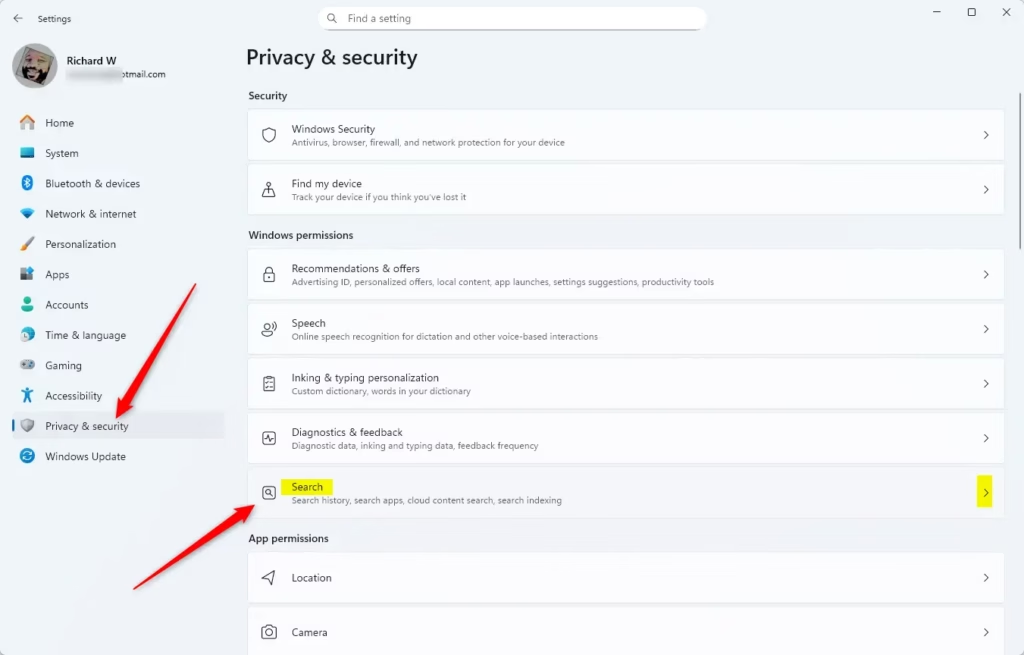
- Click on Privacy & security on the left side.
- Click Search on the right side. Or you can click this link to open directly: Open Search Settings.
- Under Find my files, choose either Classic or Enhanced.
- Close Settings when done.
How to Turn On or Off Enhanced Search Mode Using a Registry File
You can turn Windows 11 enhanced search mode on or off using a registry file, but you’ll need administrator rights first.
To use Classic Mode (the default setting)
reg add "HKEY_LOCAL_MACHINE\SOFTWARE\Microsoft\Windows Search" /v EnableFindMyFiles /t REG_DWORD /d 0 /fTo use Enhanced Mode
reg add "HKEY_LOCAL_MACHINE\SOFTWARE\Microsoft\Windows Search" /v EnableFindMyFiles /t REG_DWORD /d 1 /fTo apply these changes, save the text as a file with the .reg extension. Then, just double-click the file and let it make the necessary changes on your PC.
What’s New in 🪟 Windows 11 Search?
Windows 11 search is smarter now, understanding everyday language so you can find things more easily.- Smarter Searches: Windows 11 now understands natural language better. You can type things like “change my theme” and it will find the right setting.
- Search Cloud Photos: If you use OneDrive, your cloud photos can now appear in search results alongside local files.
- Works Offline: On special PCs called Copilot+ PCs, these smart search features work even without internet.
Summary
Choosing between Classic and Enhanced search modes in Windows 11 lets you decide how your PC looks for files.
- Classic Mode: Faster, searches common folders only.
- Enhanced Mode: Searches everywhere on your PC, but may use more power.
- Improved Search: New Windows 11 updates make searching easier with natural language and cloud integration.
- Admin Rights Needed: Only administrators can change these settings.
These tools help you find what you need on your PC quickly and effectively.
More Info
Want to learn more about search indexing? Check out the official Microsoft support page: Search Indexing in Windows – Microsoft Support
Was this guide helpful?

About the Author
Richard
Tech Writer, IT Professional
Richard, a writer for Geek Rewind, is a tech enthusiast who loves breaking down complex IT topics into simple, easy-to-understand ideas. With years of hands-on experience in system administration and enterprise IT operations, he’s developed a knack for offering practical tips and solutions. Richard aims to make technology more accessible and actionable. He's deeply committed to the Geek Rewind community, always ready to answer questions and engage in discussions.



No comments yet — be the first to share your thoughts!