How to Turn On or Off Adjust for Daylight Saving Time Automatically in Windows 11

Windows 11 lets you automatically adjust for Daylight Saving Time (DST). You’ll find the setting in Date & Time preferences.
This feature ensures your PC’s clock syncs correctly with the local time shifts that happen twice a year for DST. Windows 11 handles the transition, so you won’t have to remember to change your clock yourself.
To find this setting, go to Settings > Time & language > Date & time. Look for the toggle switch that says “Adjust for daylight saving time automatically.”
Go to Settings, then Time & language, and finally Date & time. Toggle “Adjust for daylight saving time automatically” on or off. This setting allows Windows 11 to manage clock changes for DST.
What is Daylight Saving Time?
Daylight Saving Time, often called DST, is when clocks are moved forward an hour in spring and back an hour in autumn. This change gives us more daylight in the evenings during warmer months, though not all countries observe it.
Why Change This Setting?
Windows 11 usually adjusts the clock for DST automatically. However, you might want to turn this off or on sometimes, depending on where you are or your personal preference.
How to Turn On or Off Daylight Saving Time Adjustment
Option 1Using Settings
You can easily turn the automatic adjustment for daylight saving time on or off in Windows 11 right from the Settings app, making it the simplest way for most people to manage this clock feature.
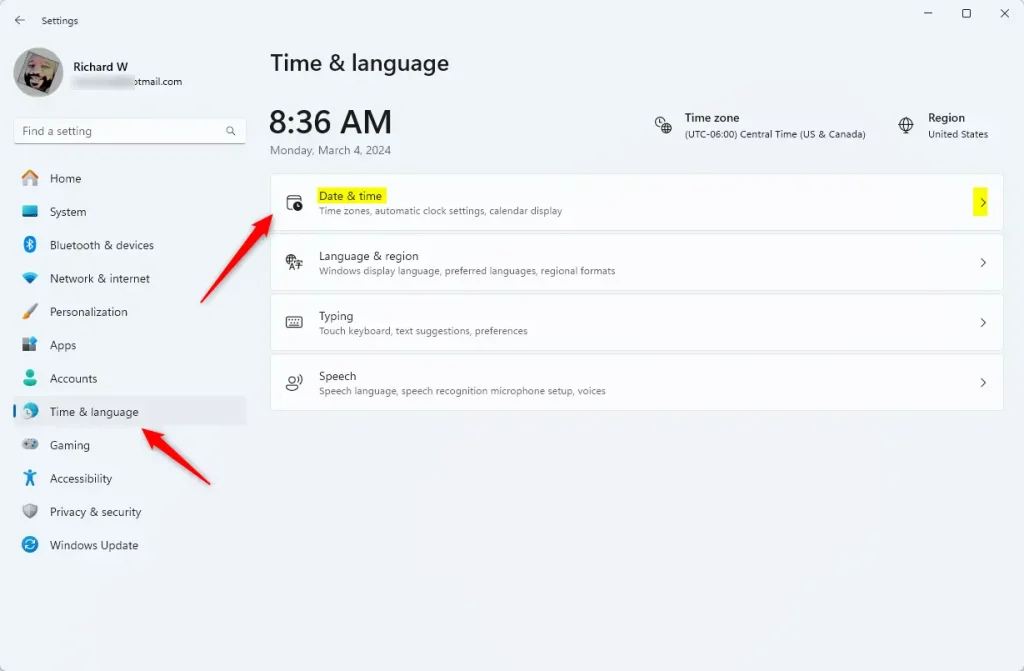
- Press ⊞ Win+I on your keyboard to open Settings.
- Click Time & language on the left side.
- Click Date & time on the right side.
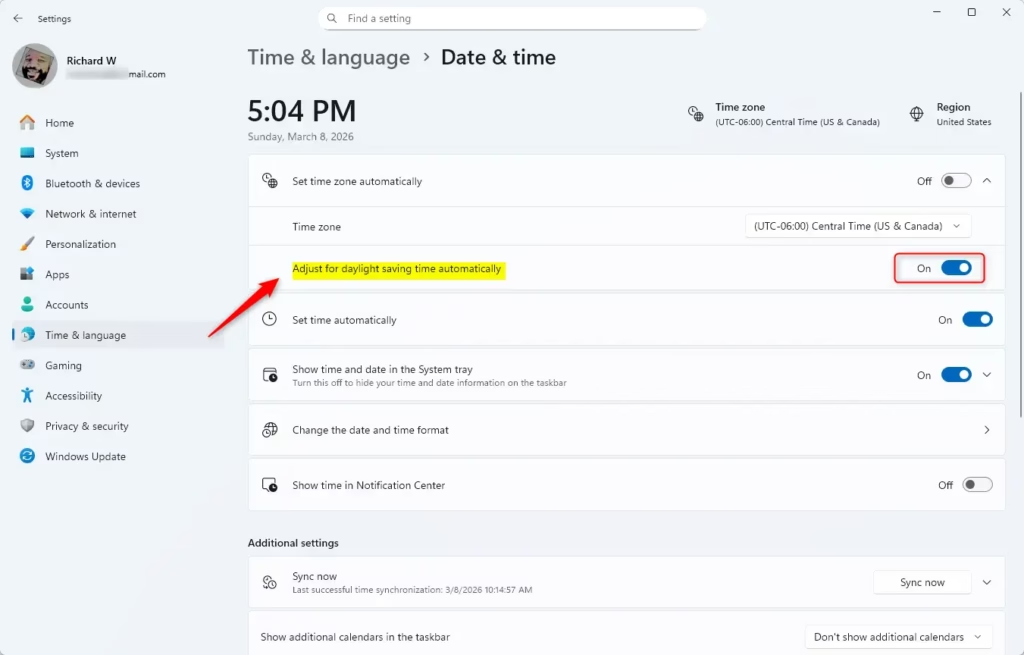
- Find the switch called Adjust for daylight saving time automatically.
- Turn it On to have Windows change the clock automatically, or Off to stop it.
- Tip: If Set time zone automatically is turned on, this option might be greyed out. You can turn off automatic time zone before changing DST settings.
Option 2Using Control Panel
- Open the Control Panel. You can search for it in the Start menu.
- Make sure the view is set to Icons (not categories), then click on Date and Time.
- Click the Change time zone… button.
- Check or uncheck the box for Automatically adjust clock for Daylight Saving Time depending on your preference.
- Click OK to save your changes.
- Close Control Panel when done.
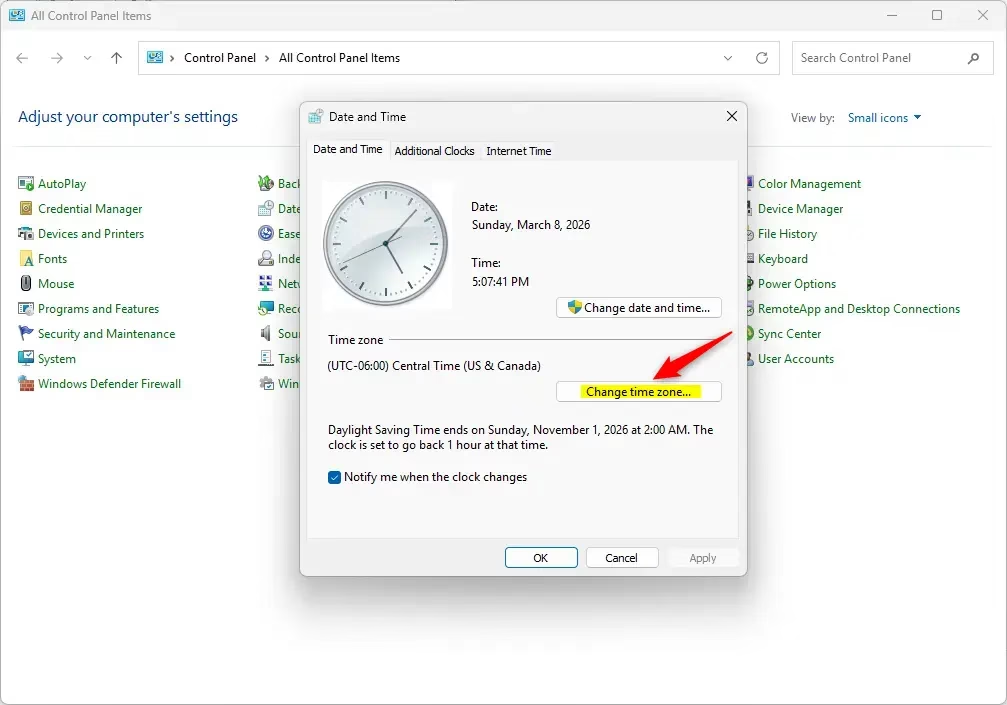
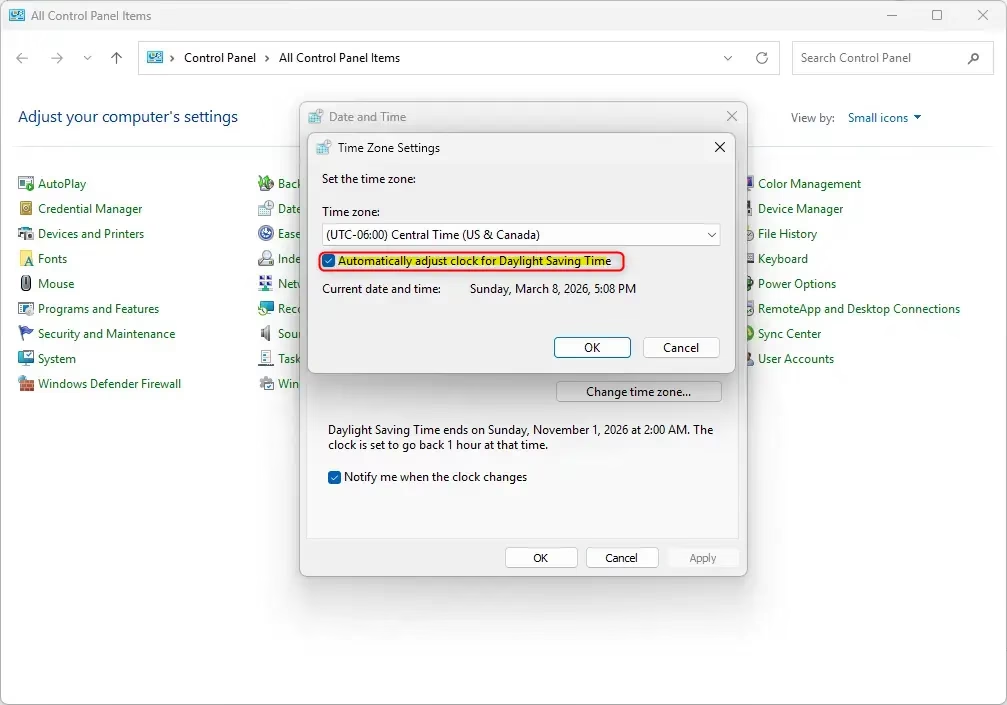
If you prefer using the classic Control Panel to manage your Windows 11 daylight saving time settings, you can find the option there too, though it takes a few more steps than the Settings app.
Option 3Using Registry Editor (Advanced)
For those comfortable with making deeper system changes, you can adjust the automatic daylight saving time setting in Windows 11 using the Registry Editor, but this method is only recommended if you know what you’re doing.
To Turn On DST Adjustment (default setting):
reg add "HKLMSYSTEMCurrentControlSetControlTimeZoneInformation" /v ActiveTimeBias /t REG_DWORD /d 300 /f

reg add "HKLMSYSTEMCurrentControlSetControlTimeZoneInformation" /v Bias /t REG_DWORD /d 360 /f

reg add "HKLMSYSTEMCurrentControlSetControlTimeZoneInformation" /v DaylightBias /t REG_DWORD /d 4294967236 /f

reg add "HKLMSYSTEMCurrentControlSetControlTimeZoneInformation" /v DaylightStart /t REG_BINARY /d 00000300020002000000000000000000 /f

reg add "HKLMSYSTEMCurrentControlSetControlTimeZoneInformation" /v DynamicDaylightTimeDisabled /t REG_DWORD /d 0 /f

reg add "HKLMSYSTEMCurrentControlSetControlTimeZoneInformation" /v StandardStart /t REG_BINARY /d 00000b00010002000000000000000000 /f
To Turn Off DST Adjustment:
reg add "HKLMSYSTEMCurrentControlSetControlTimeZoneInformation" /v ActiveTimeBias /t REG_DWORD /d 360 /f

reg add "HKLMSYSTEMCurrentControlSetControlTimeZoneInformation" /v Bias /t REG_DWORD /d 360 /f

reg add "HKLMSYSTEMCurrentControlSetControlTimeZoneInformation" /v DaylightBias /t REG_DWORD /d 0 /f

reg add "HKLMSYSTEMCurrentControlSetControlTimeZoneInformation" /v DaylightStart /t REG_BINARY /d 00000000000000000000000000000000 /f

reg add "HKLMSYSTEMCurrentControlSetControlTimeZoneInformation" /v DynamicDaylightTimeDisabled /t REG_DWORD /d 1 /f

reg add "HKLMSYSTEMCurrentControlSetControlTimeZoneInformation" /v StandardStart /t REG_BINARY /d 00000000000000000000000000000000 /f
Summary
- Windows 11 usually adjusts clocks for DST automatically by default.
- You can turn this on or off using either Settings, Control Panel, or Registry Editor (for advanced users).
- Administrator rights are needed to change these settings.
- Make sure your time zone is set correctly for DST to work properly.
Windows 11 generally handles daylight saving time adjustments automatically, but you can change this using the Settings app, Control Panel, or Registry Editor if needed, just make sure your time zone is correct.
Helpful Links:
Learn more about Daylight Saving Time (Wikipedia)
Microsoft’s Daylight Saving Time Help & Support
Why is my Windows Clock not adjusting to Daylight Savings Time?
Check to make sure that the time zone is correct and automatic updating for daylight savings time is checked. If everything is correct, but the time is not, then you will have to change the time at the Control panel. Close the Date & time window.
How do I turn off daylight savings on Windows?
To turn off the automatic adjustment for daylight saving time in Windows 11, you’ll go to Settings. Navigate to Time & language, then Date & time, and find the specific toggle for daylight saving time adjustments.
Was this guide helpful?

About the Author
Richard
Tech Writer, IT Professional
Richard, a writer for Geek Rewind, is a tech enthusiast who loves breaking down complex IT topics into simple, easy-to-understand ideas. With years of hands-on experience in system administration and enterprise IT operations, he’s developed a knack for offering practical tips and solutions. Richard aims to make technology more accessible and actionable. He's deeply committed to the Geek Rewind community, always ready to answer questions and engage in discussions.



No comments yet — be the first to share your thoughts!