How to Enable or Disable Storage Sense in Windows 11

You can enable or disable Storage Sense in Windows 11 right from the Settings app.
Storage Sense is an automatic feature designed to free up disk space by deleting temporary files and emptying your Recycle Bin. This can be particularly helpful if you’re running low on storage on your C: drive, which is often the case for many Windows 11 installations.
You can set Storage Sense to run daily, weekly, monthly, or only when your disk space gets low.
You manage Storage Sense in Windows 11 via the Settings app. Navigate to System > Storage > Storage Sense, then toggle the switch to enable or disable it. You can also configure its automatic cleanup settings here.
What is Storage Sense?
Storage Sense in Windows 11 is a helpful tool that automatically frees up space on your computer by deleting files you don’t need, like temporary files and items in your Recycle Bin.
By default, Storage Sense is turned off. Windows might turn it on automatically if your disk space is very low, but you can decide if you want to keep it on or turn it off anytime.
What Does Storage Sense Do?
- Deletes temporary files created by apps and the system
- Empties your Recycle Bin after files have been there for a set time
- Does not delete files in your Downloads folder or cloud storage unless you set it to
Who Can Change Storage Sense Settings?
⚠️ Admin Required: You need to be signed in as an administrator on your PC to change Storage Sense for all users.
How to Enable or Disable Storage Sense
There are two main ways to turn Storage Sense on or off for everyone using your PC:
Option 1Using Local Group Policy Editor (For 🪟 Windows 11 Pro, Enterprise, Education)
If you have Windows 11 Pro, Enterprise, or Education, you can easily turn Storage Sense on or off using the Local Group Policy Editor.
- Press ⊞ Win+R keys on your keyboard, type
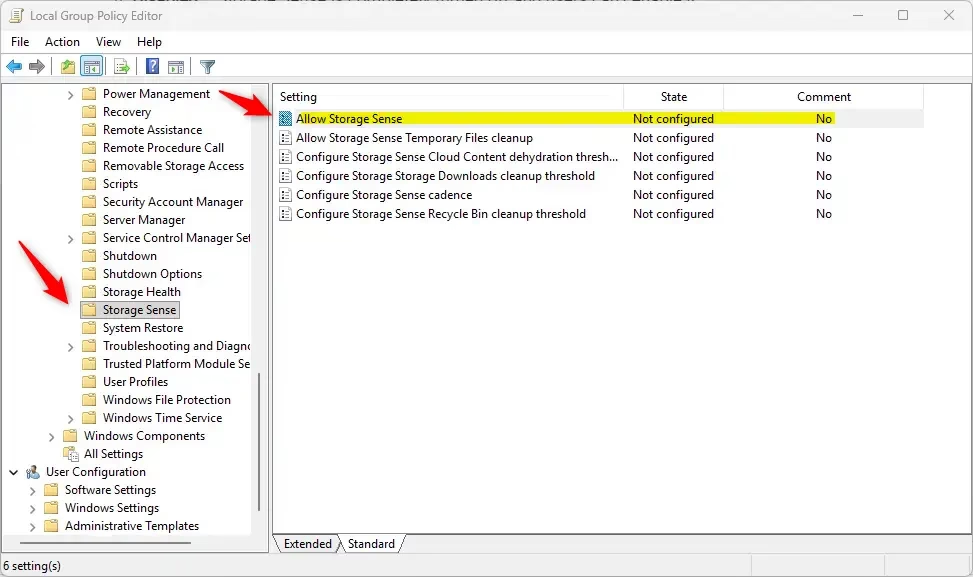
gpedit.msc, and press Enter to open the Local Group Policy Editor. - In the left panel, go to: Computer Configuration > Administrative Templates > System > Storage Sense
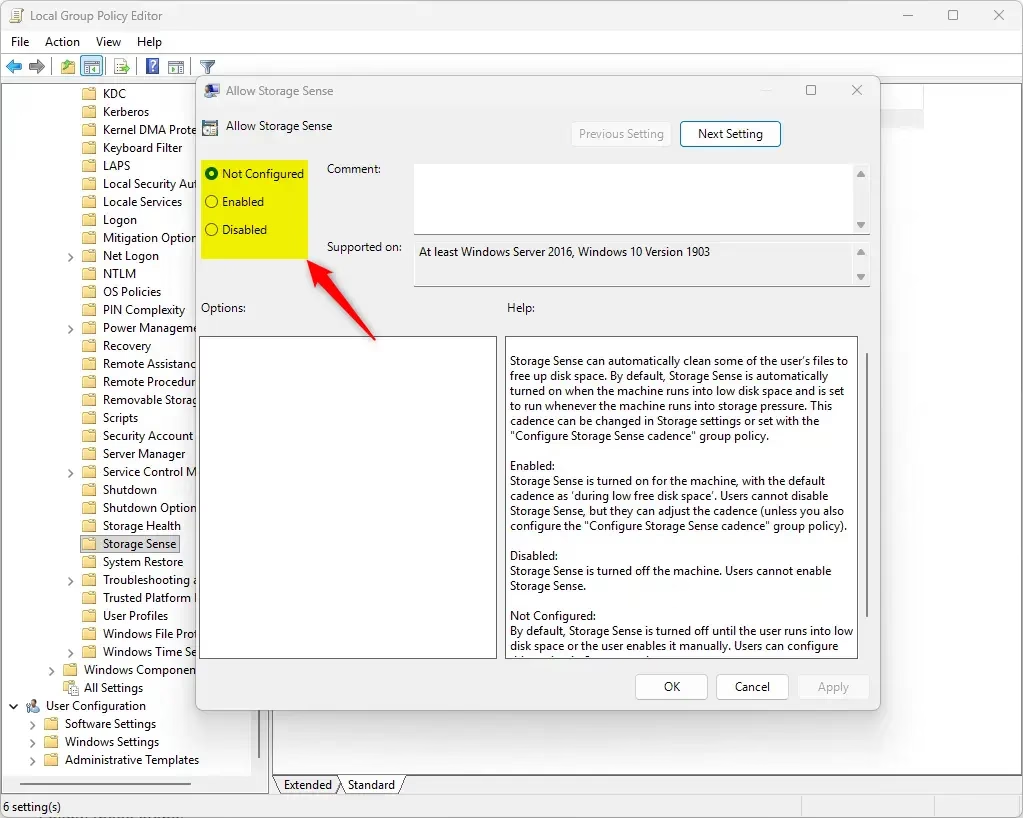
- In the right panel, double-click Allow Storage Sense.
- You will see three options:
- Not Configured – This lets users turn Storage Sense on or off themselves (default).
- Enabled – Storage Sense is always on, but users can change how often it runs.
- Disabled – Storage Sense is completely turned off and users can’t enable it .
- Choose the option you want, click OK, and close the editor.
Option 2Using Windows Registry (All 🪟 Windows 11 editions)
You can change Storage Sense settings on any Windows 11 version by editing the Registry, but it’s important to back it up first in case something goes wrong.
Follow these steps:
- ⚠️ Admin Required: Press ⊞ Win+R, type
regedit, and press Enter to open the Registry Editor. - Navigate to this key:
HKEY_LOCAL_MACHINE\SOFTWARE\Policies\Microsoft\Windows\StorageSense - If the StorageSense folder doesn’t exist, create it by right-clicking Windows, choosing New > Key, and naming it StorageSense.
- In the right pane, create or modify a DWORD (32-bit) value named AllowStorageSenseGlobal:
- Delete the value or set it to Not Configured (default): Remove the AllowStorageSenseGlobal value.
- To always enable Storage Sense: Set the value to 1.
- To always disable Storage Sense: Set the value to 0.
Default – Enable Storage Sense
reg delete "HKEY_LOCAL_MACHINE\SOFTWARE\Policies\Microsoft\Windows\StorageSense" /v AllowStorageSenseGlobal /fAlways enable Storage Sense
reg add "HKEY_LOCAL_MACHINE\SOFTWARE\Policies\Microsoft\Windows\StorageSense" /v AllowStorageSenseGlobal /t REG_DWORD /d 1 /fAlways disable Storage Sense
reg add "HKEY_LOCAL_MACHINE\SOFTWARE\Policies\Microsoft\Windows\StorageSense" /v AllowStorageSenseGlobal /t REG_DWORD /d 0 /fSummary
- Storage Sense helps keep your PC clean by removing unneeded files automatically.
- It’s off by default but can be turned on for all users by an administrator.
- You can also let users decide by leaving it “Not Configured.”
- Turning on Storage Sense helps your computer run better by freeing up space.
- Be sure to log in as an administrator to make these changes.
- Check your Storage Sense settings now and then to keep your PC healthy.
Storage Sense is a Windows feature that automatically cleans up your PC by deleting old files, helping it run better and freeing up space.
Where is storage sense in 🪟 Windows 11?
Turn on Storage Sense Go to Start > Settings > System > Storage .
How often should I run storage Sense?
Click Storage Sense (or “Configure Storage Sense or run it now”) to open configuration. Choose the cadence: Only when low on disk space, Every day, Every week, or Every month. Many users prefer Weekly or Monthly as a balanced choice.
Was this guide helpful?

About the Author
Richard
Tech Writer, IT Professional
Richard, a writer for Geek Rewind, is a tech enthusiast who loves breaking down complex IT topics into simple, easy-to-understand ideas. With years of hands-on experience in system administration and enterprise IT operations, he’s developed a knack for offering practical tips and solutions. Richard aims to make technology more accessible and actionable. He's deeply committed to the Geek Rewind community, always ready to answer questions and engage in discussions.




No comments yet — be the first to share your thoughts!