How to Enable or Disable Automatically manage color for apps in Windows 11

What is Auto Color Management?
Auto color management helps your apps settings-for-your-windows-11-display/" class="sal-link" rel="noopener" target="_blank" data-sal-id="10599">display colors more accurately and beautifully. When you turn it on, apps can use billions of colors with more detail. This makes images and videos look smoother with better shadows and gradients.
Important: Your computer needs a compatible graphics card (like Nvidia, AMD, or Intel) and a driver called WDDM version 3.0 or higher to use this feature. If you don’t see the option, your device might not support it.
How to Turn On Auto Color Management
- Open Windows Settings
Click the Start menu and select Settings. Or press
Windows key + Ion your keyboard to open the Settings app.Learn more about opening Settings
- Go to Accessibility
In the Settings window, click Accessibility from the menu on the left.
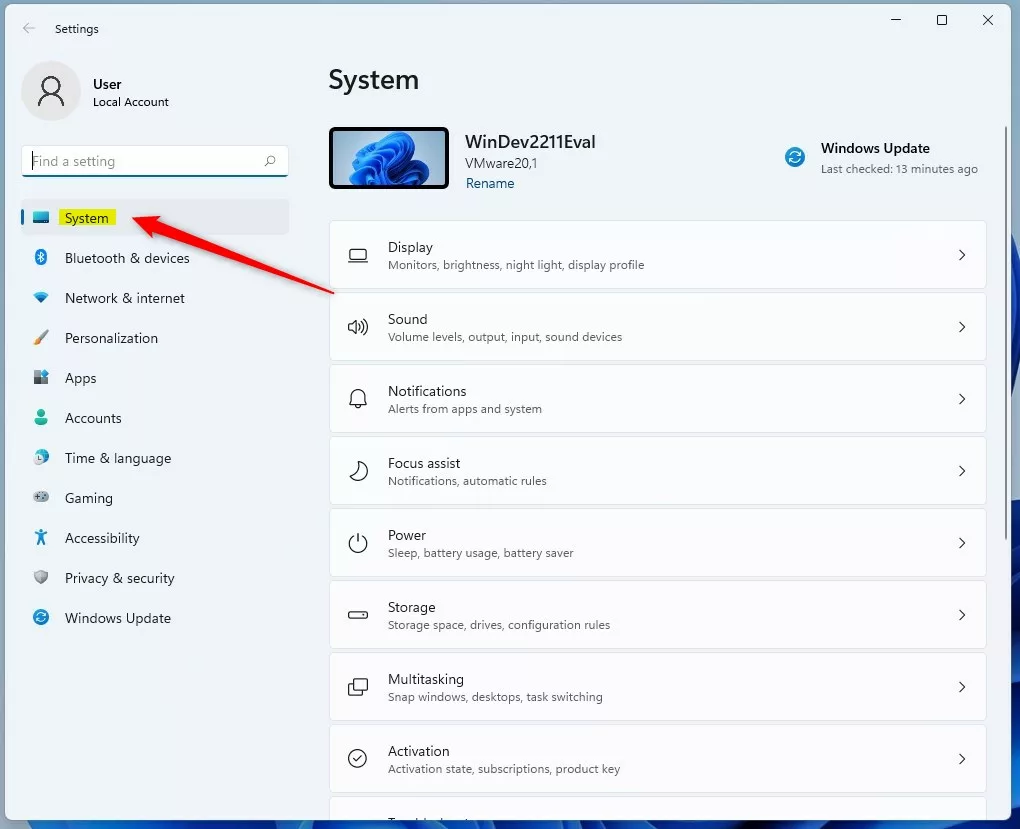
- Open Display Settings
On the right side, click on the Display section to expand it.

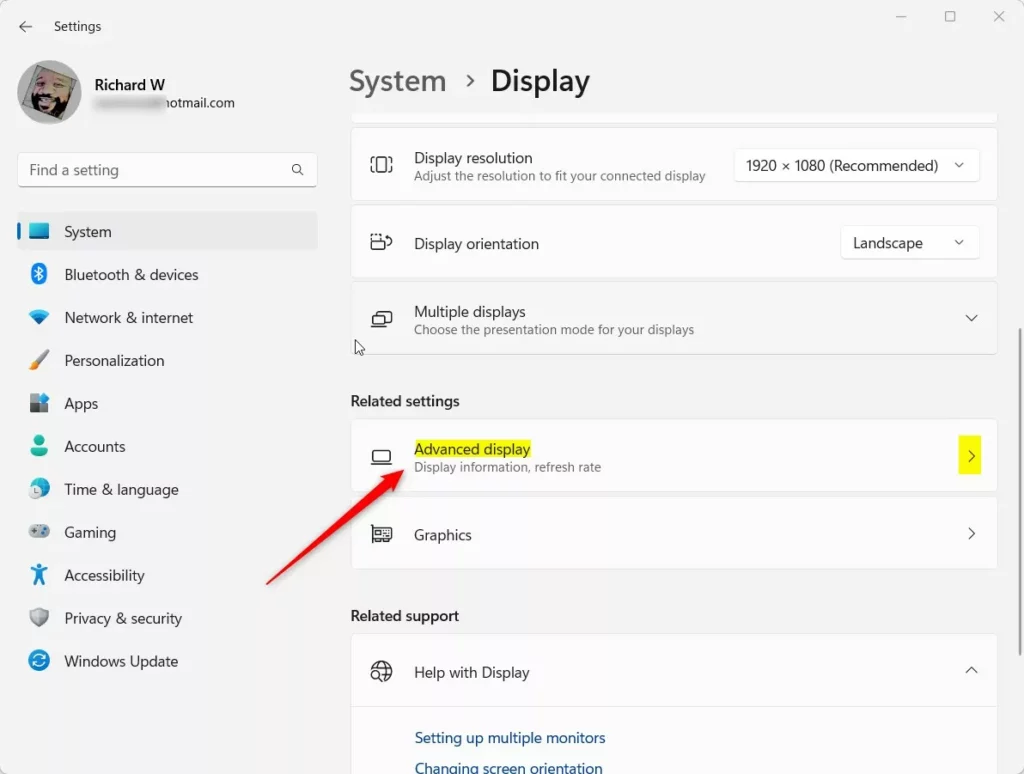
- Go to Advanced Display Settings
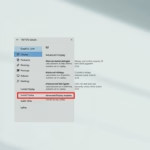
Scroll down and find Advanced display under Related settings. Click it to open more options.
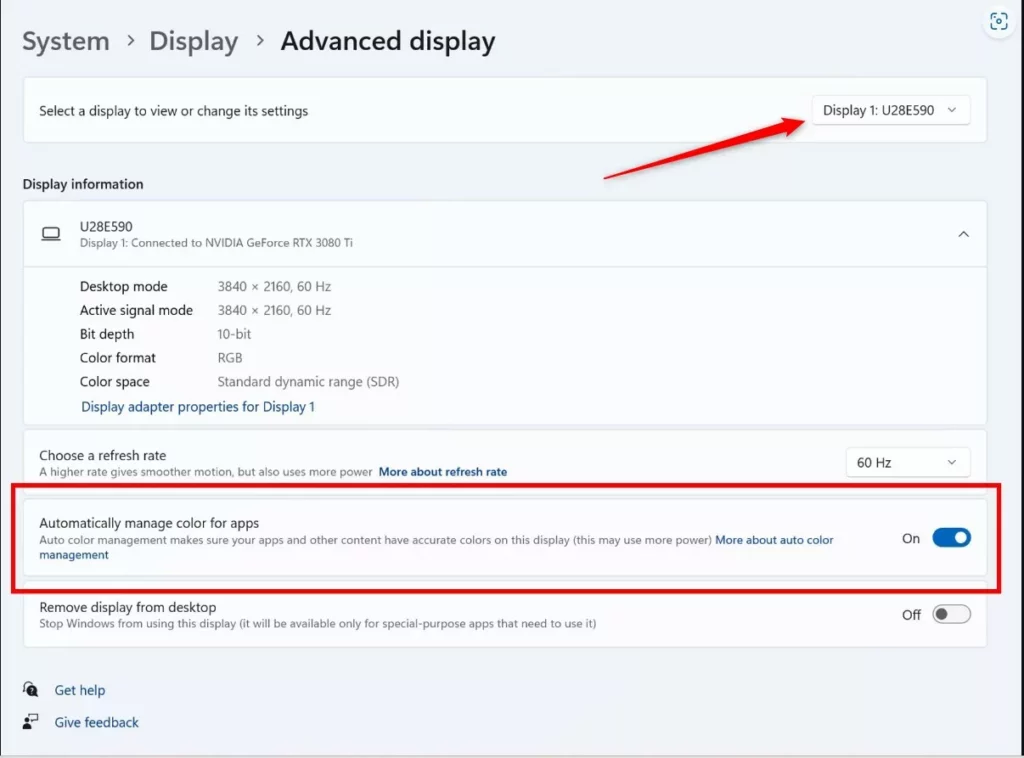
- Turn On Auto Color Management
Near the top, select your monitor from the dropdown if you have more than one. Then, find Automatically manage color for apps and switch it On or Off as you want.
- Close Settings
Once you’ve made your choice, simply close the Settings app. Your change will be saved automatically.
Summary
- Turning on Automatically manage color for apps makes colors in apps look better and more accurate.
- Your computer needs a compatible graphics card and WDDM 3.0 driver or higher for this to work.
- You can easily switch this feature on or off anytime through the Windows Settings.
- For more details, you can visit the official Microsoft support page: Auto color management in Windows 11 – Microsoft Support
Was this guide helpful?

About the Author
Richard
Tech Writer, IT Professional
Richard, a writer for Geek Rewind, is a tech enthusiast who loves breaking down complex IT topics into simple, easy-to-understand ideas. With years of hands-on experience in system administration and enterprise IT operations, he’s developed a knack for offering practical tips and solutions. Richard aims to make technology more accessible and actionable. He's deeply committed to the Geek Rewind community, always ready to answer questions and engage in discussions.



No comments yet — be the first to share your thoughts!