How to Find Your Wi-Fi Password in Windows 11

You can find your saved Wi-Fi password directly in Windows 11 if your PC is already connected to the network.
Windows 11 keeps track of your network details, like Wi-Fi passwords. This means you can find them without having to reset your router.
This process involves accessing the Network & Internet settings, specifically the advanced network properties, where you can view the security key for your connected Wi-Fi. For instance, you might have forgotten the password for your home network, which has been saved on your laptop since Windows 11 version 21H2.
Follow these steps to recover your forgotten Wi-Fi password on your Windows 11 computer.
Go to Settings > Network & internet > Wi-Fi, select your network, and click “View Wi-Fi security key.” Alternatively, open Quick Settings, click Wi-Fi, select your network’s properties, and choose “View Wi-Fi security key.” Your password will then be displayed after confirmation.
What is a Wi-Fi Password?
A Wi-Fi password (also called a security key) is what you type to connect your device to the internet through a wireless network. Your computer remembers this password so you won’t have to type it in every time.
Before You Start
Look at the back or bottom of your Wi-Fi router or modem. Many have the default Wi-Fi password printed there.
If you or someone else changed the password, follow the steps below to find it on your Windows 11 PC.
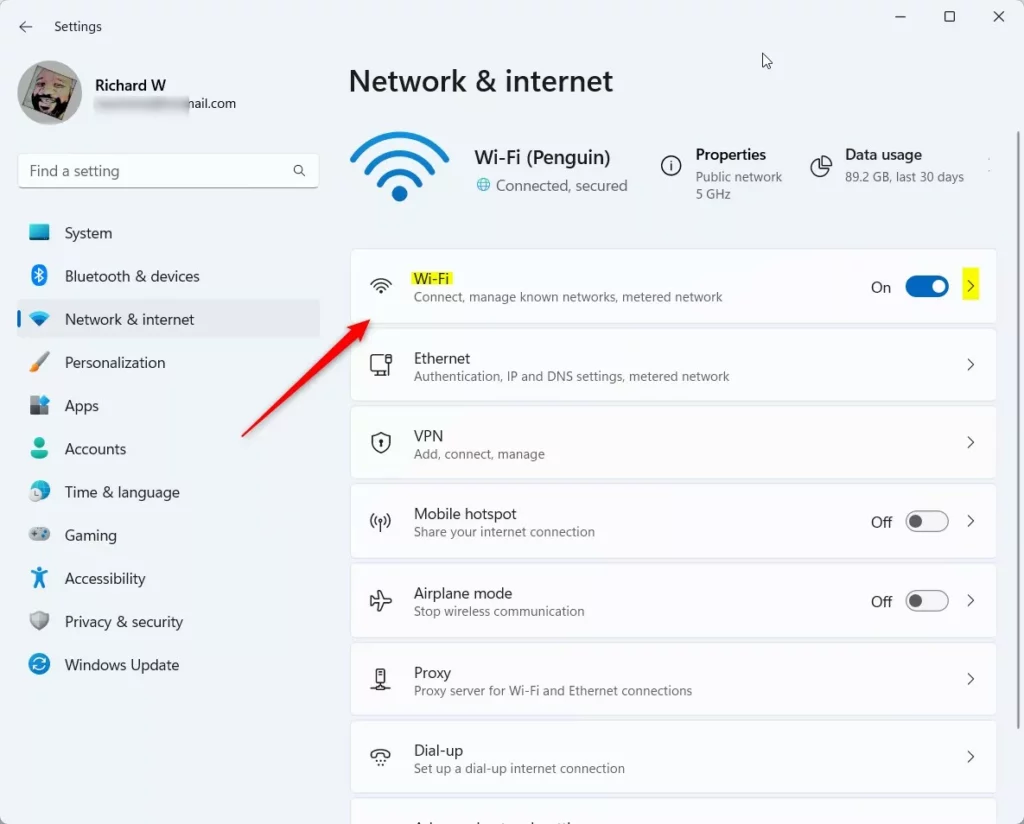
Method 1Find Wi-Fi Password Using Windows Settings
- Click on the Start button (Windows icon) in the bottom-left corner.
- Click on Settings. You can also press ⊞ Win+I on your keyboard to open Settings quickly.
- In Settings, click Network & internet on the left side menu.
- Click on Wi-Fi.
- Click on your connected Wi-Fi network name to open its properties.
- Scroll down and find the Security key or View Wi-Fi security key option.
- Click on it. Windows may ask you for your PC password or to confirm your identity.
- After confirming, your Wi-Fi password will be shown.
You can find your Wi-Fi password in Windows 11 through the main Settings app by going to Network & internet, then Wi-Fi, and clicking on your network’s properties to reveal the security key.
Method 2Find Wi-Fi Password Using Quick Settings
- Click on the network icon at the bottom-right corner of your screen (near the clock) to open Quick Settings.
- Click the Wi-Fi button to see your connected network.
- Click Properties under your Wi-Fi network.
- Scroll down and select View Wi-Fi security key.
- Confirm your PC password if asked. Your Wi-Fi password will appear.
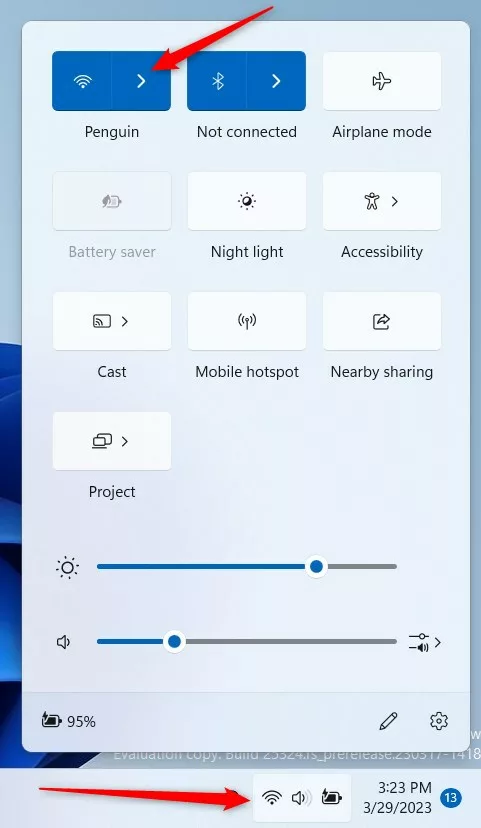
Finding your Wi-Fi password using Quick Settings in Windows 11 is simple: just click the network icon, select your Wi-Fi network’s properties, and then choose to view the security key.
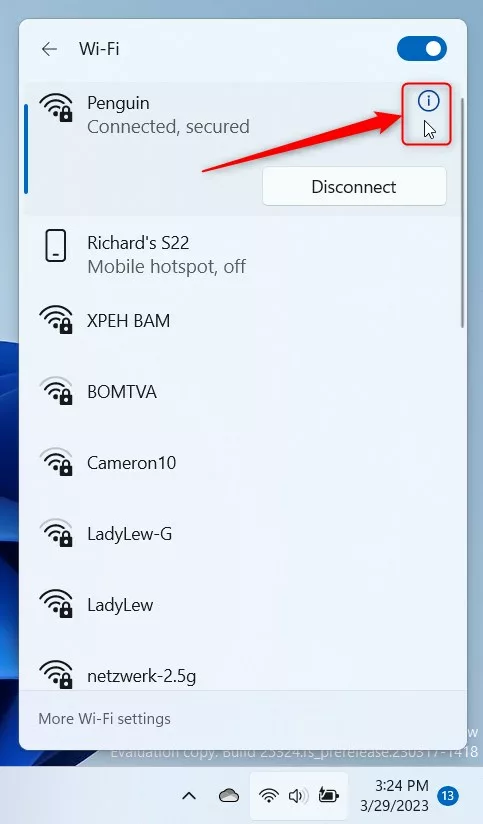
Finding your Wi-Fi password using Quick Settings in Windows 11 is simple: just click the network icon, select your Wi-Fi network’s properties, and then choose to view the security key.
Method 3Find Wi-Fi Password Using Command Prompt
You can find your Wi-Fi password in Windows 11 using the Command Prompt by typing a specific command to show network profiles and then another to reveal the password for a chosen network.
- Press ⊞ Win+S on your keyboard. Type
cmd, then click Command Prompt in the results. - In the Command Prompt window, type this command and press Enter:
netsh wlan show profile
This shows all Wi-Fi networks your PC has connected to. - Find the network name (SSID) you want the password for.
- Type this command. Replace
YourWiFiNamewith your Wi-Fi network name, then press Enter:netsh wlan show profile "YourWiFiName" key=clear - Look for the line Key Content. That is your Wi-Fi password.
Example:
netsh wlan show profile "HomeNetwork" key=clear
The command will show details about the Wi-Fi network. Your password appears next to Key Content.
Summary
- Windows 11 stores your Wi-Fi password so you don’t have to type it every time.
- You can find your saved Wi-Fi password in the Settings app or Quick Settings.
- If you like, use Command Prompt to see the password with a simple command.
- Knowing your Wi-Fi password helps you connect other devices or share it with family and friends.
In Windows 11, you can easily find your saved Wi-Fi password using either the Settings app, Quick Settings, or the Command Prompt, which is helpful for connecting other devices or sharing your network.
If you want to learn more about Windows 11 tips, check out this helpful guide.
Where is the Wi-Fi password stored?
Your Wi-Fi password is stored within your router’s settings, which you can usually access by connecting your PC to the router and typing its IP address into a web browser.
Was this guide helpful?

About the Author
Richard
Tech Writer, IT Professional
Richard, a writer for Geek Rewind, is a tech enthusiast who loves breaking down complex IT topics into simple, easy-to-understand ideas. With years of hands-on experience in system administration and enterprise IT operations, he’s developed a knack for offering practical tips and solutions. Richard aims to make technology more accessible and actionable. He's deeply committed to the Geek Rewind community, always ready to answer questions and engage in discussions.




No comments yet — be the first to share your thoughts!