How to Enable or Disable Microsoft Account Notifications in Windows 11

You can enable or disable Microsoft account notifications on your Windows 11 PC to control personalized reminders about your account services.
These notifications appear on your Start menu and offer quick access to important tasks, such as backing up your data, managing subscriptions, or strengthening your account security.
Microsoft recently began rolling out this feature, initially making it available to users in the Windows 11 Insider Preview program. This allows you to tailor your Windows experience by deciding if you want these proactive account alerts.
Go to Settings > Personalization > Start. Toggle the “Show account-related notifications” option on or off to control these reminders. You can also use the Registry Editor for advanced users.
How to Turn Microsoft Account Notifications On or Off
Here’s an easy way to control these notifications:
Step 1Open the Settings App
- Click the Start menu (Windows icon) and select Settings.
- Or press
Windows key + Ion your keyboard to open Settings directly.
Step 2Navigate to Personalization
- In Settings, click on Personalization on the left side.
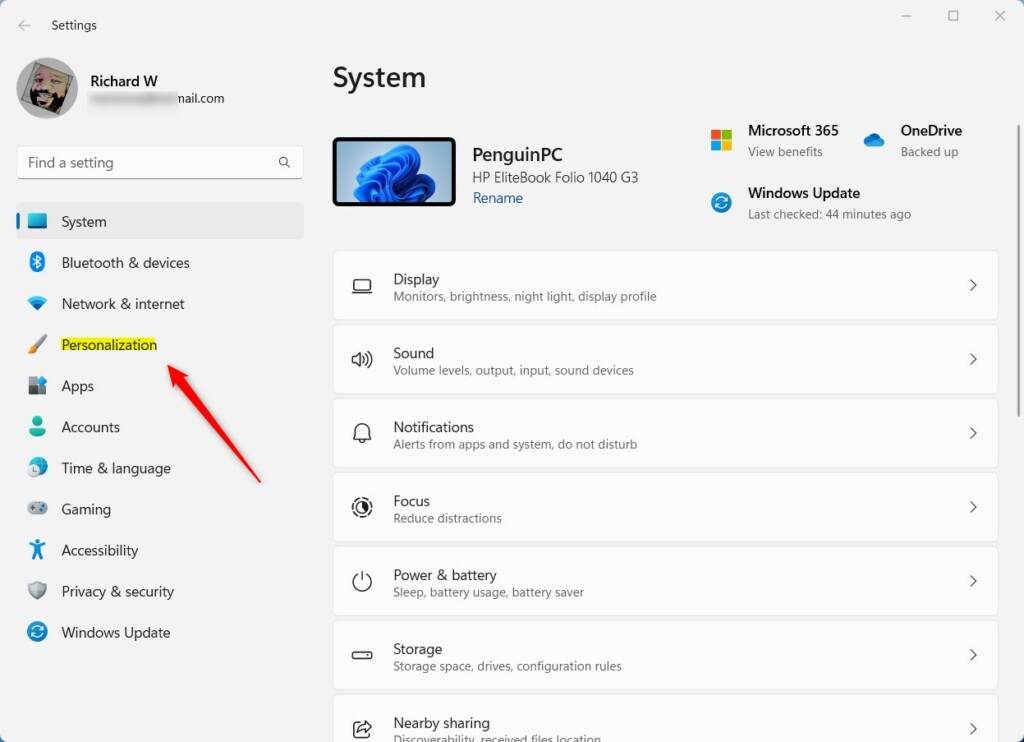
Click Personalization in Settings
Step 3Select Start
- Next, on the right, click Start.
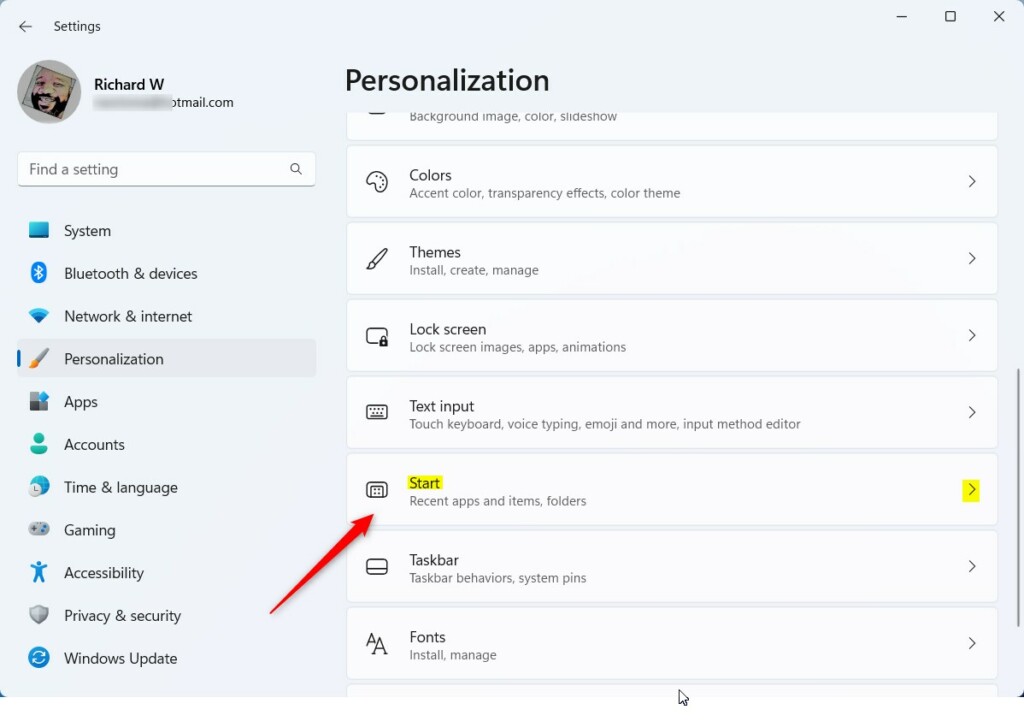
Click Start in Personalization
Step 4Toggle the Notification Setting
- Look for Show account-related notifications and toggle it On to enable or Off to disable.

Turn Show account-related notifications On or Off
When you’re done, just close the Settings window.
Another Way: Use the Windows Registry (For Advanced Users)
If you’re comfortable with a more technical method, you can turn this feature on or off using the Windows Registry Editor.
Warning: Be careful when using the Registry Editor. Changing the wrong settings can cause problems. Make sure to follow the steps exactly.
Step 1Open the Registry Editor
- Press
Windows key + R, typeregedit, and press Enter.
Step 2Navigate to the Correct Folder
- Navigate to this folder path:
HKEY_CURRENT_USER\Software\Microsoft\Windows\CurrentVersion\Explorer\Advanced - If you don’t see the Advanced folder, right-click on Explorer, choose New > Key, and name the new key Advanced.
Step 3Create a New Value ⚙️ REQUIRES ADMIN PRIVILEGES
- Right-click anywhere on the right side pane inside Advanced, select New > DWORD (32-bit) Value, and name it
Start_AccountNotifications.
Step 4Set the Value
- Double-click the new
Start_AccountNotificationsvalue and set:1to turn notifications on0to turn notifications off
- Click OK and close the Registry Editor.
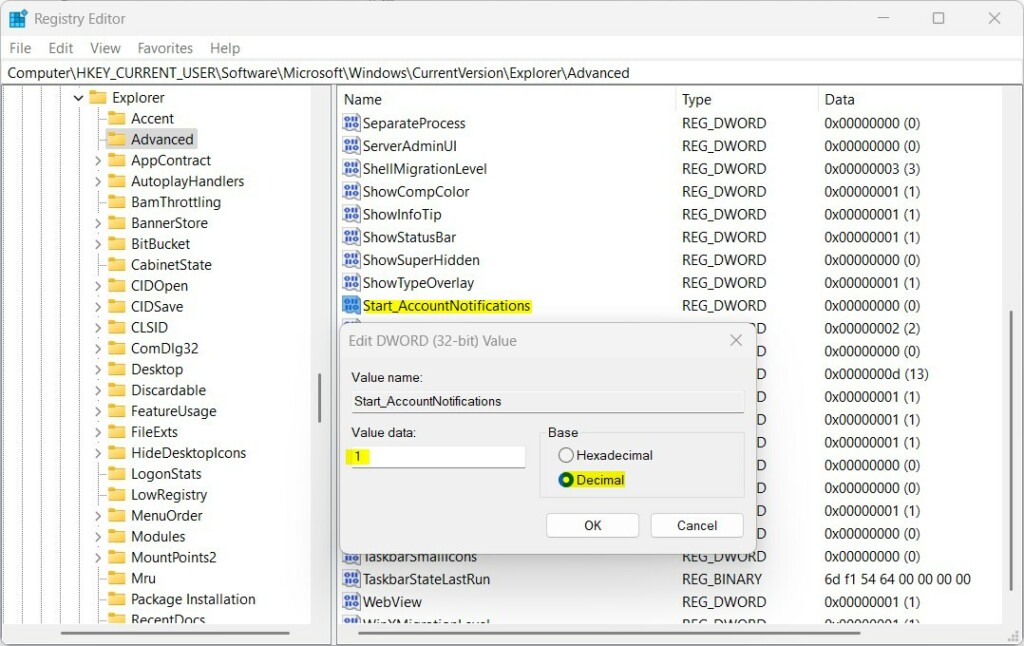
Set Start_AccountNotifications value to 1 or 0
Step 5 Restart Your Computer
- Restart your computer for the changes to take effect.
Summary
- Microsoft added a new notification feature for your Microsoft account on the Windows 11 Start menu.
- This feature helps you stay updated about your account and security.
- Not all users see this feature yet. Mainly Insider Preview users have it now.
- You can turn the notifications on or off easily through Settings or using the Registry Editor.
- Choose the method you’re comfortable with.
- For more details, see the official Microsoft announcement: Windows Insider Blog
What are account related notifications on 🪟 Windows 11?
More than likely, you've been prompted by various notification badges on your Windows 11 device. As its name suggests, this feature displays badges on the user profile icon, encouraging you to perform recommended actions related to your Microsoft account, such as setting up OneDrive or starting a Microsoft 365 trial.
Was this guide helpful?

About the Author
Richard
Tech Writer, IT Professional
Richard, a writer for Geek Rewind, is a tech enthusiast who loves breaking down complex IT topics into simple, easy-to-understand ideas. With years of hands-on experience in system administration and enterprise IT operations, he’s developed a knack for offering practical tips and solutions. Richard aims to make technology more accessible and actionable. He's deeply committed to the Geek Rewind community, always ready to answer questions and engage in discussions.



No comments yet — be the first to share your thoughts!