How to Enable or Disable Dynamic Lighting in Windows 11

What is Dynamic Lighting?
Dynamic Lighting is a new feature in Windows 11. It lets you control colorful RGB lights on your computer devices and accessories. Think of things like keyboards, mice, or other gadgets that have light features.
Why would you want this? You can change and customize your device’s lights right from Windows. You don’t need to use extra software or apps to do it.
How to Turn On or Off Dynamic Lighting
Follow these simple steps to enable or disable Dynamic Lighting on your Windows 11 PC:
Step 1Open Windows Settings
- Click the Start menu (Windows logo at the bottom left) and choose Settings.
- Or press the Windows key + I together on your keyboard to open Settings right away.
Step 2Go to Personalization
- In the Settings window, click on Personalization from the left-hand menu.

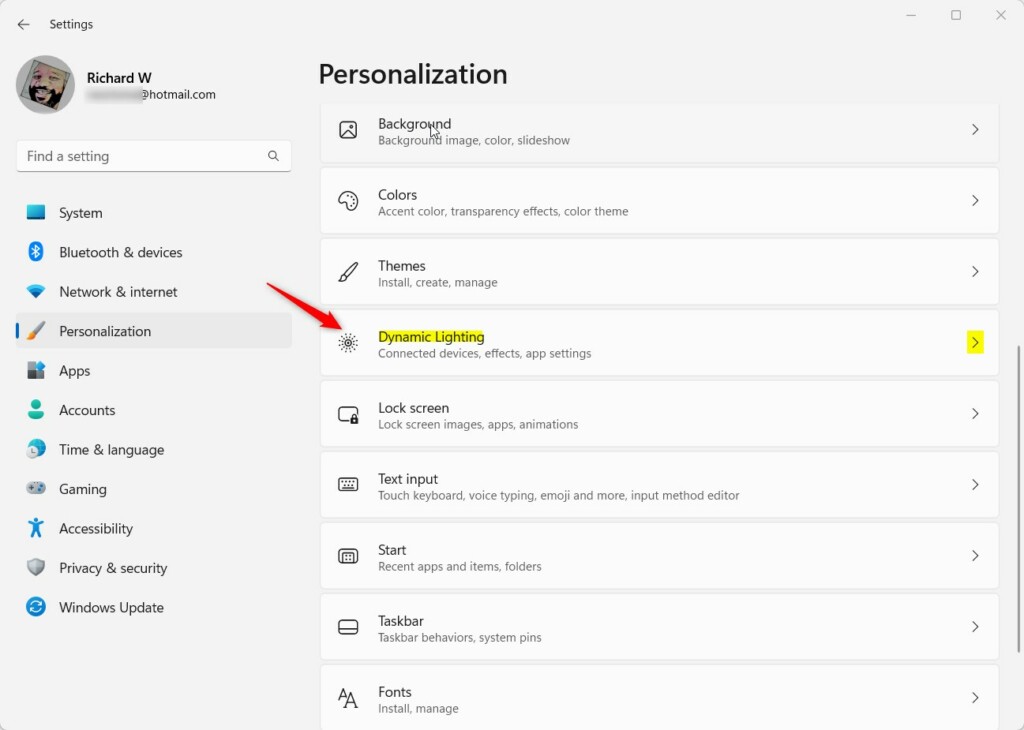
Step 3Find Dynamic Lighting
- On the right side, look for the tile labeled Dynamic Lighting and click it to open.
Step 4Turn Dynamic Lighting On or Off
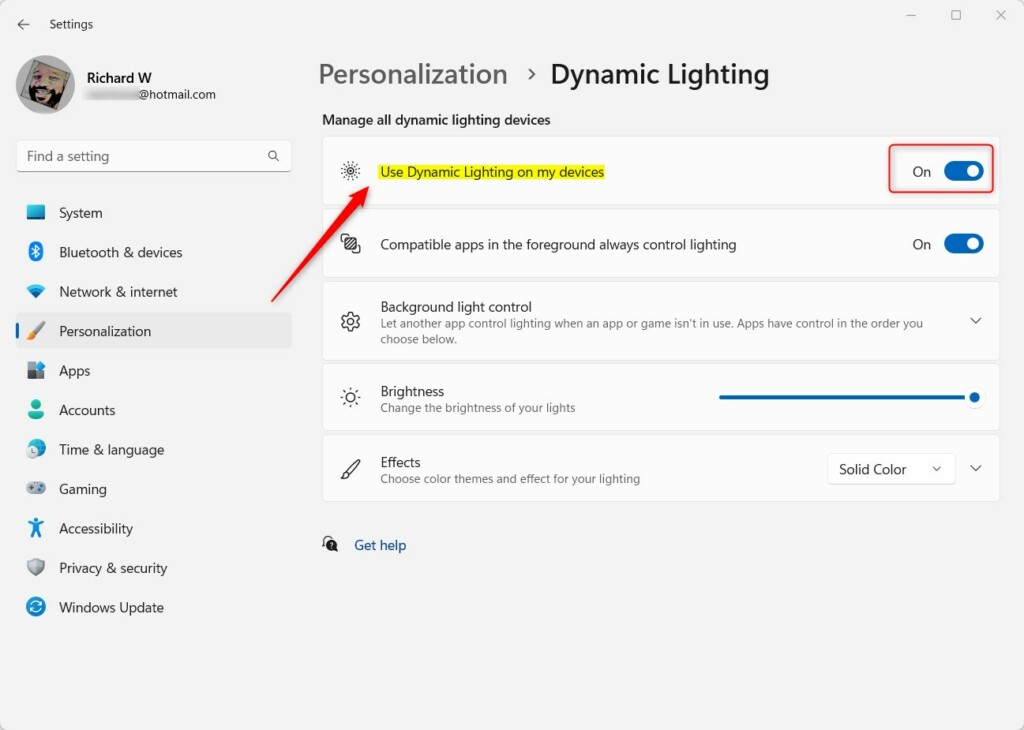
- You will see a switch labeled Use Dynamic Lighting on my devices.
- Click the switch to On to enable it or Off to disable it .
Step 5Close Settings
- When done, just close the Settings window.
- Your changes save automatically.
Turn Dynamic Lighting On or Off Using the Registry Editor (Advanced)
What is the Registry Editor? It’s a tool built into Windows. It stores settings for your computer. Changing things here can affect how Windows works.
Why use the Registry? Some advanced users prefer this method. It’s another way to control the same feature.
Important: Only try this if you feel comfortable with your computer. Make small changes and be careful.
Step 1Open the Registry Editor
- Press Windows key + R together.
- Type
regedit - Press Enter.
- Note: Registry Editor may require admin privileges.
Step 2Navigate to the Right Location
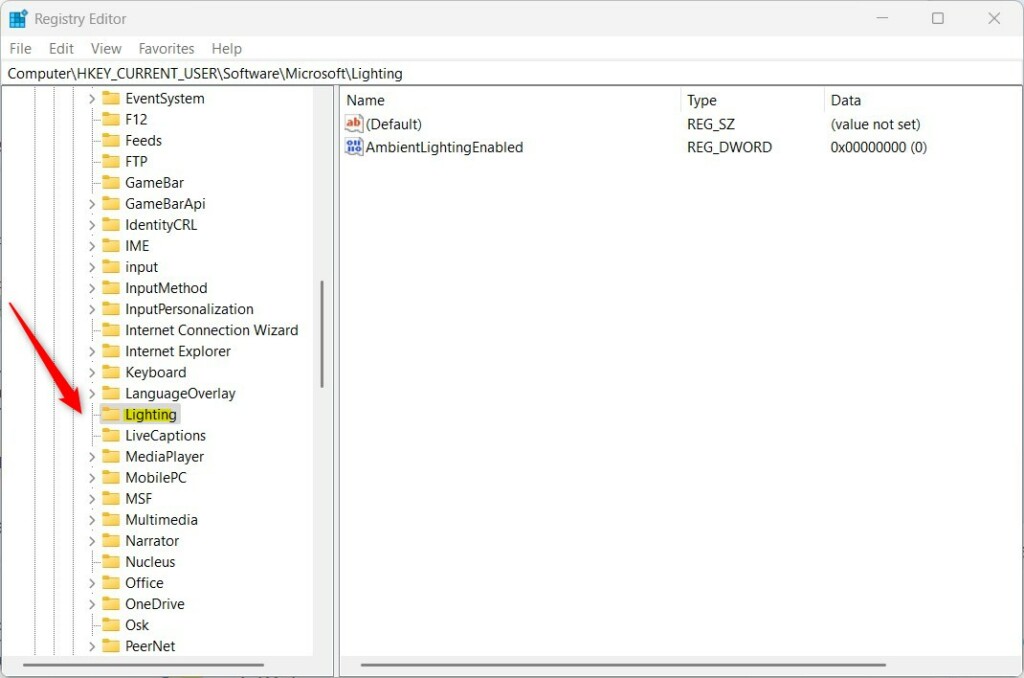
- Look for this path:
HKEY_CURRENT_USER\Software\Microsoft\Lighting - If you don’t see the Lighting folder, follow these steps:
- Right-click on the Microsoft folder.
- Choose New > Key.
- Name it Lighting.
Step 3Create a New Value
- Inside the Lighting folder, right-click on the right side.
- Select New > DWORD (32-bit) Value.
- Name this new value
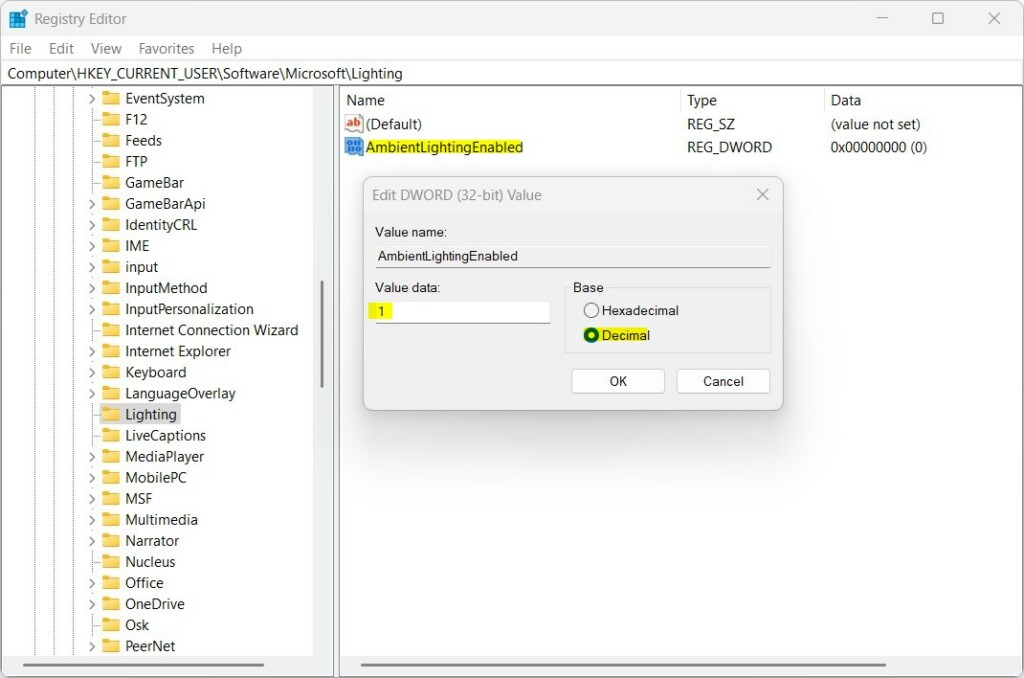
AmbientLightingEnabled
Step 4Set the Value
- Double-click
AmbientLightingEnabled - Set the Base to Decimal.
- Set the value data to one of these:
1to turn Dynamic Lighting ON0to turn Dynamic Lighting OFF
Step 5Close and Restart
- Close Registry Editor.
- Restart your computer to apply changes.
Summary
- Dynamic Lighting lets you control RGB lights on your Windows 11 devices easily.
- You can turn it on or off in Settings > Personalization > Dynamic Lighting.
- Advanced users can also change this setting in the Windows Registry.
- This feature helps you personalize your PC lighting without extra apps.
Want to learn more? Visit the official Microsoft blog for details: Microsoft Windows Developer Blog
Was this guide helpful?

About the Author
Richard
Tech Writer, IT Professional
Richard, a writer for Geek Rewind, is a tech enthusiast who loves breaking down complex IT topics into simple, easy-to-understand ideas. With years of hands-on experience in system administration and enterprise IT operations, he’s developed a knack for offering practical tips and solutions. Richard aims to make technology more accessible and actionable. He's deeply committed to the Geek Rewind community, always ready to answer questions and engage in discussions.


No comments yet — be the first to share your thoughts!