How to Change App Execution Aliases in Windows 11

In Windows 11, some apps come with “execution aliases.” These are simple shortcut names you can type in the Command Prompt or Run box to open the app quickly.
Sometimes, two or more apps might use the same shortcut name, which can cause confusion. Luckily, Windows lets you pick which app’s shortcut you want to use by turning these aliases on or off.
What Are App Execution Aliases?
Think of an execution alias as a nickname for an app. Instead of typing a long command to open an app, you can just type its alias.
For example, if an app has the alias testapp, typing testapp in Command Prompt will open it.
Why do this? It saves time. You don’t have to remember long app names or file paths.
What happens when done? You can quickly launch apps from the command line using short, easy-to-remember names.
How to Turn App Execution Aliases On or Off
Follow these easy steps to manage app execution aliases:
- Open Windows Settings: Click the Start button and then select Settings, or press
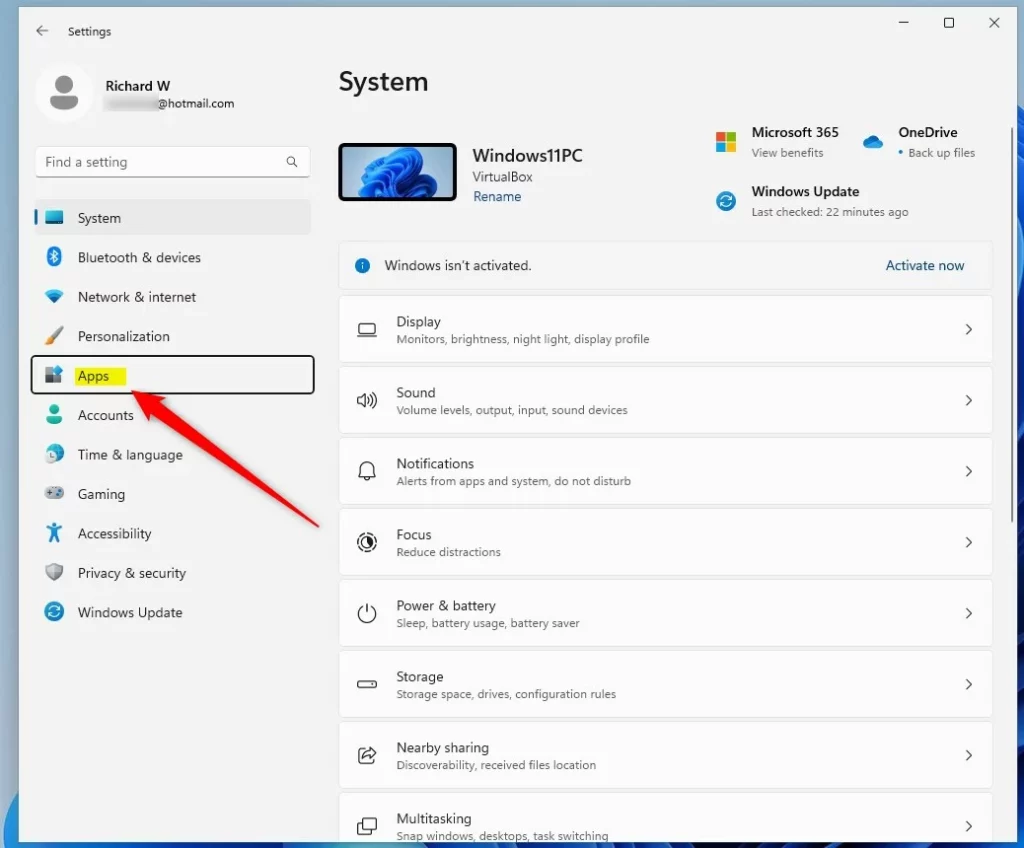
Windows key + Ion your keyboard. Learn more about Windows Settings - Go to Apps: In the Settings window, click Apps on the left side menu.
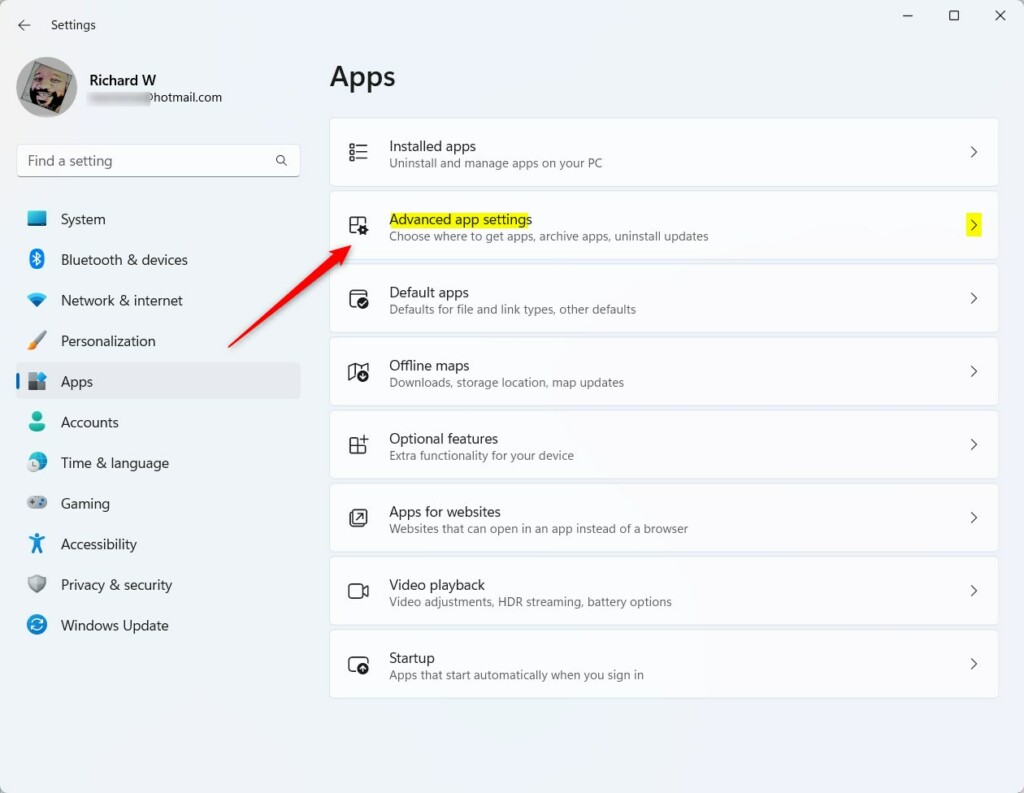
- Open Advanced App Settings: On the right side, find and click on Advanced app settings.
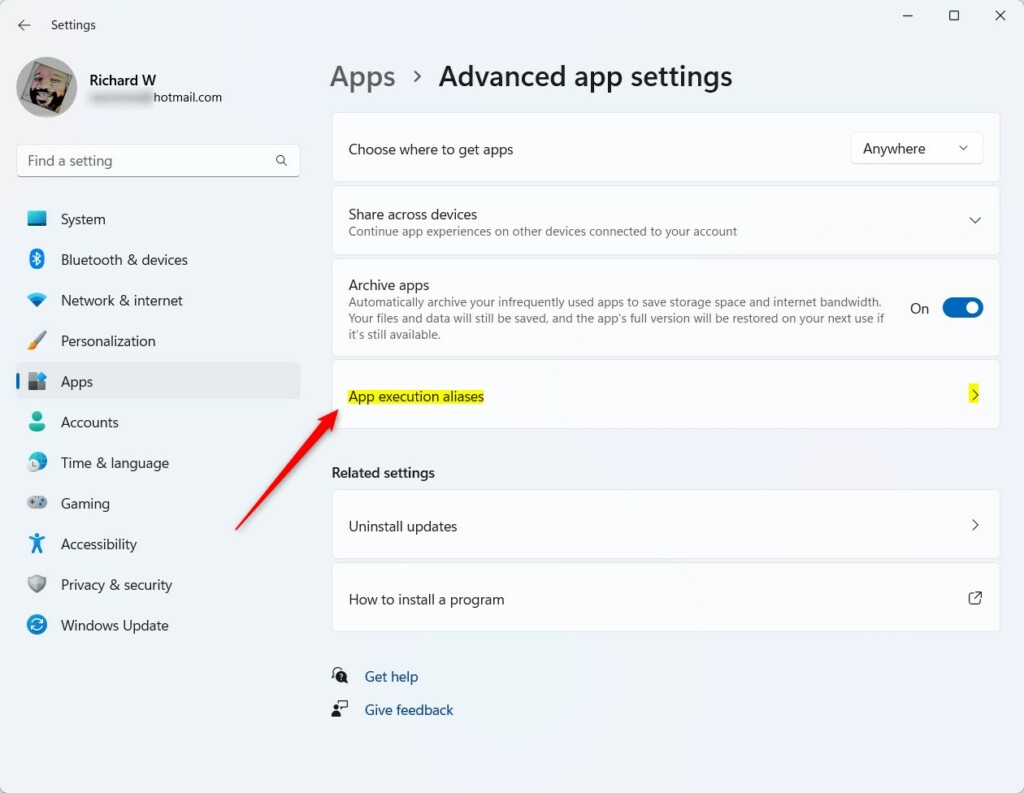
- Manage App Execution Aliases: Click on App execution aliases to see the list of apps and their aliases.
- Turn Aliases On or Off: Find the app alias you want to change. Use the toggle switch to turn it Off or On.
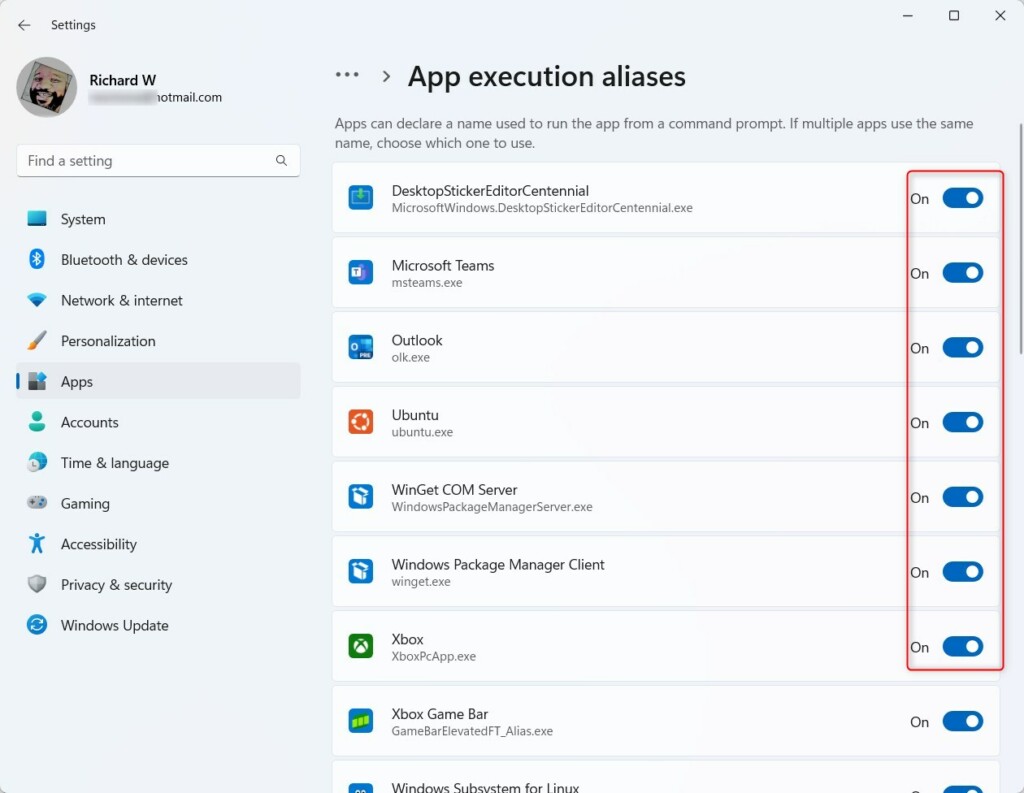
That’s it! Now you’ve chosen which app will open when you type the alias.
Summary
- App execution aliases are shortcuts that open apps from Command Prompt or Run.
- You can turn these shortcuts on or off in the Windows Settings app.
- This helps if two apps use the same shortcut; you decide which one works.
- Just open Settings > Apps > Advanced app settings > App execution aliases and toggle switches.
- If you want to learn more about Windows 11 features, visit Microsoft’s Windows 11 support page.
Was this guide helpful?

About the Author
Richard
Tech Writer, IT Professional
Richard, a writer for Geek Rewind, is a tech enthusiast who loves breaking down complex IT topics into simple, easy-to-understand ideas. With years of hands-on experience in system administration and enterprise IT operations, he’s developed a knack for offering practical tips and solutions. Richard aims to make technology more accessible and actionable. He's deeply committed to the Geek Rewind community, always ready to answer questions and engage in discussions.




No comments yet — be the first to share your thoughts!