How to Delete a Storage Pool in Windows 11

In this guide, I’ll show you how to delete a Storage Pool in Windows 11. A Storage Pool is like a big virtual drive made by combining several hard drives. It helps you keep your files in one place and manage storage easier.
What is a Storage Pool?
Storage Pools are part of Storage Spaces, a Windows feature that lets you group multiple physical drives into one. This means your computer treats several disks as a single drive, making it easier to save and organize files.
Why should you care? Storage Pools help you use your hard drives more efficiently and protect your data better.
Important: Before you delete a Storage Pool, keep in mind: Deleting it will remove all the Storage Spaces inside it and permanently delete all files stored there. Make sure you have backups of anything important.
Steps to Delete a Storage Pool in 🪟 Windows 11
- Open Settings: Click the Start button and select Settings, or press Windows key + I on your keyboard.
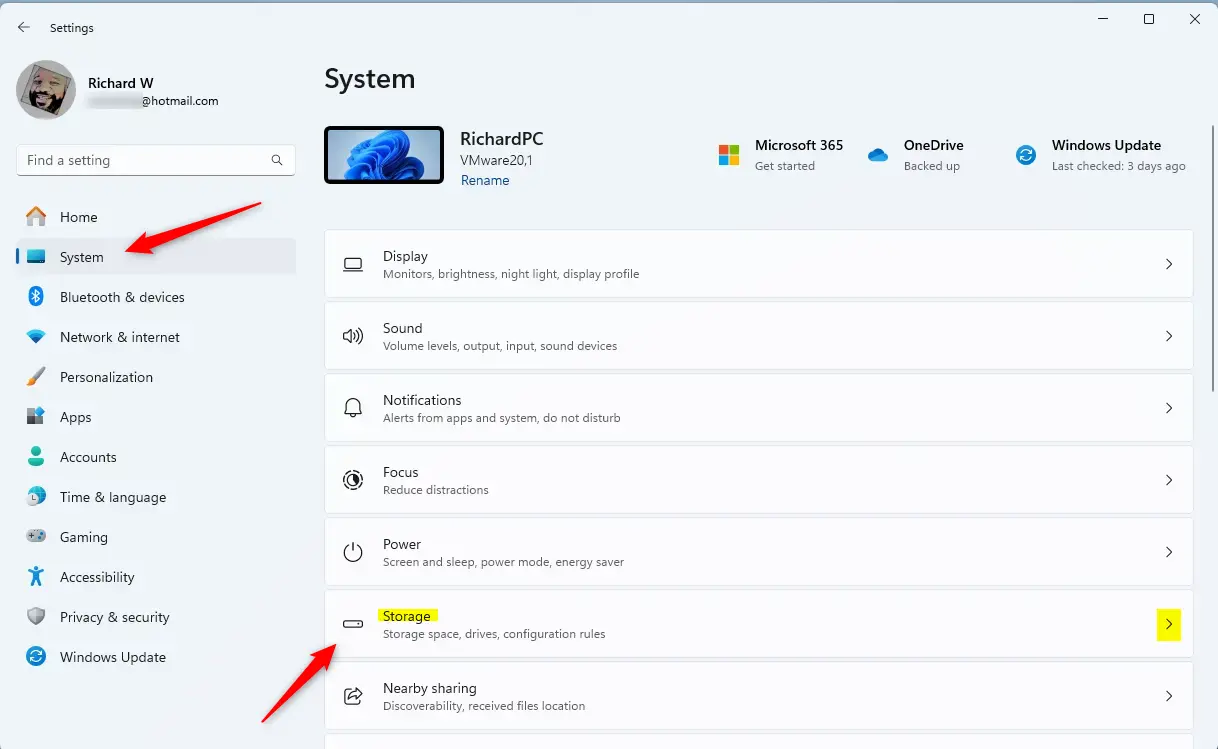
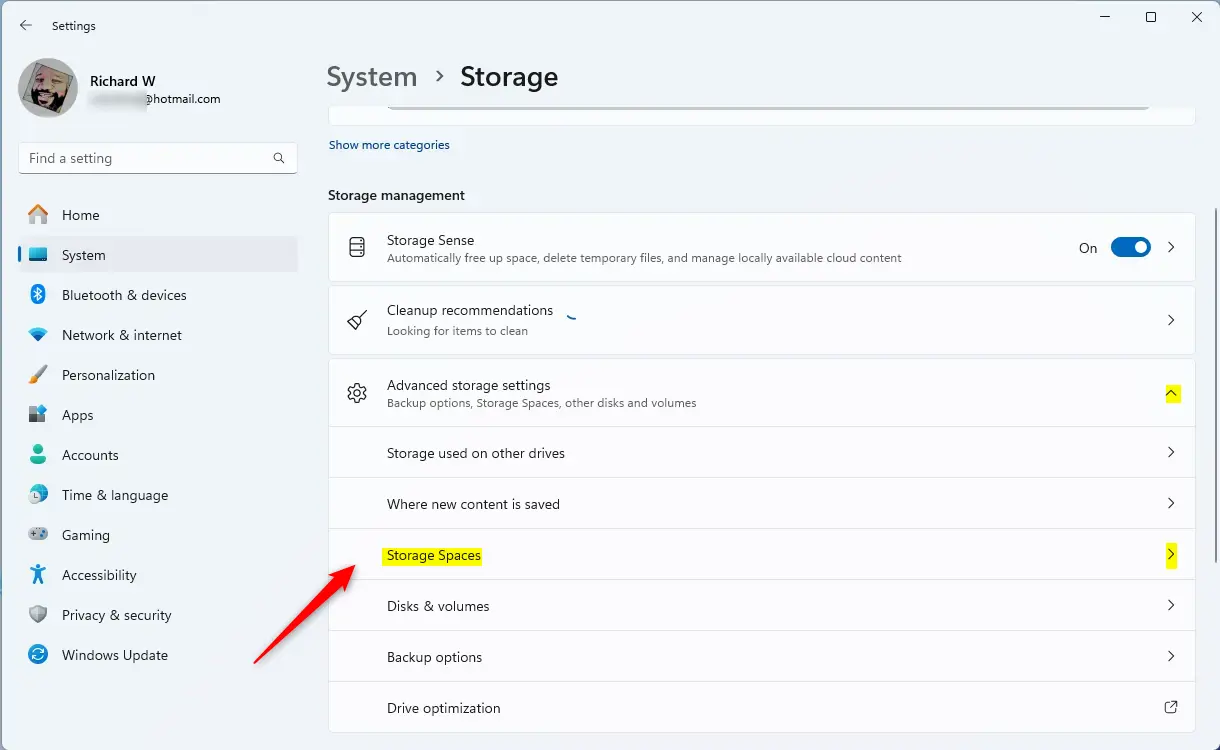
- Go to Storage Spaces: In the Settings window, click System on the left side, then click Storage on the right. Scroll down and click Advanced storage settings to expand it, then select Storage Spaces.
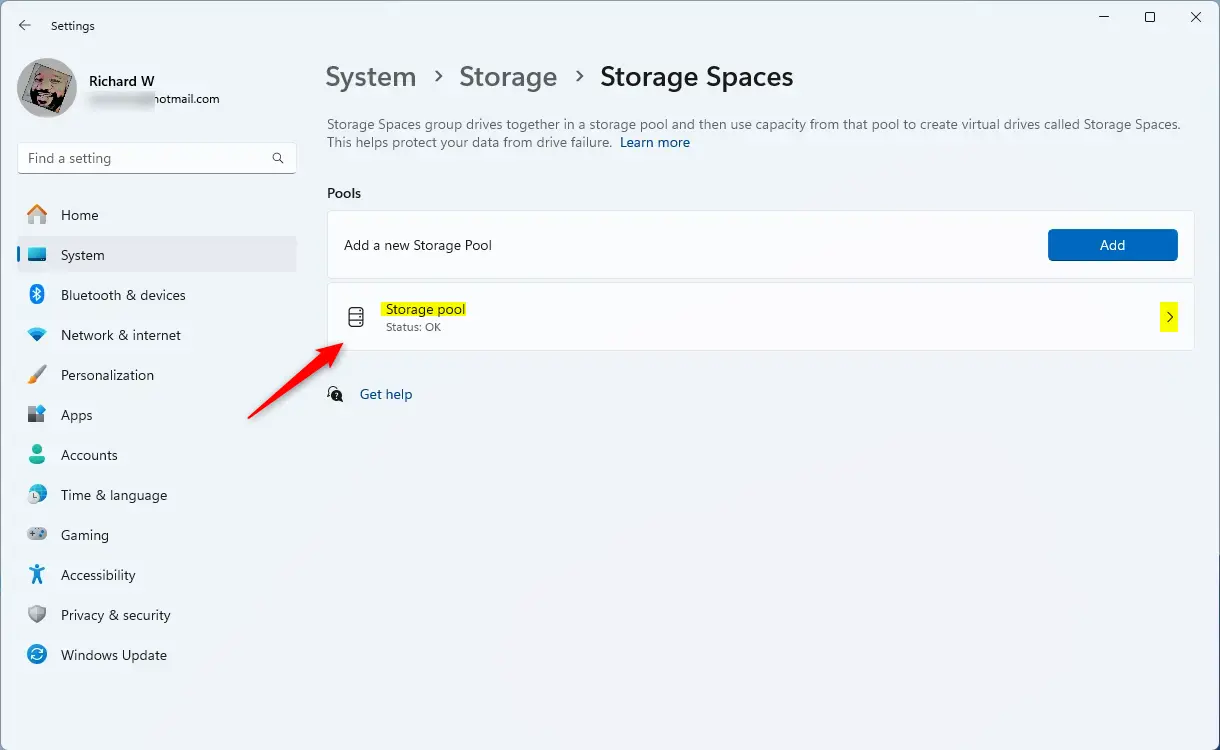
- Find Your Storage Pool: Click the Storage Pool you want to delete to open its details.
- Delete All Storage Spaces: Inside the Storage Pool, you need to delete each Storage Space first. Select each one and delete it. (You cannot delete the pool until all spaces inside are removed.)
- ⚠️ Delete the Storage Pool (requires admin privileges): After removing all Storage Spaces, scroll down to Additional options, select the Storage Pool, and click the Delete button.
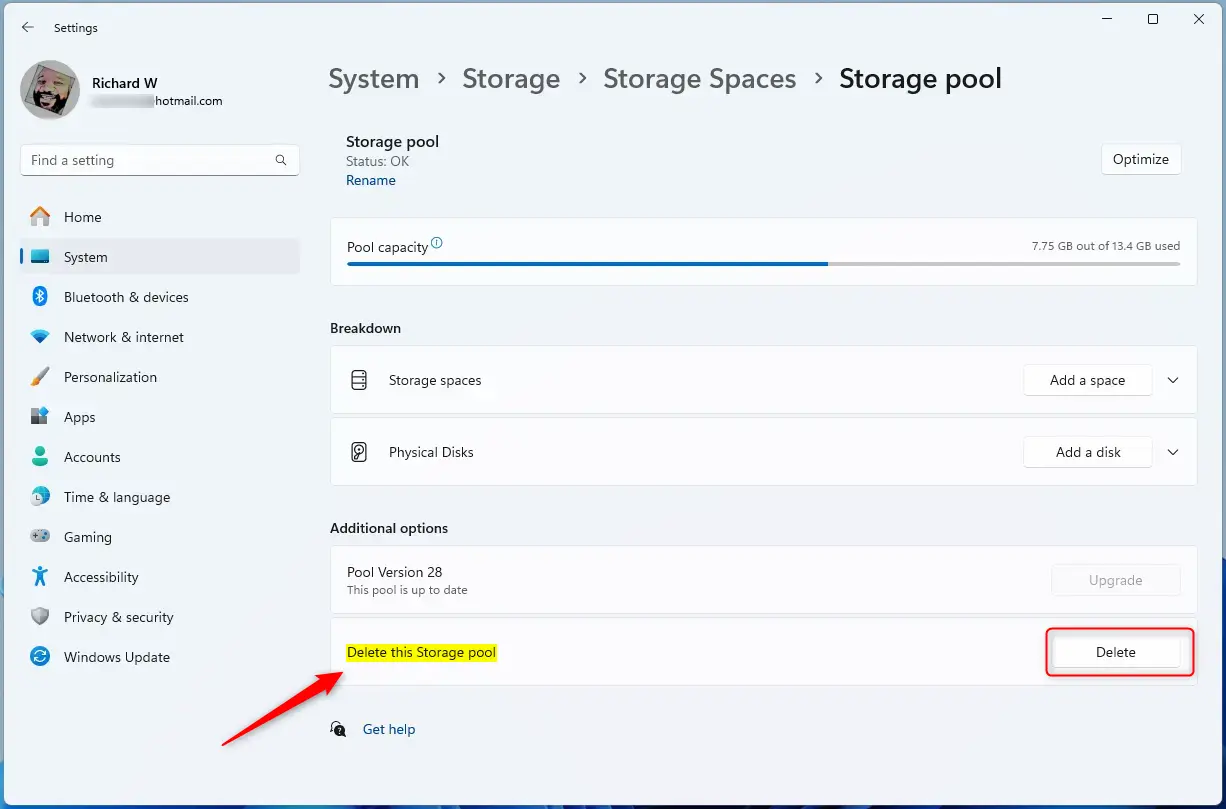
- Confirm Deletion: A pop-up will appear asking if you want to delete the Storage Pool permanently. Click Del storage pool to confirm.
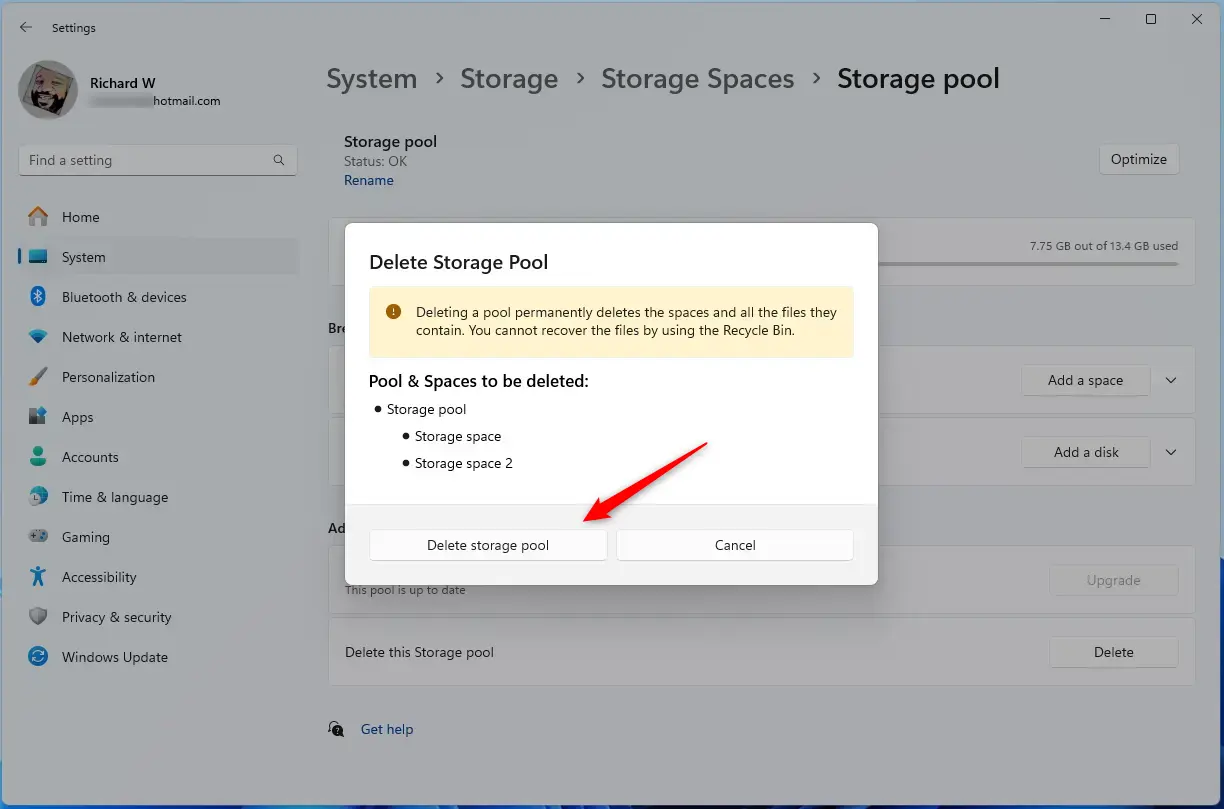
- Finish: Close the Settings app. Your Storage Pool and all its Storage Spaces are now deleted. What happens? All your files in the Storage Pool are permanently removed from your computer.
Important Tips
- Deleting a Storage Pool removes all stored files permanently — make sure to back up anything important.
- Always delete all Storage Spaces inside the pool before deleting the pool itself.
- Be certain you no longer need the Storage Pool or its files before deleting it.
- If you want to learn more about managing Storage Spaces, check out this helpful guide: How to Create a New Storage Pool in Windows 11.
Summary
Deleting a Storage Pool in Windows 11 is straightforward. You open Settings, navigate to Storage Spaces, delete all Storage Spaces inside the pool first, then delete the pool itself. Remember: this action permanently removes all files stored in the pool, so always back up important data beforehand. Make sure you’re certain you no longer need the pool before you delete it.
Was this guide helpful?

About the Author
Richard
Tech Writer, IT Professional
Richard, a writer for Geek Rewind, is a tech enthusiast who loves breaking down complex IT topics into simple, easy-to-understand ideas. With years of hands-on experience in system administration and enterprise IT operations, he’s developed a knack for offering practical tips and solutions. Richard aims to make technology more accessible and actionable. He's deeply committed to the Geek Rewind community, always ready to answer questions and engage in discussions.



No comments yet — be the first to share your thoughts!