How to Change Braille Display Language on Windows 11


This guide will help you easily change the language your braille display uses on Windows 11. This means you can read and write braille in different languages using your computer.
What is Narrator?
Narrator is a tool built into Windows 11 that reads out loud what is on your screen. It helps people who have trouble seeing or are blind.
Narrator also works with braille displays — special devices that show braille characters so you can read with your fingers.
Why change the braille display language?
If you want to read or write in another language, like Spanish, French, or any other, changing the braille language helps your device show the right characters and symbols. This makes reading and typing easier and more accurate.
Steps to Change Braille Display Language
Step 1Open Windows Settings
Click the Start menu (the Windows icon in the bottom-left corner), then click Settings. Or simply press Windows key + I on your keyboard to open Settings.
Step 2Go to Accessibility
In the Settings window, click on Accessibility from the menu on the left side.
Step 3Find Narrator settings
Scroll down and click on Narrator on the right side.

Step 4Open Braille options
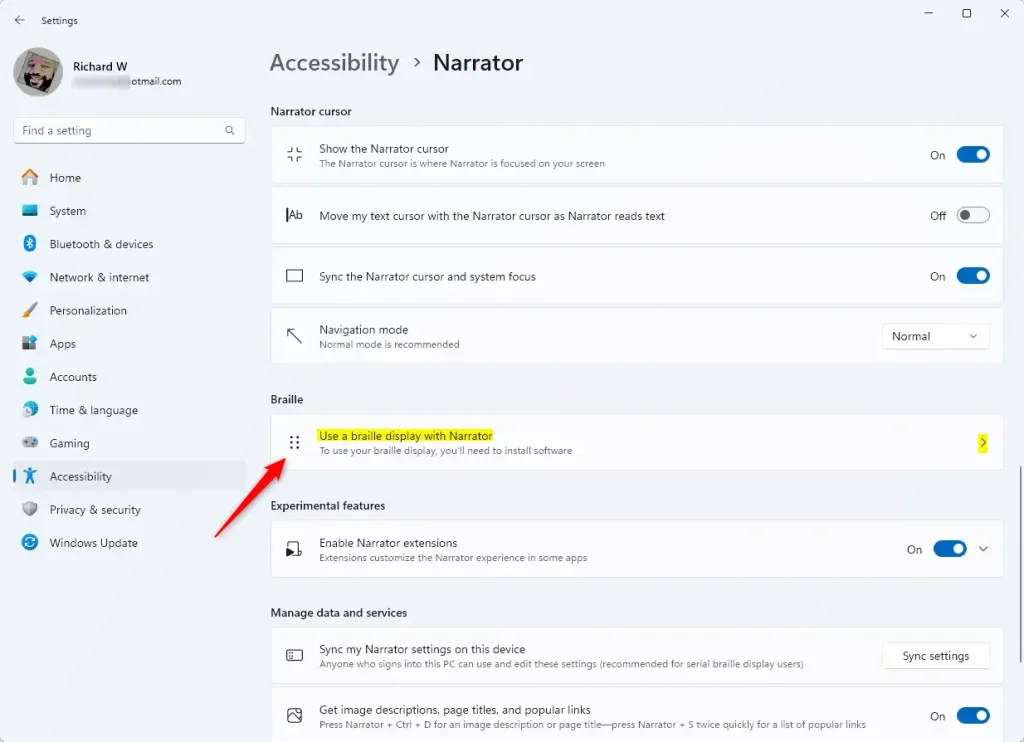
On the Narrator page, find the section called Braille. Click the arrow or plus sign next to Use a braille display with Narrator to open the braille options.
Step 5Install braille software (if needed)
⚠️ Admin Privileges Required
If you haven’t already installed the braille software and drivers, click Download and install braille to get them. You can learn more about that here.
Step 6Change the input/output language
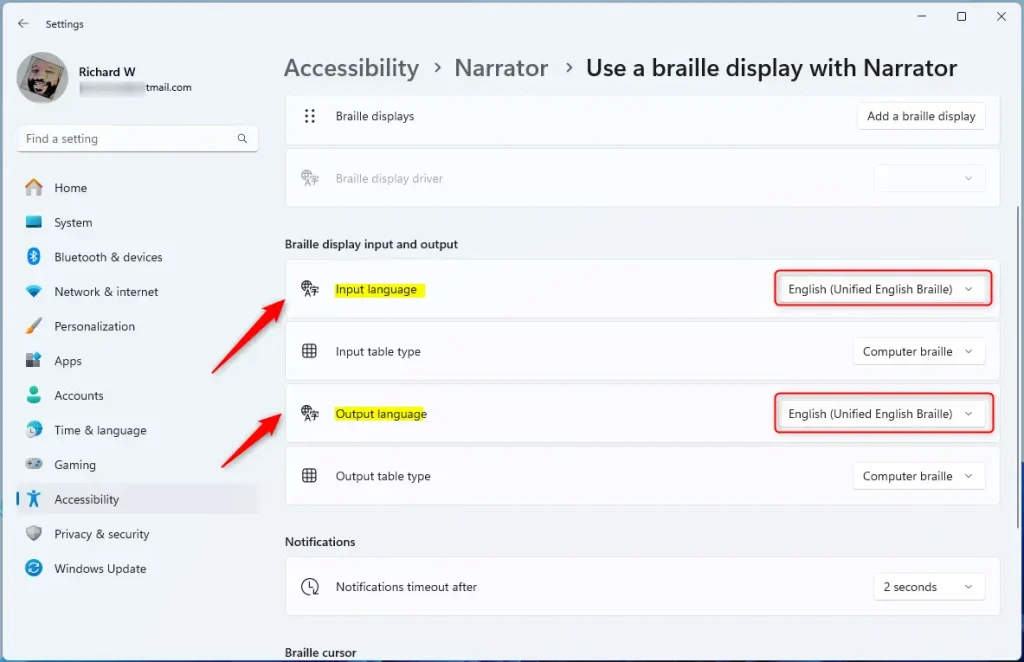
After installation and restarting your PC, return to the braille settings page. You will see options to select the Input Language and Output Language for your braille display. Choose the language you want to use from the dropdown menus.
That’s it! Your braille display will now work with the language you selected.
Summary
- Changing the braille display language helps you read and write in different languages.
- Make sure you have installed the braille software and drivers first.
- You can find the language settings in Settings > Accessibility > Narrator > Braille.
- This makes it easier to communicate and work with text in other languages.
If you want to learn more about using Narrator and braille displays, check out these helpful guides:
How to Turn On or Off Narrator in Windows 11
How to Use a Braille Display with Narrator on Windows 11
Feel free to leave a comment below if you have questions or want to share your experience!
What is a braille display on a computer?
A computer Braille display operates by raising and lowering different combinations of pins electronically to produce in Braille what appears on your computer screen. The display is refreshable meaning that the configuration of Braille changes continuously as the user moves around on the screen.
How do I add a language to Windows display?
Select Start and then select Settings > Time & language > Language . In the Language window, under Preferred language, select Add a language. In the Choose a language to install window, enter in the name of the desired language in the Type a language name… text box or scroll through the list of available languages.
Was this guide helpful?

About the Author
Richard
Tech Writer, IT Professional
Richard, a writer for Geek Rewind, is a tech enthusiast who loves breaking down complex IT topics into simple, easy-to-understand ideas. With years of hands-on experience in system administration and enterprise IT operations, he’s developed a knack for offering practical tips and solutions. Richard aims to make technology more accessible and actionable. He's deeply committed to the Geek Rewind community, always ready to answer questions and engage in discussions.




No comments yet — be the first to share your thoughts!