Step-by-Step Guide to Install Vsftpd on Ubuntu 24.04

vsftpd is a free File Transfer Protocol (FTP) server program for Ubuntu 24.04. It lets you move files between computers over a local network or the internet. The name stands for Very Secure FTP Daemon. It is fast and light, and it gives you a simple way to share folders while keeping unauthorized people out.
You can set up the server to let anyone download files without a password, or lock it down so only specific people can sign in with their own accounts. This guide covers the locked-down setup: install vsftpd, limit who can sign in, then wrap the connection in SSL/TLS. Plain FTP sends usernames, passwords and files unencrypted, so do not skip the TLS section if the server is reachable from outside your own network.
To install vsftpd on Ubuntu 24.04, run sudo apt update, then sudo apt install vsftpd in a terminal. The package comes from Ubuntu’s default repositories, so no extra sources are needed. Then edit /etc/vsftpd.conf with sudo nano and enable write_enable=YES and local user logins before restarting the service.
Install vsftpd
vsftpd is in Ubuntu’s default repositories, so there are no extra repositories or packages to add. You need an account with sudo rights.
- Open a terminal on the Ubuntu 24.04 server.
- Run the install command below. Enter your password if sudo asks for it.
- Wait for the package manager to finish. You should see it download and unpack vsftpd and then return to the prompt without errors.
sudo apt update
sudo apt install vsftpd
Once installed, the default configuration file is at [/etc/vsftpd.conf]. The package normally starts the service for you, but the stock settings are cautious. Out of the box, local users cannot sign in and nobody can upload, so you have to change a few options before the server is useful.
If a change breaks the service, you can put the copy back and start again.
Configure basic settings
Basic configuration means editing [/etc/vsftpd.conf] with a text editor such as nano. You need root privileges to save changes to it, so open the file with sudo. The options you will adjust cover three things:
- Write access, so users can upload files.
- Local user logins, so people can sign in with their Ubuntu accounts.
- The passive port range, which you will also need to open in your firewall.
If the server sits behind a firewall such as UFW, allow port 21 and the same passive port range you set in the file. Otherwise clients can connect and sign in but then hang when they try to list or transfer files.
sudo nano /etc/vsftpd.conf
Then adjust the server settings to fit your environment.
- With the file open in the editor, scroll through it and find the options for write access, local user logins and the passive port range.
- Make the changes shown in the code below. Remove the # at the start of a line to enable an option that is commented out.
- Check that no option appears twice with different values. vsftpd may refuse to start if it finds conflicting or misspelled lines.
# Uncomment this to enable any form of FTP write command.

write_enable=YES

#
# You may specify an explicit list of local users to chroot() to their home
# Uncomment this to enable a secure environment.

chroot_local_user=YES
chroot_list_enable=YES
chroot_list_file=/etc/vsftpd.chroot_list
allow_writeable_chroot=YES

#
# You may activate the "-R" option to the builtin ls. This is disabled by
# the presence of the "-R" option, so there is a strong case for enabling it.

ls_recurse_enable=YES

#
# add to last line : specify chroot directory
# if not specified, users' home directory equals FTP home directory

local_root=public_html
Save the file and exit the editor. In nano, press Ctrl+O, then Enter, then Ctrl+X. Nothing takes effect until you restart vsftpd, which you do after the next step.
Next, you need the chroot_list file. It holds the accounts that are allowed through to the server, so you create or edit it as a plain text file.
- Run the command below to open the vsftpd chroot_list file with sudo.
- If the file does not exist yet, the editor opens a blank page and creates the file when you save.
sudo nano /etc/vsftpd.chroot_list
Add your account name to the file to allow access. Put one account name on each line, so add more lines if you want other users to reach vsftpd. Use the exact Ubuntu username, including capitalization. A stray space or a typo means that user will be refused.
richard
Save and exit the file, then restart vsftpd so it reads both the new settings and the user list.
- Run the restart command below.
- If you get no error, the service came back up. If you get an error, run the status command from your own notes or check the service logs. The usual cause is a typo in [/etc/vsftpd.conf]. Fix the line and restart again.
sudo systemctl restart vsftpd
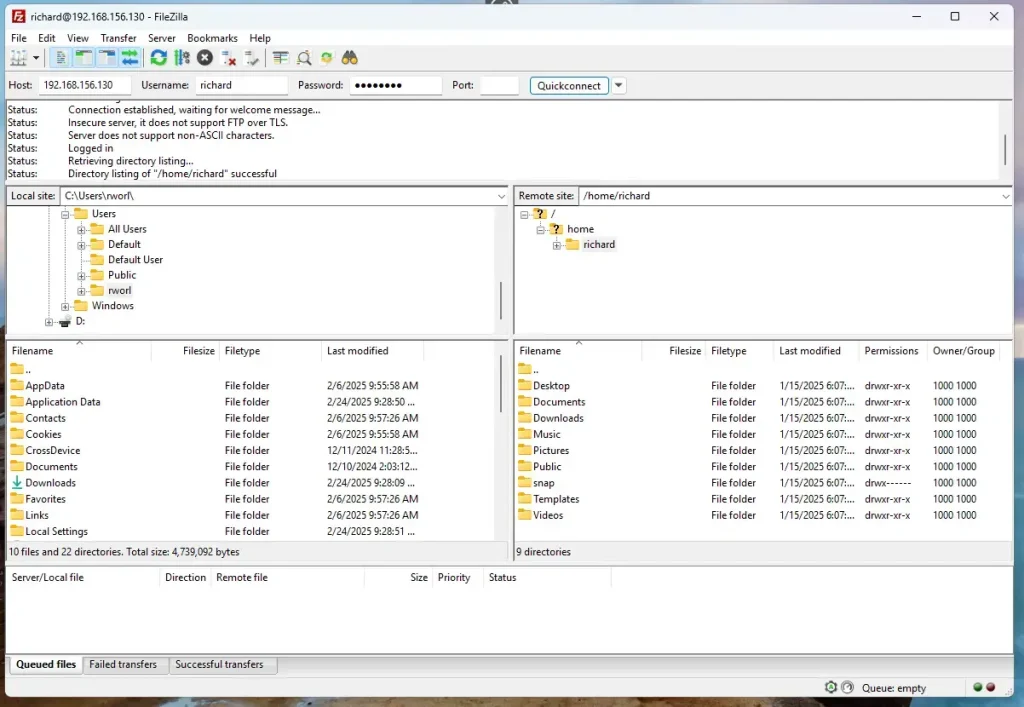
At this point you should be able to connect with any FTP client. Enter the server's IP address or hostname, port 21, and the username and password of an account you listed in the chroot file. Accounts that are not in the file should be refused. If the connection times out, check the firewall rules first. If the login is refused for a user who is in the list, recheck the spelling of the name.
Access vsftpd over SSL/TLS
Securing vsftpd with SSL/TLS encrypts everything sent between your computer and the server. That protects usernames, passwords and transferred files from being read on the way. You do it in two parts. First you get a certificate, either by generating one or by using one you already have. Then you update the configuration file to require encrypted logins and data.
Use a public certificate like Let's Encrypt or a self-signed on your server. A certificate from a trusted authority is the better choice for a server that other people use, because their FTP clients will accept it without warnings.
For this post, we'll create a self-signed certificate for vsftpd. It gives you the same encryption as a purchased certificate. The difference is that clients cannot verify who issued it, so they will ask you to trust it manually. That is fine for a lab or a private server.
Generate the self-signed certificate with the steps below.
- Run the command below to generate a self-signed certificate and key for vsftpd.
- Wait for the prompts to appear.
sudo openssl req -x509 -nodes -newkey rsa:3072 -keyout vsftpd.pem -out vsftpd.pem -days 3650
When prompted, enter the certificate details, such as country, organization and server name. For a self-signed certificate the values are not checked, but the common name should match the hostname or IP address your clients use to connect.
Country Name (2 letter code) [AU]:US
State or Province Name (full name) [Some-State]:NY
Locality Name (eg, city) []:Brooklyn
Organization Name (eg, company) [Internet Widgits Pty Ltd]:GeekRewind
Organizational Unit Name (eg, section) []:IT
Common Name (e.g. server FQDN or YOUR name) []:vsftpd.example.com
Email Address []:
After generating the certificate, copy the files into the [/etc/ssl/private] directory. Run the copy command below with sudo, since that directory is restricted to root. Keep it that way, because the key file must stay private.
sudo cp vsftpd.* /etc/ssl/private
sudo chmod 600 /etc/ssl/private/vsftpd.pem
Next, reopen the vsftpd configuration file with sudo so you can add the certificate details.
sudo nano /etc/vsftpd.conf
Update the lines below in the file so they point to the new certificate and key. The paths must match the files you copied into [/etc/ssl/private] exactly. If they don't, vsftpd will fail to start after the restart.
# This option specifies the location of the RSA certificate to use for SSL
# encrypted connections.
rsa_cert_file=/etc/ssl/private/vsftpd.pem
rsa_private_key_file=/etc/ssl/private/vsftpd.pem
ssl_enable=YES
ssl_ciphers=HIGH
force_local_data_ssl=YES
force_local_logins_ssl=YES

#
Save and exit the file, then restart vsftpd so the TLS settings take effect. To undo the change later, restore your backup copy of the file or comment out the TLS lines, then restart again.
sudo systemctl restart vsftpd
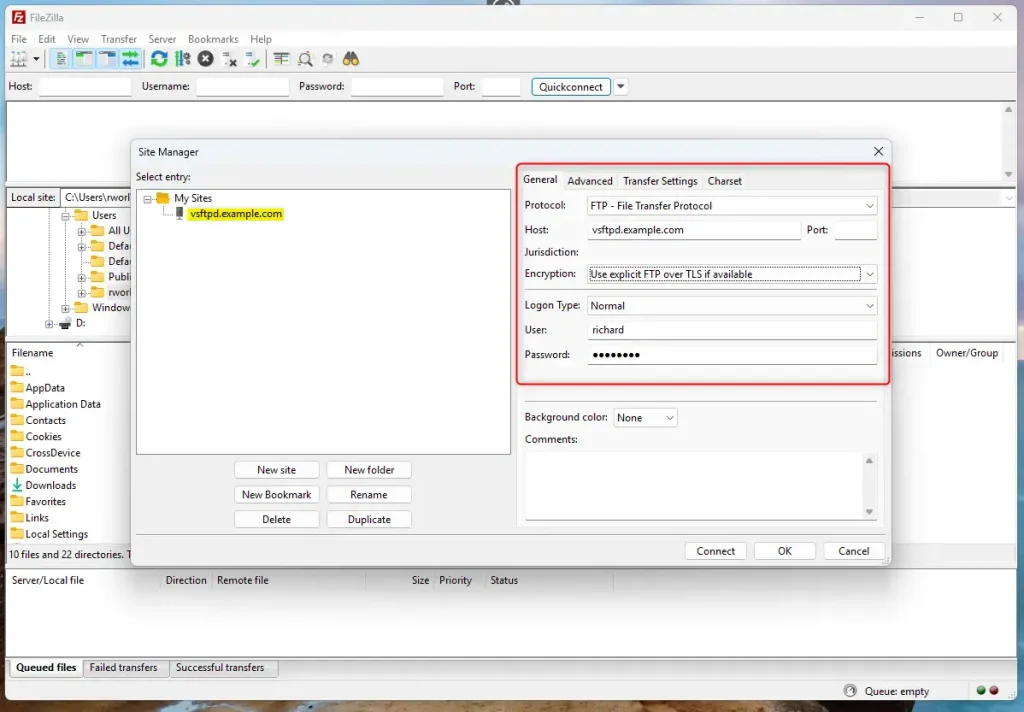
With SSL/TLS configured, open your FTP client and set the site to use SSL/TLS. The setting is usually called something like explicit FTP over TLS or FTPS, and the exact name depends on the client. Connect on port 21 as before. Once TLS is required on the server, a client that is still set to plain FTP will be refused.
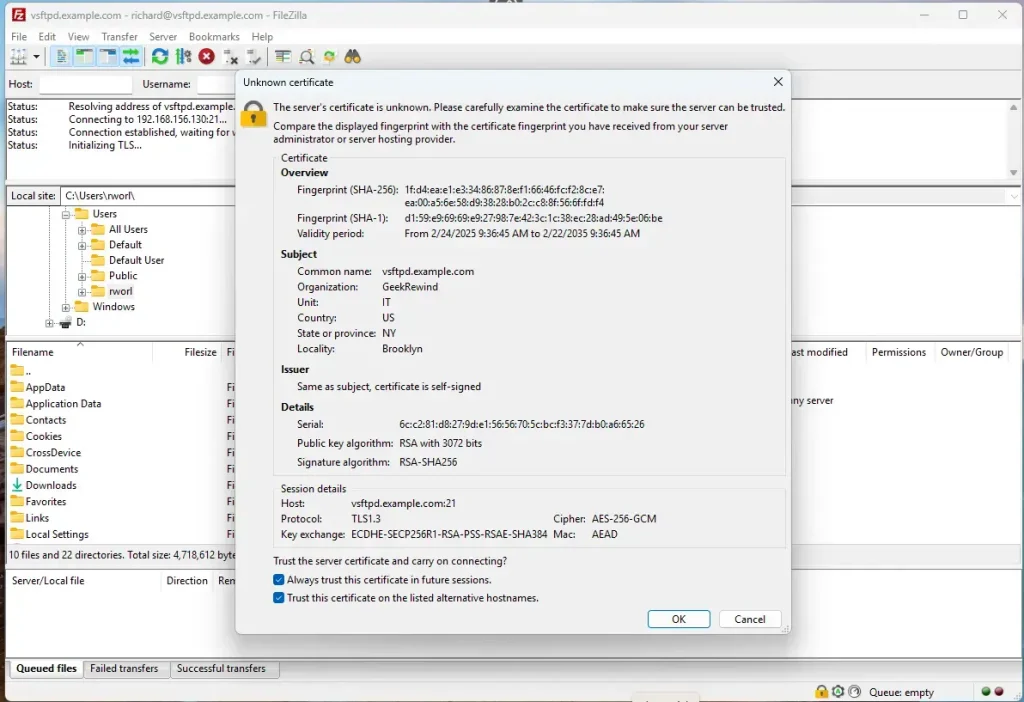
Because we used a self-signed certificate, the client will show a certificate warning on the first connection. Check that the server name is the one you expect, then click OK (or the equivalent trust or accept button in your client) to trust it. Many clients let you remember this choice so you are not asked again.
Now vsftpd is communicating over SSL/TLS. You should see the directory listing as before, and the client's log or status line should show that the connection is encrypted.
That should do it!
Conclusion:
Installing and configuring vsftpd on Ubuntu is a straightforward process. It adds file transfer to your server and, with TLS, keeps the traffic private. Here are the key points to remember:
- Ease of Installation: vsftpd is available in Ubuntu's default repositories, making installation simple with a single command.
- Security Features: Offers robust security options, including SSL/TLS support to protect data during transfer.
- Configuration Flexibility: Allows for various configurations, such as user access control and directory management.
- Self-Signed Certificates: Provides a way to generate and implement self-signed certificates for secure connections.
- Chroot Environment: Ensures users are confined to their home directories for added security.
- Testing & Validation: After configuration, use an FTP client to verify that the server operates as intended and handles secure connections correctly.
This guide helps you set up and secure your FTP server using vsftpd on Ubuntu 24.04, so you can transfer files between computers. If something stops working later, check the firewall rules and the last lines you changed in [/etc/vsftpd.conf] first. Those two cause most problems.
Have a question about this guide?
Answered by AI from this guide. Good questions may be added to this page — please don't include personal details.
Did this guide fix your problem?

About the Author
Richard
Tech Writer, IT Professional
Richard is a writer at Geek Rewind who turns complex IT tasks into clear, step-by-step guides. He draws on years of hands-on experience in system administration and enterprise IT operations, focusing on Windows, Linux and WordPress: the problems people actually run into, and the fixes that work. His server and WordPress guides come from systems he runs himself. Richard builds and maintains the platform behind Geek Rewind, from its Ubuntu servers and Nginx configuration to its custom WordPress plugins. Many new tutorials start with readers' questions, and he's always glad to answer them in the comments.
No comments yet — be the first to share your thoughts!