Install PowerToys ADMX Files for Windows 11

Installing PowerToys ADMX files on Windows 11 lets you manage PowerToys settings using Group Policy.
ADMX files are like special instruction sheets that IT departments use to control software settings on many computers at once. For PowerToys, these files give you central control over its various tools.
Adding these PowerToys templates means you can easily adjust PowerToys features directly through the Local Group Policy Editor (gpedit.msc) on your Windows 11 PC. This helps ensure everyone uses PowerToys in a way that suits security or work needs.
After installation, you’ll find the PowerToys settings grouped under Computer Configuration and User Configuration, inside the Administrative Templates > Microsoft PowerToys section.
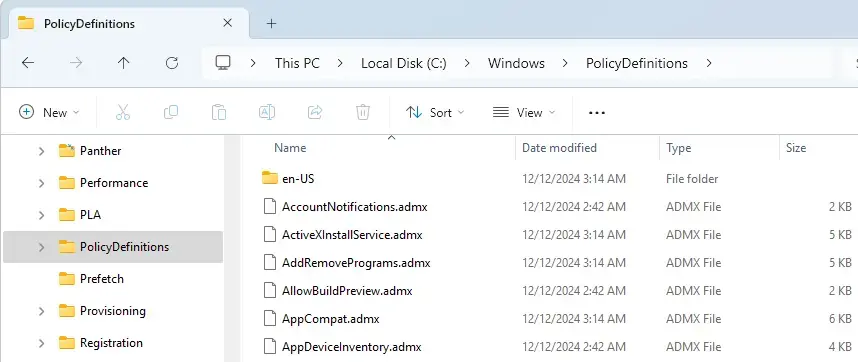
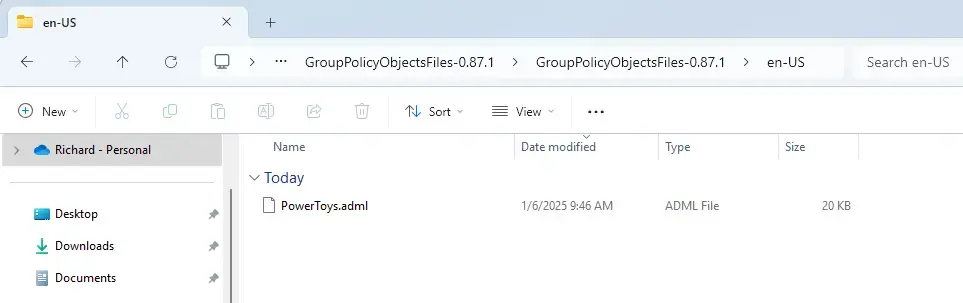
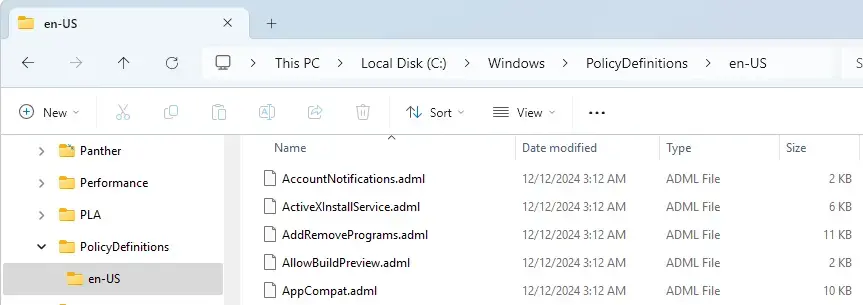
Download the PowerToys ADMX files, then copy PowerToys.admx to C:WindowsPolicyDefinitions and PowerToys.adml to C:WindowsPolicyDefinitionsen-US. These files enable Group Policy management for PowerToys settings.
Download PowerToys ADMX files
To manage PowerToys settings with Group Policy, you first download the PowerToys ADMX files from the official PowerToys GitHub page. Locate the zip file named GroupPolicyObjectsFiles-{version}.zip in the ‘Assets’ section.
Here’s how to get them:
1. Download the PowerToys ADMX files. Look for the GroupPolicyObjectsFiles-{version}.zip file in the ‘Assets’ section of the official PowerToys GitHub page.
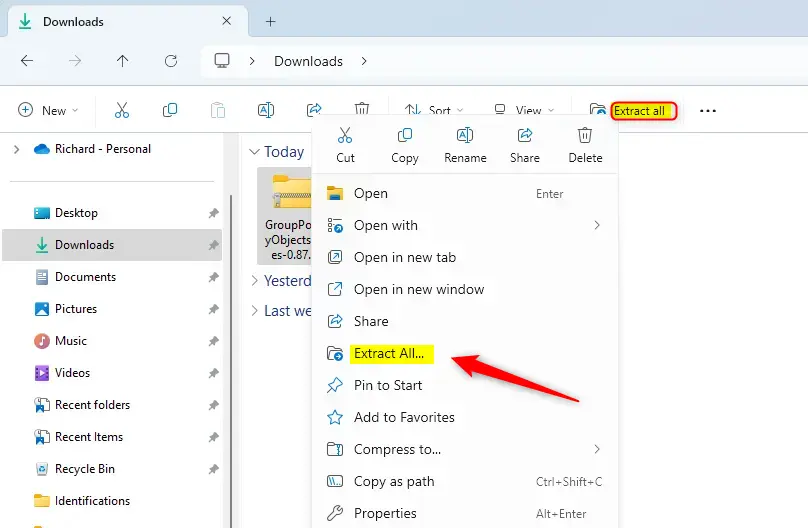
2. Extract the contents of the zip file.
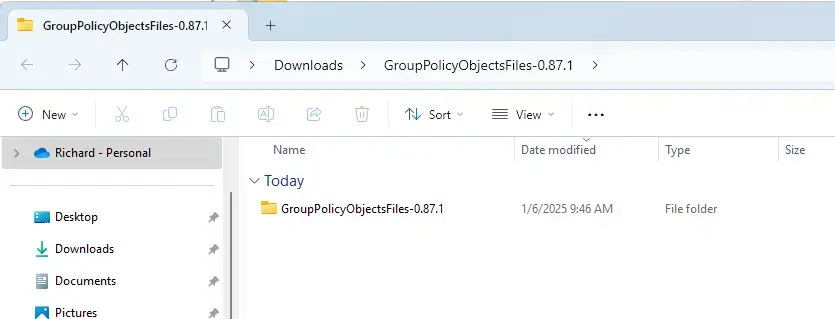
3. Open the extracted GroupPolicyObjectsFiles-{version} folder.
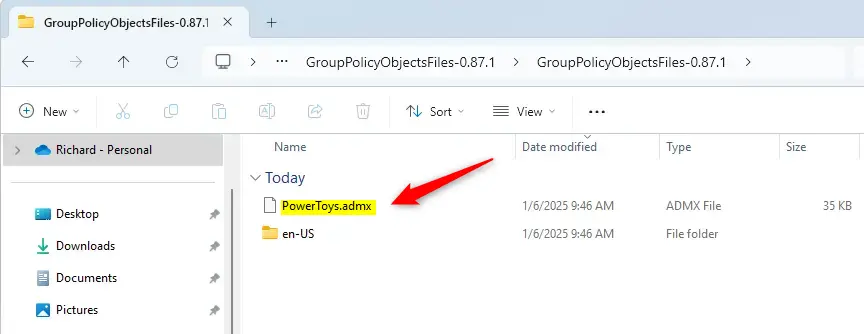
4. Copy the PowerToys.admx file and paste it into C:\Windows\PolicyDefinitions.
5. Navigate to the en-US subfolder within the extracted files and copy the PowerToys.adml file.
6. Paste the PowerToys.adml file into C:\Windows\PolicyDefinitions\en-US.
You’ll need administrator permission, so click ‘Continue‘ when prompted.
With those files in place, close File Explorer. The new PowerToys policies will now appear under Administrative Templates > Microsoft PowerToys in both Computer Configuration and User Configuration folders. That completes the installation!
So, what’s the payoff for installing and managing PowerToys ADMX files with the Local Group Policy Editor? You get a few key advantages:
- Enhanced Control: Enables administrators to restrict or enable specific PowerToys features according to organizational policies.
- Improved Security: Reduces the risk of users accessing potentially unapproved functionalities that could affect device performance or security.
- Streamlined Management: Simplifies the configuration of PowerToys across multiple devices using Group Policy settings.
- User Customization: Allows for tailored user experiences while adhering to company guidelines.
Following the steps above, you can effectively integrate PowerToys into your administrative framework and ensure optimal organizational use.
How to install PowerToys as administrator?
Open PowerToys Settings. On the General tab, select Restart as administrator. Enable Always run as administrator in the PowerToys Settings.
Where to put admx files in sysvol?
In the \\domain. xxx\sysvol\domain\policies folder there should be a “PolicyDefinitions” folder, and that has the ADMX and ADML files in it.
Was this guide helpful?

About the Author
Richard
Tech Writer, IT Professional
Richard, a writer for Geek Rewind, is a tech enthusiast who loves breaking down complex IT topics into simple, easy-to-understand ideas. With years of hands-on experience in system administration and enterprise IT operations, he’s developed a knack for offering practical tips and solutions. Richard aims to make technology more accessible and actionable. He's deeply committed to the Geek Rewind community, always ready to answer questions and engage in discussions.


No comments yet — be the first to share your thoughts!