Install Foswiki with Nginx on Ubuntu 24.04


Foswiki with Nginx on Ubuntu 24.04 sets up a fast, private wiki server where your team can share and edit pages. Foswiki is a free open-source wiki tool, and Nginx is the web server software that loads those pages quickly for visitors.
Ubuntu 24.04 LTS (Long Term Support) provides a stable operating system base for this setup. Getting both programs to run together on your server takes a few configuration steps, but the result is a reliable knowledge base that you control entirely.
Install Foswiki on Ubuntu 24.04 by installing Nginx and Perl, downloading and extracting Foswiki to the web server’s root directory, and then configuring Nginx to serve the application. Ensure correct file permissions and run provided scripts for setup.
Install Nginx HTTP server on Ubuntu
Install the Nginx web server on Ubuntu 24.04 by running the package manager commands in your terminal. This sets up the core HTTP server required to host your Foswiki site and handle incoming web traffic properly.
Open the Ubuntu terminal and run the commands below to install the Nginx web server.
sudo apt update
sudo apt install nginx
Use the commands below to start, stop, and enable the service so it launches automatically when the server boots.
sudo systemctl stop nginx
sudo systemctl start nginx
sudo systemctl enable nginx
Test the Nginx web server by opening a web browser and navigating to the server localhost or IP address.
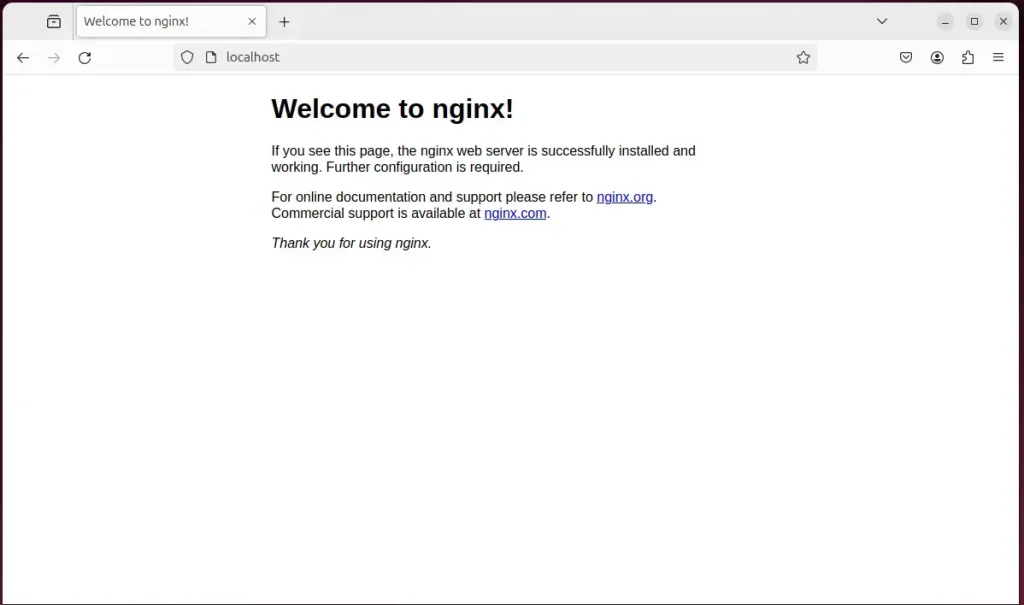
The "Welcome to nginx!" message confirms successful installation. This confirmation appears when accessing the server through a web browser after completing setup steps.
Additional help installing Nginx on Ubuntu appears in the guide linked below.
Install Perl and Related Modules
Install Perl and the required module packages on Ubuntu 24.04 to give Foswiki the programming environment it needs to run. You can install all necessary dependencies, including RCS and specific library packages, using the apt package manager.
sudo apt-get install rcs libalgorithm-diff-perl libarchive-tar-perl libauthen-sasl-perl libcgi-pm-perl libcgi-session-perl libcrypt-passwdmd5-perl libdigest-sha-perl libemail-address-xs-perl libemail-mime-perl libencode-perl liberror-perl libfile-copy-recursive-perl libhtml-parser-perl libhtml-tree-perl libio-socket-ip-perl libio-socket-ssl-perl libjson-perl liblocale-codes-perl liblocale-maketext-perl liblocale-maketext-lexicon-perl liblocale-msgfmt-perl libwww-perl liblwp-protocol-https-perl liburi-perl libversion-perl libfcgi-perl libfcgi-procmanager-perl fcgiwrap spawn-fcgi libfcgi-perl
Download Foswiki files
Download the latest Foswiki package from the official project page and extract the files directly into your Nginx web root directory. This places all necessary wiki scripts and folders in the correct location for the web server to load.
Check the Foswiki download page to ensure you fetch the most recent version. Download the archived package to the computer and extract the contents.
Navigate to the working directory and pull the Foswiki files. Extract the content directly into the Foswiki folder inside the Nginx root directory.
Adjusting file permissions allows the Nginx web server to interact securely with the Foswiki files, safeguarding the installation.
Run the commands below to set correct permissions for the Nginx root folder so the application functions correctly.
cd /tmp
wget https://github.com/foswiki/distro/releases/download/FoswikiRelease02x01x09/Foswiki-2.1.9.zip
unzip Foswiki-*.zip
sudo cp -rf Foswiki-2.1.9 /var/www/foswiki
sudo chown -R www-data:www-data /var/www/foswiki/
The shell script tools/fix_file_permissions.sh repairs the installation if file permissions change unexpectedly.
Run the script below to fix the Foswiki bin scripts and ensure the platform is set up correctly. This script guarantees command files, like `configure`, operate properly within the Foswiki installation.
cd /var/www/foswiki/tools
sudo -u www-data perl rewriteshebang.pl
Select 'y' to apply changes when prompted.
Copy Foswiki tool files from the tools folder into the `/etc/` directory. Run the following commands to complete this action and place all required configuration files in the correct location.
sudo cp /var/www/foswiki/tools/foswiki.defaults /etc/default/foswiki
sudo cp /var/www/foswiki/tools/foswiki.init-script /etc/init.d/foswiki
Change permissions and reload the services next.
sudo chmod 755 /etc/init.d/foswiki
sudo service foswiki start
Configure the Nginx web server to serve the Foswiki content after completing the steps above.
Run the commands below to create an Nginx virtual host file for Foswiki.
sudo nano /etc/nginx/sites-available/foswiki.conf
Copy and paste the content block below into the Nginx server block.
server {
    listen       80;
    server_name  foswiki.example.com;

    set $foswiki_root "/var/www/foswiki";
    root $foswiki_root;

    location / {
        root $foswiki_root;
        rewrite ^/?$ http://foswiki.example.com/bin/view.pl/Main permanent;
    }

   location /bin/configure {
        allow 127.0.0.1;
        fastcgi_pass unix:/var/run/fcgiwrap.socket;
        fastcgi_split_path_info ^/foswiki(/bin/configure)(?:.pl)?(.*);
        fastcgi_param  SCRIPT_FILENAME  $foswiki_root$fastcgi_script_name;
        fastcgi_param  PATH_INFO $fastcgi_path_info;
        include fastcgi_params;
    }

   location /bin/ {
        fastcgi_pass unix:/var/run/fcgiwrap.socket;
        fastcgi_split_path_info  ^(/bin/w+)(.*);
        fastcgi_param  SCRIPT_FILENAME $foswiki_root/$fastcgi_script_name;
        fastcgi_param  PATH_INFO $fastcgi_path_info;
        fastcgi_param  SCRIPT_NAME $fastcgi_script_name;
        include fastcgi_params;
       }
}
Save the file.
Enable the Foswiki virtual host by running the `sudo ln -s /etc/nginx/sites-available/foswiki.conf /etc/nginx/sites-enabled/` command, and restart the Nginx server with `sudo systemctl restart nginx` to apply the changes.
sudo ln -s /etc/nginx/sites-available/foswiki.conf /etc/nginx/sites-enabled/
sudo systemctl restart nginx.service
Setup Let’s Encrypt SSL/TLS for Foswiki
Setup a free Let's Encrypt SSL/TLS certificate for your Nginx and Foswiki installation on Ubuntu 24.04 to encrypt user traffic and secure login sessions. This process involves generating the security keys and updating your Nginx server block to use HTTPS.
Read the post below for additional resources on installing and creating Let’s Encrypt SSL certificates for Nginx.
How to set up Let’s Encrypt SSL certificate for Nginx on Ubuntu Linux
Open a browser and browse to the server hostname or IP address defined in the Nginx server block after restarting the web server.
http://foswiki.example.com/bin/view
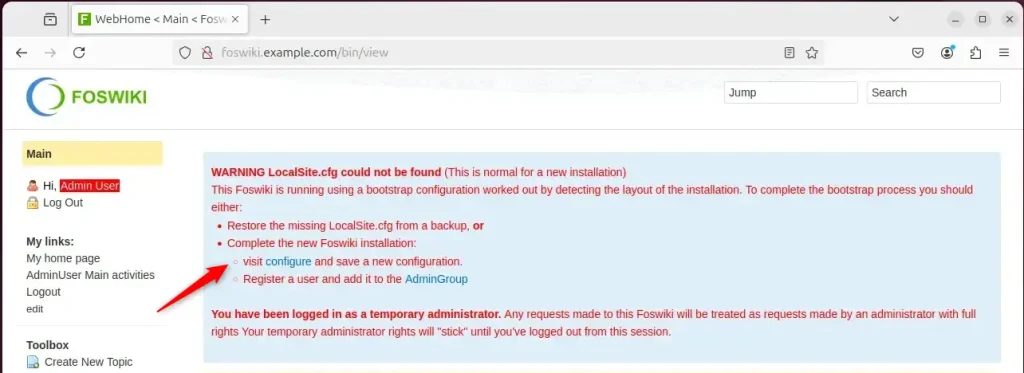
The Foswiki setup wizard should appear on screen.
Click the configure link to set up the application.
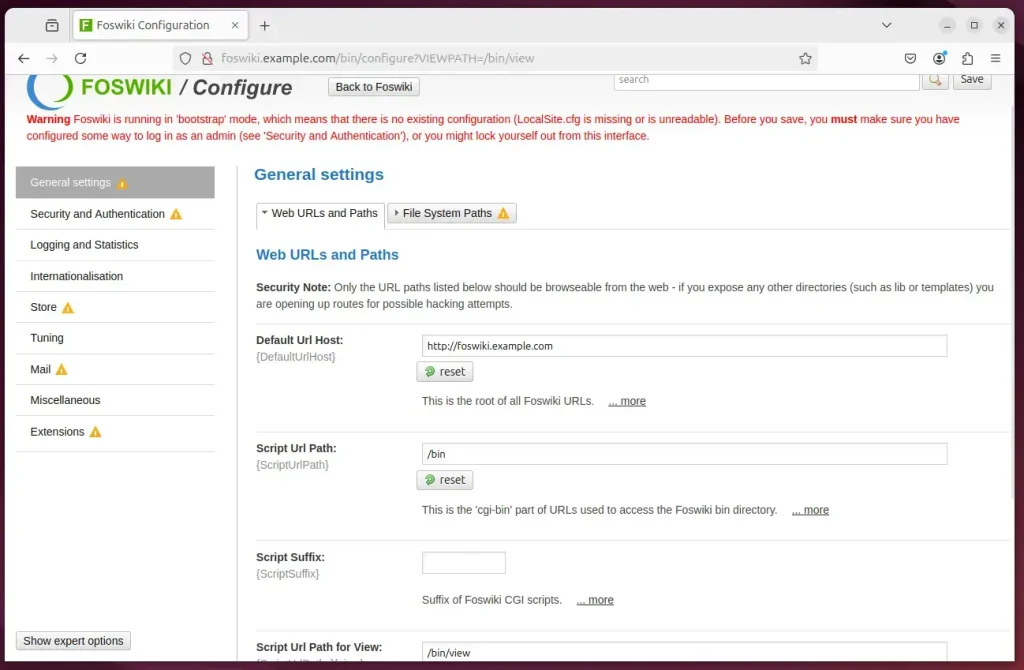
Configure the necessary settings for the site. Click the Save button in the upper right corner of the configuration page.
The login section at the top of the left-hand menu should show that the session remains active under a temporary Admin user. Click the "Log Out" link to exit that account.
The Foswiki installation on Ubuntu 24.04 is now ready for use. Teams can begin creating pages, adding content, and collaborating.
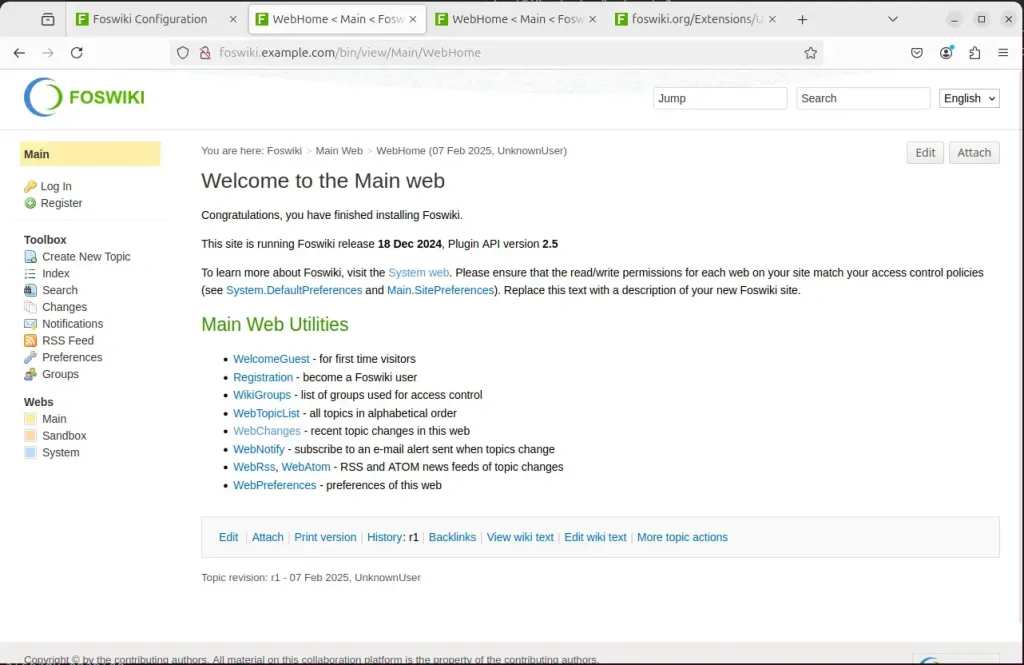
Foswiki is fully operational.
Conclusion:
Installing Foswiki with Nginx support on Ubuntu 24.04 provides a robust collaboration environment. Review the key takeaways below:
- Foswiki Overview: A powerful open-source platform for collaborative content management.
- Nginx Benefits: Efficient handling of high traffic with minimal resource usage.
- Installation Process: Involves installing Nginx, Perl modules, and Foswiki files.
- Configuration Steps: Setting up Nginx virtual hosts to serve Foswiki effectively.
- Security Measures: Implementing SSL/TLS with Let’s Encrypt for secure access.
- User-Friendly Setup: The setup wizard guides you through the final configuration steps.
Teams can use Foswiki for collaboration immediately after completing these setup steps. The platform supports dynamic content creation and sharing for up to 50 concurrent users on a single instance.
Can nginx run on Ubuntu?
Nginx is available in Ubuntu's default repositories. Install it using the apt packaging system. First, update the local package index to access recent package listings, then run: sudo apt update.
Was this guide helpful?

About the Author
Richard
Tech Writer, IT Professional
Richard, a writer for Geek Rewind, is a tech enthusiast who loves breaking down complex IT topics into simple, easy-to-understand ideas. With years of hands-on experience in system administration and enterprise IT operations, he’s developed a knack for offering practical tips and solutions. Richard aims to make technology more accessible and actionable. He's deeply committed to the Geek Rewind community, always ready to answer questions and engage in discussions.




@members ai slop