How to Turn On or Off Pinch to Zoom on Touchpad in Windows 11

You can turn the pinch to zoom feature on or off for your Windows 11 touchpad directly within the Settings app.
Pinch to zoom is a handy gesture that lets you make content on your screen bigger or smaller. You do this by spreading two fingers apart or pinching them together on your touchpad.
This setting is usually found within your device’s touchpad options, particularly if you have a ‘precision touchpad.’ This is a type of touchpad that Microsoft has used since Windows 10.
To adjust this, you’ll navigate to the Touchpad section in Windows 11 Settings and find the specific zoom option.
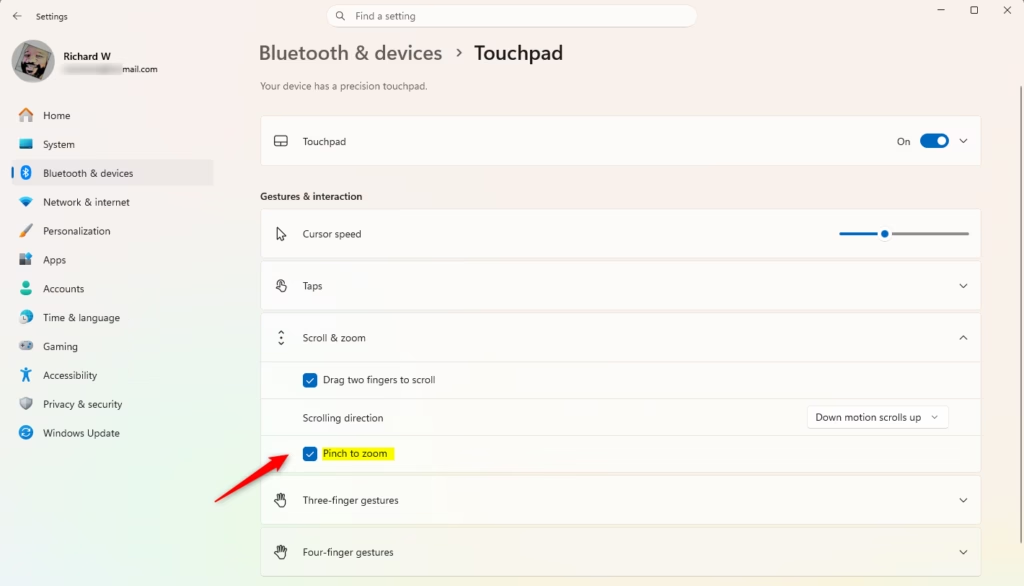
Go to Settings > Bluetooth & devices > Touchpad. Expand “Scroll & zoom” and then check or uncheck “Pinch to zoom” to enable or disable it.
Option One
Turn On or Off Pinch to Zoom on Touchpad in Settings
You can turn pinch to zoom on or off for your Windows 11 touchpad using the Settings app. This is the easiest way to control the zoom feature without needing to use complicated commands.- Open Settings by pressing
Win+I. - Click on Bluetooth & devices on the left side. Then click on Touchpad on the right side. (see screenshot below)
- Click on Scroll & zoom to expand it open. (see screenshot below step 4)
- Check (on – default) or uncheck (off) Pinch to zoom for what you want. (see screenshot below)
- You can now close Settings if you like.
Option Two
Turn On or Off Pinch to Zoom on Touchpad Using Registry
If you’re comfortable with advanced settings, you can turn pinch to zoom on or off for your touchpad using the Windows Registry Editor. This method lets you directly change the setting for the pinch to zoom feature.
Turn On “Pinch to zoom”
This is the default setting.
reg add "HKEY_CURRENT_USER\Software\Microsoft\Windows\CurrentVersion\PrecisionTouchPad" /v ZoomEnabled /t REG_DWORD /d 0xFFFFFFFF /f
Turn Off “Pinch to zoom”
reg add "HKEY_CURRENT_USER\Software\Microsoft\Windows\CurrentVersion\PrecisionTouchPad" /v ZoomEnabled /t REG_DWORD /d 0 /f
Summary
You’ve learned two straightforward methods to control the pinch to zoom feature on your Windows 11 touchpad, whether you prefer using the simple Settings app or the more advanced Registry Editor.
How to pinch zoom with trackpad?
And choose general activate force enable pinch to zoom on touchpad. And then Click. Okay. Now the pinch to zoom gestures will work without pressing any other key duh.
How do I zoom in on a touch pad?
While many smartphones and tablets use a “pinch” gesture (bringing two fingers together) to zoom in and out, this does not work on most touchpads. On a touchpad, only the sliding motion (up for zooming in and down for zooming out) will work. So remember: Sliding Up = Zoom In.
Was this guide helpful?

About the Author
Richard
Tech Writer, IT Professional
Richard, a writer for Geek Rewind, is a tech enthusiast who loves breaking down complex IT topics into simple, easy-to-understand ideas. With years of hands-on experience in system administration and enterprise IT operations, he’s developed a knack for offering practical tips and solutions. Richard aims to make technology more accessible and actionable. He's deeply committed to the Geek Rewind community, always ready to answer questions and engage in discussions.


No comments yet — be the first to share your thoughts!