

This article describes steps to enable or disable FilterKeys to enable various levels of FilterKeys functionality in Windows 11.
FilterKeys is an Accessibility option that you can use to control the keyboard repeat rate and ignore repeated keys.
Different filter key functionalities are SlowKeys, RepeatKeys, and BounceKeys. These are all accessibility features that allow users with disabilities to type using the keyboard.
There are many ways to turn on or off filter keys in Windows. Below, we will show you multiple ways to enable or disable it in Windows 11.
How to enable or disable filter keys in Windows 11
As described above, FilterKeys is an Accessibility option that you can use to control the keyboard repeat rate and ignore repeated keys.
Below are steps that show you how to turn it on or off.
Turn on the filter key on the sign-in screen.
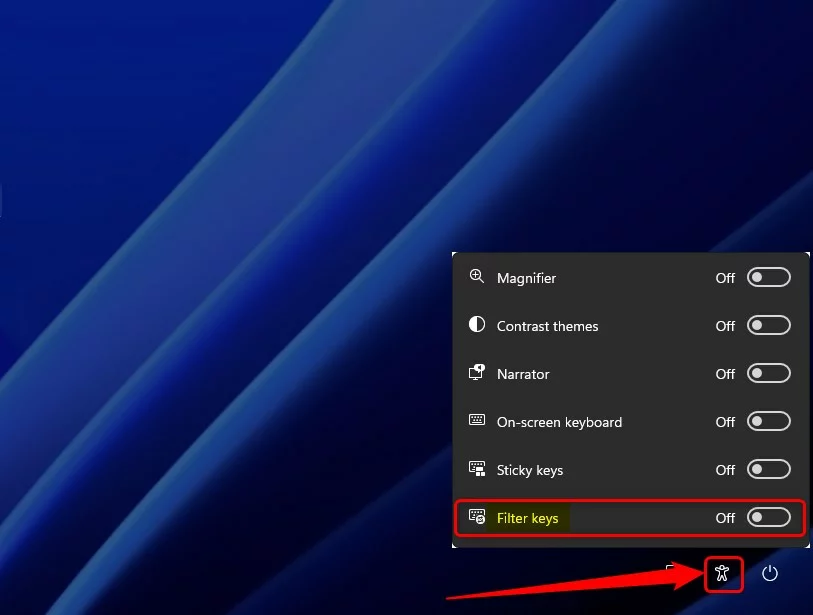
You can turn on or off filter keys on the sign-in screen using the accessibility button. While on the sign-in screen, click the Accessibility icon at the bottom right corner.
On the pop-up window, toggle the button to turn on or off filter keys.
Turn on filter keys using keyboard shortcuts
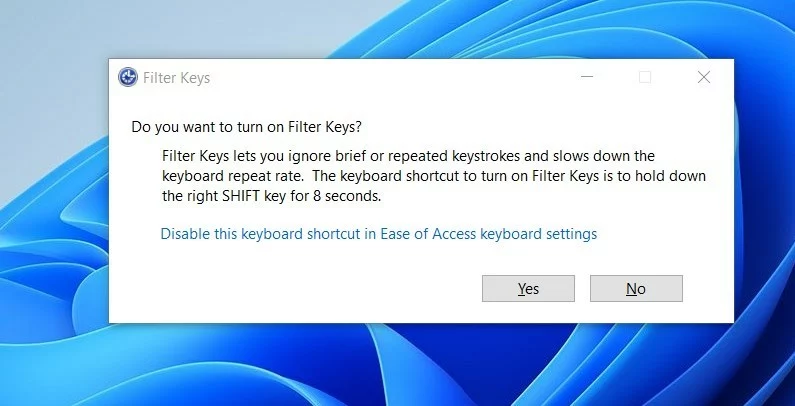
The FilterKeys shortcut key is the right SHIFT key. Press and hold the right SHIFT key for eight seconds, and release it when you hear a beep.
Click Yes to confirm turning on or off filter keys.
Turn on or off filter keys from the Windows Settings app
You can also turn on or off filter keys from the Windows Settings app.
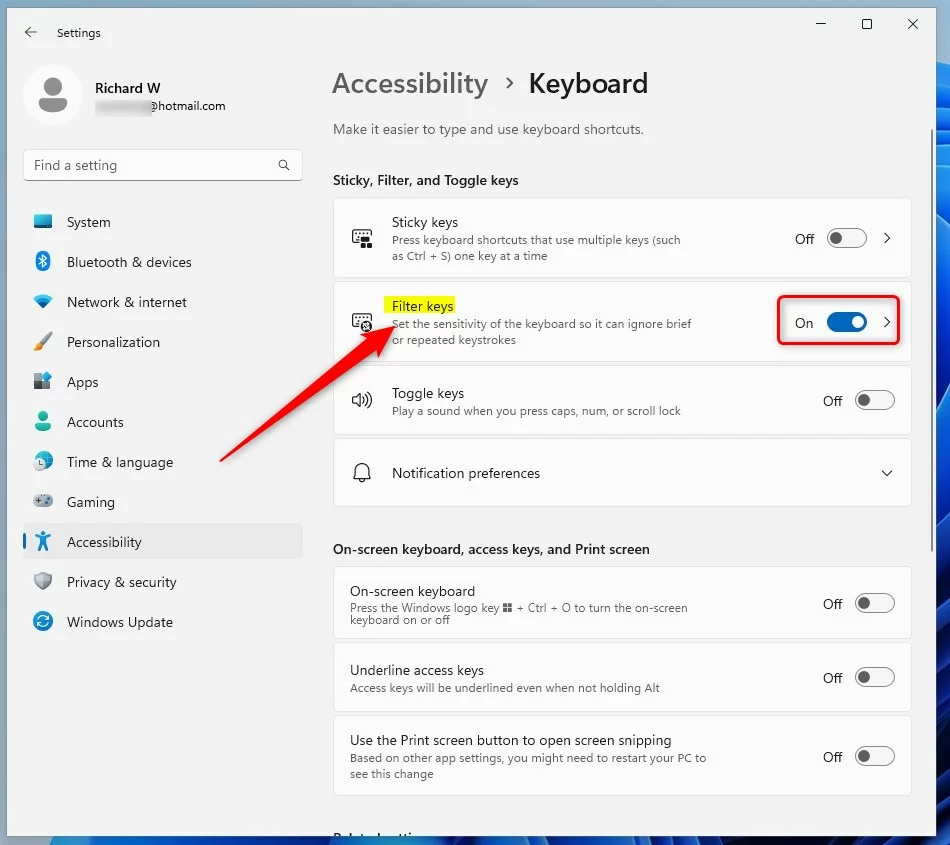
Click on the Start menu -> Settings -> Accessibility -> Keyboard.
On the Keyboard settings pane, under the Sticky, Filter, and Toggle keys, toggle the button to the On position to turn on the Filter keys.
To disable it, toggle the button back to the Off position.
Turn on filter keys from the Control Panel
There’s yet another location to turn on filter keys: the classic Control Panel app.
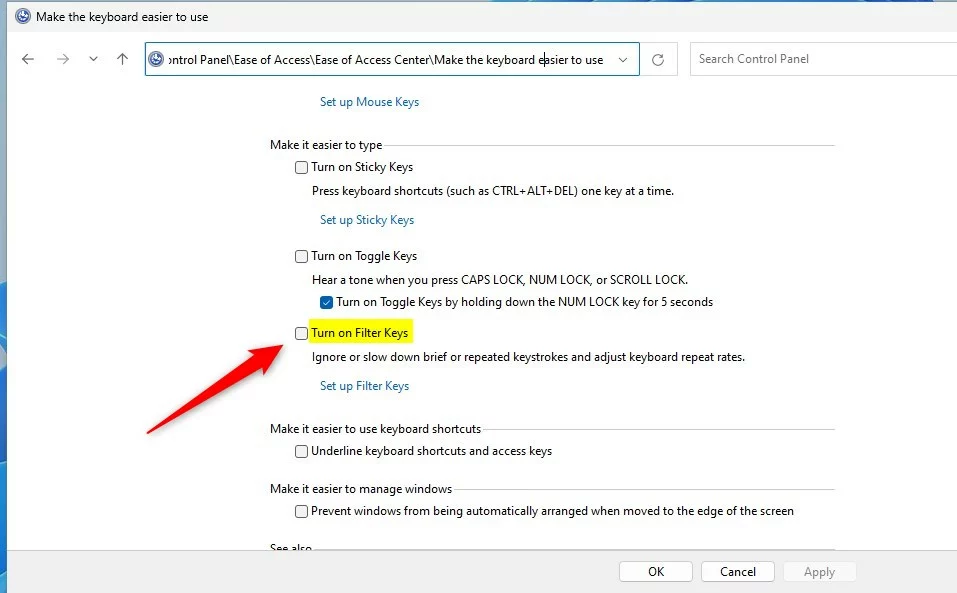
In the Control Panel app, navigate to Ease of Access -> Ease of Access Center -> Make the keyboard easier to use.
There, check the box next to Turn on Filter Keys to enable. To disable it, uncheck the box and save.
That should do it!
Reference:
Conclusion:
- FilterKeys is a valuable Accessibility option in Windows 11, allowing users to control the keyboard repeat rate and ignore repeated keys.
- Following the steps outlined above, users can easily enable or disable FilterKeys using various methods, such as the sign-in screen accessibility button, keyboard shortcuts, Windows Settings app, and the Control Panel.
- These simple and effective techniques allow users to customize FilterKeys according to their specific needs and preferences in Windows 11.


Leave a Reply