How to Enable/Disable Bounce Keys in Ubuntu


Bounce Keys in Ubuntu stops the system from registering accidental double presses when you hit the same key twice in quick succession. Hand tremors or fast typing often cause these extra characters, but this accessibility feature filters them out by ignoring rapid duplicate keystrokes.
You can turn on Bounce Keys and adjust the acceptance delay slider to set how long the system waits before it counts a repeated press. This built-in Ubuntu setting works whenever extra characters start showing up in your typing.
Bounce Keys is enabled or disabled in Ubuntu’s Accessibility settings under Typing Assist. Open Settings , click Accessibility, then toggle the Bounce Keys button to On or Off within the Typing Assist panel.
How to enable or disable bounce keys in Ubuntu Linux
Bounce keys in Ubuntu let you ignore fast repeat keystrokes so you do not get double letters when your finger bounces on a key. You can turn this setting on or off in a few clicks through your main system settings. This makes typing much easier if your hands shake or you hit keys by mistake.
Here is how to turn it on or off.
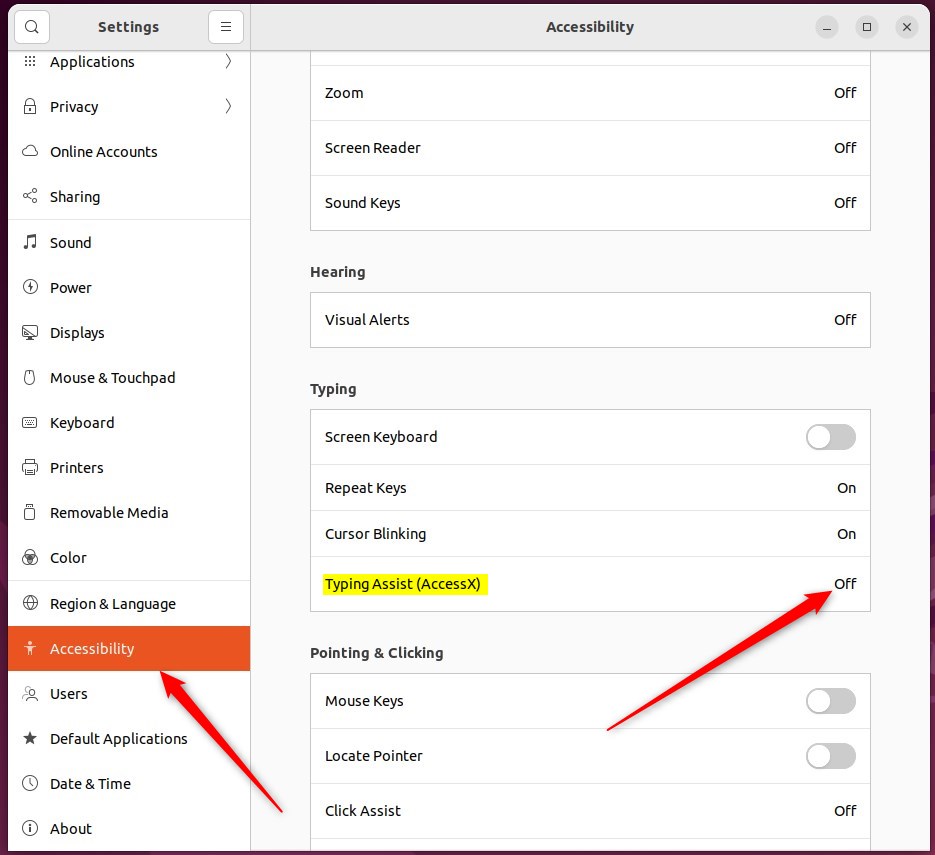
Click the system menu in the top-right corner of the screen and choose Settings, then open the Accessibility panel from the sidebar.

Click the system menu in the top-right corner of the screen and choose Settings, then open the Accessibility panel from the sidebar.
From there, select Settings.

Click the system menu in the top-right corner of the screen and choose Settings, then open the Accessibility panel from the sidebar.

Bounce Keys, a feature to prevent accidental key presses, is enabled by toggling the Bounce Keys button to the On position within the Typing Assist window.
To disable it, toggle the button to the Off position.
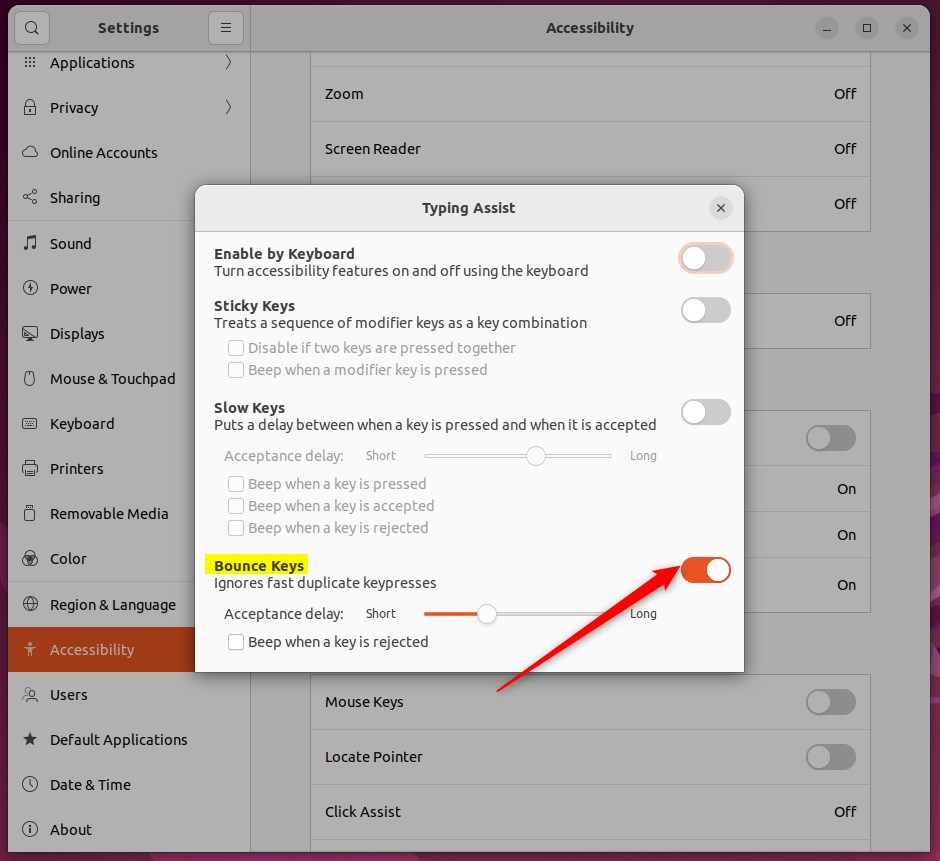
Use the Acceptance delay slider to adjust how long Ubuntu waits after you press a key before it recognizes a second press of the same key.
Select 'Beep when a key is rejected' if you want an audible alert when your computer ignores a key press that happened too soon after the previous one.
That should do it! You can now close the Settings app.
Conclusion:
- Enabling or disabling bounce keys in Ubuntu Linux can significantly improve the typing experience for individuals with motor impairments.
- The Acceptance delay slider provides additional customization to manage the timing between key presses.
- Utilizing the beep option can provide auditory feedback when a keystroke is ignored due to proximity to the previous input.
- Accessing the System Settings - Accessibility panel and navigating to Typing Assist (AccessX) allows for seamless toggling of the Bounce Keys feature in Ubuntu Linux.
Was this guide helpful?

About the Author
Richard
Tech Writer, IT Professional
Richard is a writer at Geek Rewind who turns complex IT tasks into clear, step-by-step guides. He draws on years of hands-on experience in system administration and enterprise IT operations, focusing on Windows, Linux and WordPress: the problems people actually run into, and the fixes that work. His server and WordPress guides come from systems he runs himself. Richard builds and maintains the platform behind Geek Rewind, from its Ubuntu servers and Nginx configuration to its custom WordPress plugins. Many new tutorials start with readers' questions, and he's always glad to answer them in the comments.



No comments yet — be the first to share your thoughts!