

This article explains how to turn the sync feature on or off in Windows 11. Sync lets your Microsoft account share settings and apps across all your devices.
The “Remember my apps” and “Remember my preferences” features in Windows let you keep the same settings everywhere. Your desktop background, theme, language, and installed apps stay the same on every device you use. This saves you time setting up new computers.
Why use sync? When sync is on, Windows automatically shares your preferences across devices. You don’t have to set everything up again on each computer.
What happens when you turn it off? Microsoft accounts on your Windows 11 device won’t be able to use “Remember my apps” and “Remember my preferences.” This setting doesn’t apply if you use a local account on Windows 11.
How to Enable or Disable “Remember my apps” and “Remember my preferences”
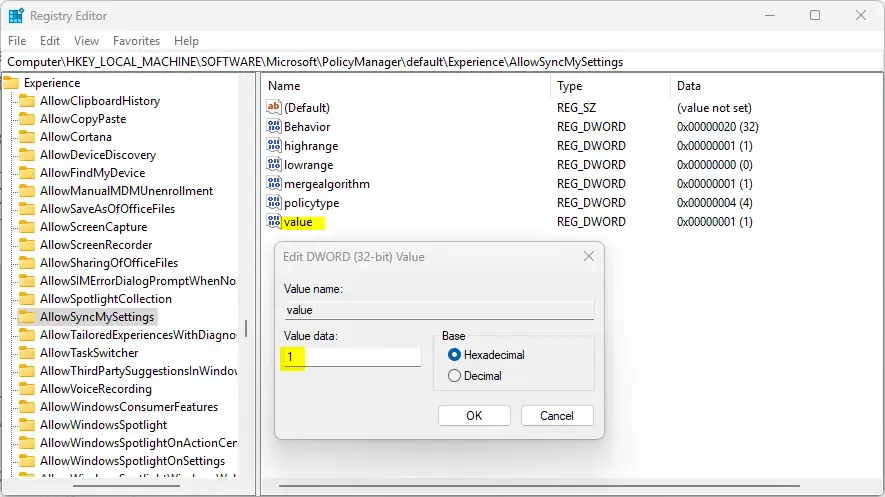
Enabling or disabling “Remember my apps” and “Remember my preferences” in Windows 11 requires editing the Registry by navigating to HKEY_LOCAL_MACHINE\SOFTWARE\Microsoft\PolicyManager\default\Experience\AllowSyncMySettings, then setting the value to 1 to enable or 0 to disable.
- Open the Windows Registry and go to this folder path:
Computer\HKEY_LOCAL_MACHINE\SOFTWARE\Microsoft\PolicyManager\default\Experience\AllowSyncMySettings - Double-click the value (REG_DWORD) on the right side under the AllowSyncMySettings key.
- Enter
1to let all Microsoft accounts use “Remember My Apps” and “Remember My Preferences.”OR
Enter
0to turn off these features for all Microsoft accounts. - If you don’t see the “value” item, right-click in a blank area. Choose to create a new DWORD (32-bit) registry item. Name it “value” and enter your chosen number (1 or 0).
- ⚠️ ADMIN REQUIRED: You need admin privileges to edit the Registry. Make sure you’re logged in as an administrator.
- Save your changes and restart your computer.
Warning: Be careful when editing the Registry. Mistakes can damage your Windows installation. Back up your computer before making changes.
Summary
Sync in Windows 11 keeps your apps and settings the same across all your devices. You can turn this feature on or off through the Registry. To enable sync, set the value to 1. To disable it, set the value to 0. Always back up your system before editing the Registry, and restart your computer when done.



Leave a Reply