How to Enable or Disable Enhanced Phishing Protection in Windows 11

Let’s talk about how to manage Enhanced Phishing Protection in Windows 11 to keep your Microsoft account details safer.
Think of Enhanced Phishing Protection as a helpful assistant built into Microsoft Defender SmartScreen. It’s designed to alert you if you happen to use the same Microsoft account password on different websites or apps.
This feature is critical because reusing passwords creates a security vulnerability. If one site is breached, hackers can potentially access all your accounts using that same password.
It works by connecting with Microsoft Defender SmartScreen to spot risky sites or apps where you might enter your password.
This protection is already built into Windows 11, boosting your security alongside features like real-time and ransomware protection.
This alert system works with Microsoft Edge and other browsers built on Chromium, adding another layer of defense for your account details.
Navigate to Windows Security, then App & browser control, and Reputation-based protection settings. Under Phishing protection, toggle the switch to On or Off to enable or disable Enhanced Phishing Protection.
How to Turn On or Off Password Reuse Warnings in 🪟 Windows 11
Windows 11’s password reuse warnings help keep your accounts safe by alerting you if you use the same password on multiple sites, and you can easily turn them on or off through the Windows Security app.
- Click the Search box on your taskbar (bottom-left corner).
- Type Windows Security and click the Windows Security app in the search results.
Next:
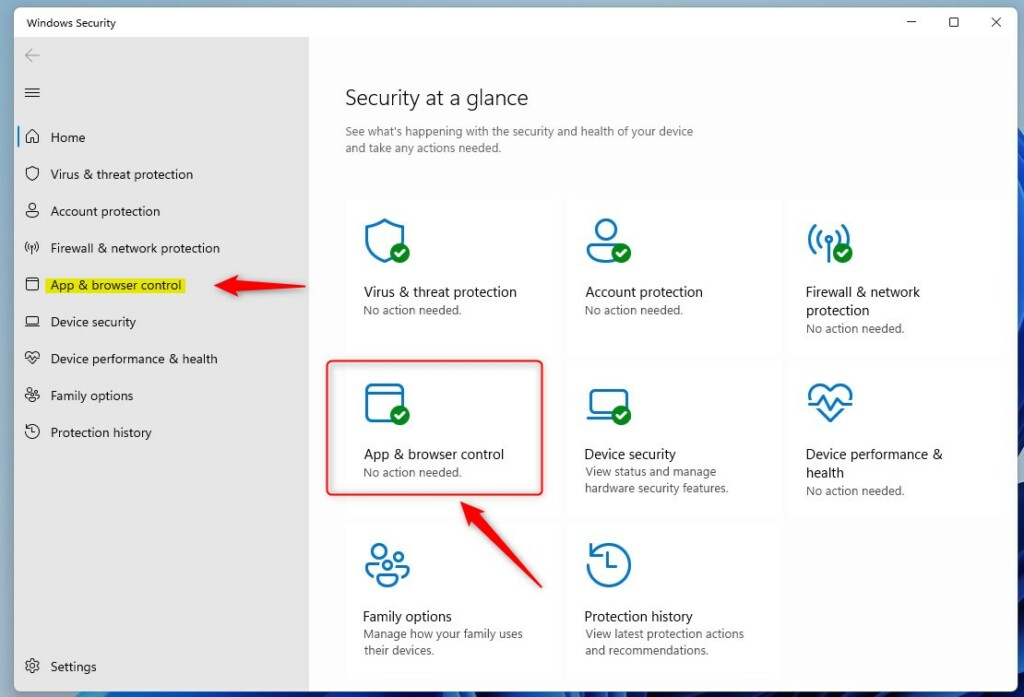
- In Windows Security, click on App & browser control.
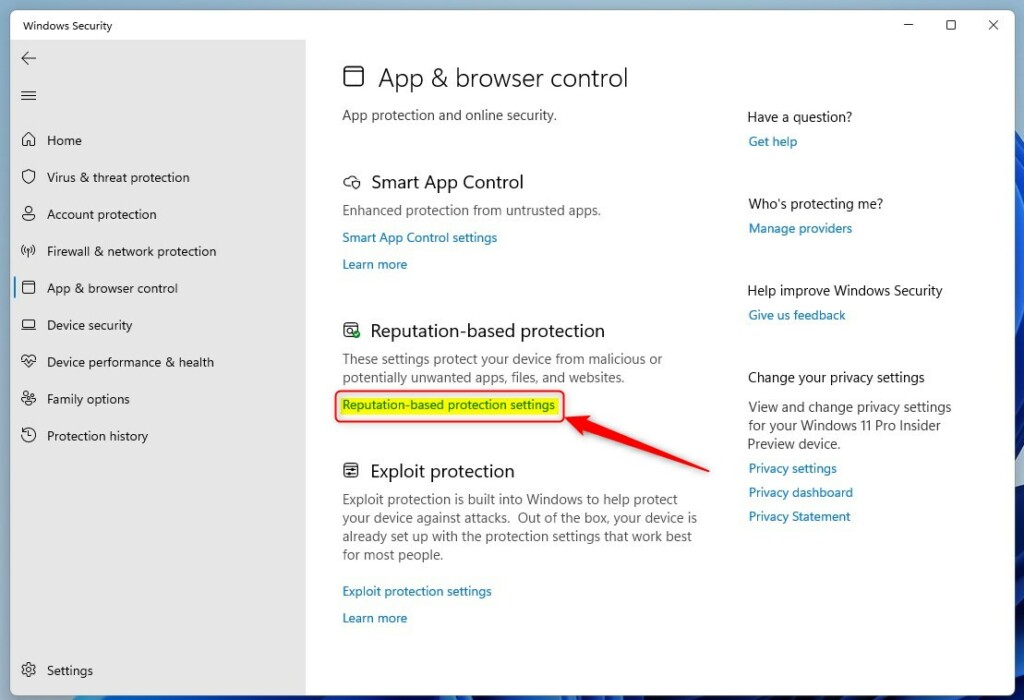
- Scroll down and click Reputation-based protection settings.
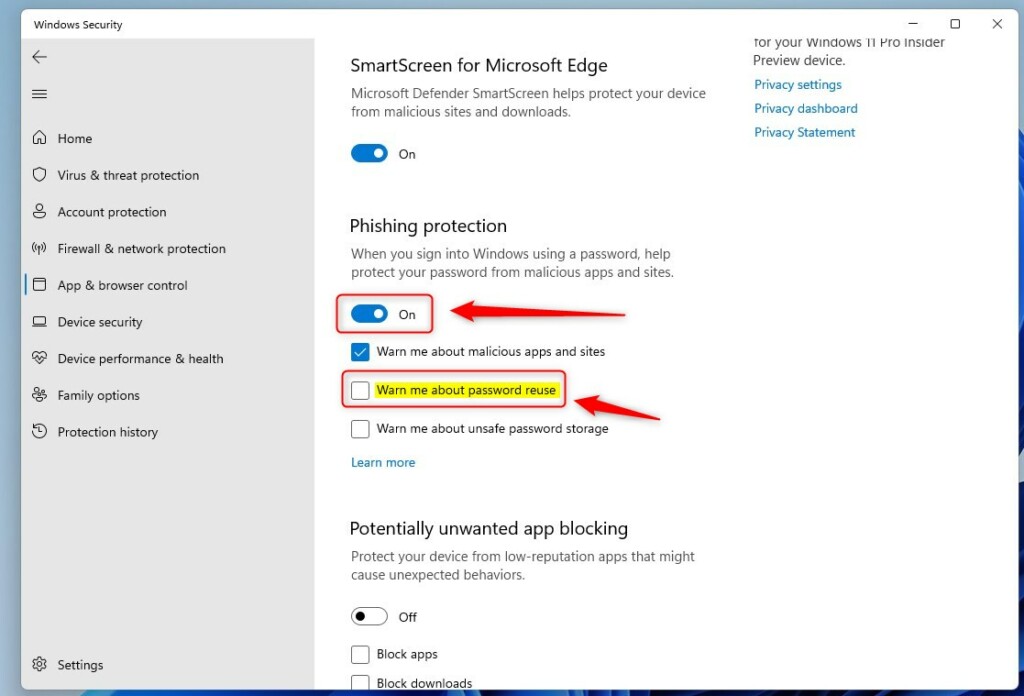
- Under Phishing protection, toggle the switch to On or Off to enable or disable Enhanced Phishing Protection.
When enabled, you can also choose to get warnings about:
- Malicious apps and websites
- Password reuse
- Unsafe password storage
Advanced Option: Using Local Group Policy Editor
For more detailed control over features like enhanced phishing protection in Windows 11, you can use the Local Group Policy Editor, but remember this advanced tool requires administrator privileges to change settings.
- FLAG: Admin privileges required. Click the Start Menu button and type Edit group policy.
- Click Edit group policy from the search results.

In the Local Group Policy Editor window, navigate to:
Computer Configuration > Administrative Templates > Windows Components > Windows Defender SmartScreen > Enhanced Phishing ProtectionThen:
- Find and double-click Notify Password Reuse in the right pane.
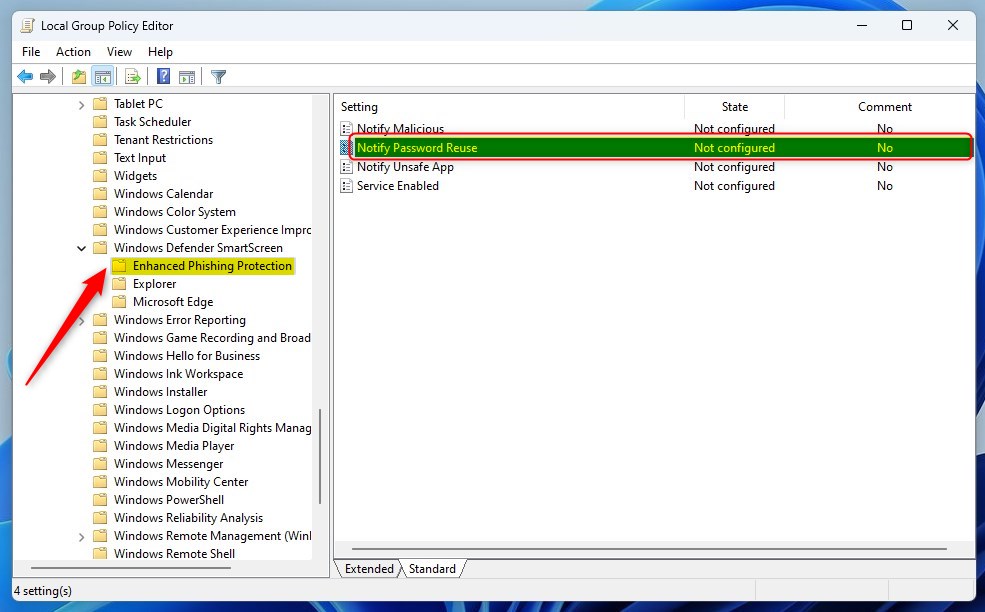
- Choose one of the following options:
- Not Configured (default setting)
- Enabled (turns on password reuse warnings)
- Disabled (turns off password reuse warnings)
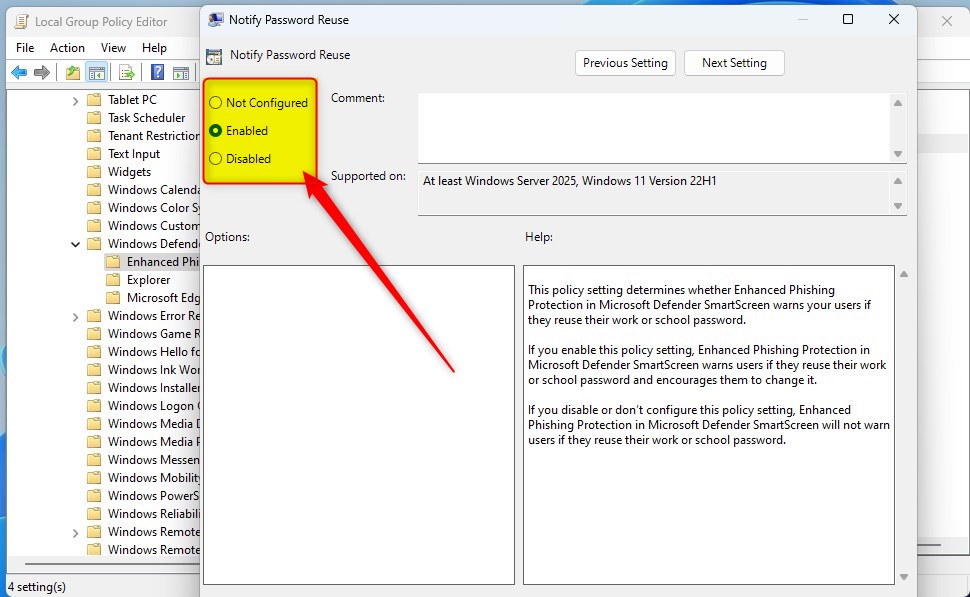
- Click OK to save your changes, then close the Local Group Policy Editor.
Summary
Enhanced phishing protection in Windows 11 is a security feature that helps keep your passwords safer by warning you about risky password reuse, and you can easily turn it on or off through the Windows Security app.
This feature works with Microsoft Defender for better security on your device and in the cloud.
You can turn it on or off through Windows Security. You can also use the Local Group Policy Editor for advanced settings.
By following these steps, you’ll be able to browse and use apps on Windows 11 more securely.
For more info, you can visit the original guide here: Geek Rewind – SmartScreen Phishing Protection
How do I enable enhanced phishing protection?
Enabling Windows Defender SmartScreen Enhanced Phishing Protection with Group Policy involves setting a few policy settings. Navigate to Computer Configuration > Administrative Templates > System > Windows Defender SmartScreen > Enhanced Phishing Protection.
How do I enable enhanced protected mode in 🪟 Windows 11?
Solution. In the Internet Options dialog box, click the Advanced tab, and then scroll down to the Security section of the settings list. Ensure the checkbox next to Enable Enhanced Protected Mode is selected.
Was this guide helpful?

About the Author
Richard
Tech Writer, IT Professional
Richard, a writer for Geek Rewind, is a tech enthusiast who loves breaking down complex IT topics into simple, easy-to-understand ideas. With years of hands-on experience in system administration and enterprise IT operations, he’s developed a knack for offering practical tips and solutions. Richard aims to make technology more accessible and actionable. He's deeply committed to the Geek Rewind community, always ready to answer questions and engage in discussions.
📚 Related Tutorials


No comments yet — be the first to share your thoughts!