How to Enable or Disable Real-time Protection for Microsoft Defender Antivirus in Windows 11

Here’s how to turn real-time protection on or off for Microsoft Defender Antivirus in Windows 10 and Windows 11.
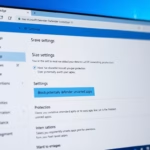
Open Windows Security, navigate to Virus & threat protection, and click Manage settings. Toggle Real-time protection to On or Off. If it turns back on automatically, you may need to disable Tamper Protection first.
What is Microsoft Defender Antivirus?
Microsoft Defender Antivirus is the built-in security software for Windows 10 and Windows 11. It helps protect your computer from viruses, malware, and other threats.
What is Real-time Protection?
Microsoft Defender’s real-time protection is a security feature that constantly watches your computer for viruses and other harmful software, stopping threats before they can cause damage.
Why turn it off? If you turn off real-time protection, files you open or download won’t be checked for threats. This is risky and not recommended for most users.
Important: You need admin rights to turn real-time protection on or off. Also, Controlled Folder Access requires real-time protection to be on.
Note: If you have another antivirus program installed, Microsoft Defender will turn itself off automatically. Real-time protection will stay off even if you enable periodic scanning while another antivirus is active.
Option 1Use Windows Security
You can easily turn Microsoft Defender’s real-time protection on or off using the Windows Security app, which is the simplest way for most people to manage this setting.
- Open Windows Security.
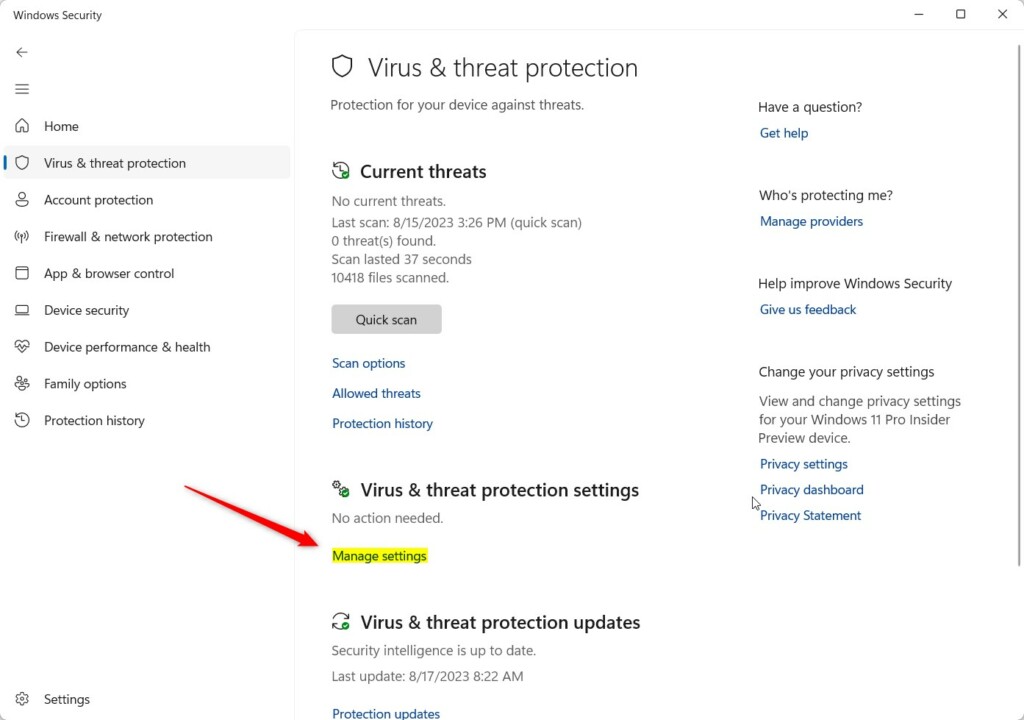
- Click Virus & threat protection.
- Click the Manage settings link under Virus & threat protection settings.
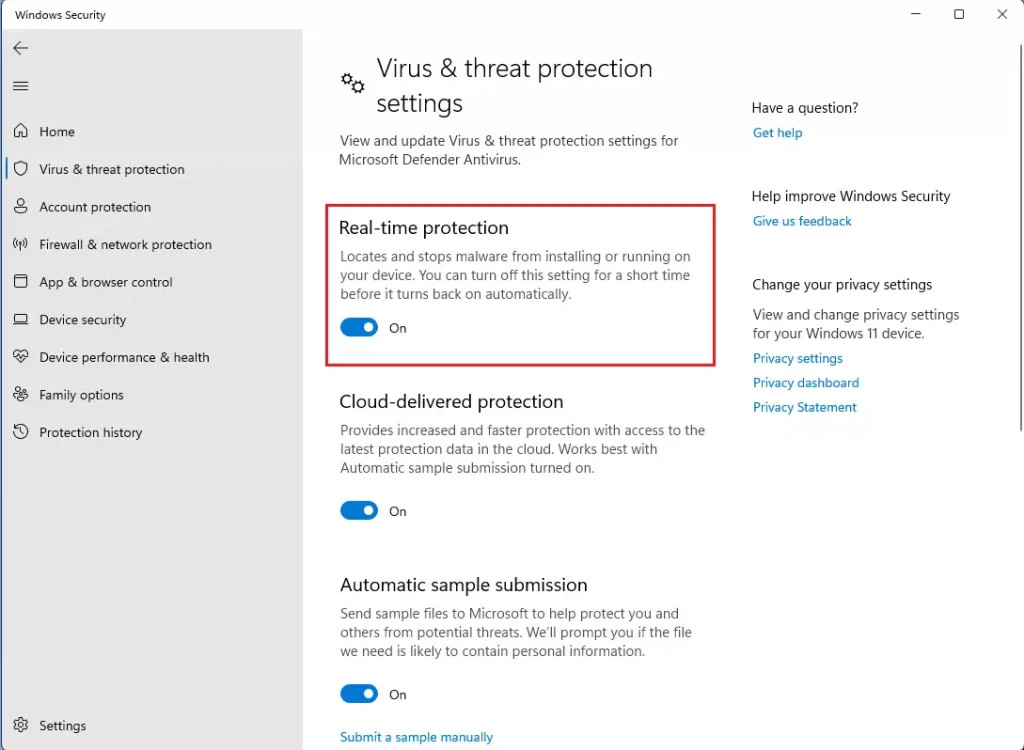
- Turn Real-time protection On (default) or Off based on what you want.
- 🔒 Admin required: If prompted by UAC, click Yes to approve.
- Close Windows Security when done.
Note: If you turn off real-time protection, it will turn back on automatically after a short time. Turn off Tamper Protection first if you want to keep it off.
Option 2Use Command Line
Advanced users can manage Microsoft Defender’s real-time protection using the Command Line or Windows PowerShell, but you must turn off Tamper Protection first.
Steps:
- 🔒 Admin required: Open Windows Terminal as Administrator. Choose either Windows PowerShell or Command Prompt.
- Copy and paste one of the commands below and press Enter.
- Close Windows Terminal when done.
To Turn On Real-time Protection:
Set-MpPreference -DisableRealtimeMonitoring 0
OR
Set-MpPreference -DisableRealtimeMonitoring $false
To Turn Off Real-time Protection:
Set-MpPreference -DisableRealtimeMonitoring 1
OR
Set-MpPreference -DisableRealtimeMonitoring $true
Option 3Use Local Group Policy Editor
Windows 11 Pro, Enterprise, or Education users can control Microsoft Defender’s real-time protection settings with the Local Group Policy Editor, but you’ll need to disable Tamper Protection first.
Steps:
- 🔒 Admin required: Open the Local Group Policy Editor by typing
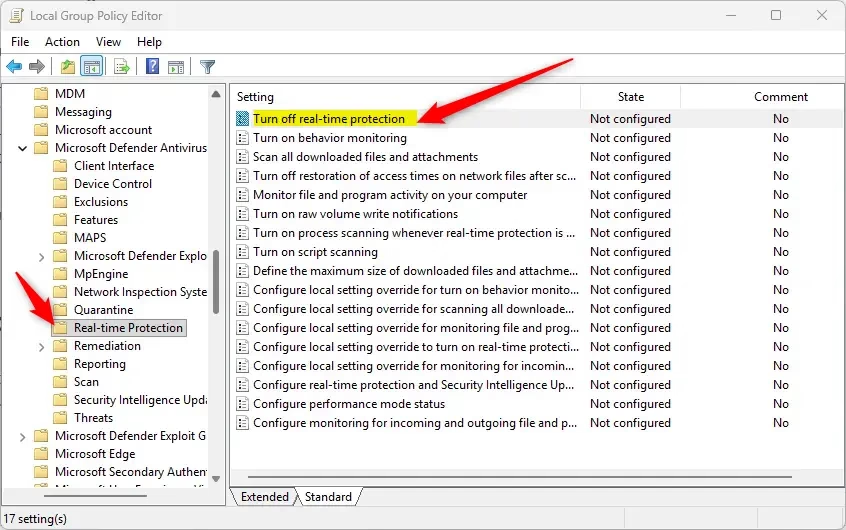
gpedit.mscin the search box. - Navigate to this path on the left side:
Computer Configuration > Administrative Templates > Windows Components > Microsoft Defender Antivirus > Real-time Protection - On the right side, double-click the Turn off real-time protection policy.
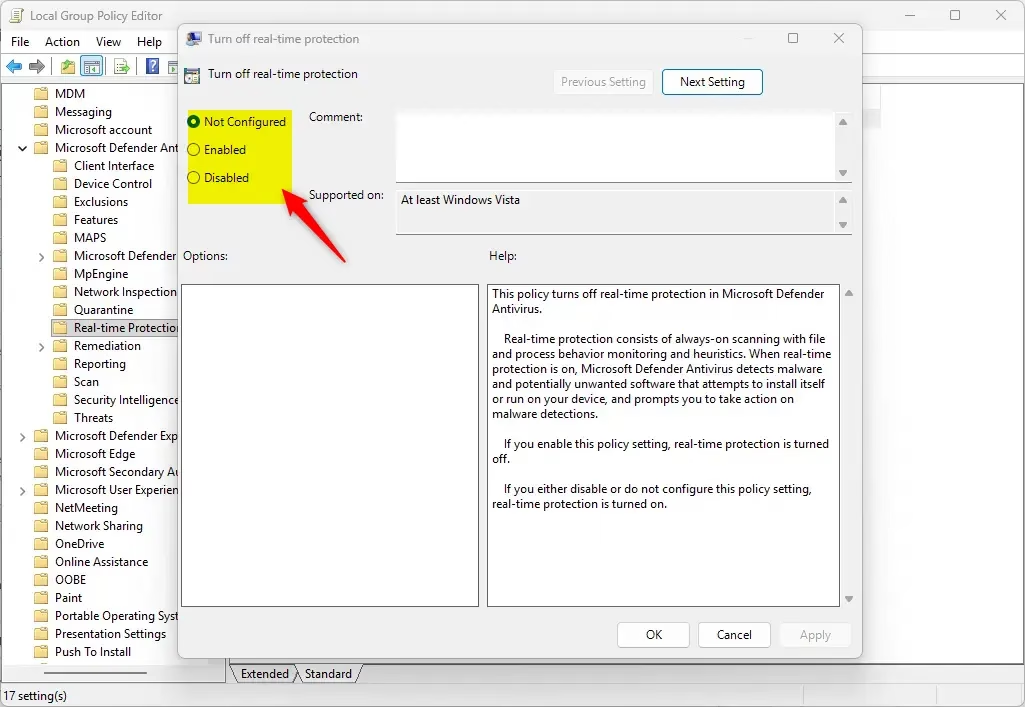
To Enable Real-time Protection:
- Select the dot next to Not Configured.
- Click OK.
- Close the Local Group Policy Editor.
To Disable Real-time Protection:
- Select the dot next to Enabled.
- Click OK.
- Close the Local Group Policy Editor.
Option 4Edit the Registry
Editing the Windows Registry lets advanced users change Microsoft Defender’s real-time protection settings, but you must disable Tamper Protection before you start.
Steps:
- 🔒 Admin required: Open the Terminal app.
- Copy and paste the command below and press Enter.
To Enable Real-time Protection:
reg delete "HKLM\SOFTWARE\Policies\Microsoft\Windows Defender\Real-Time Protection" /v DisableRealtimeMonitoring /f
To Disable Real-time Protection:
reg add "HKLM\SOFTWARE\Policies\Microsoft\Windows Defender\Real-Time Protection" /v DisableRealtimeMonitoring /t REG_DWORD /d 1 /f
Summary
Real-time protection is a vital security feature of Microsoft Defender that continuously scans for threats to keep your PC safe, and you can manage it through Windows Security, Command Line, Group Policy, or the Registry.
Is Windows Real-Time Defender free?
As long as you have Windows 11 installed on your device, you can use Microsoft Defender without needing to purchase a subscription. It provides real-time protection against malware, viruses, and other security threats automatically, and it will activate as long as no other antivirus software is installed.
How do I know if Windows Defender real-time protection is enabled?
If you see the shield your Windows Defender is running and active. Step 1: select “Update and Security” Step 2: Select “Windows Security” Page 3 Step 3: Look for “Virus & thread protection” If “Virus & threat protection” is not enabled, please do so if you wish.
Was this guide helpful?

About the Author
Richard
Tech Writer, IT Professional
Richard, a writer for Geek Rewind, is a tech enthusiast who loves breaking down complex IT topics into simple, easy-to-understand ideas. With years of hands-on experience in system administration and enterprise IT operations, he’s developed a knack for offering practical tips and solutions. Richard aims to make technology more accessible and actionable. He's deeply committed to the Geek Rewind community, always ready to answer questions and engage in discussions.



No comments yet — be the first to share your thoughts!