
Microsoft Edge’s Password Monitor is a security feature that alerts you if your saved passwords appear in known data breaches, allowing you to turn it on or off on Windows 11.
This tool scans your stored passwords against a database of compromised credentials, proactively warning you about potential risks. For example, if one of your passwords is found on a list from a website hack, Password Monitor will flag it.
You can easily manage this feature within Edge’s settings to enhance your online security. Keeping it enabled provides a crucial layer of protection against credential stuffing attacks.
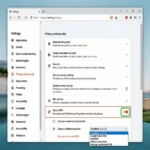
To manage Password Monitor in Microsoft Edge, go to Settings > Passwords and autofill > Microsoft Password Manager. Under More settings, toggle “Scan passwords for leaks” on or off to enable or disable the feature. This checks your saved passwords against known data breaches.
Why Use Password Monitor?
Password Monitor checks if any of the passwords you’ve saved in Edge have appeared in known data breaches (which are lists of compromised login information from hacked websites). This helps you know if you need to change a password to keep your account safe.
How to Turn On Password Monitor
First, make sure you are signed into Microsoft Edge with your Microsoft account or your work or school account. This is important because your security settings are linked to your profile.
Open Microsoft Edge Settings
Start Microsoft Edge on your computer. Look for the three dots (…) in the top right corner of the browser window. Click them. A menu will pop up. Click on Settings.Go to Password Settings
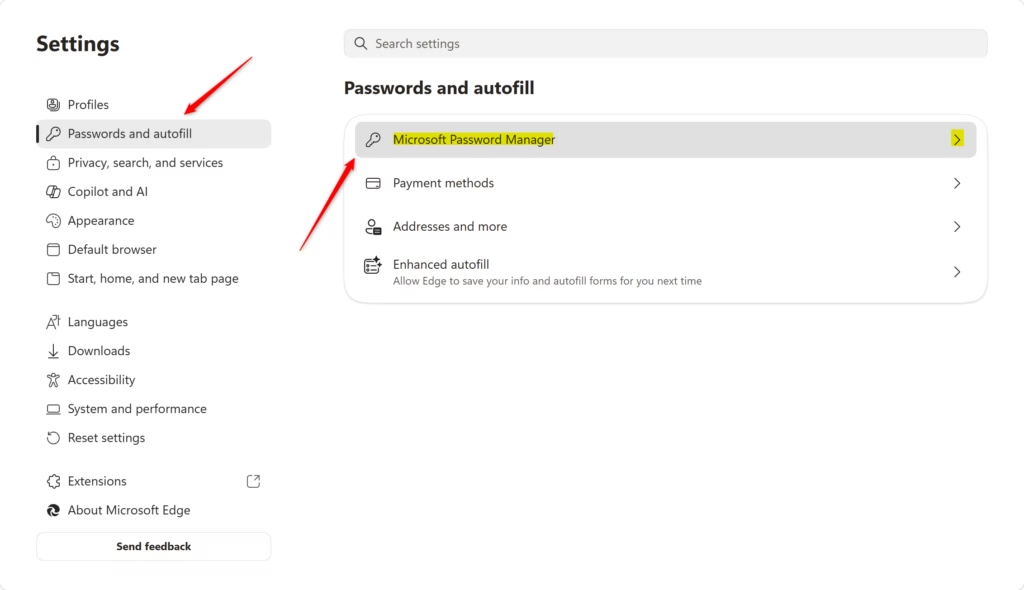
In the Settings menu, look for Passwords and autofill on the left side. Click it.Locate Password Manager Settings
Under the Passwords and autofill section, click on Microsoft Password Manager.Turn On the Security Check
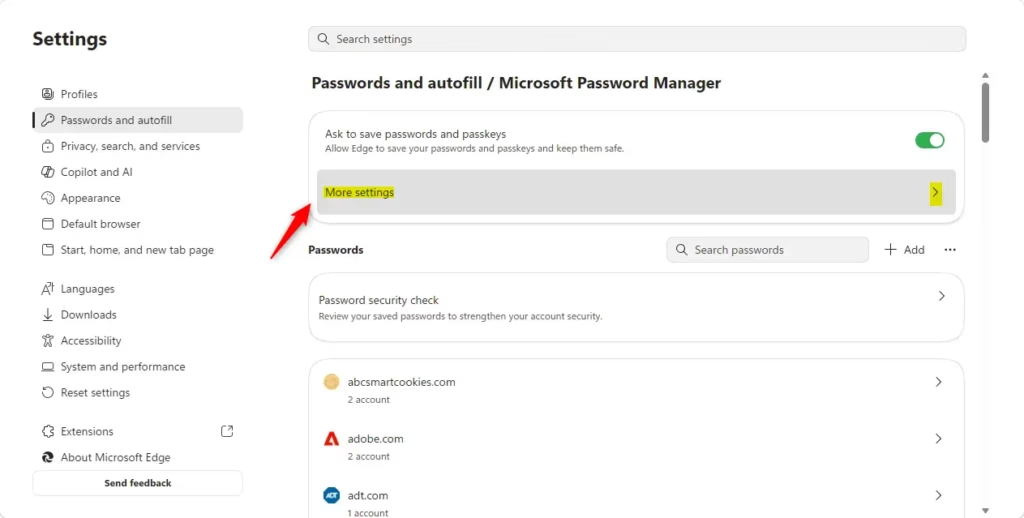
In the Password Manager settings, find the section called More settings. Click on it.You will see an option called Scan passwords for leaks. Make sure the switch next to it is turned On. The switch will change color when it’s on.

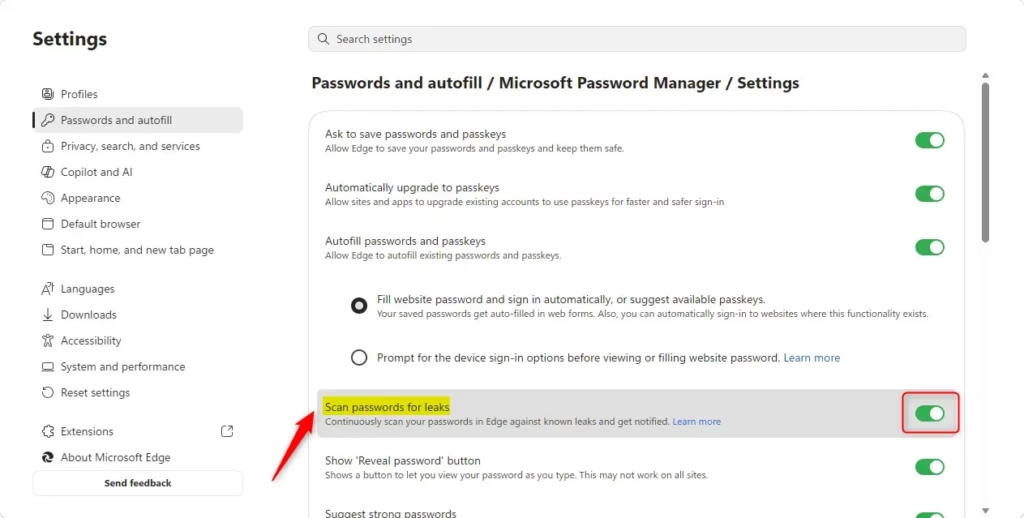
That’s it! Password Monitor is now on. Edge will now check your saved passwords in the background to see if they are in danger.
How to Turn Off Password Monitor
If you want to turn off Password Monitor, just follow the same steps as above:
- Open Microsoft Edge and go to Settings.
- Click on Passwords and autofill.
- Click on Microsoft Password Manager.
- Click on More settings.
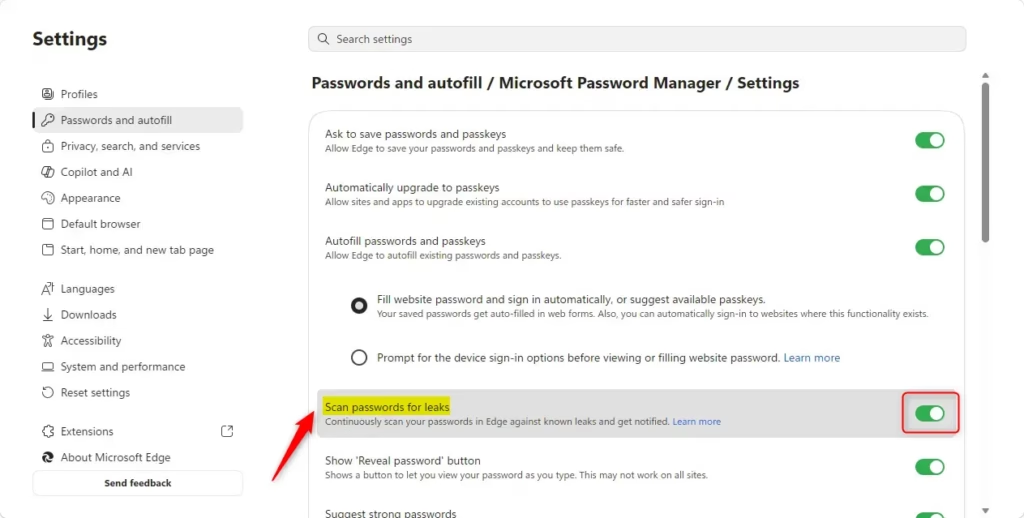
- Find Scan passwords for leaks and switch it to Off.
What Happens When You Turn It Off?
When Password Monitor is off, Edge will no longer check your saved passwords against lists of known data breaches. You won’t get warnings if your passwords are found in a breach.
Reference:
Summary
Password Monitor in Microsoft Edge is a helpful tool that checks if your saved passwords have appeared in data breaches. To turn it on or off, you’ll navigate through Edge Settings > Passwords and autofill > Microsoft Password Manager > More settings, and then use the toggle switch for ‘Check passwords for known data breaches’. Keeping this feature on helps you stay aware of potential security risks to your online accounts.
Was this guide helpful?

About the Author
Richard
Tech Writer, IT Professional
Richard, a writer for Geek Rewind, is a tech enthusiast who loves breaking down complex IT topics into simple, easy-to-understand ideas. With years of hands-on experience in system administration and enterprise IT operations, he’s developed a knack for offering practical tips and solutions. Richard aims to make technology more accessible and actionable. He's deeply committed to the Geek Rewind community, always ready to answer questions and engage in discussions.



No comments yet — be the first to share your thoughts!