How to Enable Location Override in Windows 11


Location override in Windows 11 forces your PC to use a fixed geographic location instead of relying on Wi-Fi networks or GPS signals. This feature fixes incorrect location data that often happens when you use remote desktop apps or virtual machines.
Remote desktop sessions usually grab the physical location of the host server rather than your actual spot. If your remote server sits in New York while you work from London, apps see the New York location. Overriding this setting forces Windows 11 to use your real coordinates so weather tools, maps, and local search results work properly.
Open Settings , then Privacy & security, and click Location. Find “Allow location override” and toggle the switch to On. This lets you manually set your PC’s location for apps.
How to Enable or Disable via Settings
Turning on location override Windows 11 through the Settings app takes just a few clicks and lets you use a manually set location for your apps. You can easily switch this feature on or off by going to your privacy options, selecting the location menu, and toggling the main switch to match your preference.
1. Open the Start menu and click Settings.
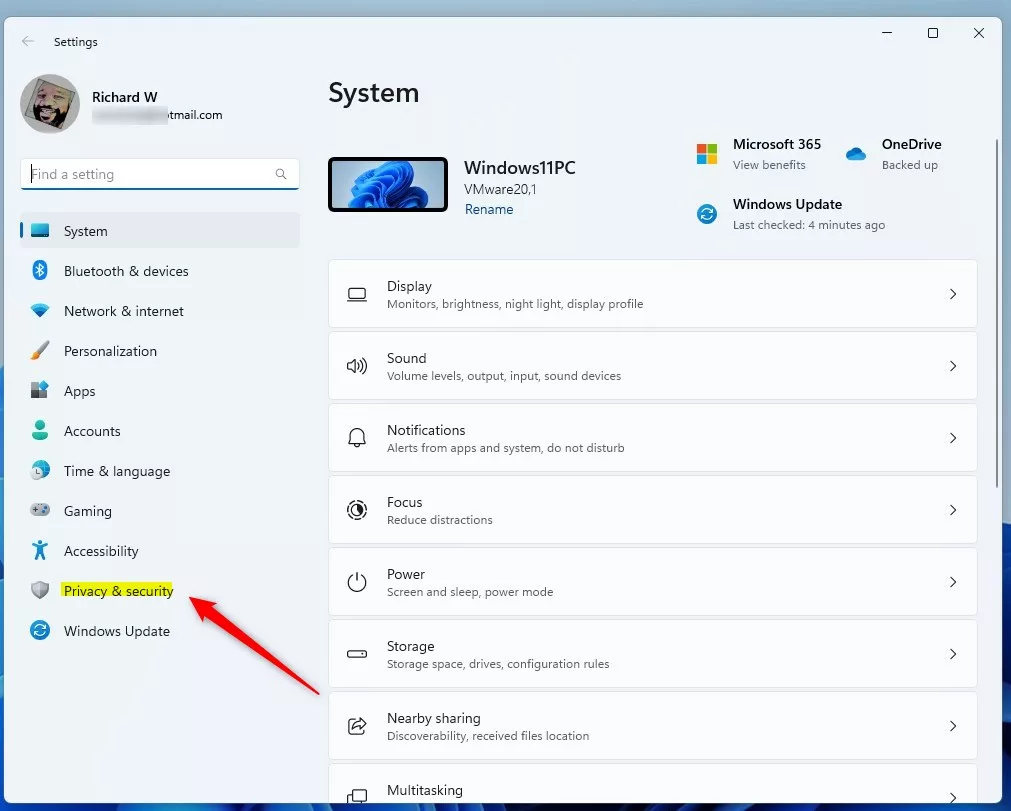
2. Select Privacy & security on the left sidebar.
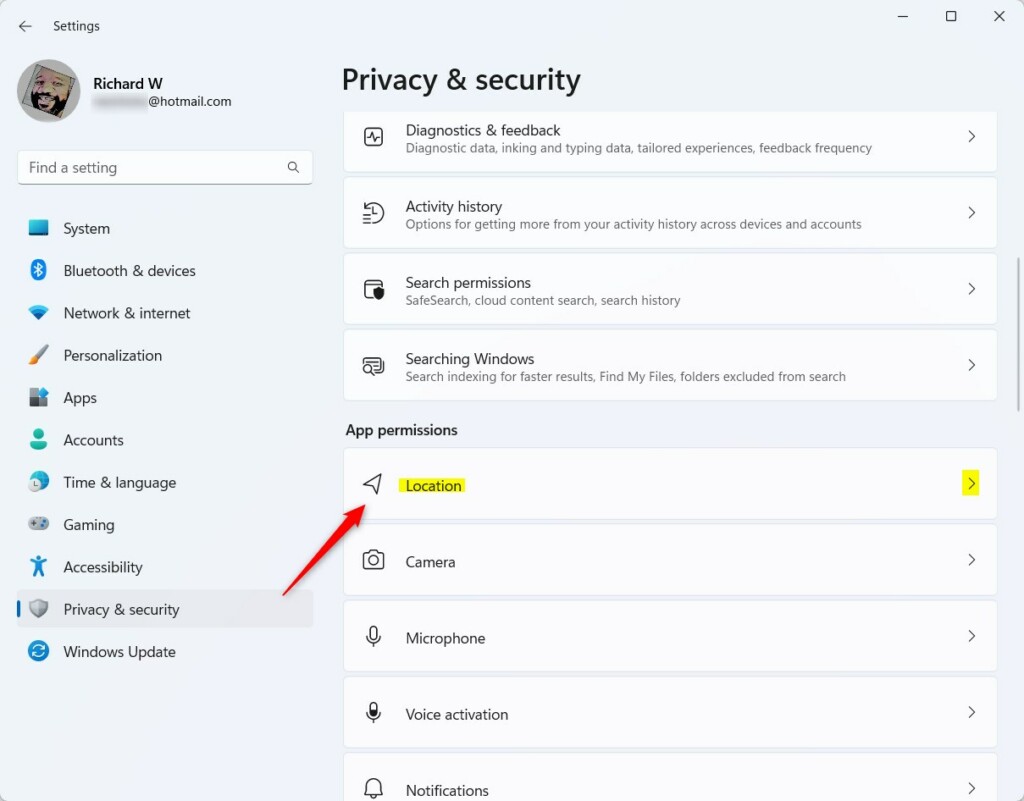
3. Click the Location tile on the right to view more options.
Find the "Allow location override" section. Toggle the switch to "On" to let apps use your manually set location. Set it to "Off" to prevent this and force apps to use your device's actual location.
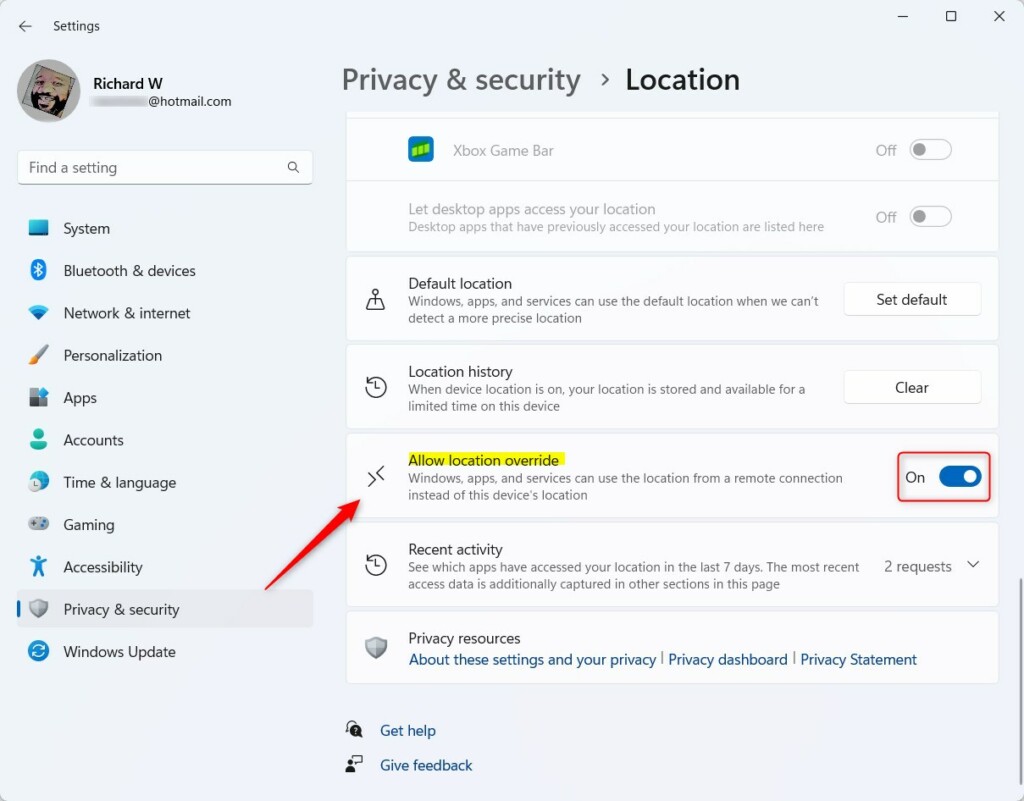
5. Close the Settings app when finished.
Advanced Configuration: Registry Editor
Enabling location override Windows 11 through the Registry Editor requires making a direct change to your system database using administrator rights. You can access the registry tool with a quick keyboard shortcut, open the correct path, and modify the system keys to force the feature on when the standard settings menu is not enough.
- Open the Windows Registry editor by pressing Win + R, typing regedit.exe, and pressing Enter.
- Navigate to this location in the Registry Editor:
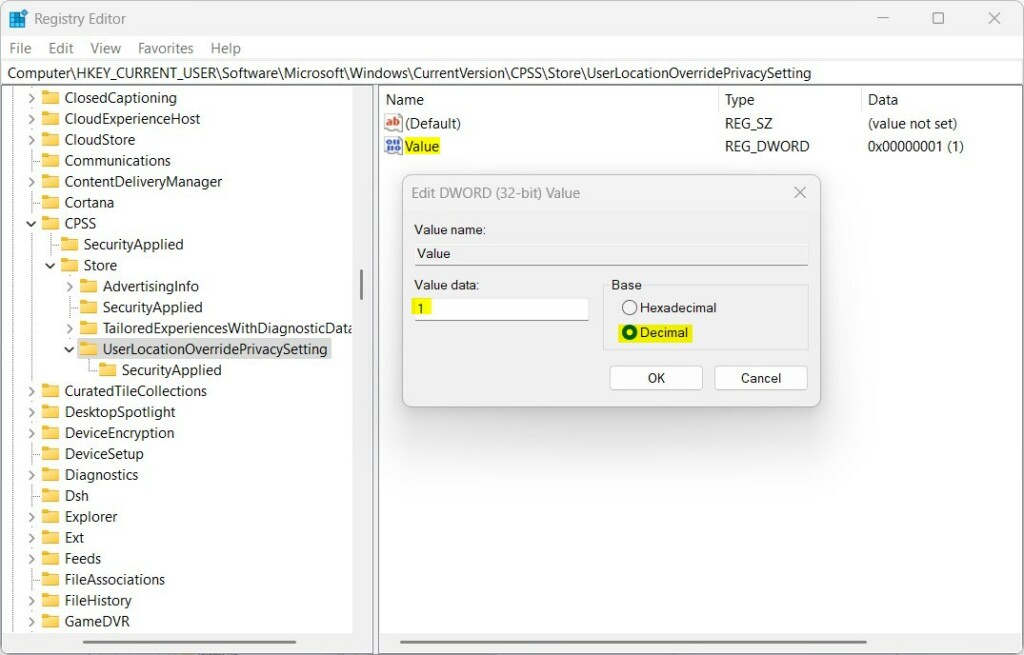
HKEY_CURRENT_USER\Software\Microsoft\Windows\CurrentVersion\CPSS\Store\UserLocationOverridePrivacySetting - If the UserLocationOverridePrivacySetting folder is missing, right-click the Store folder, select New Key, and name the new key
UserLocationOverridePrivacySetting.
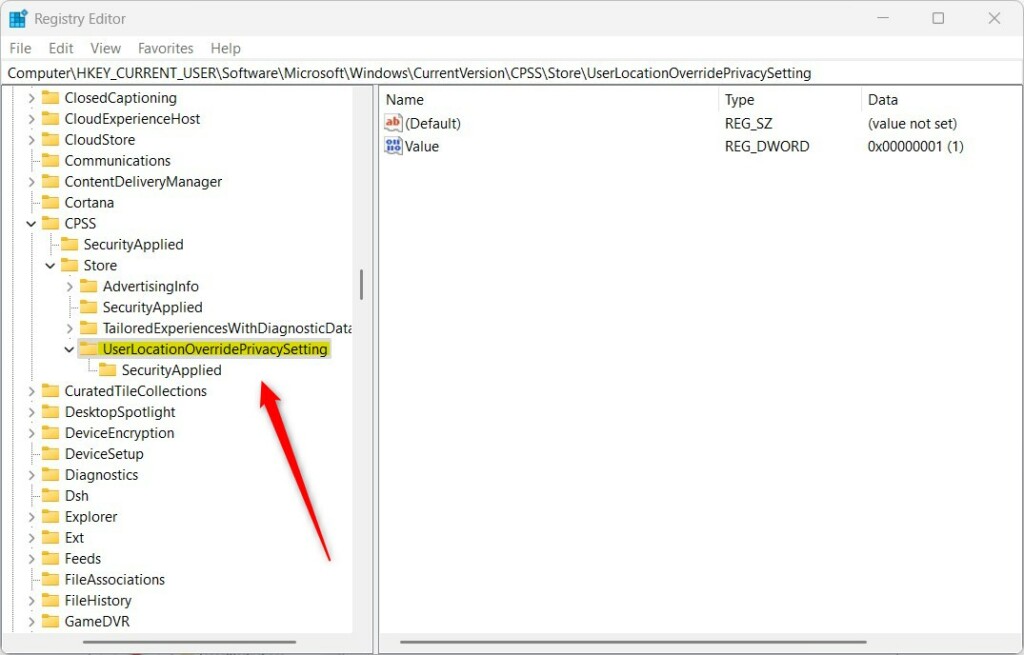
4. Right-click empty space on the right side, select New String Value, and name the value Value.
5. Double-click Value and change the data to 1 to enable or 0 to disable.
6. Restart your computer to apply the changes.
Managing Location via Group Policy (GPO)
Corporate and educational environments utilize IT administrators who control the location override feature in Windows 11 using the Group Policy Editor.
Troubleshooting: Why is the button greyed out?
Greyed-out location override buttons indicate that workplace or school policies dictate your computer's configuration.
Summary
Remote work scenarios benefit greatly from the "Allow location override" feature in Windows 11, which users manage via Settings or the Registry.
Is location override a security risk?
Turning on location override in Windows 11 remains safe overall, though permissions dictate which software accesses coordinates.
Does enabling location override affect Find My Device?
Find My Device operates independently through your Microsoft account to track hardware coordinates, meaning location override does not interfere with tracking features. Location override serves apps requiring current positional data during remote sessions.
Was this guide helpful?

About the Author
Richard
Tech Writer, IT Professional
Richard, a writer for Geek Rewind, is a tech enthusiast who loves breaking down complex IT topics into simple, easy-to-understand ideas. With years of hands-on experience in system administration and enterprise IT operations, he’s developed a knack for offering practical tips and solutions. Richard aims to make technology more accessible and actionable. He's deeply committed to the Geek Rewind community, always ready to answer questions and engage in discussions.



No comments yet — be the first to share your thoughts!