How to Take a Screenshot Using Microsoft Edge


Edge has a built-in screenshot tool, so you can capture any web page or part of one without installing extra software or an extension. It works the same way on Windows 11 and Windows 10, and it can save either a custom region or an entire scrolling page.
Press Ctrl+Shift+S inside the browser to open the capture menu instantly. Drag a box over the exact part you want to save, or grab the full page from top to bottom. The tool is part of Edge itself, so Edge must be the active window. Nothing happens if another app has focus.
Press Ctrl+Shift+S inside Microsoft Edge to open the capture menu. Drag a box around the part of the page you want, or click Capture full page to screenshot the entire webpage. Select Copy or Markup capture to save the image.
Screenshot the entire webpage in Edge
You can screenshot a whole webpage in Edge with the built-in capture tool. Older Edge versions call it Web capture, and current versions call it Screenshot. It is the same tool. The short version:
- Open Microsoft Edge and go to the page you want to save.
- Click the three dots in the top-right corner.
- Choose Screenshot (or Web capture in older versions).
- Pick Capture full page to get the whole page in one picture.
The sections below walk through each step in more detail.
Let the page finish loading first. Images that are still loading can show up blank in the screenshot, especially on long pages that load content as you scroll.
If you navigate to another page while the capture bar is open, you will lose the selection. Close the bar and start again.
Click the ellipsis (...) in the upper-right corner of the browser. This opens the "Settings and more" menu, which gives you access to options for managing your browser, including history and downloads. You should see a drop-down list of options. Screenshot is one of them.
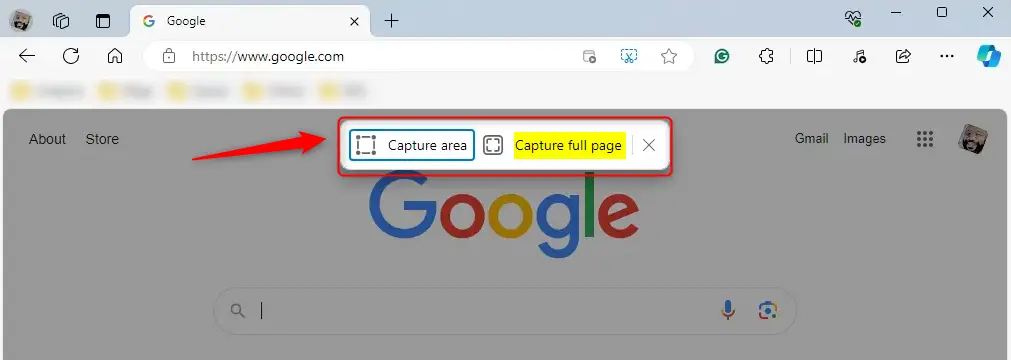
Select Screenshot from the drop-down menu. A small capture bar should appear near the top of the page with the capture options.
If you can't find the entry, scroll through the list, since its position depends on your Edge version. Some work or school PCs have the tool turned off by policy. In that case, ask your IT admin.
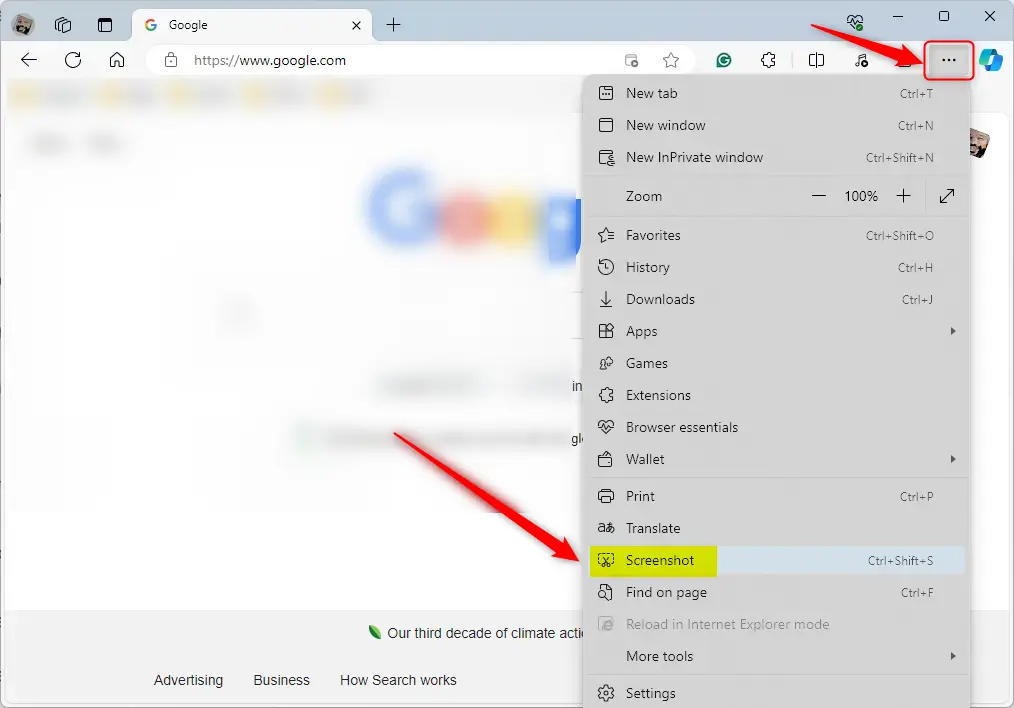
Alternatively, press the keyboard shortcut Ctrl + Shift + S to open Screenshot in Edge. It is faster than the menu once you get used to it. The same capture bar appears as when you use the menu.
Select Capture full page, the middle option, to grab the entire webpage. Edge scrolls through the page for you and stitches it into one tall image, then shows a preview.
Very long pages, or pages with sticky headers and lazy-loaded content, can come out with gaps or repeated sections. If that happens, scroll to the bottom first so everything loads, then capture again.
Capture an area of a page
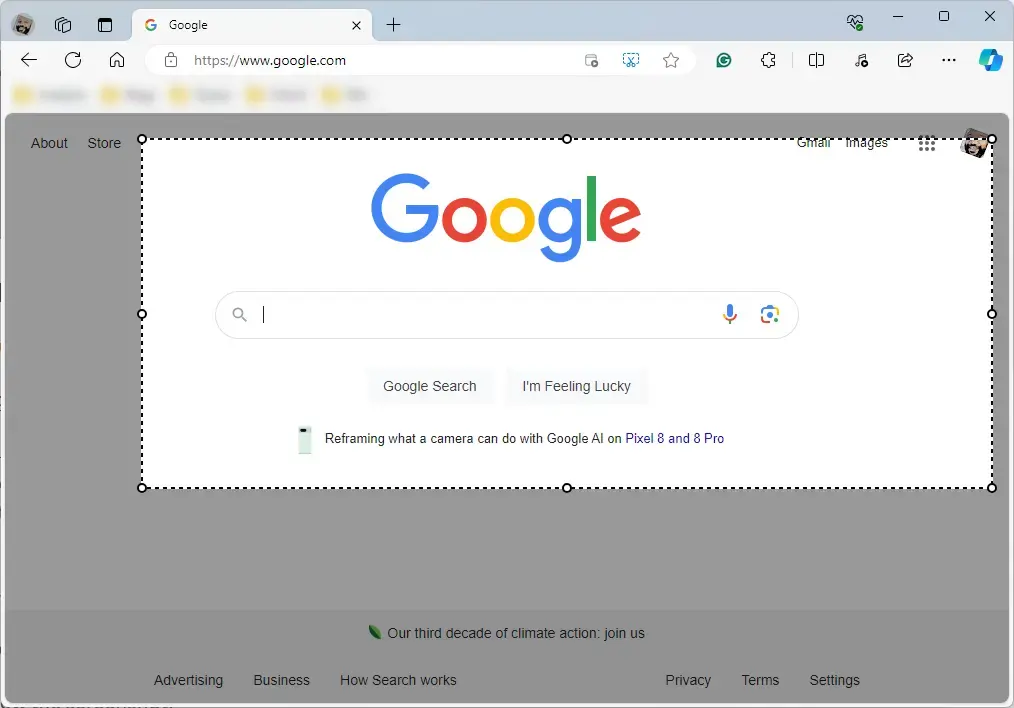
To capture just part of a page, open the capture menu by pressing Ctrl + Shift + S. Click and drag a box around the part of the page you want to save, then choose Copy or Markup capture. This is the better choice when the full page would include things you don't want to share, such as a sidebar or an account name.
Follow the steps above to open Screenshot. The capture bar will appear at the top of the page when you do.
Choose Capture area, the left option. Your pointer turns into a crosshair. Click and drag to draw a box around the portion of the page you want. When you release the mouse button, Edge shows the selection with the available actions.
If you draw the box in the wrong place, press Esc to cancel and start over.
Select Copy to save the image to your clipboard. Select Markup capture to review the screenshot and add your own notes, such as drawings or highlights, before you save or copy it.
Copy puts the image on the clipboard only. Paste it into an email, a document or an app like Paint straight away, because the next thing you copy will replace it.
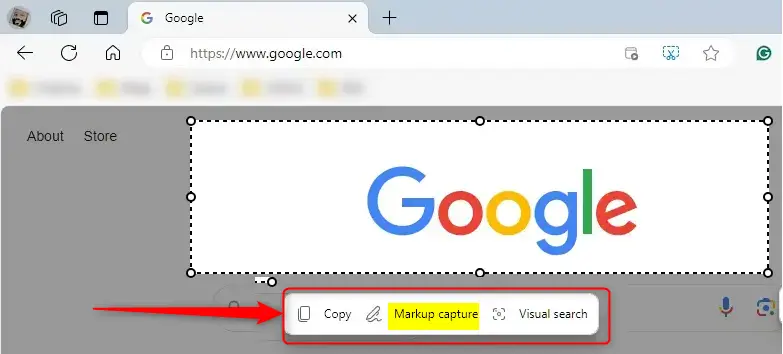
Copy or save the screenshot to your device once you are finished. If you used markup, do this after you finish your notes, because the changes are not applied to the clipboard until you do.
Your screenshot is now ready to save or paste into another app. To paste a copied screenshot, click where you want it and press Ctrl + V.
Reference:
Conclusion:
- Capturing screenshots in Microsoft Edge is a convenient, easy-to-use feature that saves time and effort, with nothing extra to install.
- The tool is useful whether you are saving a page for future reference, sharing information with others, or sending a picture of a problem to a support team.
- The built-in screenshot tool captures either the entire webpage or a specific area, so you can pick whichever fits the job.
- For more detail, the Microsoft Edge Learning Center has further information on capturing screenshots of web pages.
- Feel free to share feedback or add your own tips in the comments below.
Have a question about this guide?
Answered by AI from this guide. Good questions may be added to this page — please don't include personal details.
Did this guide fix your problem?

About the Author
Richard
Tech Writer, IT Professional
Richard is a writer at Geek Rewind who turns complex IT tasks into clear, step-by-step guides. He draws on years of hands-on experience in system administration and enterprise IT operations, focusing on Windows, Linux and WordPress: the problems people actually run into, and the fixes that work. His server and WordPress guides come from systems he runs himself. Richard builds and maintains the platform behind Geek Rewind, from its Ubuntu servers and Nginx configuration to its custom WordPress plugins. Many new tutorials start with readers' questions, and he's always glad to answer them in the comments.
No comments yet — be the first to share your thoughts!