How to Start and End Focus Sessions in Windows 11

Windows 11 has a handy built-in feature called Focus. It’s designed to help you stay productive by cutting down on distractions.
Start a Focus session by opening the Notification Center, Settings, or Clock app and selecting “Focus.” End your session at any time using the desktop focus session window or the Clock app to resume normal notifications.
Why use Focus sessions in 🪟 Windows 11?
If you find yourself constantly distracted by alerts, emails, or pings, Focus helps you clear the clutter. It silences notifications and tidies up your taskbar. This helps you concentrate on a single task. This setup helps create a more focused work environment.
What happens when you start a session?
When you start a Focus session in Windows 11, your computer helps you concentrate by automatically silencing notifications and hiding distracting elements.
- A timer appears on your screen to help you track your progress.
- Taskbar badging turns on automatically to silence alerts.
- Taskbar app flashing is disabled.
- App notification badges are hidden.
- Do Not Disturb integrates with the Clock app to help you stay in the zone.
How to start a Focus session
Starting a Focus session in Windows 11 is easy and you can do it a few different ways, like through the Notification Center, Settings, or the Clock app.
- Notification Center: Click the date and time in your taskbar or press ⊞ Win+N. Choose your preferred time and click Focus.
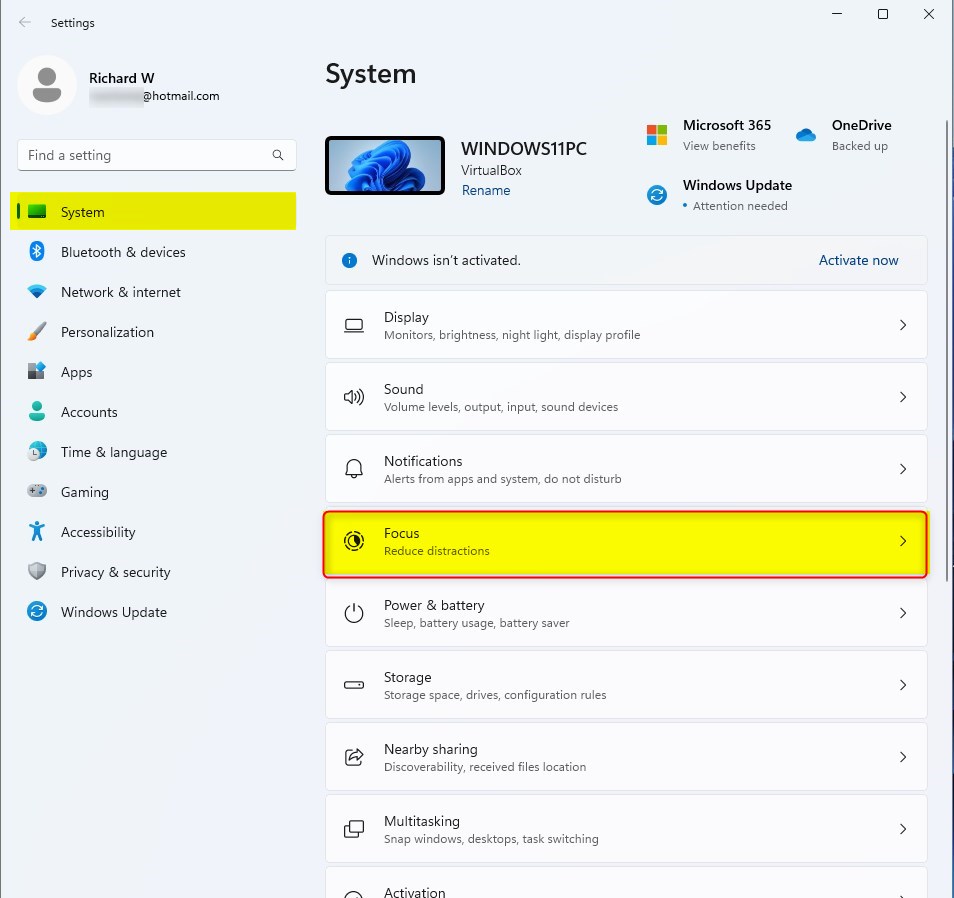
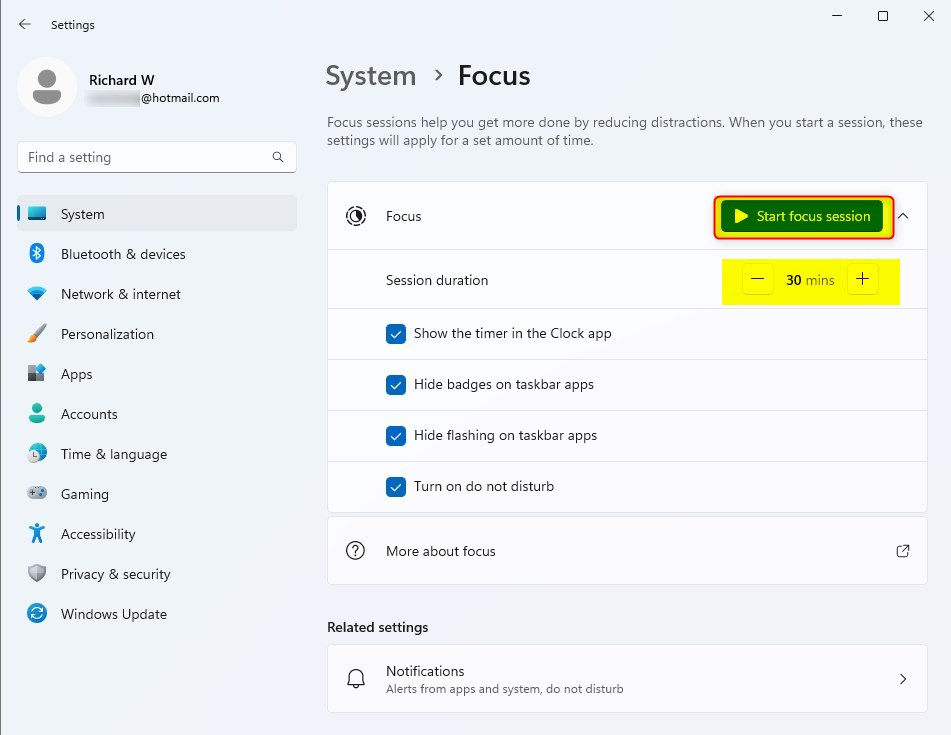
- Settings: Go to Start > Settings > System > Focus > Start focus session.
- Clock App: Open the Clock app from your apps list and select Start focus session.

Customizing your Focus experience
You can easily customize your Focus session experience in Windows 11 by adjusting settings like duration and notification preferences.
Integrating Microsoft To Do and Spotify
The Clock app lets you link your Microsoft To Do account. This way, you can pick specific tasks to focus on during your session. You can also connect your Spotify account to play focus-friendly music right from the Clock app. This creates a complete productivity environment.
How to end a Focus session
Ending a Focus session in Windows 11 is straightforward; you can stop it manually at any time using the desktop window or the Clock app.
Summary
Focus sessions in Windows 11 are a great way to boost productivity by silencing alerts and hiding distractions, helping you concentrate on your tasks.
Can I customize the duration of my Focus sessions?
Yes. Open the Clock app or go to Settings > System > Focus. You can adjust the timer duration before starting a session. You can also configure break intervals and session lengths to match your personal productivity style, ensuring you have enough time for deep work tasks.
How do I see my daily progress in the Clock app?
The Clock app features a dedicated Focus dashboard. By clicking the Focus tab on the left sidebar, you can view your daily progress, total time spent in sessions, and your current streak. This helps you track your productivity habits over time and stay motivated throughout the workday.
Does Focus session work if I am in a meeting?
Focus sessions are designed to minimize distractions. If you are in a meeting, it is recommended to end your Focus session or adjust your Do Not Disturb settings. You can manage these settings in the Notification Center to ensure you do not miss important alerts during professional calls.
Was this guide helpful?

About the Author
Richard
Tech Writer, IT Professional
Richard, a writer for Geek Rewind, is a tech enthusiast who loves breaking down complex IT topics into simple, easy-to-understand ideas. With years of hands-on experience in system administration and enterprise IT operations, he’s developed a knack for offering practical tips and solutions. Richard aims to make technology more accessible and actionable. He's deeply committed to the Geek Rewind community, always ready to answer questions and engage in discussions.
[…] Focus is a new feature in Windows 11 that helps you minimize distractions. To help you stay on track, it integrates with the Clock app with features like a focus timer and music integration. […]
[…] How to Use Focus Sessions in Windows 11 […]
[…] can then Focus to control which notifications you […]
[…] Windows 11 gives you quick access to notifications, the calendar, and the ability to start or end a focus session from your taskbar. Microsoft is working on a new hidden feature in the latest Windows 11 builds […]
[…] Focus is a Windows 11 feature designed to help you stay productive by cutting down on distractions. It works with the Clock app to track your time. After each Focus session, the computer plays an alarm to let you know your time is up. The same happens after each Focus break session, so you know when to get back to work. You can turn these alarms on or off, or pick a new sound for the end of Focus. […]
[…] 11 includes a feature called Focus designed to help you stay focused by reducing distractions. It works with the Clock app to manage […]
[…] 11 includes a feature called Focus designed to help you stay productive by reducing distractions. It works with the Clock app to […]