How to Disable Alarm Windows 11: Complete Guide

You can disable alarm sounds in Windows 11 using the Clock app’s Focus settings or by adjusting system-wide notification preferences.
Windows 11’s Clock app integrates Focus sessions, designed to help you concentrate by scheduling dedicated work periods and breaks. Alarms typically signal the end of these Focus breaks.
You can turn off these alarm sounds entirely, whether they’re for Focus breaks or standard Windows alarms. This allows you to opt for a silent notification instead of an audible alert when your designated time ends.
Disable alarm sounds in Windows 11 via the Clock app settings. Open the Clock app, click the gear icon, and toggle the “End of break sound” to Off. To delete a specific alarm, go to the Alarm tab, find the alarm, and click the trash can icon.
How to turn the break alarm on or off
You can turn the break alarm on or off in Windows 11 directly from the Clock app.
- Open the Start menu.
- Type Clock into the search box.
- Select the Clock app from the results.
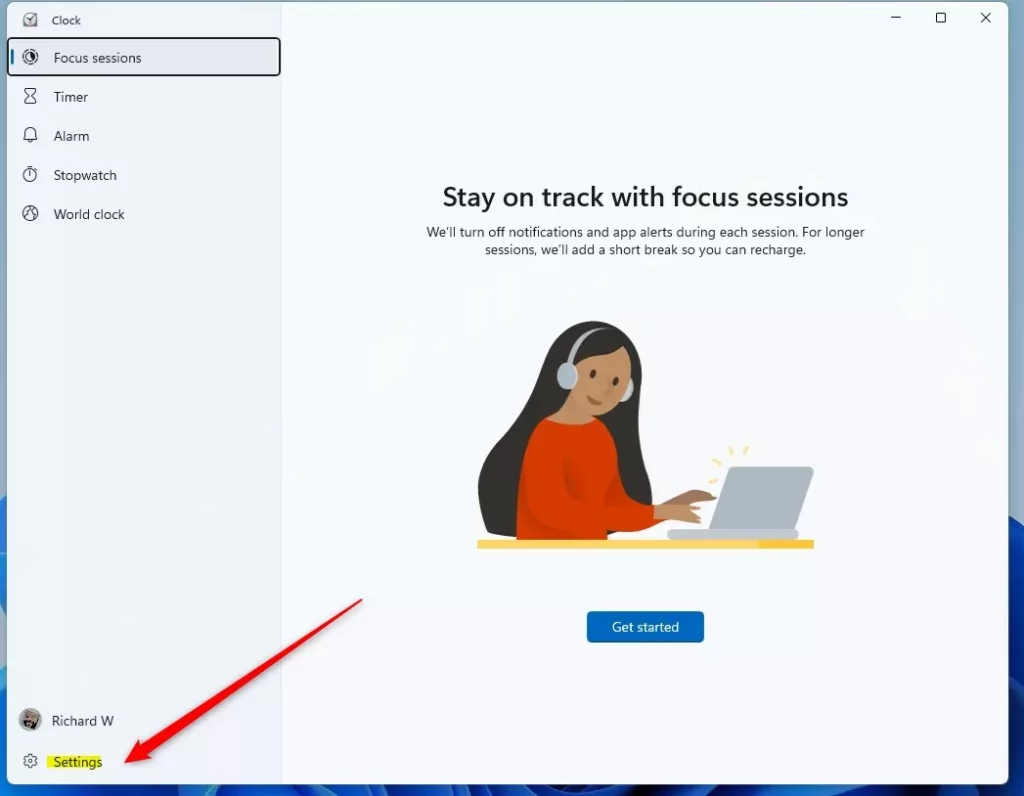
- Click the Settings icon (the gear button) located at the bottom left of the app window.
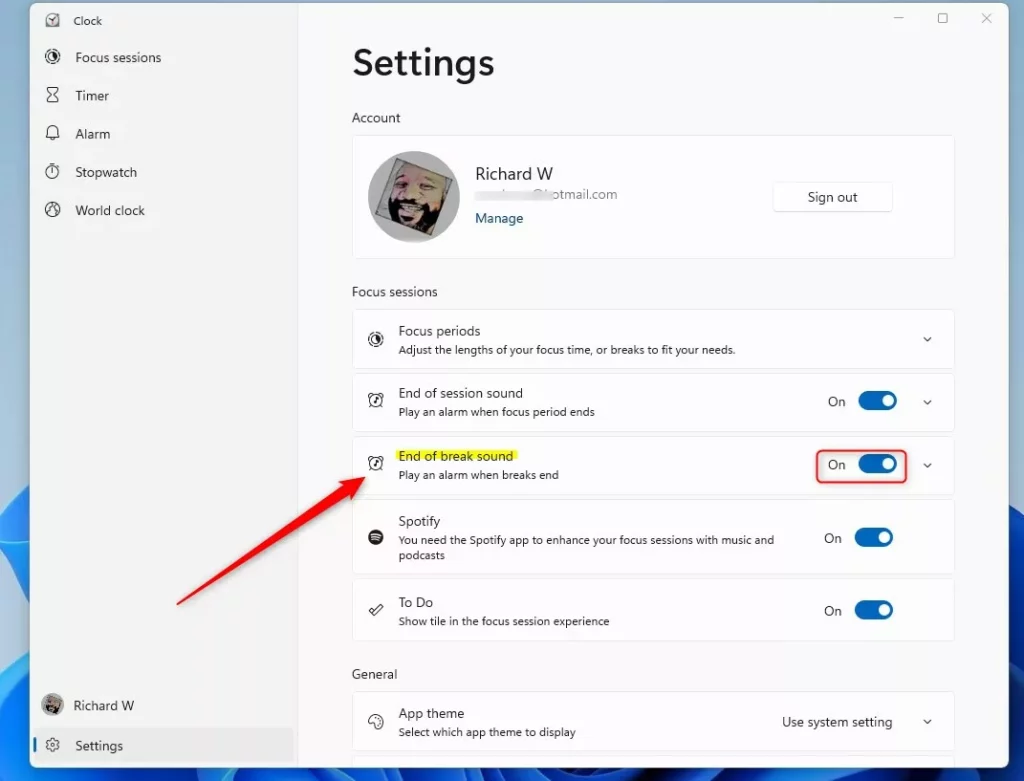
- Look for the End of break sound tile.
- Toggle the switch to On to hear the alarm, or Off to silence it.
How to delete an alarm in 🪟 Windows 11
If you’ve set an alarm you no longer need, you can delete it permanently from the Clock app.
- Open the Clock app.
- Click on the Alarm tab on the left sidebar.
- Find the alarm you want to remove.
- Click the Delete icon (trash can) associated with that alarm.
Managing System-wide Notifications
Sometimes you want to silence all sounds, including alarms and notifications. You can use Do Not Disturb mode to achieve this.
- Open Settings by pressing Windows Key + I.
- Go to System > Notifications.
- Toggle Do Not Disturb to On.
Summary
This guide shows you how to disable alarms in Windows 11, covering both Focus session sounds and regular alarms in the Clock app.
How do I turn off an alarm that is currently ringing?
When an alarm window pops up on your screen, you will see two buttons: Dismiss and Snooze. Click the Dismiss button to stop the alarm sound immediately. If you click Snooze, the alarm will stop temporarily and ring again after the preset time interval has passed.
Why do my alarms still ring when Do Not Disturb is on?
Your alarms might still ring even when Do Not Disturb is on because alarms from the Windows Clock app are treated as important system events.
Was this guide helpful?

About the Author
Richard
Tech Writer, IT Professional
Richard, a writer for Geek Rewind, is a tech enthusiast who loves breaking down complex IT topics into simple, easy-to-understand ideas. With years of hands-on experience in system administration and enterprise IT operations, he’s developed a knack for offering practical tips and solutions. Richard aims to make technology more accessible and actionable. He's deeply committed to the Geek Rewind community, always ready to answer questions and engage in discussions.




[…] session, the computer plays an alarm to let you know your time is up. The same happens after each Focus break session break, so you know when to get back to work. You can turn these alarms on or off, or pick a new […]