

This post describes the steps to start and end a focus session in Windows 11.
Focus is a new feature in Windows 11 that helps you minimize distractions. To help you stay on track, it integrates with the Clock app with features like a focus timer and music integration.
When you start a focus session, taskbar badging will turn off, flashing of applications in the taskbar will turn off, a focus timer will appear on screen, and do not disturb will turn on.
When you’re in a focus session, the following will happen:
- A focus timer will appear on your screen
- Do not disturb will turn on
- Apps in the taskbar won’t flash to alert you
- Badge notifications on apps in the taskbar will turn off
You’ll receive a notification when your focus session has ended. If you need to, you can end a focus session early and start receiving notifications again.
Below is how to start and end a focus session in Windows 11.
Start and end a focus session in Windows 11
As mentioned above, a focus session on Windows helps you minimize distributions.
When you start a focus session, do not disturb. It will turn on automatically and silence your notifications. Then, select the notification center to review the notifications you received during your session.
If Do Not Disturb was turned on before your focus session, it will remain on even after it has finished.
Below is how to start a focus session:
| From notification center | Select the notification center in the taskbar or press Win+N. Choose an amount of time for your focus session. Select Focus to start your session. |
| From Settings | Select Start > Settings > System > Focus > Start focus session. |
| From the Clock app | Select Start > All apps > Clock. In the Clock app, select Start focus session. |

From the Windows Settings app
Windows 11 has a centralized location for the majority of its settings. As a result, everything can be done, from system configurations to creating new users and updating Windows from its System Settings pane.
To get to System Settings, you can use the Windows key + I shortcut or click on Start ==> Settings, as shown in the image below:

Alternatively, you can use the search box on the taskbar and search for Settings. Then select to open it.
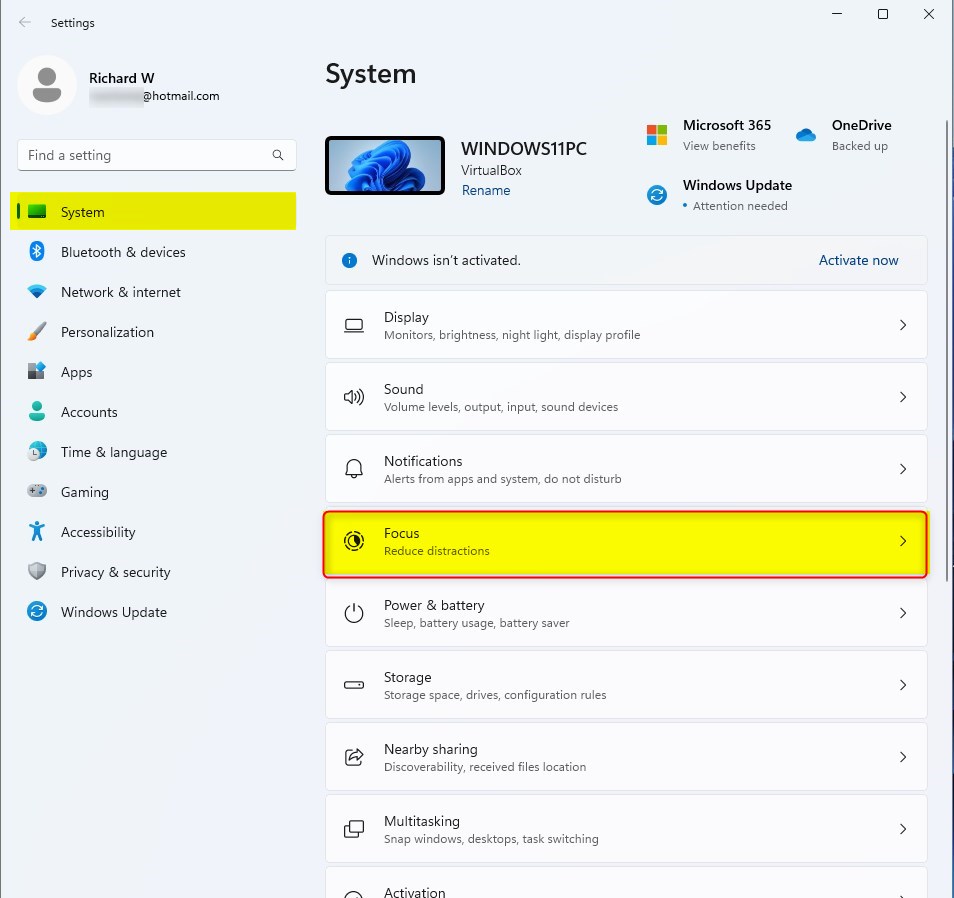
Windows Settings pane should look similar to the image below. On the Windows Settings app, click the System on the left, then select the Focus tile on the right pane, as highlighted in the image below.
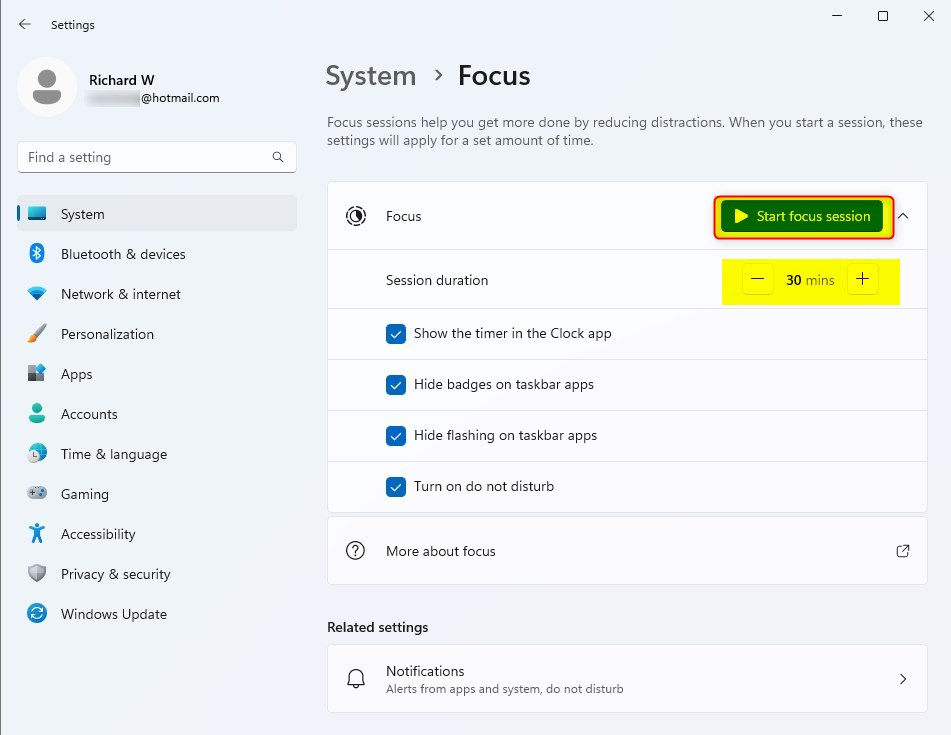
Select the Session duration tile on the System,> Focus settings pane and set the time you want to silence notifications.
You can also choose the following settings while in a focus session:
- Show the time in the Clock app
- Hide badges on taskbar apps
- Hide flashing on taskbar apps
- Turn on do not disturb
When you finish your selections, click on the Start focus session button.
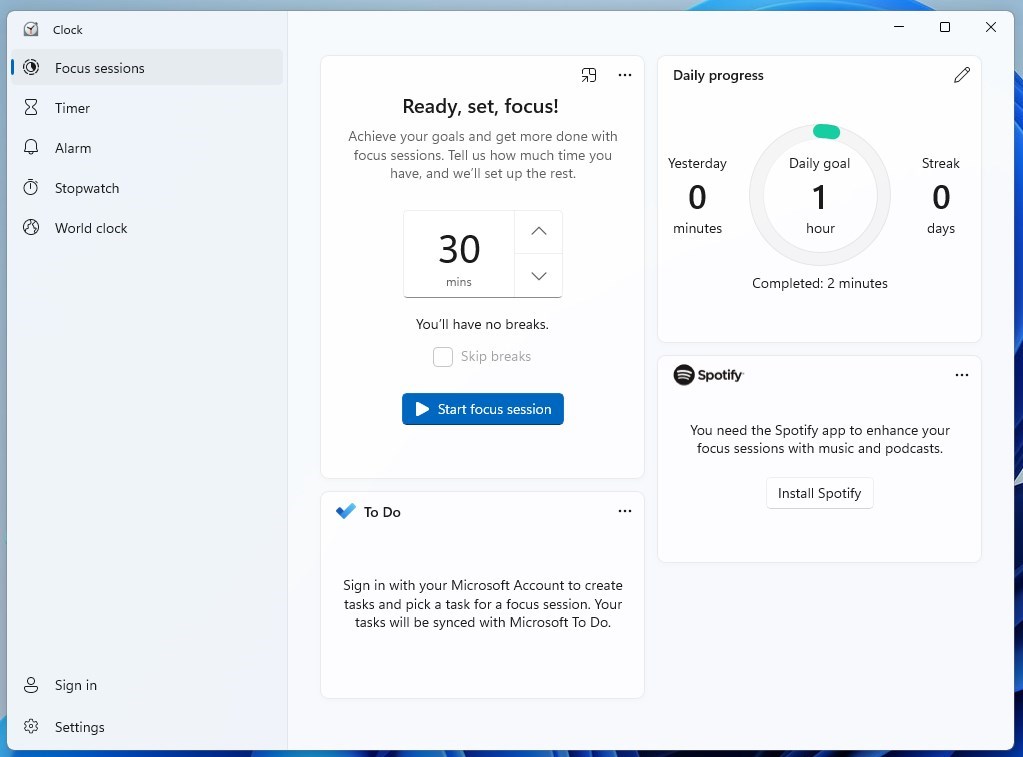
You can also start and end focus sessions from Windows Clock and the desktop focus session window.
Start and end focus session from Windows Clock. Select Start > All apps > Clock. In the Clock app, select Start focus session.
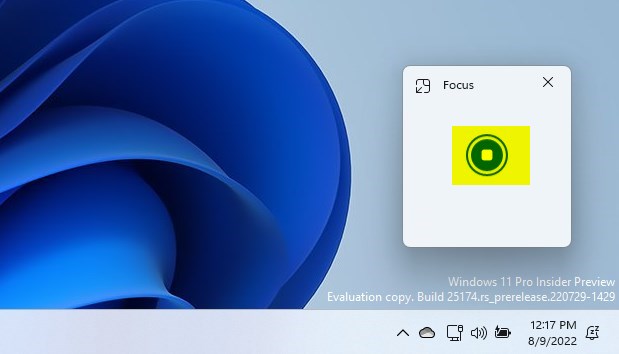
End focus session from desktop session window.
That should do it!
Conclusion:
- Utilize the focus feature in Windows 11 to minimize distractions and stay on track with your tasks.
- Starting a focus session activates the do not disturb mode, silencing notifications to help you concentrate.
- Ending a focus session allows you to resume receiving notifications and return to your regular workflow as needed.
- Customizable settings within a focus session enable you to tailor your experience and maximize productivity.
- With various methods available to start and end focus sessions, you can seamlessly integrate this feature into your Windows 11 experience.



Leave a Reply