How to Display Seconds on Ubuntu Top Menu Clock

Seconds on the Ubuntu top menu clock appear when you turn on a hidden GNOME desktop setting found in Ubuntu 24.04 LTS and other recent releases. The top bar clock shows only hours and minutes out of the box, but a free app called Extension Manager adds the extra digits in a few clicks.
Install the “Extension Manager” app from the Ubuntu Software store, then search for and install the “Clock Seconds” extension within Extension Manager. The seconds will immediately appear on your top menu bar clock.
Why add seconds to your clock?
Precise timing matters for tasks like joining meetings right on time or tracking time-sensitive activities.
Show seconds with the clock on the top menu bar
You can show Ubuntu clock seconds on the top menu bar by installing a small plugin through the Extension Manager app. Ubuntu removed the old built-in switch for this feature, so using Extension Manager is now the easiest way to add seconds back to your desktop clock without dealing with complicated terminal commands.
Manage your desktop extensions through the Extension Manager app.
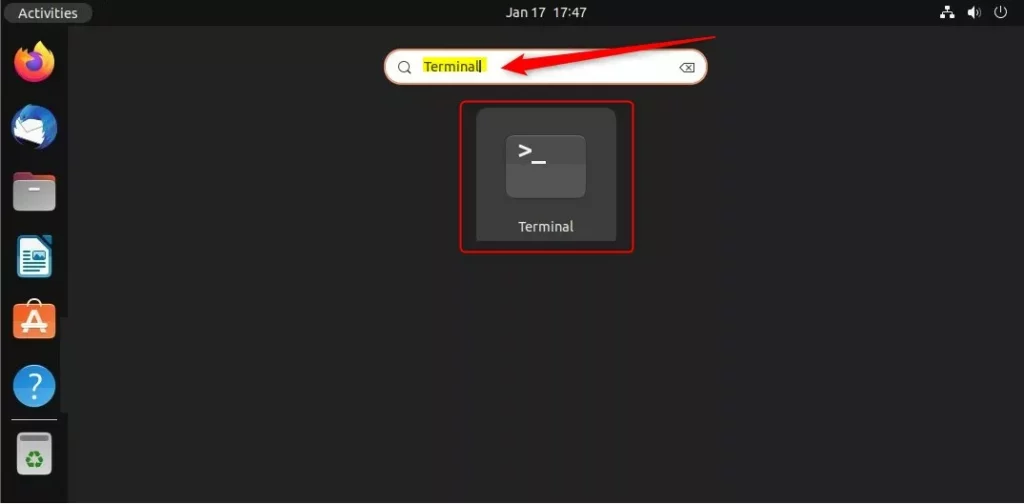
- Open the app launcher and search for Extension Manager. Installing it from the Ubuntu Software store works if the utility is missing.
- Launch the app and click on the Browse tab.
3. Search for the extension named Clock Seconds.
4. Click the Install button next to the extension.
The seconds appear on the top menu bar immediately after installation. You do not need to restart your computer.
A note on Dconf Editor
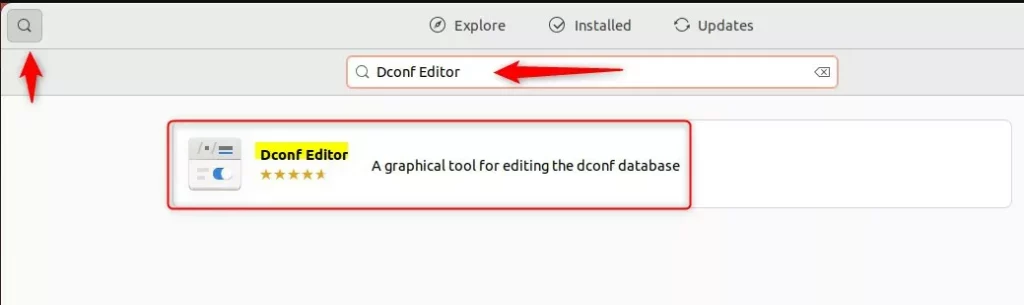
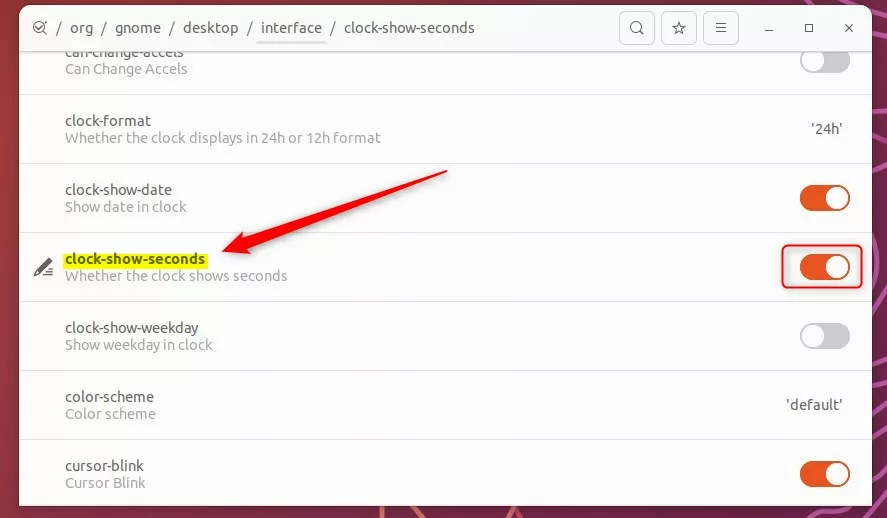
Dconf Editor (a low-level configuration tool) no longer works for adding Ubuntu clock seconds on current versions of the operating system. While older online guides suggest using Dconf Editor or terminal commands, those methods fail on recent releases, making Extension Manager the only reliable choice.
Dconf Editor (a low-level configuration tool) compares closely to the Windows Registry Editor for anyone coming from Windows. Sticking with the Extension Manager remains the wiser choice for modern Ubuntu setups.
Conclusion
Restoring Ubuntu clock seconds takes just a couple of minutes once you install the right app to manage your desktop extensions. Even though Ubuntu removed the direct switch from the default settings menu, tools like Extension Manager let you customize your top menu bar clock to show seconds again with no trouble.

Was this guide helpful?

About the Author
Richard
Tech Writer, IT Professional
Richard, a writer for Geek Rewind, is a tech enthusiast who loves breaking down complex IT topics into simple, easy-to-understand ideas. With years of hands-on experience in system administration and enterprise IT operations, he’s developed a knack for offering practical tips and solutions. Richard aims to make technology more accessible and actionable. He's deeply committed to the Geek Rewind community, always ready to answer questions and engage in discussions.


[…] previously wrote an article on how to show the seconds on the clock in Ubuntu. That post provided detailed steps to show the seconds on the clock. It’s not the easiest or […]