

This article explains how to show or hide feeds on the Widgets board in Windows 11.
The Widgets board is a new feature that provides quick access to news, weather, sports, and other information. It can be accessed by clicking the Widgets icon in the taskbar or pressing the Windows key + W shortcut. The board appears as a slide-out panel on the left side of the screen and can be customized to show or hide specific feeds.
Using the Widgets board, you can add or remove Phone Link, enable or disable the open Widgets board on hover, sign in or out of the Widgets board, reinstall Widgets features, completely uninstall Widgets, and more.
Microsoft is currently testing additional features in the Widgets board that will make it easier to show or hide feeds. This allows you to choose which feeds appear on your board.
This feature has not yet been released to Insider Preview users. As described in our previous post, you can enable it only by using ViVeTool.
Showing or hiding feeds in the Widgets board allows you to customize the information displayed on your screen. Selecting the most relevant feeds allows you to quickly access the information you need without sifting through irrelevant content.
This can help you save time and stay current on the most important topics. Also, hiding feeds you don’t need can help declutter your Widgets board and make navigating easier.
Enable or disable feeds on the Widgets board
As mentioned above, a feature being tested in Windows allows you to show or hide feeds on your Widgets board.
Here’s how to do it.
First, read our previous post to learn how to enable hidden features in Windows 11 Insider builds using the ViVeTool utility.
After learning to use ViVeTool, run the commands below to enable the showing or hiding of feeds on your Widgets board.
"C:UsersRichardDownloadsViVeTool-v0.3.3ViVeTool.exe" /enable /id:42880174,44281626,45393399
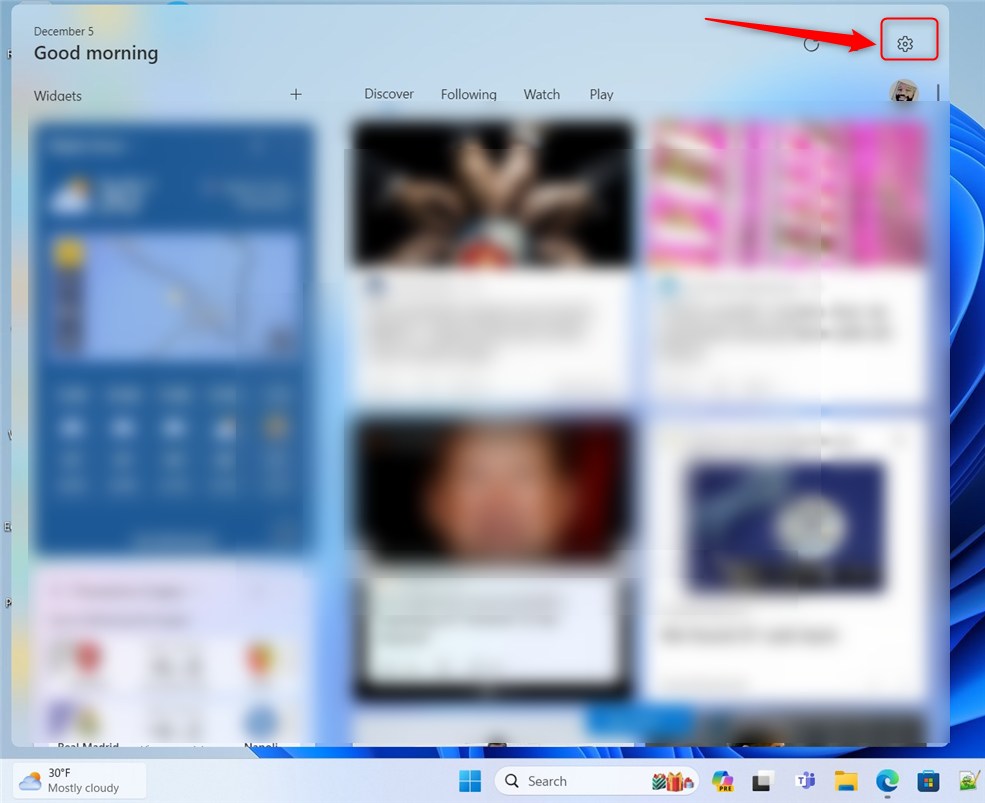
Once enabled, launch the Widget boards, then click the Settings button.
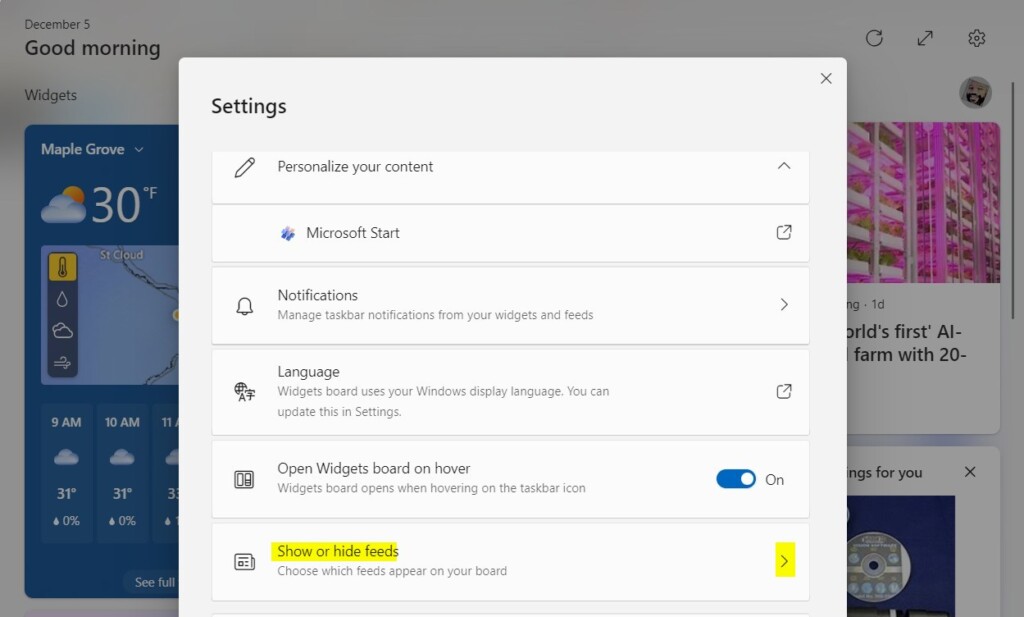
Select the “Show or hide feeds” tile on the Settings pane to expand it.
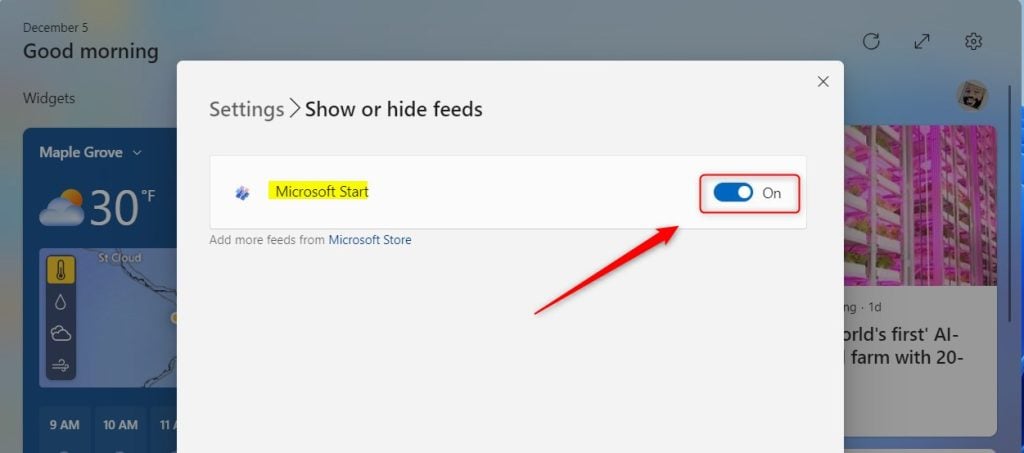
Then, toggle the button next to the feed you wish to show or hide on your board.
That should do it!
Conclusion:
- The new Widgets board in Windows 11 provides quick access to news, weather, and more.
- Using the Widgets board, you can add or remove specific features, sign in or out, and customize the information displayed.
- Microsoft is testing additional features for the Widgets board, including showing or hiding specific feeds.
- Enabling or disabling feeds on the Widgets board allows for a customized and clutter-free user experience.


Leave a Reply