

This post shows students and new users steps to share files and folders with nearby devices in Windows 11.
Nearby sharing allows users to share documents, photos, and other content with devices using Bluetooth or Wi-Fi.
To use nearby sharing, both PCs—the one you’re sharing from and the one you’re sharing with—must have Bluetooth and be running Windows 11 or Windows 10 (version 1803 or later).
Starting with Windows 11 build 22622.436, you can now discover and share to more devices, including desktop PCs. That’s because the discovery of devices under nearby Share when sharing a local file from the desktop, File Explorer, Photos, Snipping Tool, Xbox, and other apps that use the built-in Windows share window has been enhanced by using UDP (Network needs to be set to private) along with Bluetooth to discover nearby devices.
Below is one to share files and folders using nearby sharing enhanced versions rolling out to Windows PCs enrolled in the Microsoft Insider Preview program.
How to share files and folders using nearby sharing in Windows 11
As mentioned above, Nearby sharing allows users to share documents, photos, and other content with devices using Bluetooth or Wi-Fi.
Both PCs—the one you’re sharing from and the one you’re sharing too—must have Bluetooth and be running Windows 11 or Windows 10 (version 1803 or later).
Below is how to share files and folders with nearby sharing using the enhanced version of nearby sharing.
First, open File Explorer or press the Windows Key + E shortcut on your keyboard.
Once opened, select the File or folder you want to share with nearby devices. Then, ensure that Nearby sharing is turned on on both devices.
Select Share on the menu bar or right-click and select Share.
Next, select the nearby device you want to share with on the pop-up window.
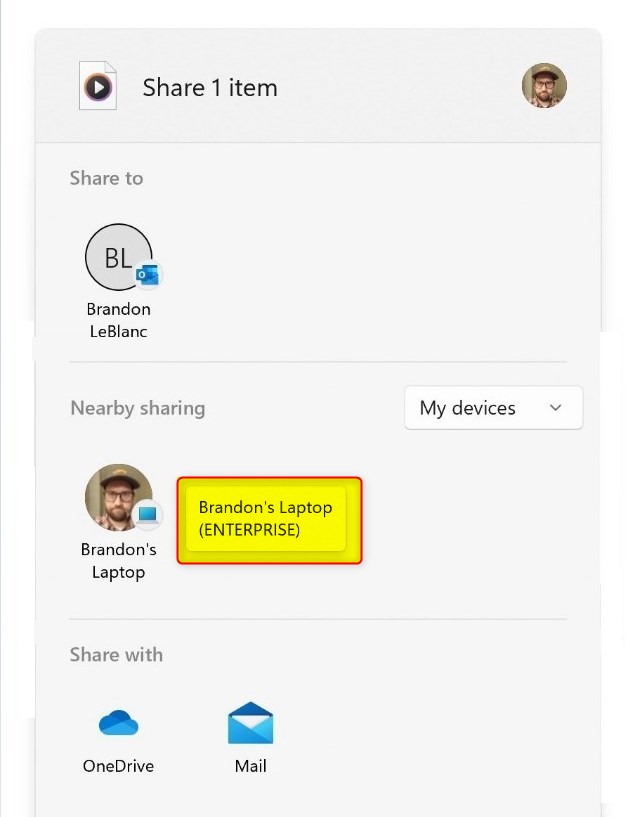
On the receiving device, you should see a pop-up window with Save & open, Save and Decline buttons.
When you select Save & open or save, it should automatically be saved into the default Nearby sharing location. When Decline is selected, the file transfer will not happen.
That should do it!
Conclusion:
- Nearby sharing in Windows 11 is a convenient feature for quickly sharing files and folders with nearby devices using Bluetooth or Wi-Fi.
- Both devices involved in the sharing process need to have Bluetooth and be running Windows 11 or Windows 10 (version 1803 or later) to utilize nearby sharing.
- The enhanced version of nearby sharing, introduced in Windows 11 build 22622.436, allows for improved device discovery and sharing to more devices, including desktop PCs.
- To use nearby sharing, ensure that it is turned on in the settings, then select the file or folder you want to share, and choose the nearby device from the pop-up window to initiate the sharing process.
Leave a Reply