How to Setup PuTTY for SSH Key Authentication on Windows 11

SSH key authentication on Windows 11 lets you log into remote servers securely without typing a password by swapping standard login credentials for a matched pair of digital keys. This setup stops password-guessing attacks by trading typed passwords for cryptographic keys that are nearly impossible to guess.
You make these keys using PuTTYgen, a free tool that comes bundled with the PuTTY program. PuTTYgen creates two files: a public key that you upload to your server and a private key that stays hidden on your PC at all times.
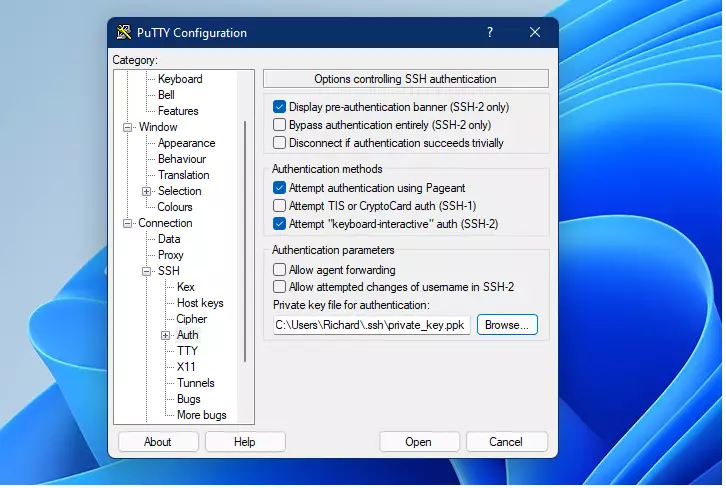
Generate an SSH key pair using PuTTYgen, save both keys, and copy the public key to your server. Then, configure PuTTY by navigating to Connection SSH Auth, browsing to your private key file, and saving the session.
How to download and install PuTTY on 🪟 Windows 11
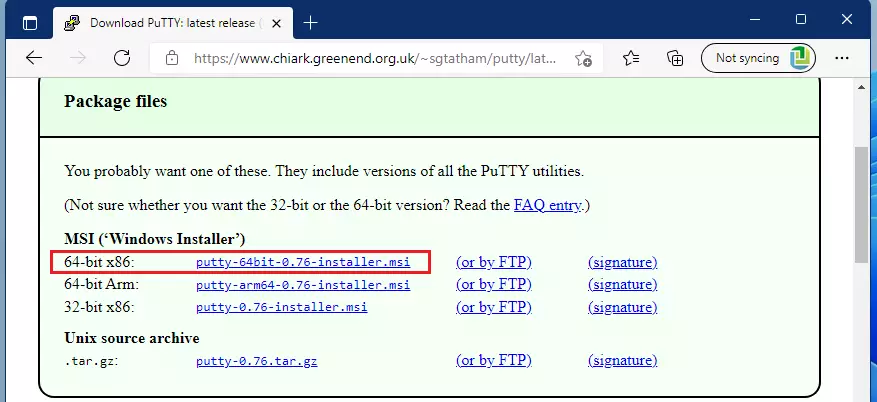
You need to download and install PuTTY on Windows 11 before you can connect to remote servers. Go to the official PuTTY download page, grab the 64-bit installer, open the file from your Downloads folder, and follow the setup wizard prompts to finish the installation on your computer.
Select the 64-bit installer and save it to your Downloads folder.
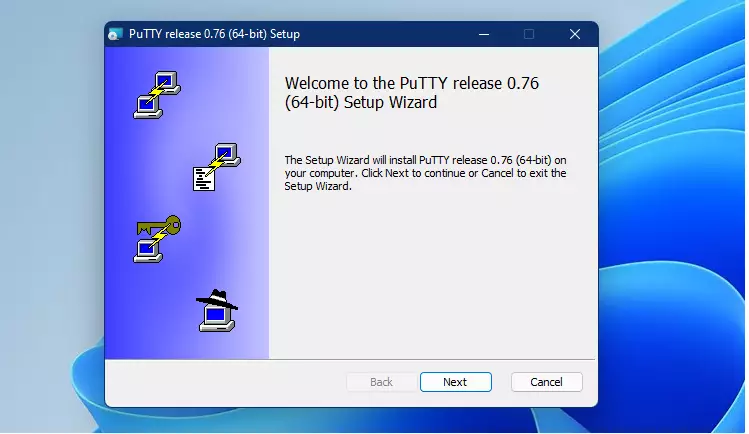
Open your Downloads folder and double-click the installer file to begin.
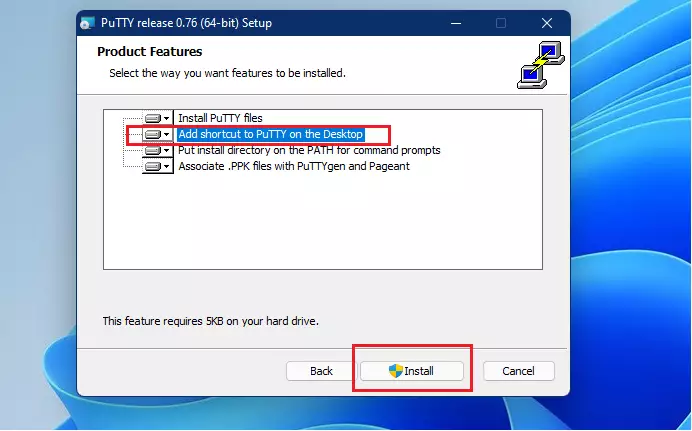
Select "Add shortcut to PuTTY on the Desktop" on the options page, then click Install. Note: This step requires administrator privileges.
How to generate a PuTTY SSH key pair
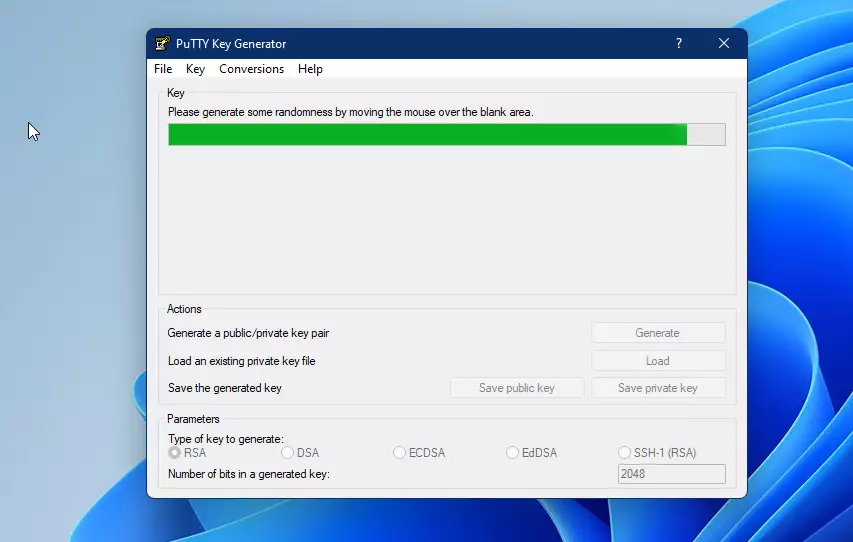
You generate a PuTTY SSH key pair using PuTTYgen, a key generator tool that comes with your PuTTY installation. Open PuTTYgen from your Start menu, click the Generate button, and move your mouse pointer around the blank area until the progress bar fills up to create your keys.

Find the downloaded file in your Downloads folder and open it.
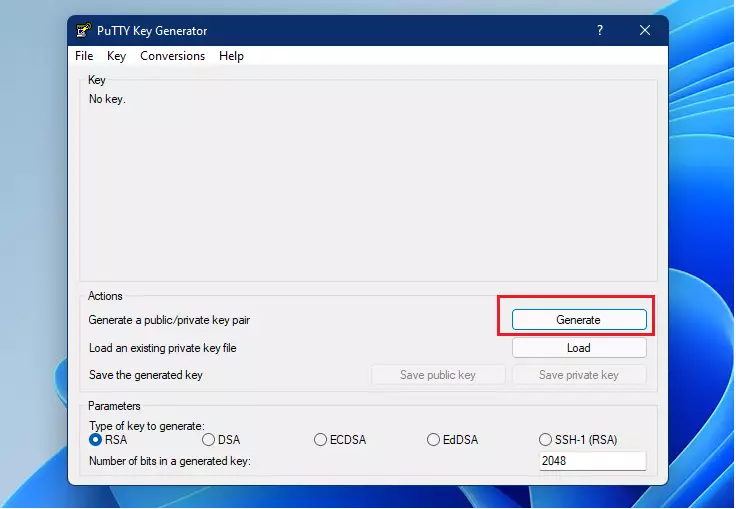
Click the 'Generate' button. Now, move your mouse cursor randomly around the empty space until the green progress bar fills up.
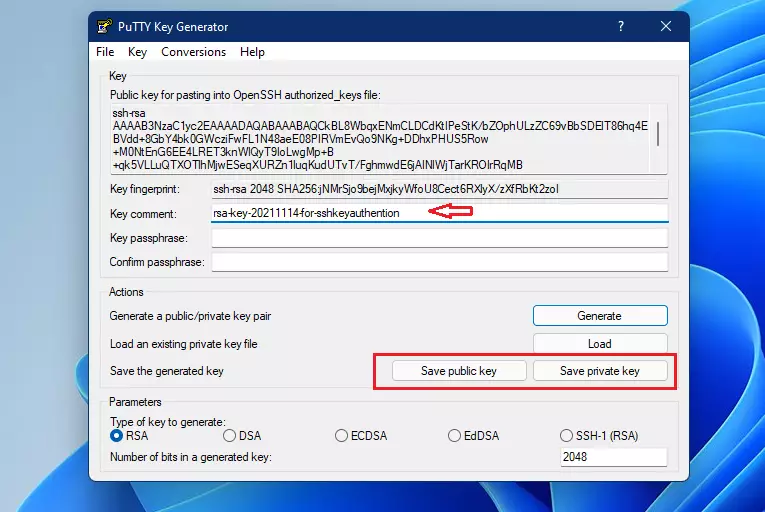
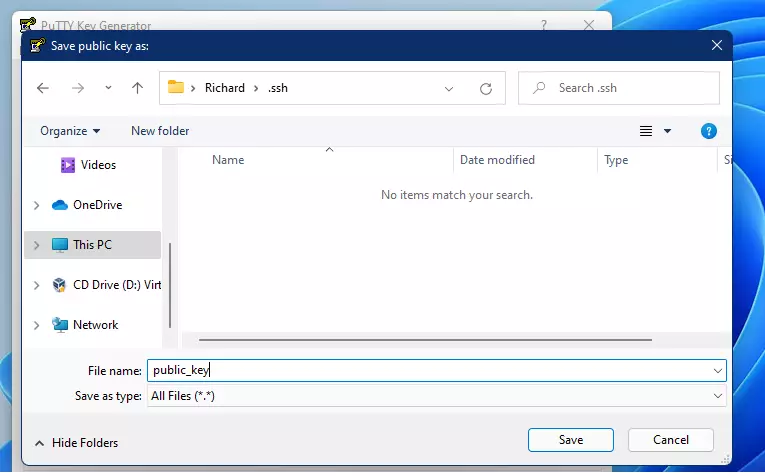
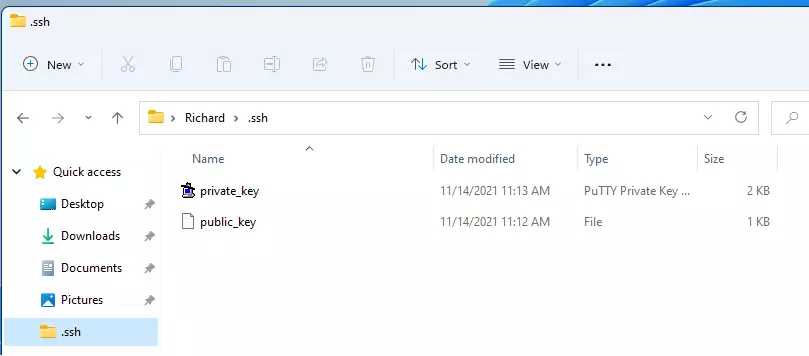
Once generated, SSH key pairs provide secure user identification. Adding a descriptive comment to each key pair aids recognition. Save both the public and private key files somewhere safe, such as your user profile directory (C:\Users\your-username):
Your home folder is a good choice, like this: C:\Users\username\.ssh (Replace 'username' with your actual Windows account name).
You might see a warning about not setting a passphrase when saving the Private Key. Click 'Yes' to continue.
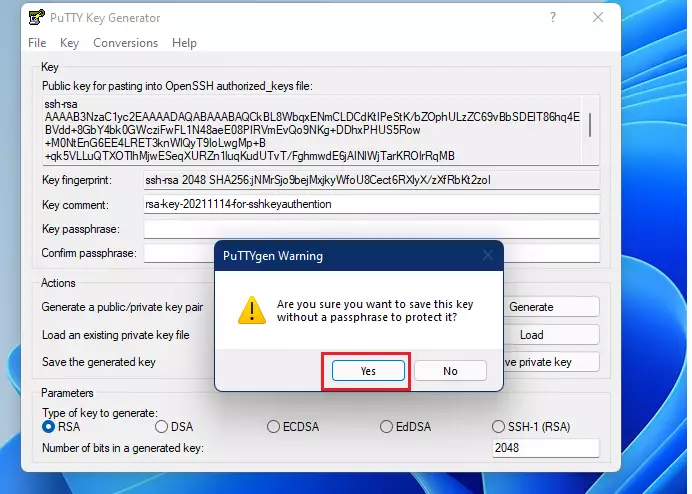
Ensure both files are saved in your chosen folder.
How to copy your public key to the server
You copy your public key to the server by pasting the text from PuTTYgen into the authorized_keys file on your remote machine. Log in to your server, create a hidden .ssh folder if it is missing, and paste your public key into this file so you can log in without a password.
cd ~/
mkdir .ssh
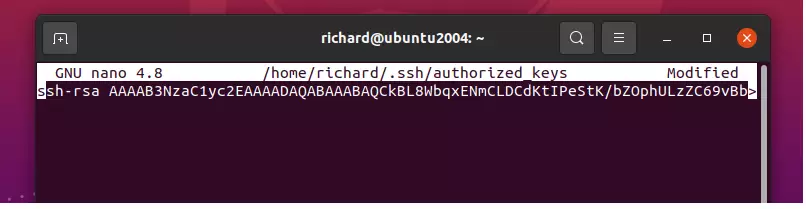
nano ~/.ssh/authorized_keys
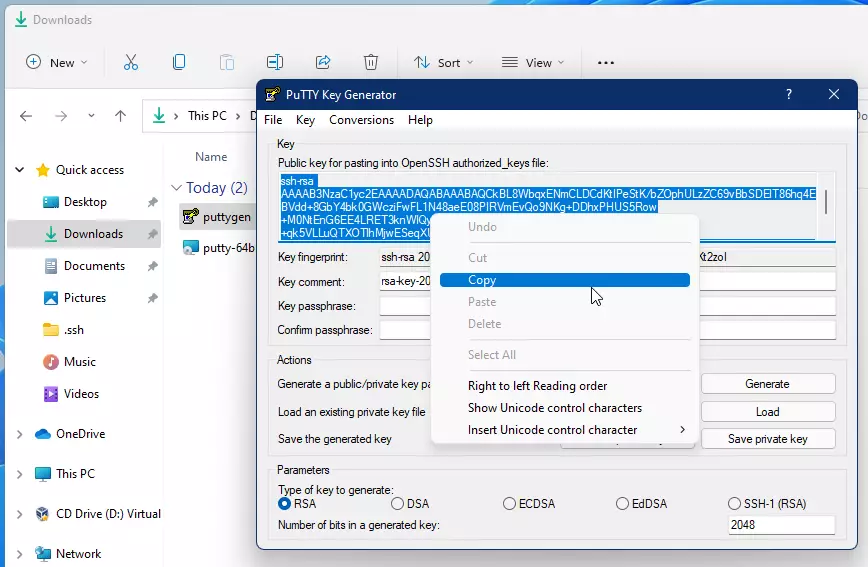
Copy the public key from the PuTTYgen application. Paste the copied public key into the `authorized_keys` file on the server. Saving the `authorized_keys` file establishes a password-free connection to the server.
How to turn off password login
You turn off password login on your server by editing the sshd_config file to block password attempts. Open the configuration file located at /etc/ssh/sshd_config, change the PasswordAuthentication setting to no, and restart the SSH service to apply the security update.
On your server, open the configuration file:
sudo nano /etc/ssh/sshd_configFind these lines and make sure they look like this:
PasswordAuthentication no

ChallengeResponseAuthentication no

UsePAM no
Save the file and restart the SSH service:
sudo systemctl restart sshHow to set up PuTTY for your connection
You set up PuTTY for your connection by linking your private key file in the SSH settings and saving your server details. Open PuTTY, browse for your private key under Connection SSH Auth, enter your server IP address on the Session screen, and save the session.
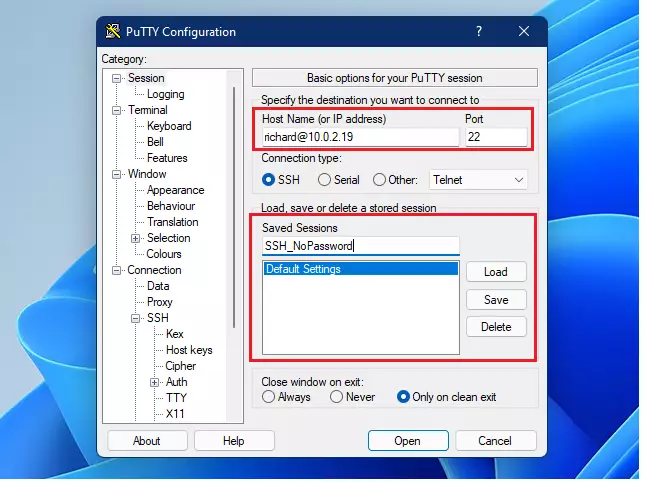
Go back to the Session tab. Type your username and server IP address (e.g., username@10.0.2.19). Give it a name and click Save.
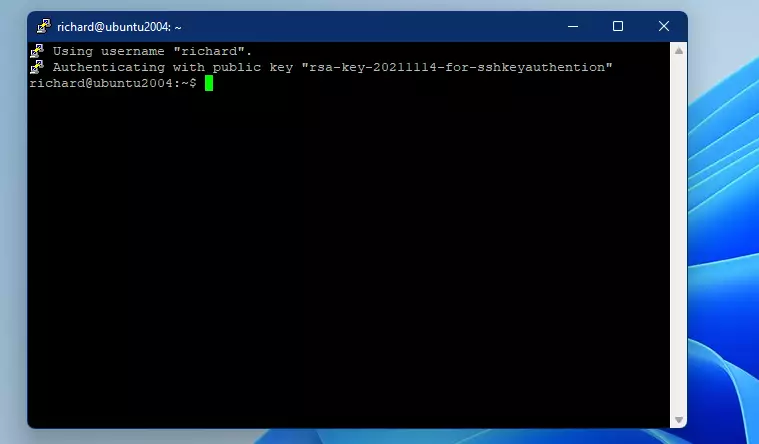
This saved session lets you log in securely without a password.
Summary
Setting up PuTTY with SSH keys makes your server connections more secure and faster. By following these steps, you have installed the necessary software, created a secure key pair, updated your server settings, and configured PuTTY for password-free access.
How do I authenticate a private key in PuTTY?
To use your private key in PuTTY, open PuTTY, go to Connection SSH Auth. Click 'Browse' next to 'Private key file for authentication' and select your saved private key file. Then, go to Session and save your settings.
How to do SSH key authentication?
SSH key authentication uses a public and a private key. The public key goes on the server, and your SSH client (like PuTTY) uses the private key to prove your identity instead of a password.
How to add PuTTY public key to Authorized_keys?
Copy your public key from PuTTYgen. Log into your server using PuTTY. Open the 'authorized_keys' file in a text editor. Paste the public key into this file and save it. This lets your private key connect without a password.
What is a PuTTY authentication agent?
Pageant, the built-in PuTTY authentication agent, holds your private keys securely in memory. This means you don't have to enter your key's passphrase every time you connect to a server, making logins quicker.
Was this guide helpful?

About the Author
Richard
Tech Writer, IT Professional
Richard, a writer for Geek Rewind, is a tech enthusiast who loves breaking down complex IT topics into simple, easy-to-understand ideas. With years of hands-on experience in system administration and enterprise IT operations, he’s developed a knack for offering practical tips and solutions. Richard aims to make technology more accessible and actionable. He's deeply committed to the Geek Rewind community, always ready to answer questions and engage in discussions.




No comments yet — be the first to share your thoughts!