How to Troubleshoot RAM Issues with Windows Memory Diagnostic in Windows 11


- 7 steps
- Needs administrator rights
- Includes a restart or sign-out
Windows Memory Diagnostic is a built-in Windows 11 tool that checks your computer’s RAM for hardware faults and bad memory sticks. Bad RAM often causes random freezes, sudden restarts, and Blue Screen of Death crashes.
The scan is free, and it can tell you whether your memory is failing so you can replace it before it damages your files. To open the tool right away, press the Win, type mdsched.exe, and press Enter. You need an administrator account, and the test works the same on Home and Pro.
Open the Start menu, type mdsched.exe, and press Enter to launch Windows Memory Diagnostic. Choose “Restart now and check for problems (recommended)” to test your RAM. Save your work first, since the PC restarts straight away. The scan runs on a blue screen and usually takes several minutes. Administrator rights are required.
How to run the Windows Memory Diagnostic (mdsched.exe)
Windows Memory Diagnostic scans your computer’s RAM for physical errors and bad sectors that cause random crashes, blue screens, and freezes. You start it from the desktop by opening the Start menu, typing mdsched.exe into the search bar, and choosing to restart your PC now to check for problems.
It needs the PC to restart so it can check the memory while Windows is not using it. Save your work and close your apps before you begin.
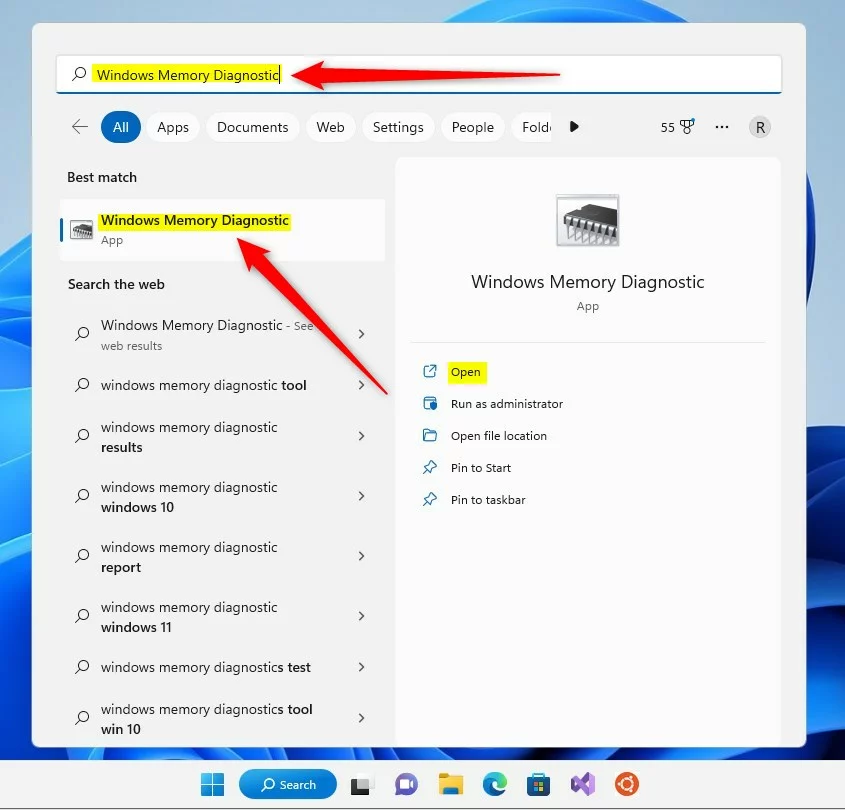
- Open the Start menu or use the search bar on the Taskbar. The search box should appear and be ready for typing.
- Type “Windows Memory Diagnostic” and select the app. You can also press Win+R and type
mdsched.exeto launch it directly. Either way, a small window titled Windows Memory Diagnostic opens.
If you are asked for administrator permission, approve it. A standard account without admin rights cannot start the test.
Once the tool opens, you’ll see two options:
- Restart now and check for problems (recommended): This restarts your PC immediately to start the test. Save your open files first, because Windows does not wait for you.
- Check for problems the next time I start my computer: This schedules the test for your next reboot. Pick this one if you are in the middle of something and want to run the test later, for example at the end of the day.
Both options run the same test. The only difference is when it starts.
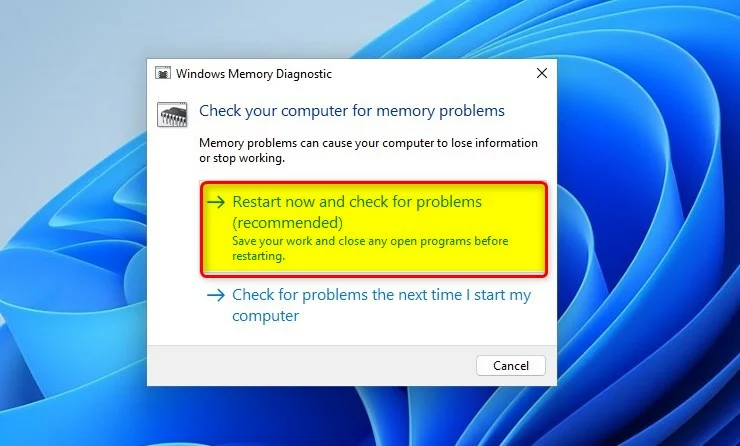
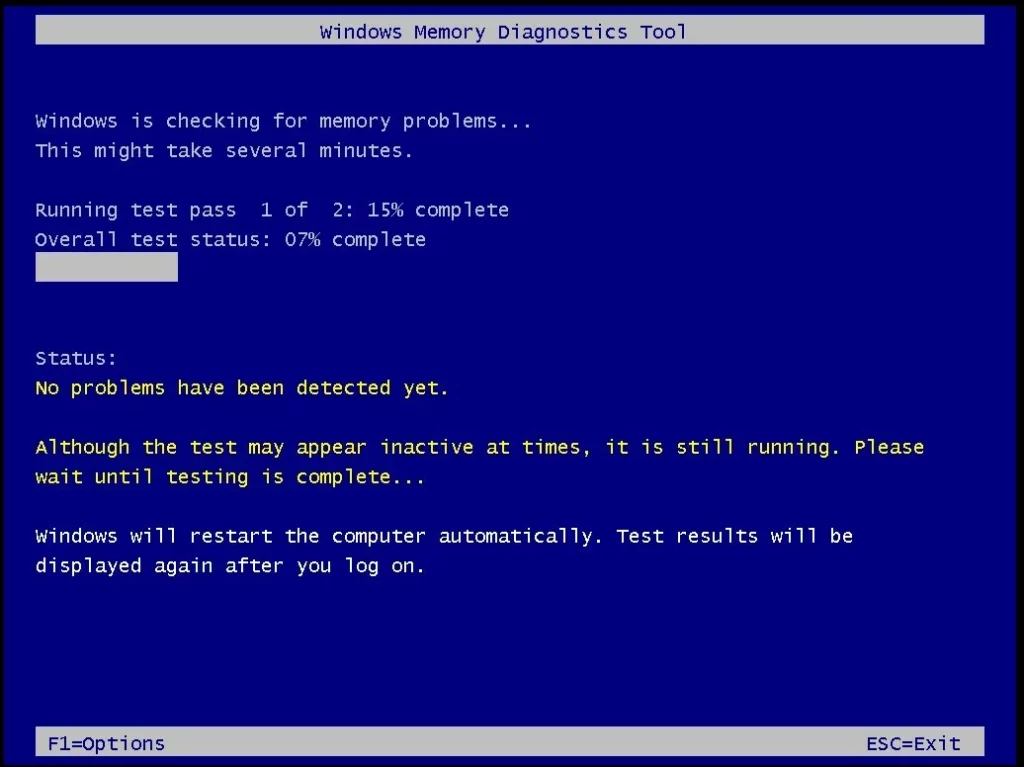
Select the first option to begin. Your computer will restart into a blue screen environment. This is where the actual testing happens. It is not a crash, and it is safe to leave alone.
The line reads “Scan in progress” and then reports whether problems have been detected. The standard test usually takes several minutes, and longer on PCs with a lot of RAM. Do not turn the PC off during the scan.
When the test finishes, the PC restarts by itself and loads Windows normally. The result then shows up as a notification after you sign in. That notification does not always appear, so the Event Viewer steps further down are the reliable way to read the result.
Advanced Scan Options
Choose the extended scan mode if the standard test finds nothing but you still suspect failing hardware. Extended runs many more test passes and catches faults that the standard test can miss. It can take an hour or more, so start it when you don’t need the PC.
To change the mode, press F1 while the test is running on the blue screen. This opens the Options screen. Use the keys below to set it up:
- Press Tab to move between the settings: Test Mix, Cache, and Pass Count.
- Under Test Mix, choose Basic, Standard, or Extended. Standard is the default.
- Use Pass Count to set how many times the whole test repeats. More passes take longer but give a more thorough check.
- Press F10 to apply your choices and restart the test. Press Esc to cancel and return to the scan.
Intermittent faults are the hardest to catch, and a single clean pass does not prove the RAM is healthy. If you still get crashes after a clean result, run several passes of the extended test.
How to find and interpret Event Viewer logs
Windows Event Viewer (Windows’ system event logging tool) saves the official results of your RAM test after your computer restarts. To find them, open Event Viewer, go to the Windows Logs section, click System, and use the find tool or a filter to look for MemoryDiagnostics-Results. That entry tells you whether your memory passed or failed.
- Right-click the Start button and select Event Viewer. The Event Viewer window opens.
- In the left pane, expand Windows Logs and click on System. A long list of events appears in the middle.
- On the right side, click Filter Current Log. A filter window opens.
- Open the Event sources drop-down, check the box for MemoryDiagnostics-Results, and click OK. The list now shows only the memory test entries.
- Double-click the entry to see if any hardware errors were detected. The General tab shows a short message. It says either that the test completed with no errors or that hardware problems were detected.
If the list is empty, the test has not finished or has not run yet. Run it again and let it complete. If you ran it several times, the newest entry is at the top.
If the result reports errors, treat the RAM as faulty. Shut down the PC and unplug it. Reseat each memory stick, then test again. If you have more than one stick, test them one at a time to find the bad one, and replace it. If you have turned on a memory overclock profile such as XMP or EXPO in the BIOS, switch it off and test again. For a deeper check, a bootable tool such as MemTest86 is a good second opinion.
Summary
The Windows Memory Diagnostic tool helps you determine whether your computer's RAM has hardware problems, and it tells you what to do next. A clean result means memory is probably not the cause of your crashes, so look at drivers, storage, and software next. A failed result means you should replace the faulty module.
Have a question about this guide?
Answered by AI from this guide. Good questions may be added to this page — please don't include personal details.
Did this guide fix your problem?

About the Author
Richard
Tech Writer, IT Professional
Richard is a writer at Geek Rewind who turns complex IT tasks into clear, step-by-step guides. He draws on years of hands-on experience in system administration and enterprise IT operations, focusing on Windows, Linux and WordPress: the problems people actually run into, and the fixes that work. His server and WordPress guides come from systems he runs himself. Richard builds and maintains the platform behind Geek Rewind, from its Ubuntu servers and Nginx configuration to its custom WordPress plugins. Many new tutorials start with readers' questions, and he's always glad to answer them in the comments.
No comments yet — be the first to share your thoughts!