How to Troubleshoot RAM Issues with Windows Memory Diagnostic in Windows 11


Windows Memory Diagnostic is a built-in Windows 11 tool that checks your computer RAM for hardware faults and bad memory sticks. Bad RAM often causes random computer freezes, sudden restarts, and Blue Screen of Death crashes.
Running this free scan lets you find out if your memory is dying so you can replace it before it damages your files. Press the Win, type mdsched.exe, and press Enter to open the tool right away.
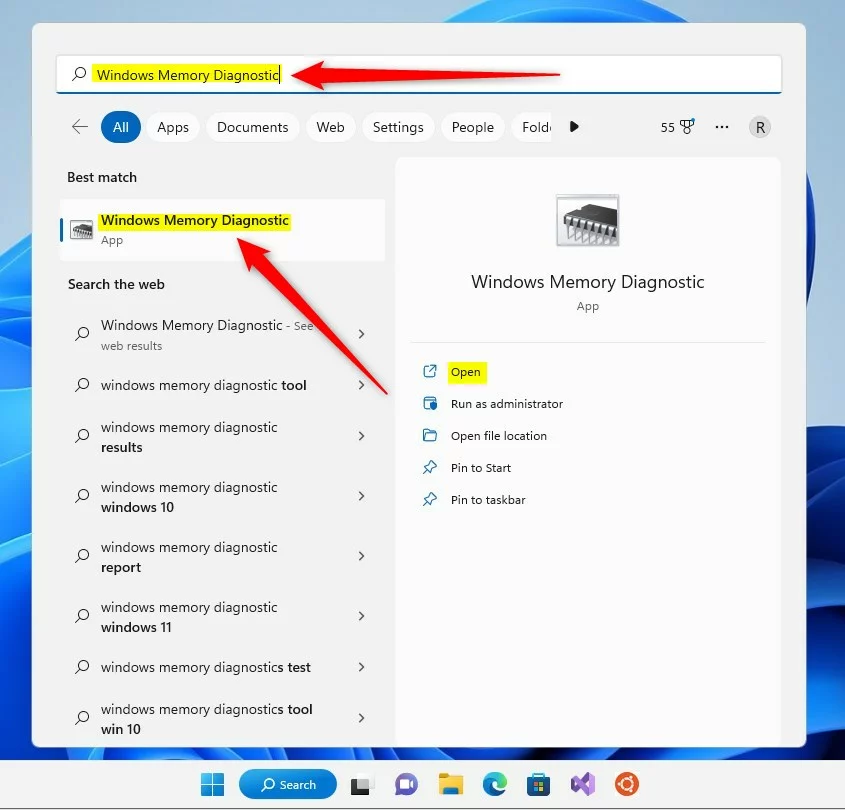
Search for “Windows Memory Diagnostic” and select the app, or press Win+R and type mdsched.exe. Choose to restart now and check for problems to begin the test.
How to run the Windows Memory Diagnostic (mdsched.exe)
Windows Memory Diagnostic scans your computer’s RAM for physical errors and bad sectors that cause random crashes, blue screens, and freezes. You can start this built-in tool right from your desktop by opening the Start menu , typing mdsched.exe into the search bar, and choosing to restart your PC now to check for problems right away.
- Open the Start menu or use the search bar on the Taskbar.
- Type “Windows Memory Diagnostic” and select the app. You can also press Win+R and type
mdsched.exeto launch it directly.
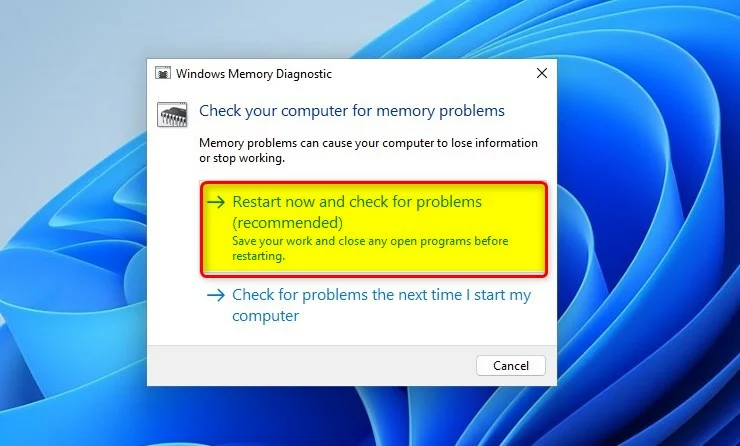
Once the tool opens, you’ll see two options:
- Restart now and check for problems (recommended): This restarts your PC immediately to start the test.
- Check for problems the next time I start my computer: This schedules the test for your next reboot.
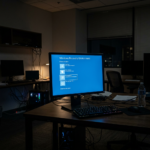
Your computer will restart into a blue screen environment. This is where the actual testing happens.
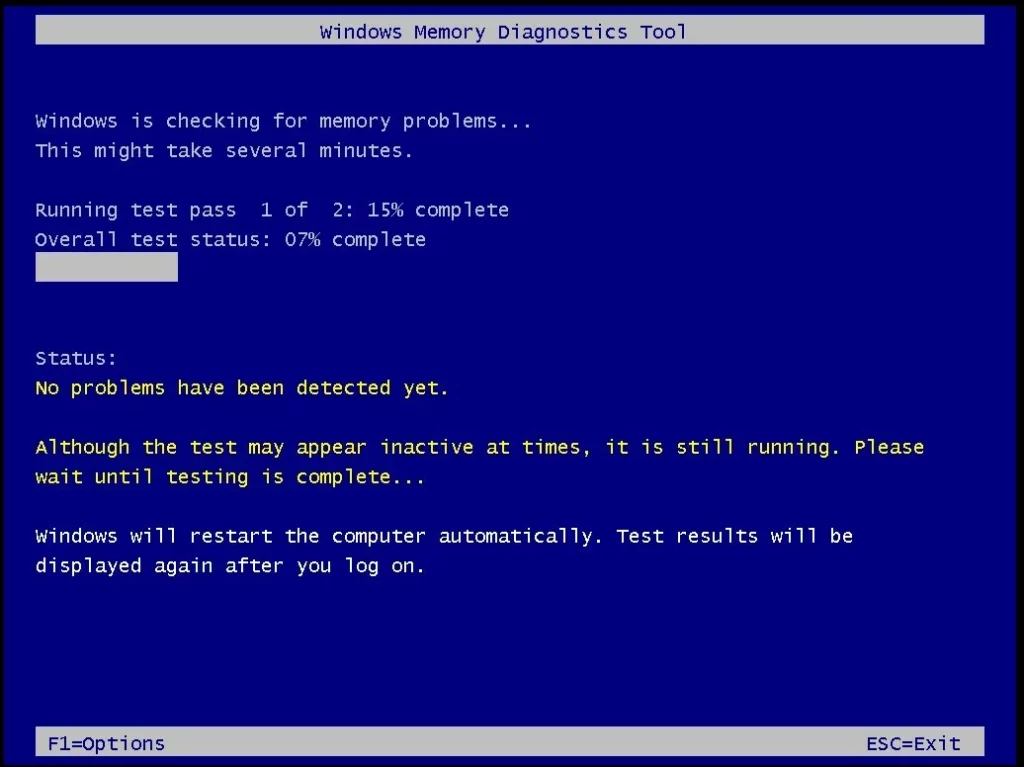
Advanced Scan Options
Advanced Scan Options Choose the extended scan mode if the standard test finds nothing but you still suspect failing hardware.
How to find and interpret Event Viewer logs
Windows Event Viewer (Windows' system event logging tool) saves the official results of your RAM test after your computer restarts. You can find these details by opening Event Viewer, going to the Windows Logs section, clicking System, and using the find tool to search for MemoryDiagnostics-Results to see if your memory passed or failed.
- Right-click the Start button and select Event Viewer.
- In the left pane, expand Windows Logs and click on System.
- On the right side, click Filter Current Log.
- Check the box for MemoryDiagnostics-Results and click OK.
- Double-click the entry to see if any hardware errors were detected.
Summary
The Windows Memory Diagnostic tool helps you determine if your computer's RAM has hardware problems, guiding your next steps.
Was this guide helpful?

About the Author
Richard
Tech Writer, IT Professional
Richard is a writer at Geek Rewind who turns complex IT tasks into clear, step-by-step guides. He draws on years of hands-on experience in system administration and enterprise IT operations, focusing on Windows, Linux and WordPress: the problems people actually run into, and the fixes that work. His server and WordPress guides come from systems he runs himself. Richard builds and maintains the platform behind Geek Rewind, from its Ubuntu servers and Nginx configuration to its custom WordPress plugins. Many new tutorials start with readers' questions, and he's always glad to answer them in the comments.

No comments yet — be the first to share your thoughts!