How to Delete Guest Accounts in Windows 11

This guide shows you how to remove a temporary user account on your Windows 11 computer.
To delete a temporary user account in Windows 11, go to Settings > Accounts > Family & other users. Click the account name, then select Remove and confirm. Alternatively, use the command prompt: type net user username /delete, replacing username with the account name.
Understanding Guest Accounts in 🪟 Windows 11
Windows 11 doesn’t have a traditional built-in Guest account like older versions; instead, you’ll use standard user accounts for temporary visitors.
Why remove guest accounts?
Unused accounts can hog disk space and create security risks. If an account is not in use, it is best to remove it to keep your system clean and secure.
What happens when you are done?
When you delete an account, the user profile is removed from the login screen. All files, photos, and settings associated with that user are permanently deleted from the hard drive. Warning: Always back up any important data from the user’s folder before proceeding, as this action cannot be undone.
How to Delete a User Account via Settings
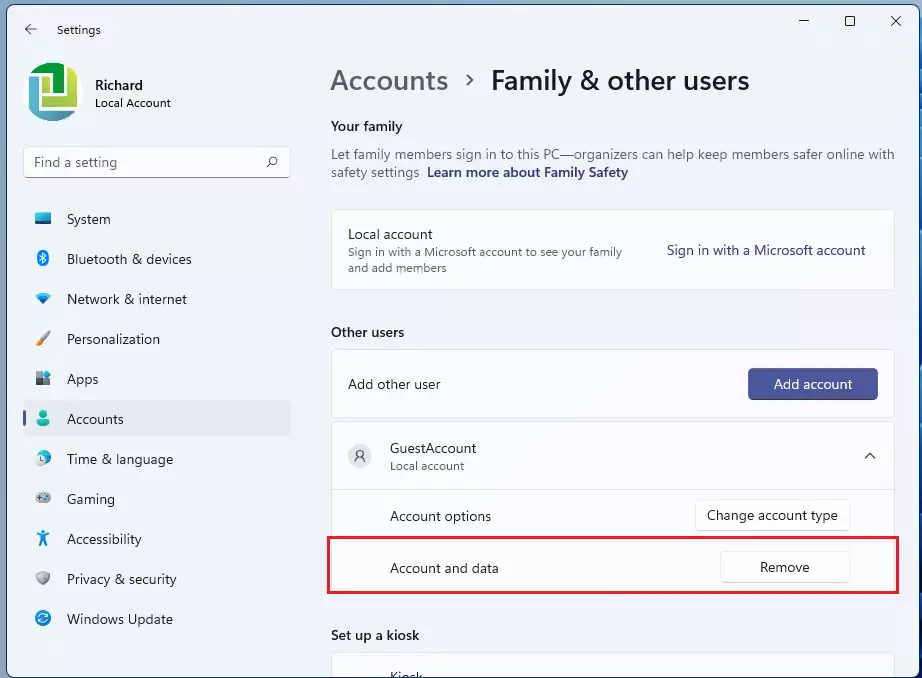
Deleting a user account in Windows 11 through the Settings app is straightforward if you’re logged in as an administrator. Simply open Settings, go to Accounts, then select ‘Family & other users’ to find the account you wish to remove and click the ‘Remove’ button.
- Open the Start menu and select Settings.
- Go to Accounts, then click on Family & other users.
- Look under the Other users section.
- Click on the account name you want to remove to expand the menu.
- Click the Remove button.
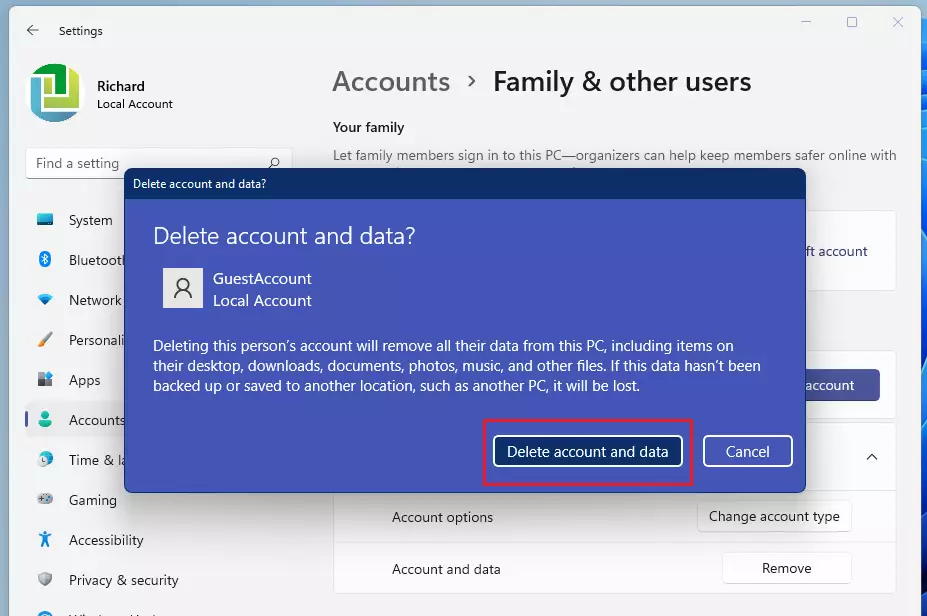
- A prompt will appear. Click Delete account and data to confirm.
How to Delete an Account Using Command Prompt
You can delete a user account in Windows 11 quickly using the Command Prompt, provided you run it as an administrator. Open Command Prompt by searching for ‘cmd’, right-click it, and choose ‘Run as administrator’, then type ‘net user username /delete’, replacing ‘username’ with the account name.
If you’re looking for a quicker way, you can use a command. Search for ‘cmd’ in your Start menu, then right-click and choose ‘Run as administrator.’
Type the command below and hit Enter:
net user username /delete
Replace ‘username’ with the exact name of the account you want gone. This command zaps the user profile right off your system.
Advanced Troubleshooting: Removing Stuck Accounts
Sometimes an account fails to delete through the Settings app. This usually happens when the User Profile Service is locked or there are leftover registry entries.
Using Local Users and Groups (Pro Version Only)
If you have Windows 11 Pro, you can use the lusrmgr.msc tool. Press ⊞ Win+R, type lusrmgr.msc, and press Enter. Navigate to Users, right-click the account, and select Delete.
Registry and Folder Cleanup
After deleting an account, you might need to clean up leftover files in the registry and the Users folder to fully remove it from Windows 11.
Summary
Deleting temporary local accounts in Windows 11 is straightforward using either the Settings app or Command Prompt, even though a native Guest account isn’t available.
Why can’t I see a Guest account in 🪟 Windows 11?
Windows 11 removed the native Guest account feature found in older versions. Instead, Microsoft encourages users to create a ‘Standard’ local account for temporary visitors. If you do not see a Guest account, it is because the feature is no longer part of the operating system’s default configuration.
How do I delete a user account that is stuck?
If an account refuses to delete, try using the ‘net user’ command in an elevated Command Prompt. If that fails, restart your computer in Safe Mode and attempt the removal again. Ensure no background processes are using the user’s files before trying to delete the profile.
Was this guide helpful?

About the Author
Richard
Tech Writer, IT Professional
Richard, a writer for Geek Rewind, is a tech enthusiast who loves breaking down complex IT topics into simple, easy-to-understand ideas. With years of hands-on experience in system administration and enterprise IT operations, he’s developed a knack for offering practical tips and solutions. Richard aims to make technology more accessible and actionable. He's deeply committed to the Geek Rewind community, always ready to answer questions and engage in discussions.



No comments yet — be the first to share your thoughts!