How to Refresh Copilot on Windows 11

You refresh your Copilot session on Windows 11 to get a fresh start with the AI assistant.
Copilot, integrated into Windows 11 builds starting around version 23493, allows you to control your PC and manage applications using natural language commands.
Refreshing the session clears its current context and memory, ensuring your next prompt is treated as a new interaction.
This can be particularly helpful if Copilot seems to be misunderstanding your requests or if you want to start a completely new line of inquiry without any lingering conversational history.
Why Refresh Copilot?
Sometimes Copilot stops responding or shows errors. Refreshing clears the current session. It fixes minor glitches without a full computer restart. Why? Because the app might get stuck on a bad request. What happens? The chat history for that session clears and the AI resets.
Basic Refresh Methods
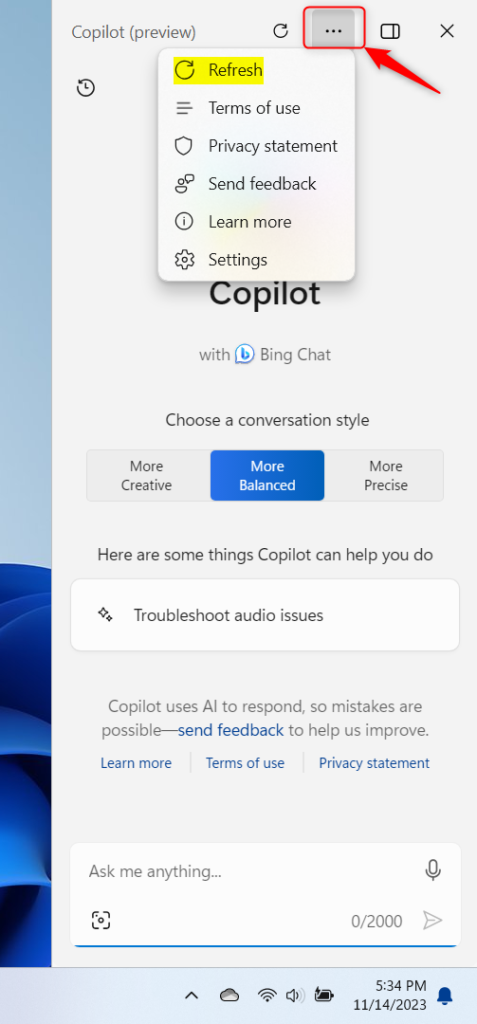
Open Copilot with Windows Key + C. Click the Refresh icon at the top. If missing, click the three dots (More options) and select Refresh.
Troubleshooting Copilot Crashes
If Copilot crashes, it may be due to a bad cache. Why? Corrupted data prevents the UI from loading. What happens? The side pane stays blank or closes immediately. Check for Windows updates first to ensure your AI integration is current.
Advanced Fixes: Task Manager and WebView2
Copilot relies on Microsoft Edge WebView2. If it fails, you must force restart the process.
- Press Ctrl + Shift + Esc to open Task Manager.
- Find Microsoft Copilot or WebView2 in the list.
- Right-click the process and select taskbar-on-windows-11/" class="sal-link" rel="noopener" target="_blank" data-sal-id="34873">End task.
- Reopen Copilot.
Note: This step does not require admin privileges.
Enterprise and Policy Management
In some work environments, Copilot is managed by Microsoft Entra ID or Group Policy. If the button is missing, your IT admin may have disabled it. You can check the registry path: HKEY_CURRENT_USER\Software\Policies\Microsoft\Windows\Windows\Copilot. Warning: Modifying the registry requires admin privileges and can cause system instability if done incorrectly.
Summary
Refreshing Copilot is a simple way to fix minor bugs. You can use the built-in refresh button or force restart the process via Task Manager if the app is unresponsive. Always check for Windows updates if problems persist. Did this solve your problem? Please provide feedback to help us improve this guide.” } }
Why does Copilot keep crashing on Windows 11?
Copilot crashes often result from outdated Microsoft Edge WebView2 components or corrupted temporary cache files. When the AI integration fails to communicate with the server, the process terminates. Ensure your Windows 11 build is updated and clear your browser cache to resolve these stability issues effectively.
Does clearing my browser cache affect Copilot?
Yes, clearing your browser cache can resolve issues with the Copilot side pane. Since Copilot uses the same underlying engine as Microsoft Edge, cached data can sometimes conflict with new updates. Clearing this data forces the application to fetch fresh information, which often fixes unresponsive UI elements.
Was this guide helpful?

About the Author
Richard
Tech Writer, IT Professional
Richard, a writer for Geek Rewind, is a tech enthusiast who loves breaking down complex IT topics into simple, easy-to-understand ideas. With years of hands-on experience in system administration and enterprise IT operations, he’s developed a knack for offering practical tips and solutions. Richard aims to make technology more accessible and actionable. He's deeply committed to the Geek Rewind community, always ready to answer questions and engage in discussions.



[…] starts, Turn Copilot on or off, enable or disable Copilot using content from Edge, refresh Copilot prompts, resize the Copilot side pane, delete recent activity, turn plugins for Copilot on or […]