
This guide will help you understand how to make your Storage Pools work better on Windows 11 in simple steps.
What is a Storage Pool?
Storage Spaces is a Windows feature that lets you combine several hard drives into one big virtual drive called a storage pool. This helps you store and manage your files more easily and safely.
With Storage Spaces, you can:
- Create a Storage Pool
- Rename your Storage Pool
- Add more drives to your Storage Pool
- Add extra storage space to your pool
When you add new drives, you can optimize your storage pool. This means Windows will move data around to use all your drives evenly. This can make your computer faster and safer.
Why Optimize Your Storage Pool?
Optimizing makes sure your data is spread out across all drives in your pool. This helps:
- Use all your drive space efficiently
- Improve your computer’s speed
- Lower the chance of losing data if a drive fails
- Balance storage when you add new drives
How to Optimize Storage Pools Using Windows Settings
Follow these easy steps to optimize your Storage Pool:
- Open Settings: Click the Start menu button and select Settings, or press Windows key + I on your keyboard.
- Go to System: In the Settings window, click on System on the left side.

- Open Storage Settings: Click on the Storage tile on the right side.

- Find Storage Spaces: Scroll down and open Advanced storage settings, then click Storage Spaces.
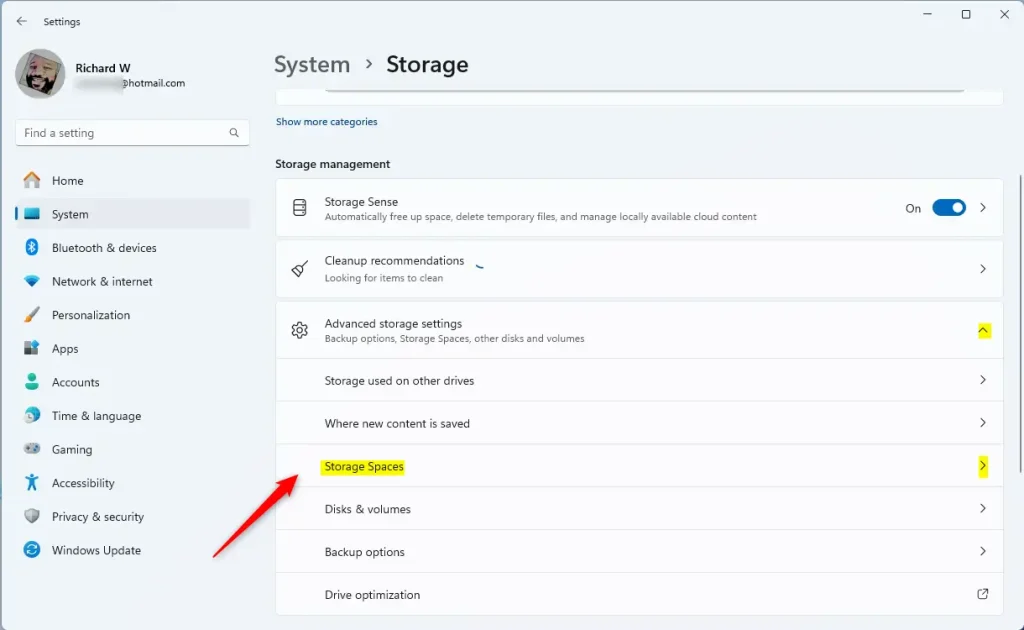
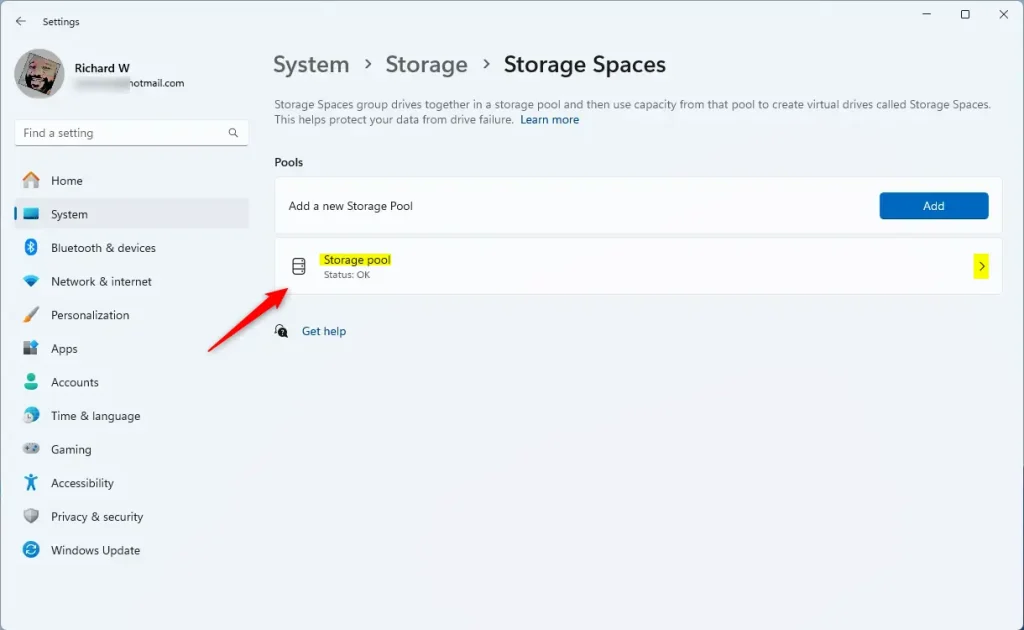
- Open Your Storage Pool: Click on your Storage pool to see its details.
- Optimize: Click the Optimize button to start spreading your data evenly across all drives.
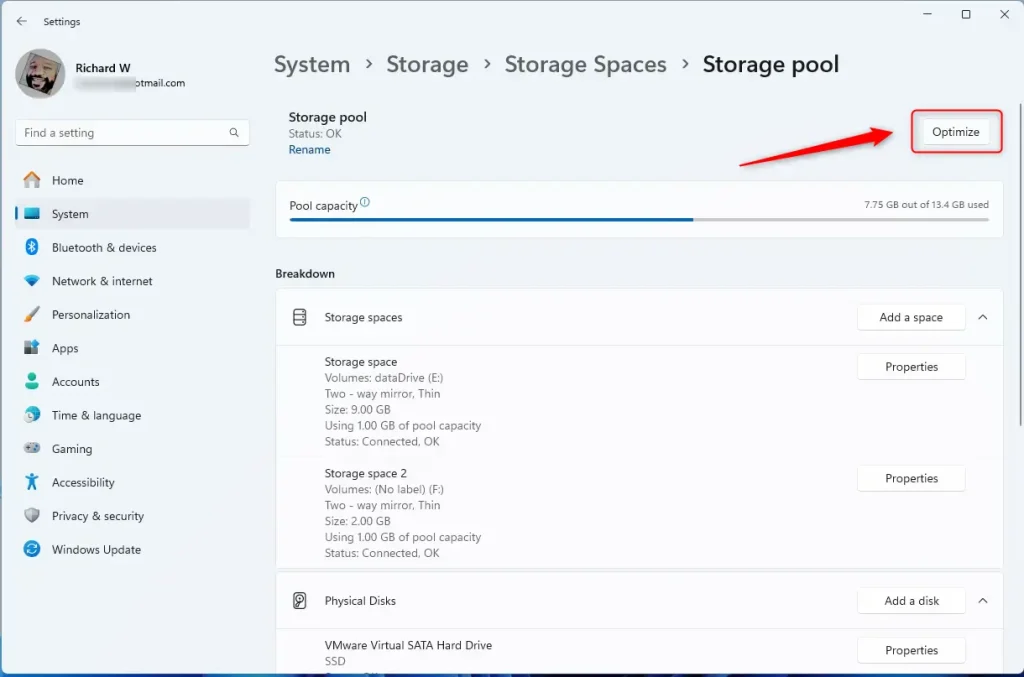
- Wait for the process to finish. You can see the progress on the screen.
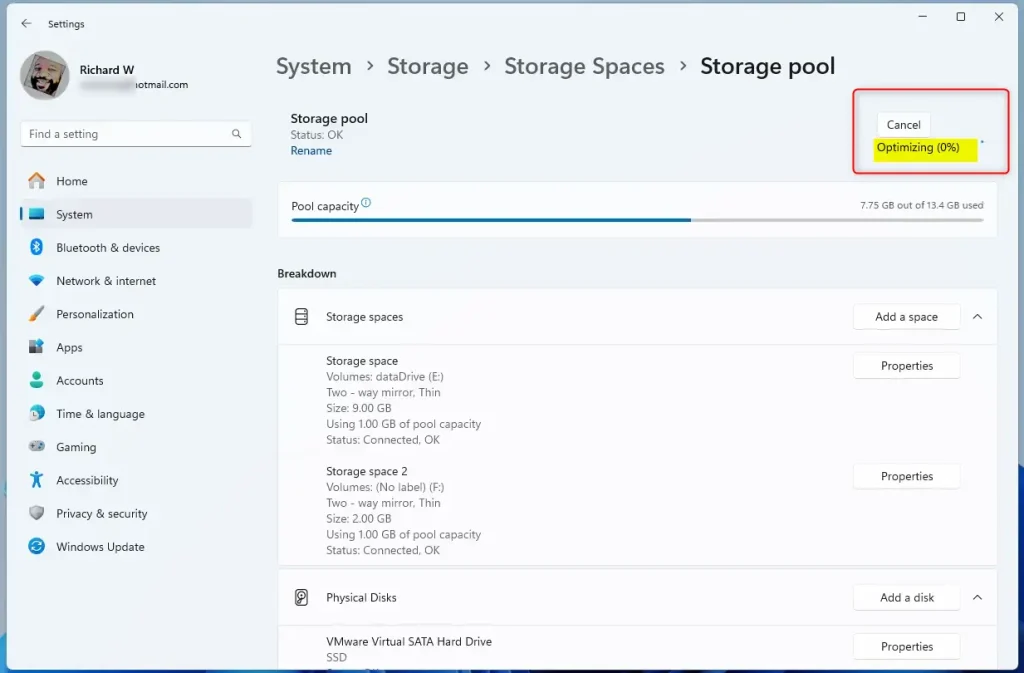
- When done, just close the Settings app.
How to Optimize Storage Pools Using PowerShell
If you prefer using commands, here’s a quick way with PowerShell:
- Open PowerShell as Administrator: ⚠️ REQUIRES ADMIN PRIVILEGES Search for PowerShell in the Start menu, right-click it, and choose Run as administrator. Or use this guide to open PowerShell in Windows Terminal.
- See your Storage Pools: Type the command below and press Enter:
Get-StoragePool - Optimize your Storage Pool: Use this command, replacing Storage pool name with the name of your pool (usually shown from the previous command):
Optimize-StoragePool -FriendlyName "Storage pool name" - For example, if your storage pool is named Storage pool, run:
Optimize-StoragePool -FriendlyName "Storage pool" - That’s it! PowerShell will start optimizing your pool.
Summary
- Optimizing your Storage Pool helps your computer run better and keeps your data safer.
- You can optimize your pool using the easy Windows Settings or by using PowerShell commands.
- This process balances the data across all your drives, making the best use of your disk space.
- If you have questions, feel free to leave a comment below!



Leave a Reply