How to Open the Touch Keyboard in Windows 11

The Windows 11 touch keyboard is a virtual tool that lets you type on your screen. It is perfect for tablets or laptops with touchscreens. You can also use it with a mouse if your physical keyboard breaks.
Why use this? Sometimes the keyboard does not pop up when you tap a text box. Knowing how to open it manually ensures you can always type, even if your physical keyboard is disconnected or unavailable.
What happens when done? You will have a quick way to bring up the touch keyboard whenever you need it, allowing for better accessibility and control over your device.
How to show the touch keyboard on your taskbar
The fastest way to access the keyboard is by adding a shortcut to your taskbar.
- Open the Start menu and select Settings.
- Go to Personalization and select Taskbar.
- Click on Taskbar corner icons.
- Find Touch keyboard and turn it to On.
Now, you can simply tap the keyboard icon on your taskbar whenever you need to type.
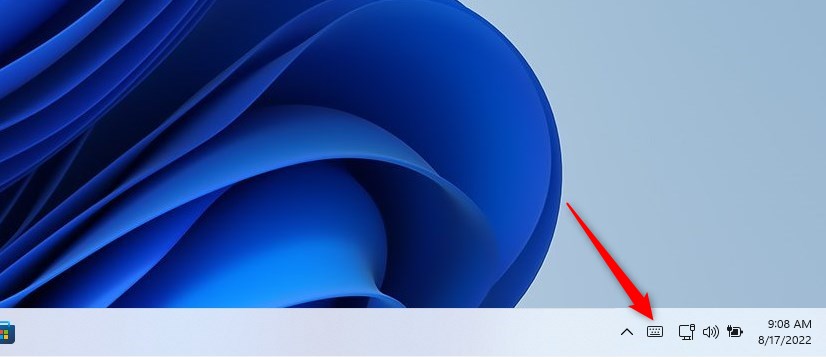
How to open the keyboard via Settings
If you prefer to use the Windows menu, you can open the keyboard through the system settings.
Note: You must have administrative privileges to change system-wide personalization settings.
- Press the Windows key + I on your keyboard to open Settings.

- Click Personalization on the left side menu.
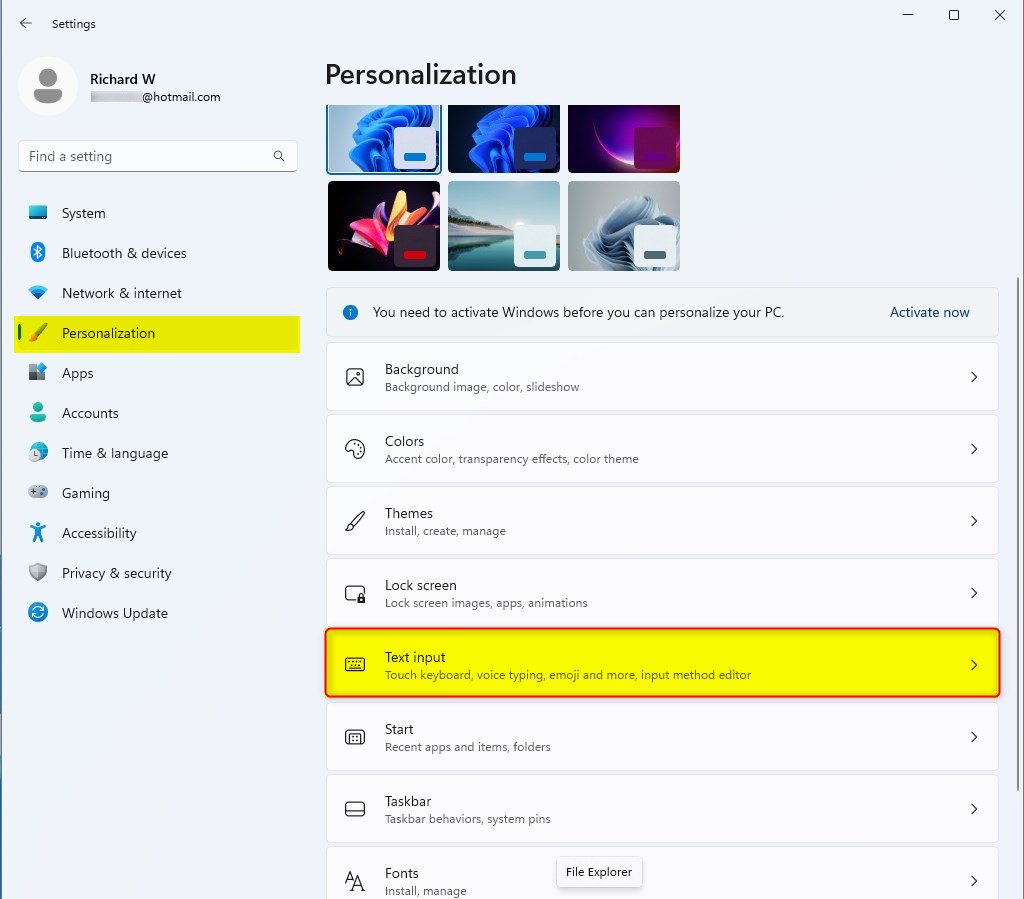
- Select the Text input tile on the right side.
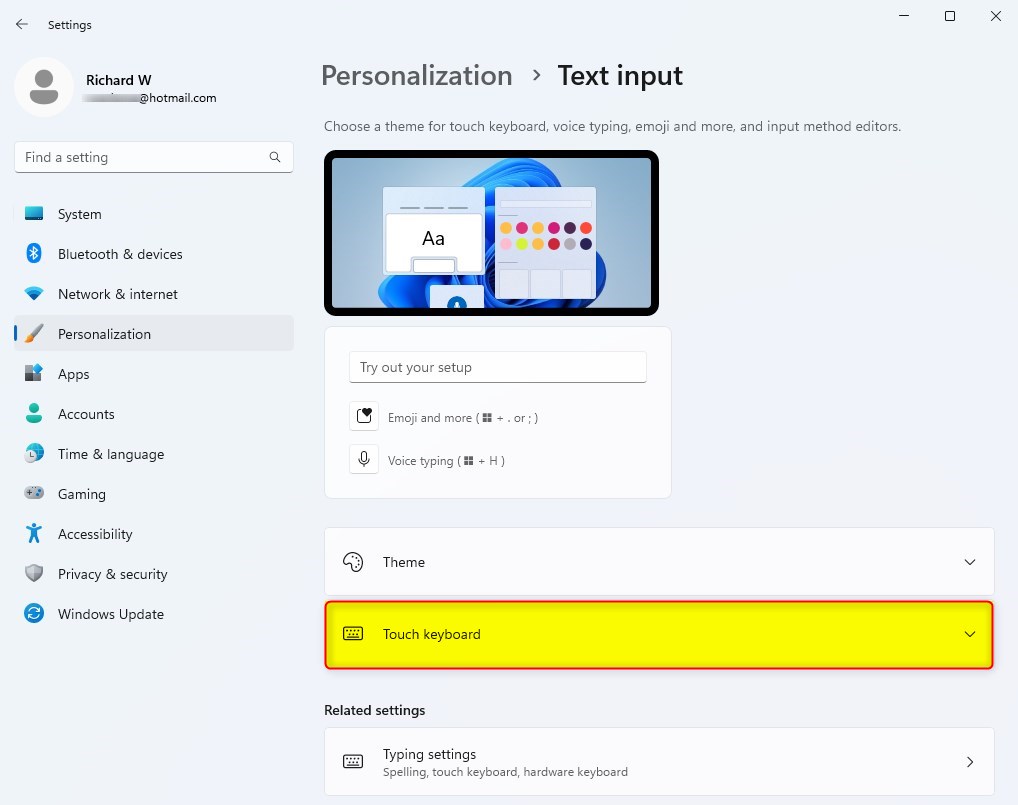
- Click the Touch keyboard tile to expand it.
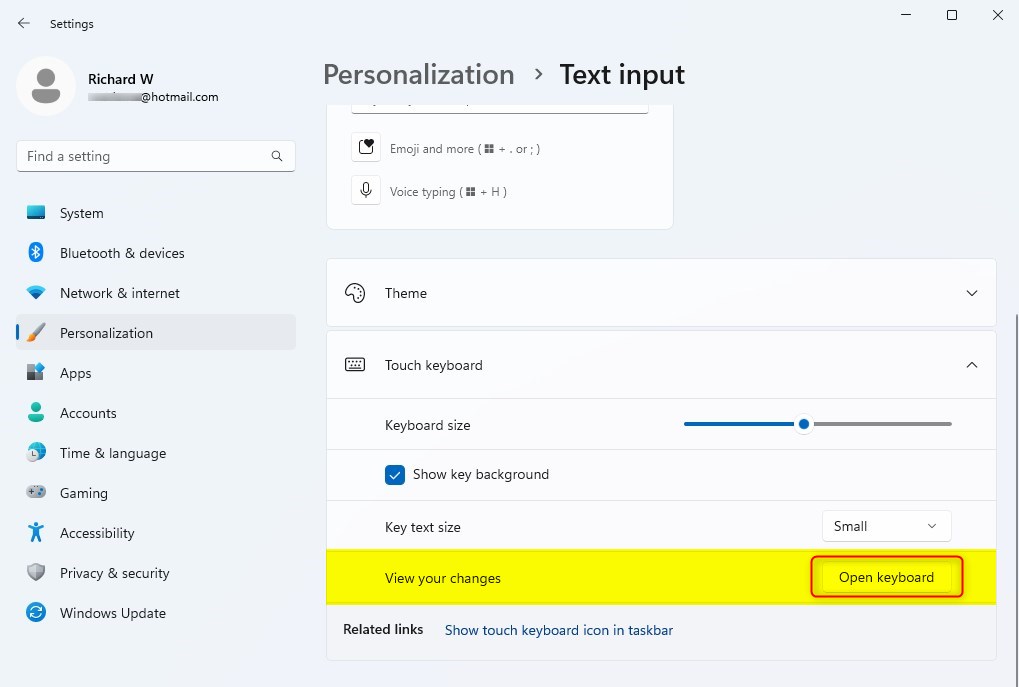
- Click the Open keyboard button.
Customizing Your Touch Keyboard
You can change how your keyboard looks and acts. Go to Settings > Time & language > Typing. Here you can change the Touch keyboard theme. You can pick different colors or sizes to make it easier to see. You can also switch between different layouts like the traditional QWERTY or a split layout for easier thumb typing.
Troubleshooting Common Issues
If the keyboard is not working, try these steps:
- Restart the Touch Keyboard Service: Press Ctrl + Shift + Esc to open Task Manager. Find Touch Keyboard and Handwriting Panel Service, right-click it, and select Restart. (Requires admin privileges).
- Check for Updates: Go to Settings > Windows Update and click Check for updates.
- Registry Fix: Sometimes you need to check the registry. Press Windows + R, type regedit, and navigate to HKEY_LOCAL_MACHINE\SOFTWARE\Microsoft\TabletTip\1.7. Ensure the EnableDesktopModeAutoInvoke value is set to 1. (Requires admin privileges).
Summary
The Windows 11 touch keyboard is a versatile tool for all users. Whether you have a touchscreen or just need a backup input method, you can easily enable it via the Taskbar or Settings. By customizing themes and layouts, you can make the typing experience your own. If you run into issues, checking your system services or updating Windows usually fixes the problem quickly.
Why does the touch keyboard keep popping up?
The touch keyboard often pops up because Windows detects a touch-capable device and assumes you want to type. You can stop this by going to Settings, selecting Time & language, then Typing, and turning off the option that shows the touch keyboard when no keyboard is attached.
How do I change the size of the touch keyboard?
To change the size, open the touch keyboard, click the gear icon in the top-left corner, and select Keyboard size. You can then drag the slider to make the keyboard larger or smaller based on your preference, which helps with visibility and typing accuracy on different screen sizes.
Can I use the touch keyboard on a non-touch screen?
Yes, you can use the touch keyboard on any Windows 11 device, even without a touchscreen. Simply enable the icon on your taskbar via the Taskbar settings. You can then click the icon with your mouse to bring up the virtual keyboard whenever you need to enter text.
Was this guide helpful?



[…] Touch keyboard in Windows 11 is a virtual keyboard that is designed to be used with touchscreen devices. The […]
[…] you’re using the Touch keyboard, you can launch the emoji panel from the top left […]
[…] article explains how to enable or disable a Touch keyboard feature that shows the voice typing mic button in Windows […]
[…] devices without physical keyboards will see a built-in virtual keyboard called a Touch keyboard. It can be handy for these […]
[…] you have a Windows tablet or portable device with a touchscreen, you can use the touch keyboard to enter text in a text […]
[…] For more details, check: How to Open and Use Touch Keyboard in Windows 11 […]
[…] Touch keyboard is a virtual keyboard that appears on your screen. It’s useful if your device has a touchscreen, […]
[…] you use the Touch keyboard on your Windows 11 device, you can make it automatically capitalize the first letter of every […]
[…] you use a touchscreen device with Windows 11, you might see a virtual keyboard called the Touch keyboard. This keyboard pops up when you tap on a text box or form to […]
[…] devices that don’t have a physical keyboard use a virtual keyboard called the Touch Keyboard. It helps you type on the […]
[…] the regular keyboard, you can also use the touch keyboard to write words by hand using your finger or a pen. This is called the Handwriting […]
[…] Panel on Windows 11. If you use a tablet or a device with a touchscreen, you can use the touch keyboard to type. This tool also includes a handwriting panel where you can write with a pen or your […]
[…] you have a tablet or a computer with a touchscreen, you can use the touch keyboard to type. This tool also includes a handwriting panel where you can write with a pen or your finger. […]
[…] guide explains how to manage the Touch keyboard setting that plays a clicking sound whenever you type on your Windows 11 […]