

This article explains how to list and match user profiles and account names in Windows 11.
Windows automatically creates a profile for a new account when the user signs in for the first time.
A user Profile folder is a folder that contains user-specific data and settings related to a particular user account on a computer. It includes desktop settings, application data, documents, downloads, and more.
Each user on a Windows computer has a unique profile folder stored in a specific location on the hard drive. By default, user profile folders are located in the C:\Users directory (ex. C:\Users\username).
If a user changes his account name, the profile folder will not be changed and will not match the new account name. If you want to know which profiles belong to which accounts, use the steps below.
How to List and Match User Profiles and Accounts in Windows
The steps below show you how to list and match user profiles and account names in Windows.
Step 1: Find Your Profile Folders
To list the current profile folders for the account on a Windows machine, go to the path below in File Explorer.
C:\Users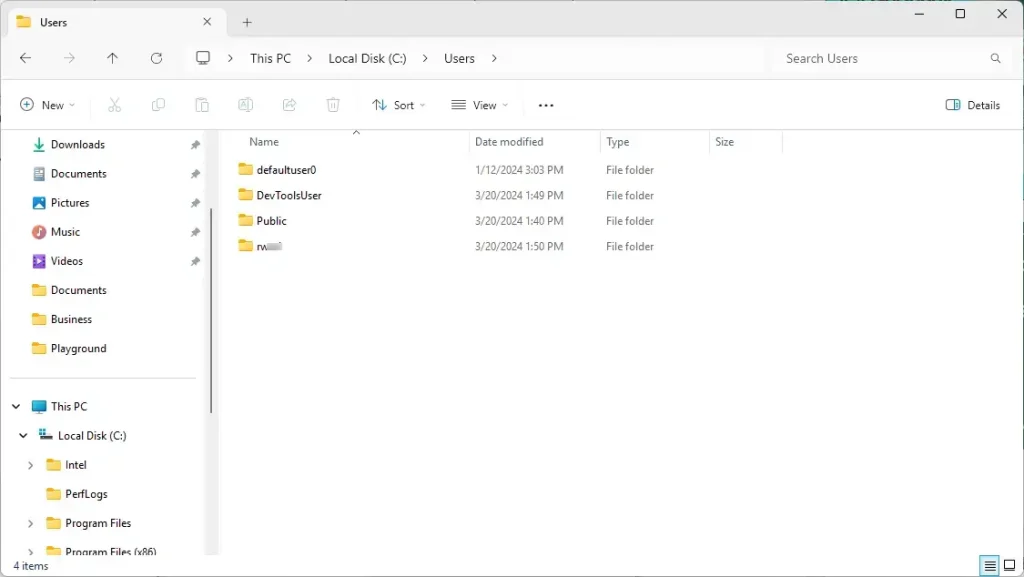
Step 2: Match Profiles to Account Names
To match profile folders to account names, use the steps below.
First, open the Windows Terminal app and select the PowerShell tab.
Then, copy and paste the command below in the terminal window and press Enter:
Get-ItemProperty -Path 'Registry::HKLM\SOFTWARE\Microsoft\Windows NT\CurrentVersion\ProfileList\*' | Select-Object -Property PSChildName, ProfileImagePathNext, run the command below to list, compare, and match profile folders with account names:
wmic useraccount get name,SID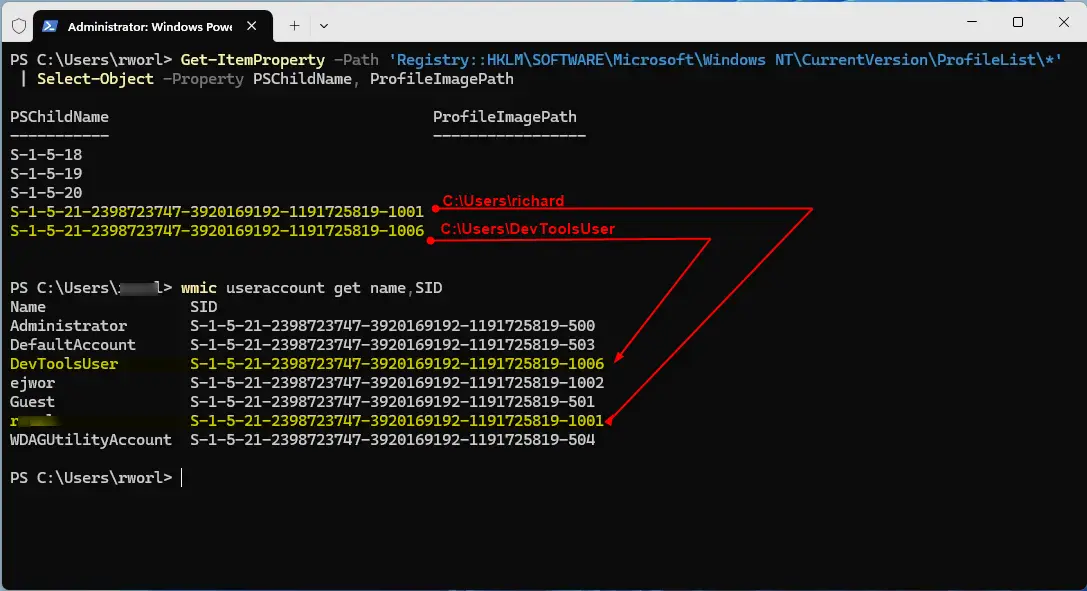
Use the list to compare and match profile folders (ProfileImagePath) and account names.
Using the user account name filter, you can use the information to tell which PSChildName goes with which ProfileImagePath.
The ProfileImagePath should match the account name (C:\Users\username).
That should do it!
Summary
Windows stores each user’s files and settings in a profile folder. If you rename a user account, the folder name stays the same. This can make it confusing to know which folder belongs to which account. By using the commands and steps above, you can see a list of all profile folders and match them to their account names. This helps you manage your computer better and fix any issues with user accounts.
Frequently Asked Questions
How do I find user profile folders in Windows 11?
What is the purpose of a user profile folder in Windows?
How can I match user profiles with account names in Windows 11?
What happens to the profile folder if I change my account name in Windows 11?
Can I use PowerShell to list user accounts in Windows 11?



Leave a Reply