How to Install Google Chrome on Ubuntu Linux


Installing Google Chrome on Ubuntu Linux requires downloading the official 64-bit .deb installation file and running a quick command in your terminal. Ubuntu comes with the Firefox web browser built in by default, so you need to add Google Chrome manually if you prefer using Google’s browser.
Most modern Ubuntu computers use 64-bit architecture, meaning you must choose the amd64 option when grabbing the setup file. Once the download finishes, you open the terminal window and enter a few short commands to put the browser on your PC and start browsing the web.
Download the Debian package (.deb) from Google’s website. Open the downloaded file with Software Install, then click Install and authenticate with your password. Alternatively, use the terminal commands `wget` to download and `sudo apt install` to install.
How to download Google Chrome on Ubuntu Linux
To download Google Chrome on Ubuntu Linux, open your web browser and go to the official Google Chrome website. Click the download button, and the page will automatically pick the right installation file for your system so you can save it to your computer.
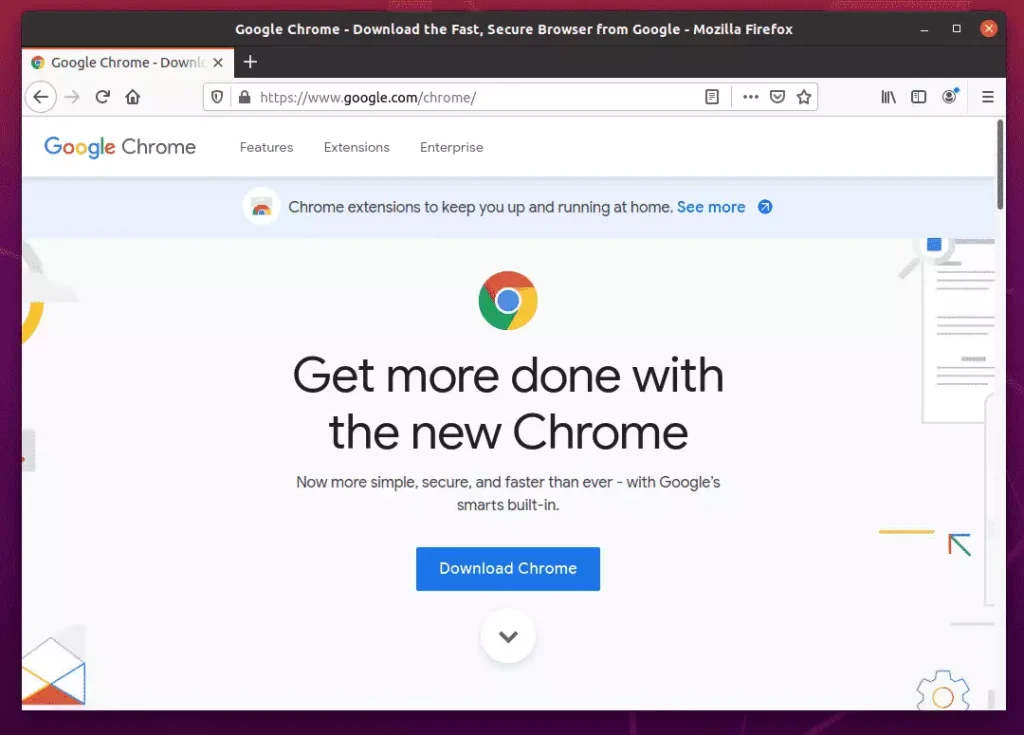
Head to the official download page and click the Download Chrome button.
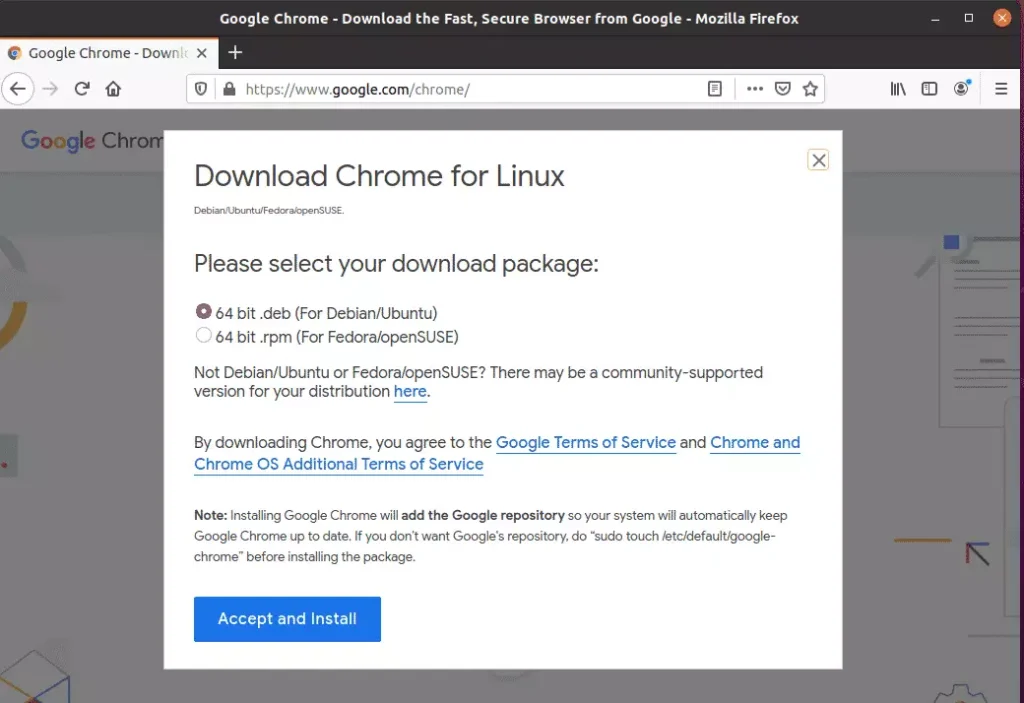
The site automatically detects your system architecture, ensuring you get the right version for Ubuntu. Click Accept and Install to kick off the download.
Click Accept and Install to start the download.
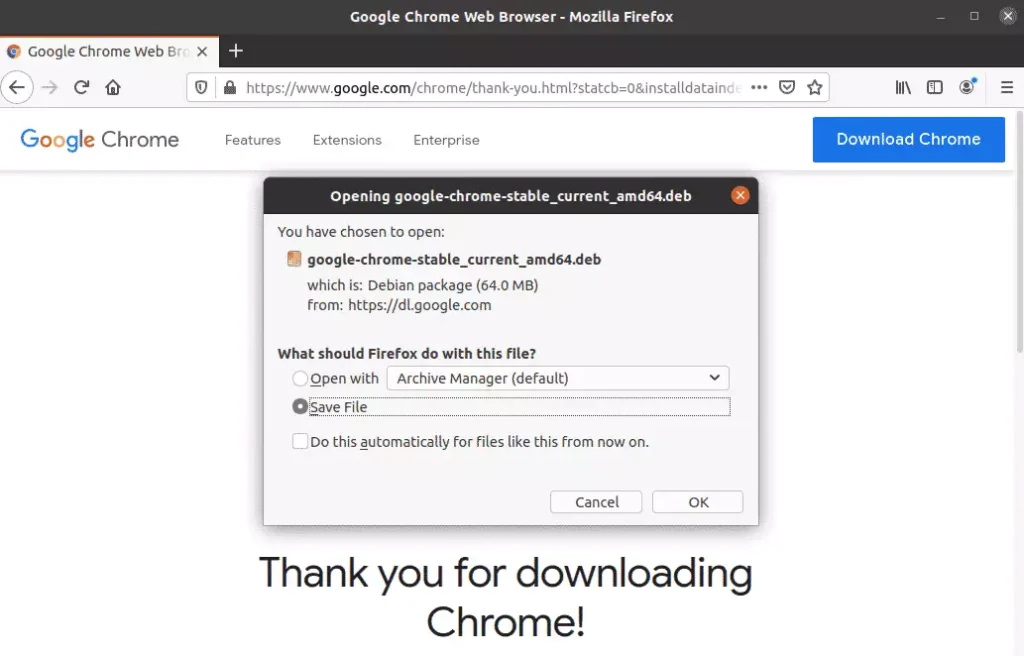
The system asks where you want to save the file; selecting 'OK' chooses the default location.
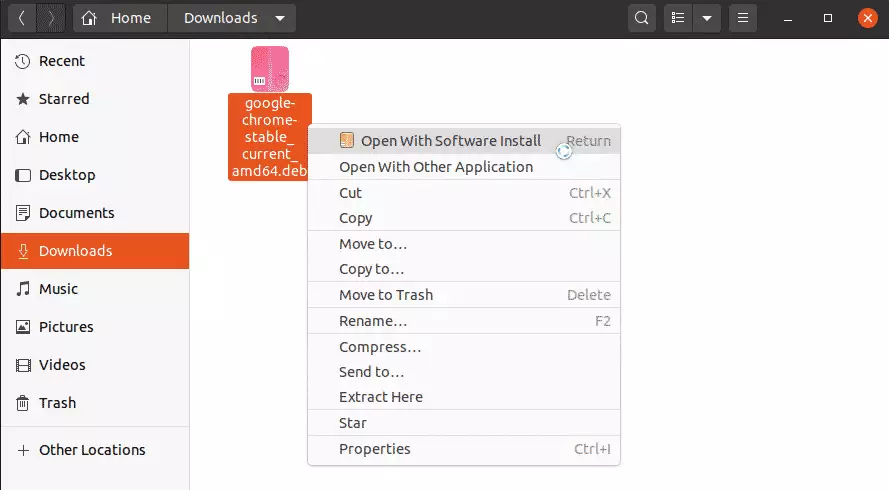
When the download finishes, open your File Explorer, go to your Home folder, and then open the Downloads folder.
Right-click the downloaded file and choose 'Open With Software Install.'
This launches Ubuntu Software, where you can click 'Install.'
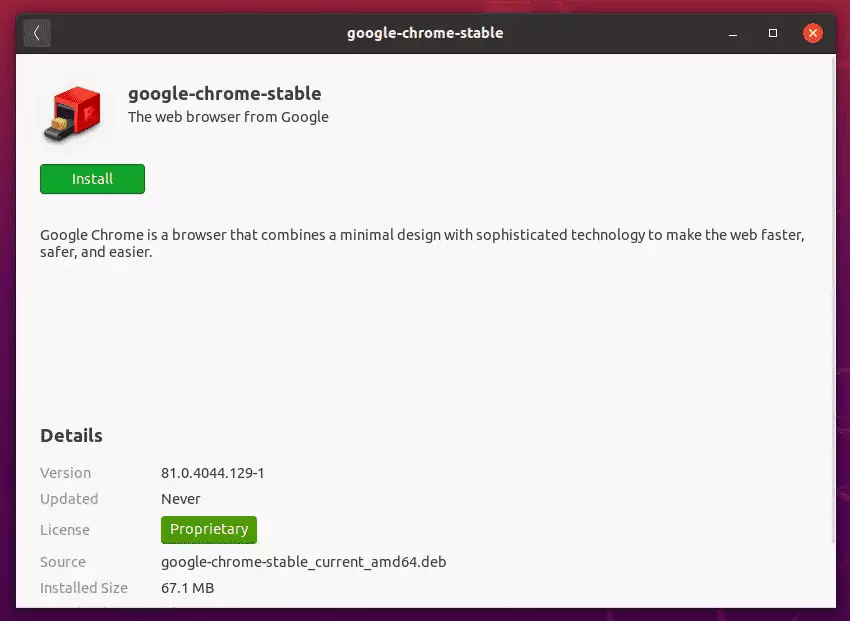
You will need to enter your password to authenticate. Confirm it, and the installation begins.
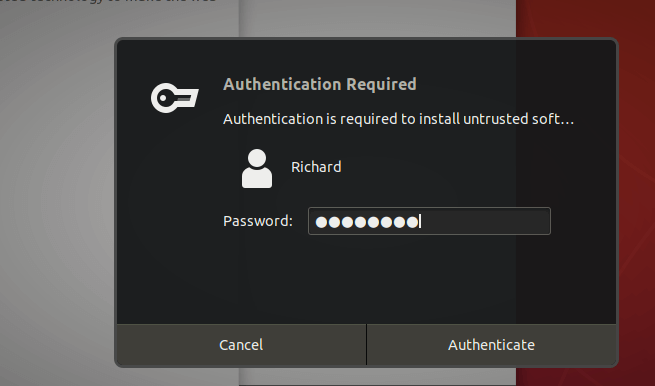
Wait for the installation to complete. After a brief moment, depending on the speed of your computer, Google Chrome is ready.
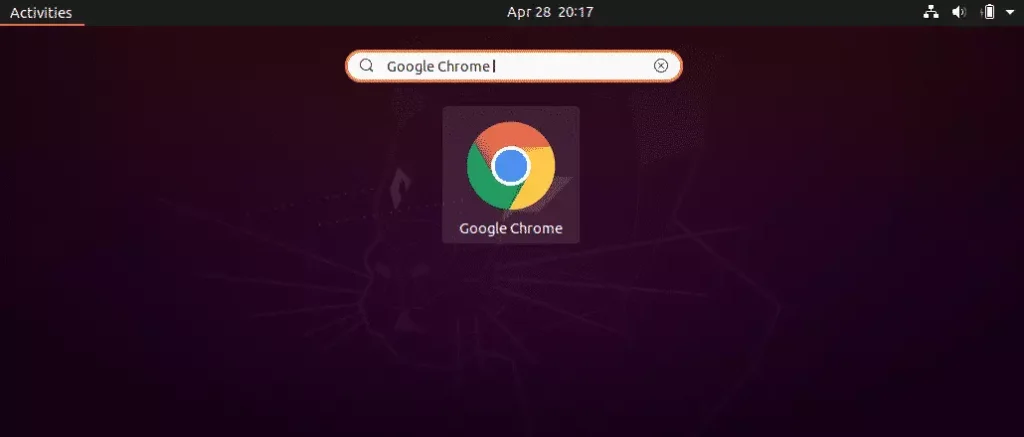
To launch it, go to the Activities ==> overview, search for Google Chrome.
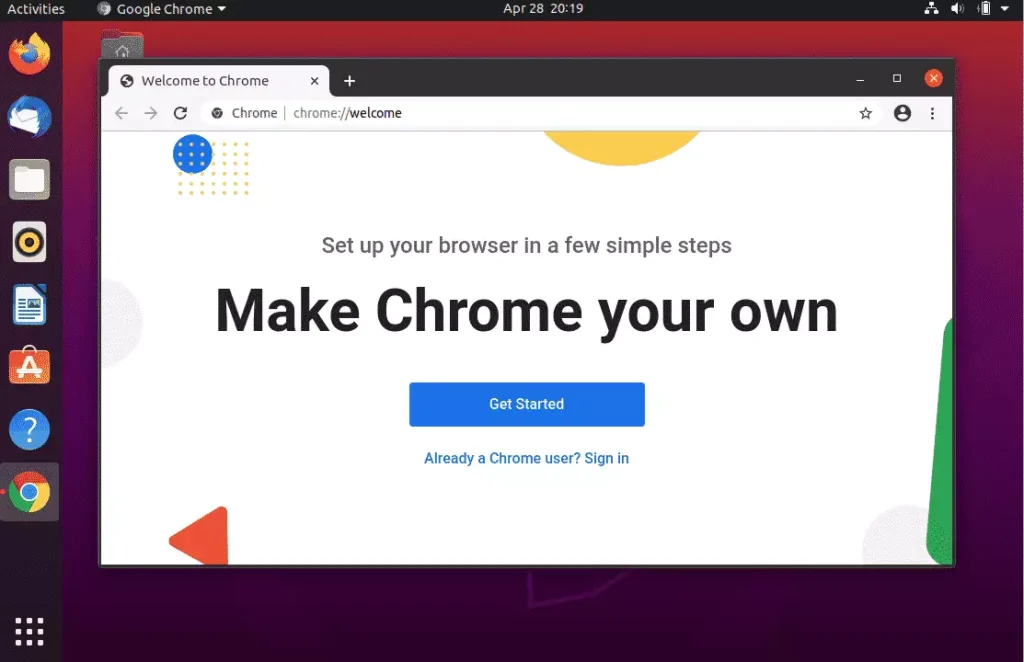
Launch Chrome, sync your data, and begin browsing.
How to install Google Chrome using Command Line
You can install Google Chrome on Ubuntu using the Terminal by downloading the installation package to your temporary folder and running a setup command. Open your Terminal app, paste the download command to fetch the file, and run the installer command to add Chrome to your system.
Run the commands below to download Chrome.
cd /tmp
wget https://dl.google.com/linux/direct/google-chrome-stable_current_amd64.deb
After downloading, run the commands below to install from the same directory.
sudo apt install ./google-chrome-stable_current_amd64.deb
That completes the process.
Google Chrome brings fast page loads and strong security features to Ubuntu Linux.
- Google Chrome is a powerful and widely used web browser that enhances your browsing experience on Ubuntu Linux.
- The installation process can be done quickly via the GUI or command line, catering to all user preferences.
- Following the steps outlined, users can quickly get up and running with Chrome on their Ubuntu systems.
- For new users, utilizing Google Chrome can improve productivity and web navigation.
- Enjoy seamless browsing alongside the extensive features and security that Google Chrome offers.
Can I install Google Chrome on Linux Ubuntu?
Yes, you can install Google Chrome on Ubuntu Linux. Download the installation file directly from Google's website and use a command in the terminal to install it. It is not included by default, so manual installation is required.
How do I install Chrome on my Ubuntu terminal?
After downloading the Google Chrome .deb file from Google's website, open your terminal. Navigate to the folder where you saved the file. Then, type `sudo dpkg -i google-chrome-stable_current_amd64.deb` and press Enter to install it.
Why can't i install Google Chrome on Ubuntu?
Google Chrome is not in Ubuntu's standard software list because Google develops it rather than Ubuntu. To install it, download the specific file from Google's site and add Chrome to your system manually.
How to reinstall Chrome browser in Ubuntu?
To reinstall Chrome on Ubuntu, first remove the current version using the terminal command `sudo apt remove google-chrome-stable`. Then, download the latest .deb file from Google's website and install it again using `sudo dpkg -i google-chrome-stable_current_amd64.deb`.
Was this guide helpful?

About the Author
Richard
Tech Writer, IT Professional
Richard, a writer for Geek Rewind, is a tech enthusiast who loves breaking down complex IT topics into simple, easy-to-understand ideas. With years of hands-on experience in system administration and enterprise IT operations, he’s developed a knack for offering practical tips and solutions. Richard aims to make technology more accessible and actionable. He's deeply committed to the Geek Rewind community, always ready to answer questions and engage in discussions.



No comments yet — be the first to share your thoughts!