
If you just connected a new hard drive or SSD to your Windows 11 PC but it doesn’t show up when you open File Explorer, don’t worry! You might need to initialize the disk first before you can use it.
Initializing a disk means that Windows gets the disk ready by setting it up. When you initialize a new disk, Windows will erase any data on it (which is fine if it’s a brand new disk) and prepare it so you can save files on it.
Important: If the disk already has data and you don’t see it in File Explorer, do not initialize or format it. Initializing will erase everything on the disk. Instead, try to fix the problem another way to avoid losing your files.
How to Initialize a New Disk in Windows 11 (Step-by-Step)
Follow these easy steps to get your new disk ready to use:
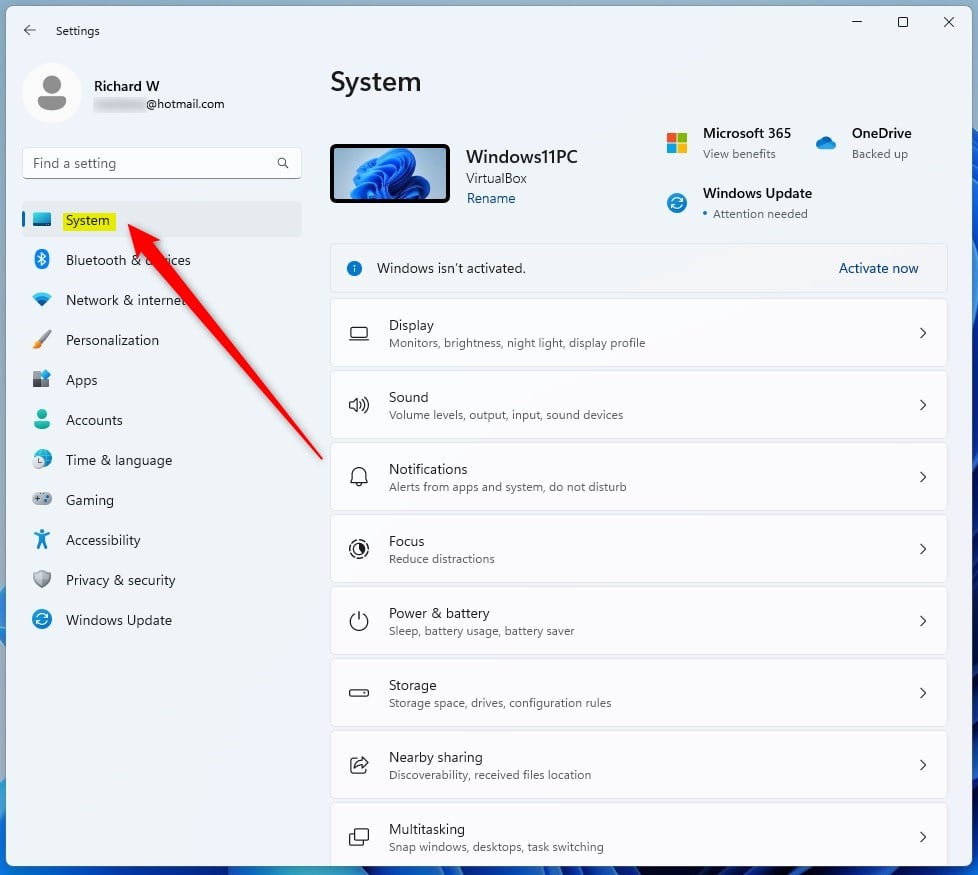
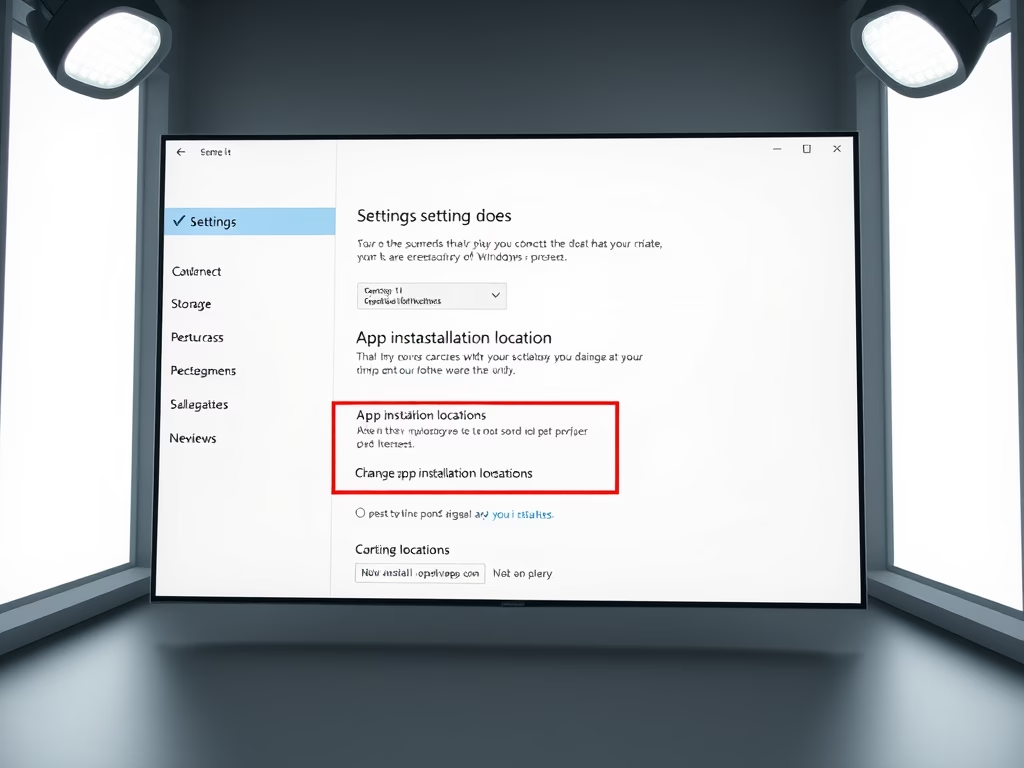
1. Open the Windows Settings app
Click the Start menu (the Windows icon on the bottom-left) and select Settings. Or press Windows key + I on your keyboard to open Settings quickly.

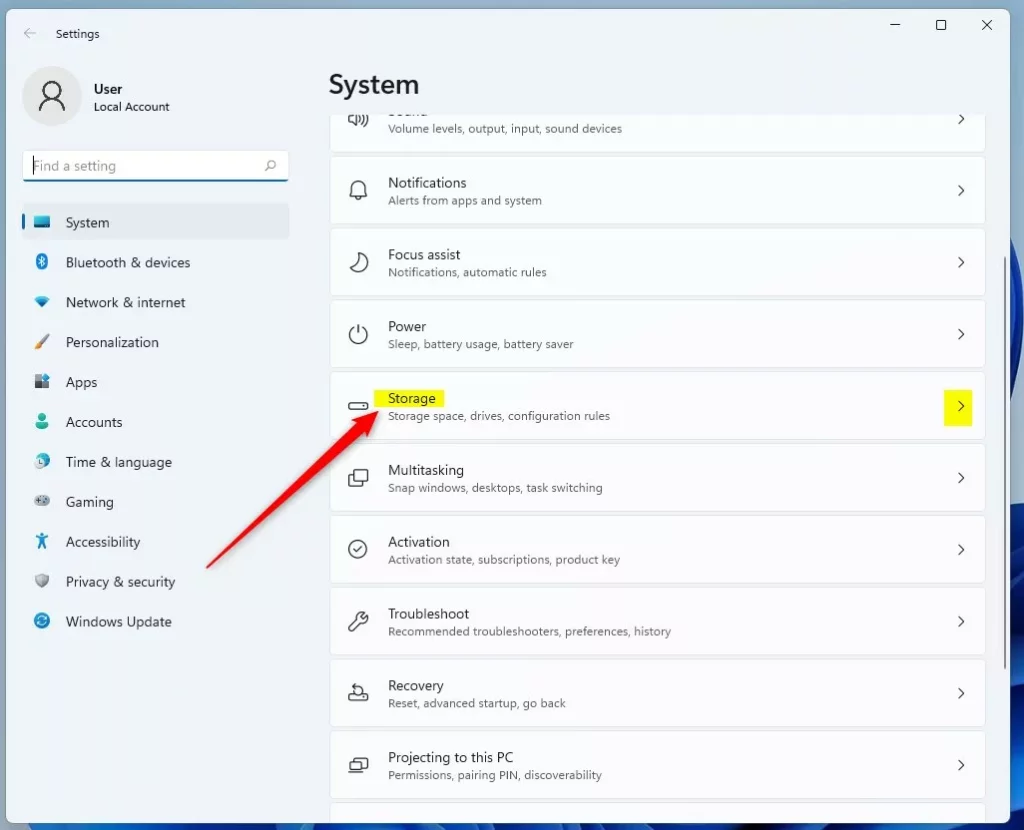
2. Go to System > Storage
In the Settings window, click System on the left side, then click Storage on the right.
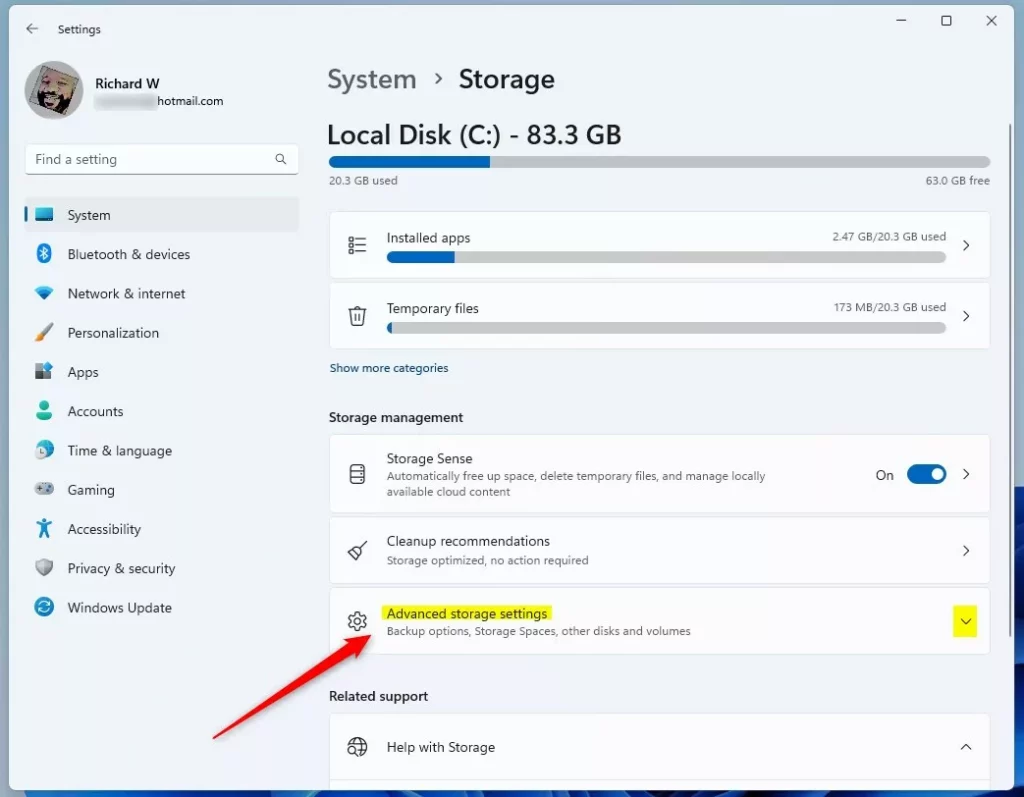
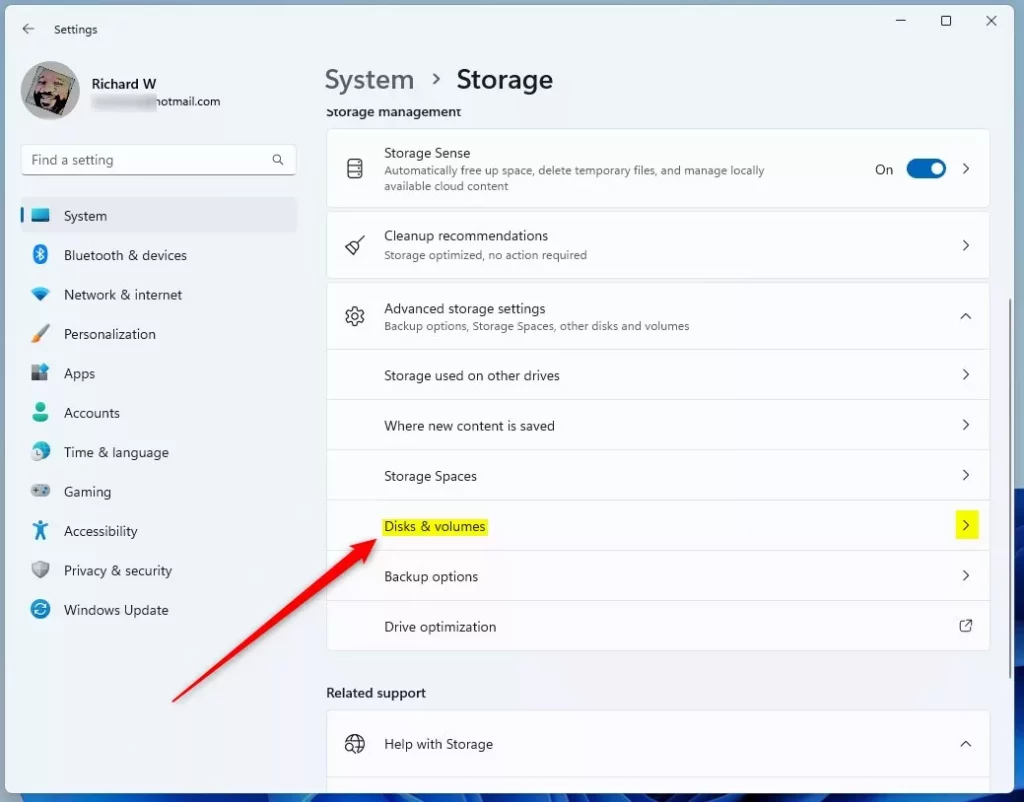
3. Open Advanced storage settings > Disks & volumes
Scroll down in the Storage settings and click Advanced storage settings, then select Disks & volumes.
4. Find your new disk and click Initialize
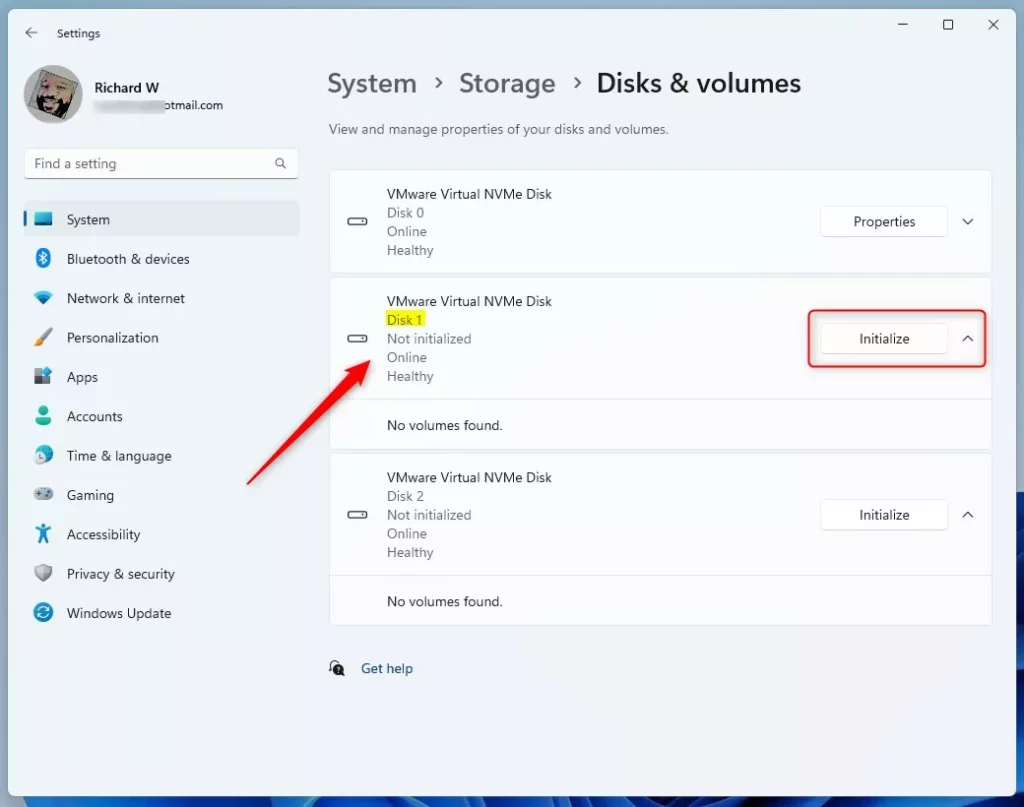
Look for your new disk in the list. It will say Not initialized if it’s brand new.
Click the Initialize button next to the disk.
5. Choose a partition style
When the pop-up appears, pick one of these options:
- GPT (GUID Partition Table): Best for most modern PCs and large drives (over 2 TB). Recommended.
- MBR (Master Boot Record): Older style, used mainly on older PCs or removable drives.
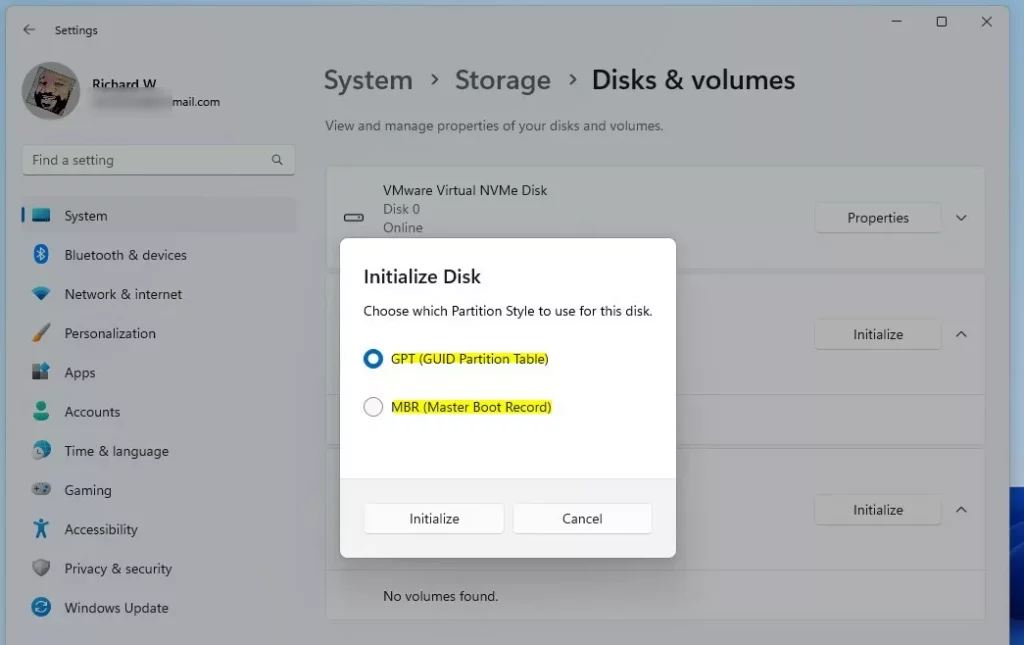
Click Initialize to continue.
6. Create a volume (a usable drive)
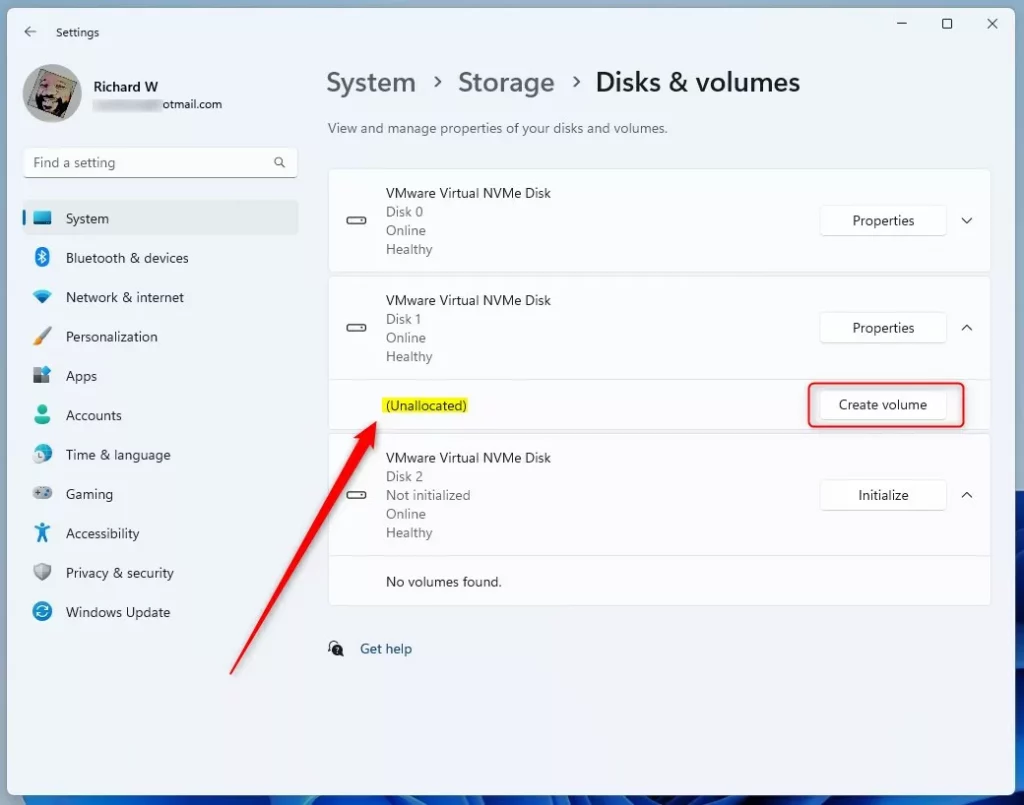
After initializing, the disk status will change to Unallocated. This means it’s ready for you to create a new drive on it.
Click Create volume to start making a new partition.
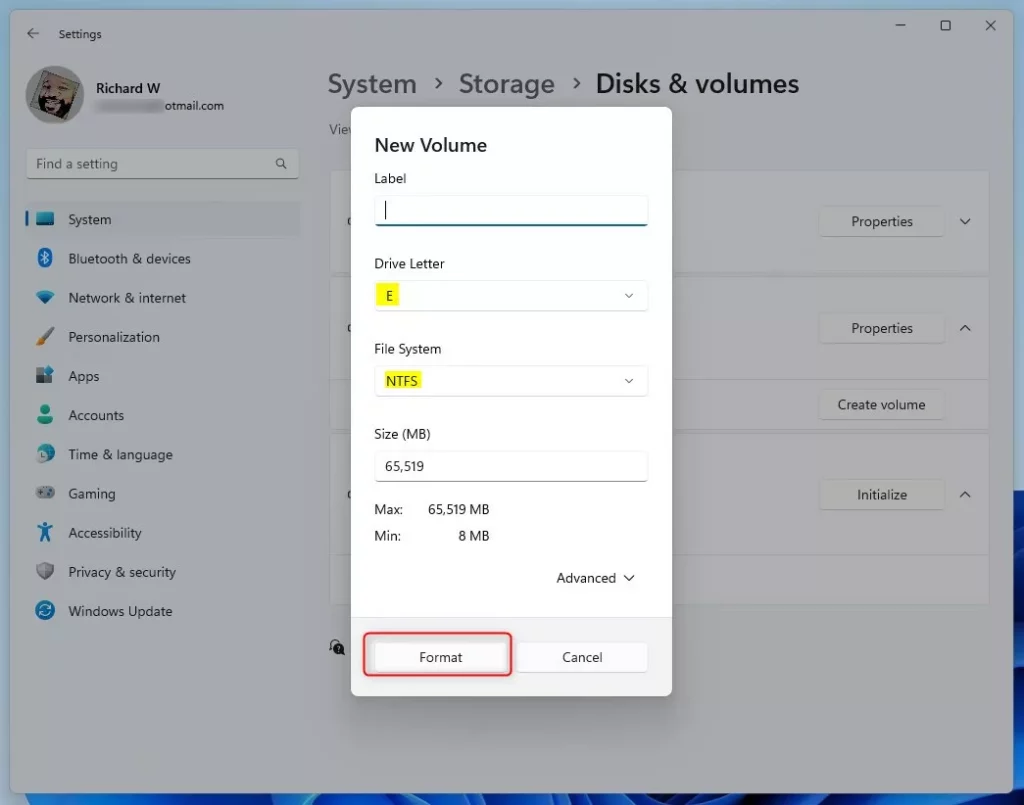
7. Name and format the new drive
Here you can:
- Give the drive a name (label) you like, e.g., “My Storage”
- Pick a drive letter (like D: or E:)
- Choose the file system (usually NTFS for Windows)
Then click Format to prepare the drive.
8. Your new disk is ready!
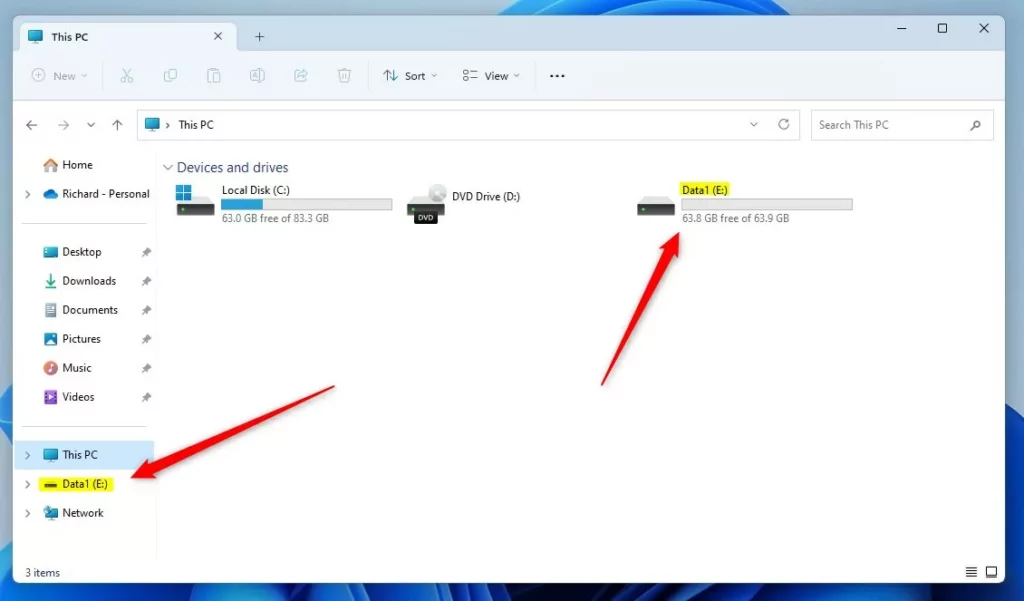
Once formatting is done, the new drive will show up in File Explorer, and you can start saving files on it.
Alternative: Use the Disk Management Tool
If you prefer, you can also initialize your new disk using the older but familiar Disk Management tool:
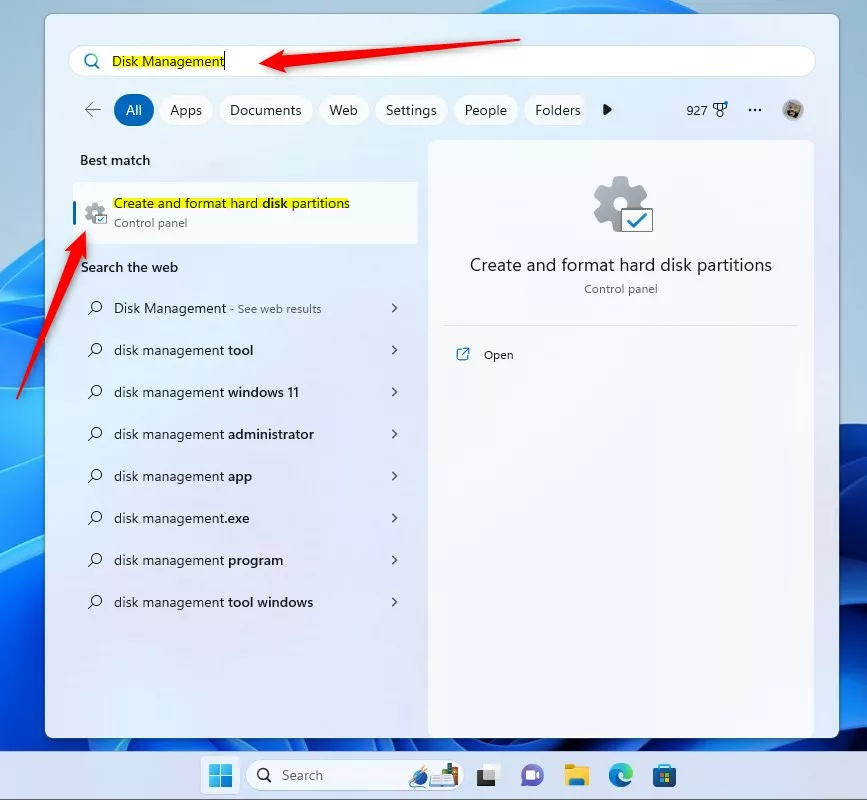
- Click on the search box in the taskbar, type Disk Management.
- Right-click on Disk Management in the results and choose Run as administrator. Click Yes if a confirmation appears.
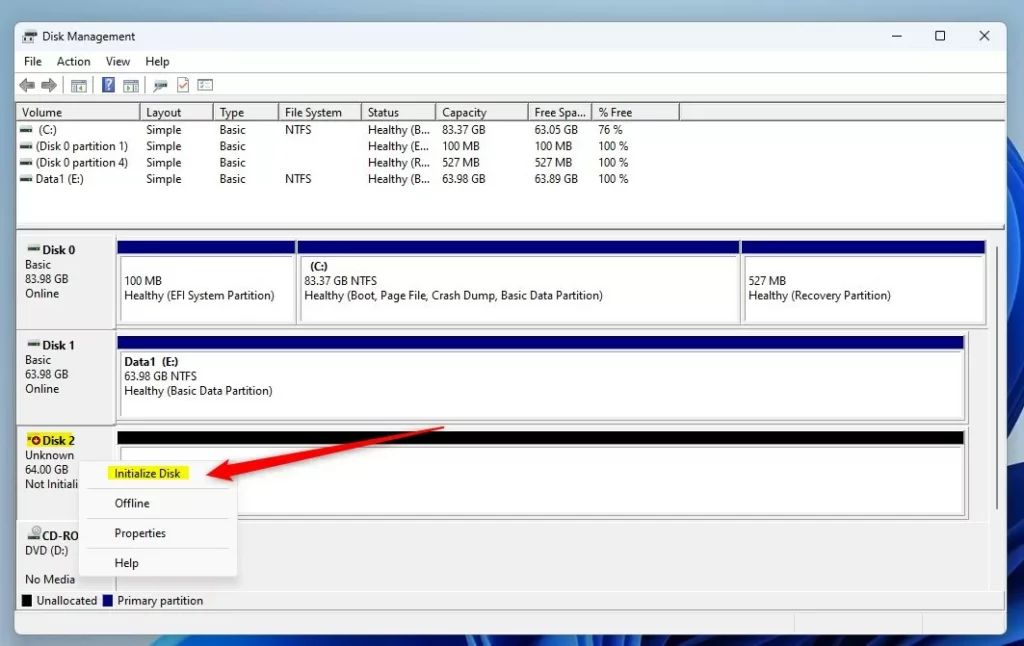
- In Disk Management, find your new disk (marked as Offline or Not initialized).
- Right-click the disk and choose Initialize Disk.
- Select the partition style (GPT or MBR) and click OK.
- Right-click the unallocated space on the disk and choose New Simple Volume.
- Follow the wizard to create and format the partition.
Now your disk should be ready to use in File Explorer!
Summary
- Initializing a new disk gets it ready for storing files in Windows 11.
- You can do this through the Settings app under System > Storage, or by using the Disk Management tool.
- Choose GPT for modern, large disks, or MBR for older setups.
- After initializing, create a volume and format the disk so Windows can use it.
- Be careful: initializing erases all data, so don’t do this on disks that already have important files.
For more details, you can also check Microsoft’s official guide.
That’s it! Now you know how to initialize new disks in Windows 11 easily.

Leave a Reply